Unbox and remove all packing material
Take the HP OfficeJet Pro 8025e out of the box and remove every piece of tape, foam and the cardboard inserts — inside the cartridge/toner area too. Leftover packing is the #1 cause of carriage and jam errors on a brand-new printer.
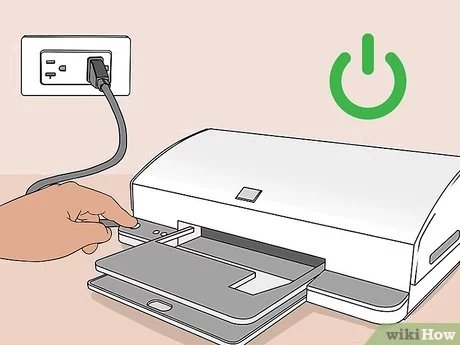
Connect power and turn it on
Plug the power cord into the printer and a wall outlet, then press the power button. Wait for it to finish initializing before going further. (Skip connecting the USB cable for now — only plug it in if the installer asks.)
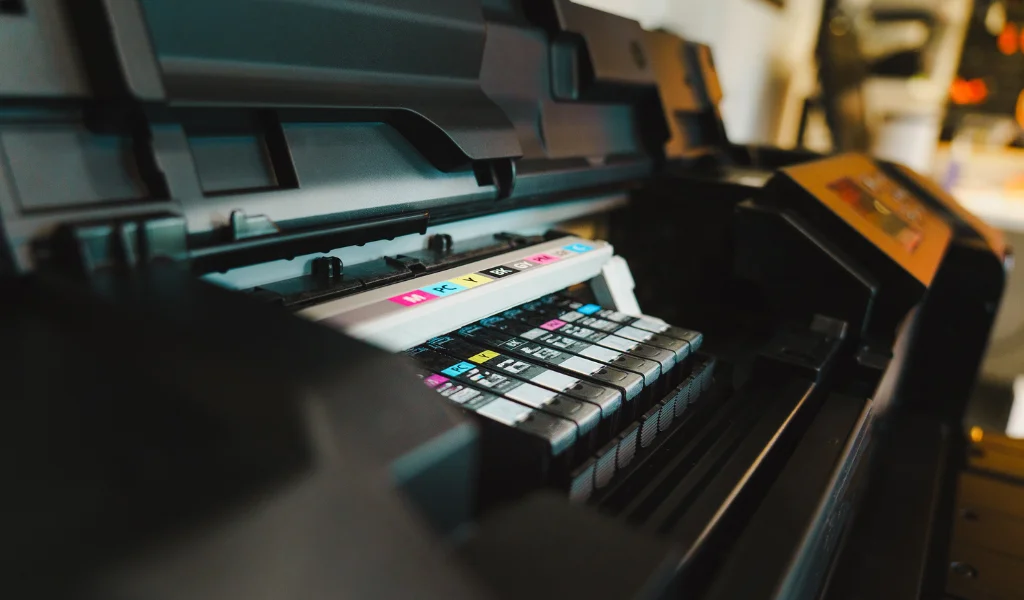
Install the ink cartridges
Open the cartridge door, unwrap each cartridge and remove the protective tape, then push it into the matching slot until it clicks. Close the door and let the printer recognize them.
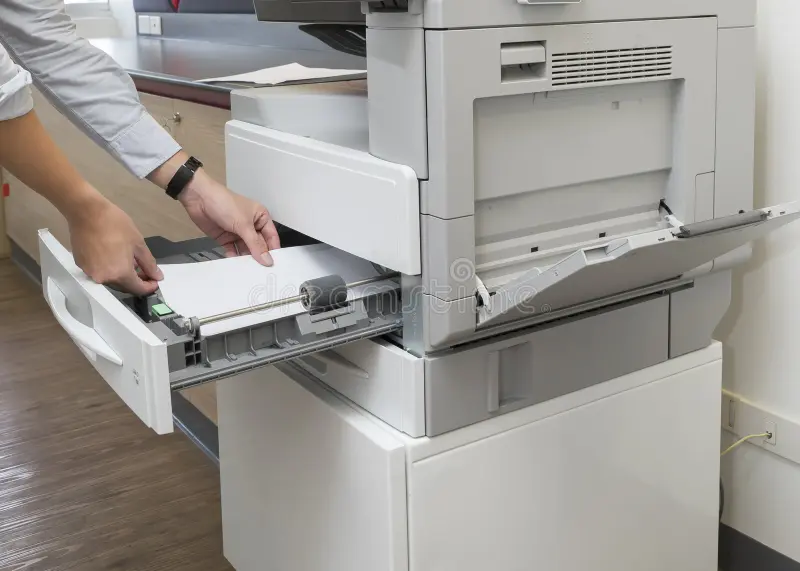
Load paper into the tray
Fan a stack of paper, place it in the input tray, and slide the guides snug against the edges so it feeds straight. Don't overfill past the max line.
Connect to Wi-Fi or your computer
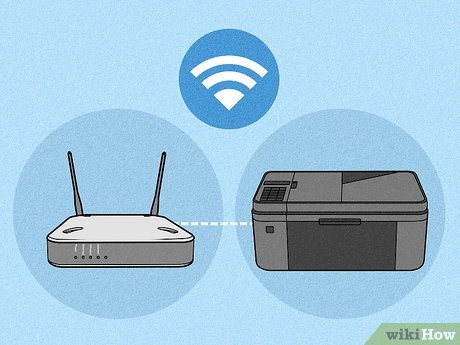
For wireless, use the printer's Wi-Fi Setup Wizard (or the brand app) and join your 2.4GHz network — most home printers don't use 5GHz. For a wired setup, connect Ethernet or USB. Keep the printer near the router while pairing.
Install drivers and the printer software
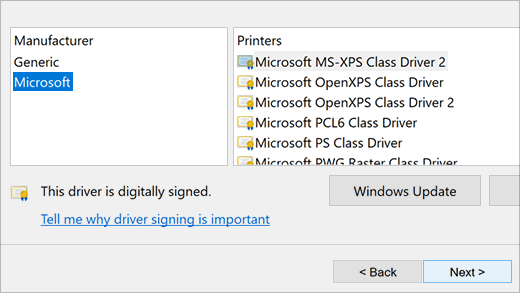
On a computer, install the full driver/software package (not just the basic driver) so printing and scanning both work. Official drivers and the HP Smart app come from hp.com/support and the 123.hp.com setup portal. Always download software for your exact model and operating system. On a phone, install the brand's app to finish setup.
Run initial ink charging and alignment
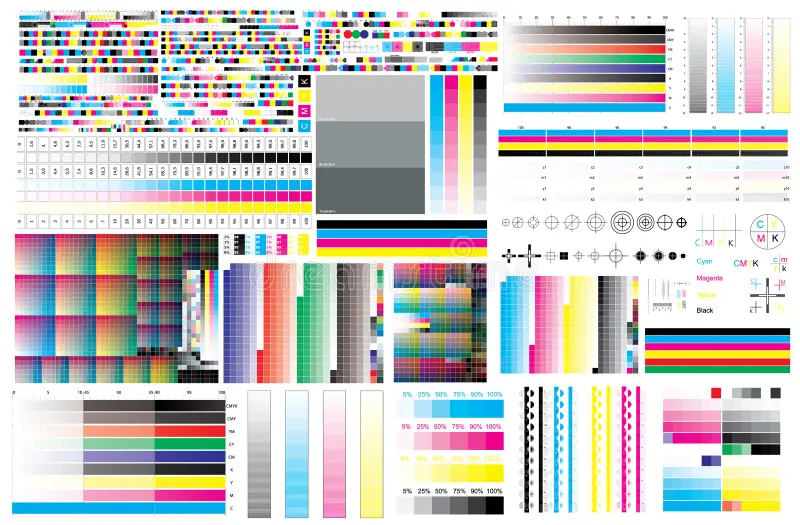
Let the printer run its first-time ink priming, then print the alignment page so text and photos come out sharp.
Print a test page and adjust settings
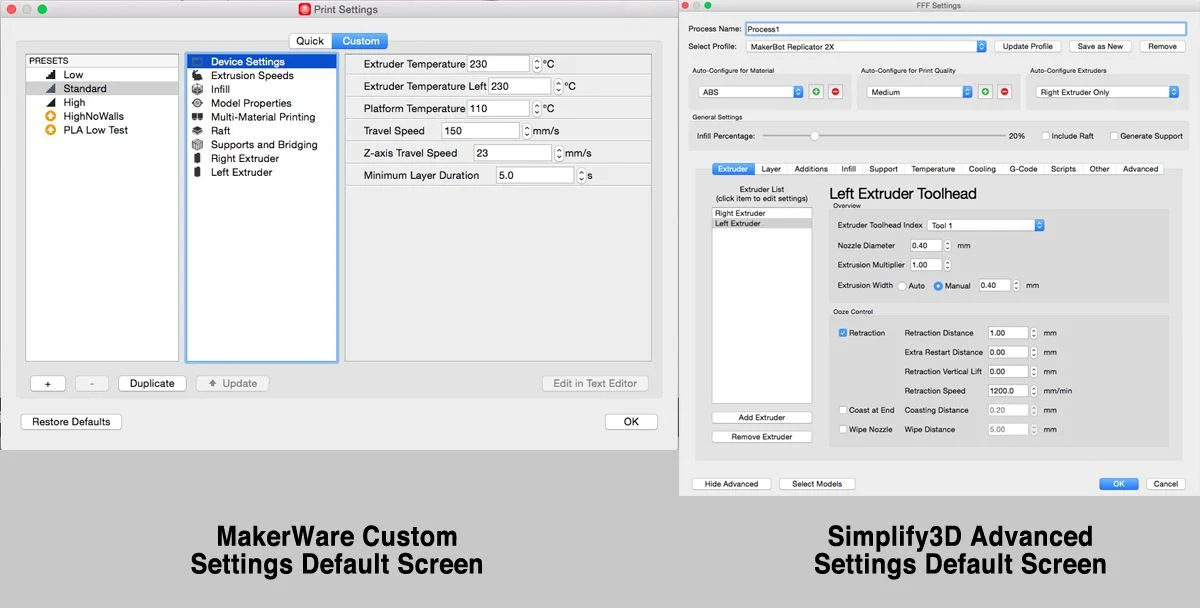
Print a test page to confirm everything works. Then set your defaults — paper size, quality, and turn on two-sided (duplex) printing if you want to save paper.
Troubleshooting this printer
HP printer keeps showing offline
A very common HP issue where the printer reads Offline in Windows/macOS or the HP Smart app despite being on…
HardwareHP "Ink Cartridge Problem" / missing or incompatible
HP reports a problem with one or more cartridges — missing, damaged, counterfeit, or incompatible. Reseating…
PrintingPrint Spooler keeps stopping (Windows)
The Windows Print Spooler service crashes or stops, so nothing prints and you can't open the queue. Corrupt sp…
ConnectivityPrinter not found during wireless setup
The setup app or driver can't discover the printer on your network. Most wireless-setup failures come from ban…