USB Printer Not Detected? How to Get Windows 11 or macOS to See It
A USB printer that does not appear is usually a cable, port or install-order problem. Connecting before the driver is installed causes Windows to claim the device with a generic driver first.

On this page
A USB printer that Windows or macOS will not detect is almost never a broken printer. The three causes that account for nearly all cases are a faulty or overlong cable, a port that cannot supply what the printer needs, and the printer having been connected before its driver was installed. All three are quick to rule out, and the order you test them in matters.
Quick fixes first
- Move the cable to a rear motherboard USB port, not a front panel socket, keyboard port or unpowered hub.
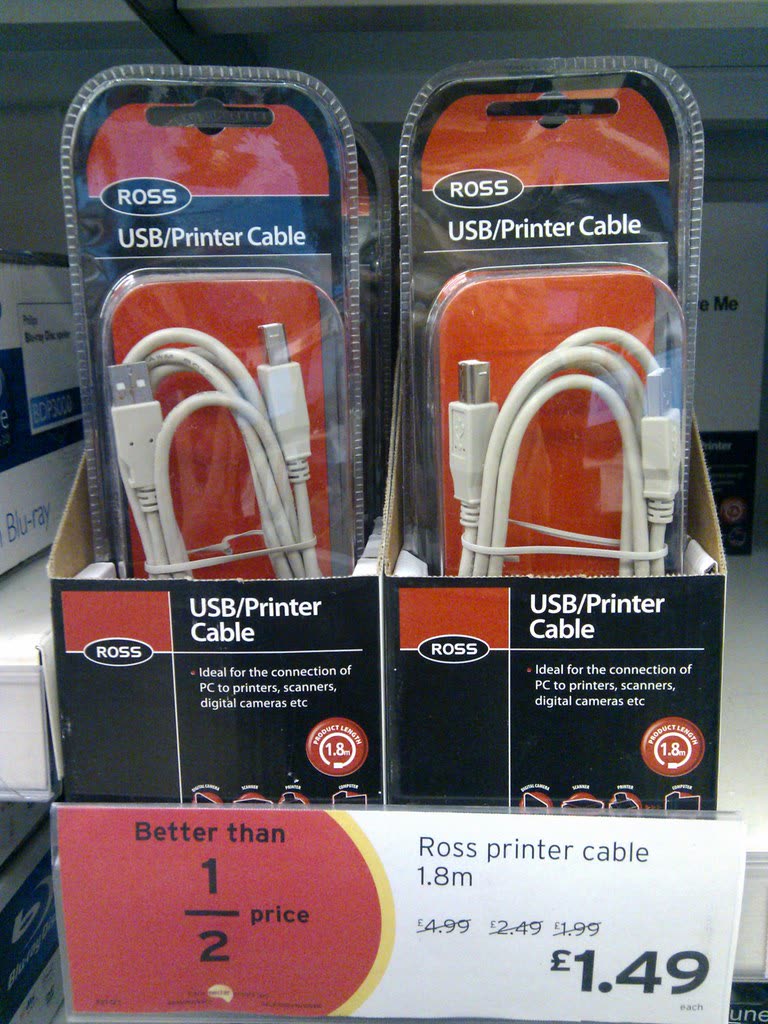
- Try a different, known-good USB cable under two metres long.
- Power the printer off and on with its own button while the cable is connected.
- Open Device Manager (Win+X, then Device Manager) and look for the printer, or for an Unknown device or Other devices entry.
- If the driver was never installed, install it now - then reconnect the cable when the installer asks.
Why this happens

USB detection depends on a short conversation called enumeration: the computer supplies power, the device replies with a descriptor identifying itself, and the operating system loads a matching driver. Anything that disrupts that conversation produces a printer that simply is not there.
Cables are the biggest single culprit, and people discount them because the cable is not doing anything visibly wrong. Printer cables get moved, bent at the connector, and run behind desks. A cable with a partially broken data pair will still pass power - so the printer may power its status light from the port - while failing enumeration entirely. Length matters too: the USB specification allows up to five metres, but cheap cables at that length frequently fail with printers, which draw more current during motor movement than most peripherals.
The second cause is install order. When you plug in an unrecognised printer, Windows detects it, finds a generic class driver, and claims the device. When you then run the vendor installer, it finds a device already bound to another driver and either fails or installs a second, non-functional queue. This is why every printer installer says to wait before connecting.
Third: power management. USB selective suspend cuts power to idle devices, and printers - which sit idle most of the time - are prime candidates. Some models never wake correctly afterwards.
Fix 1: Cable and port, methodically
- Rear ports only. Front panel connectors run through an internal header cable that is often poorly seated and delivers marginal power. Use a port directly on the motherboard's back panel.
- No hubs. Unpowered hubs cannot supply what a printer draws during a paper feed. If you must use a hub, use a powered one.
- Short cable. Under two metres. If your current cable is a five-metre run, that alone can be the answer.
- Different cable. Borrow one rather than assuming. This is the single highest-yield test on the page.
- Check the connector. Printer-end connectors are usually USB-B, the square type with bevelled top corners. Make sure it is fully seated - they need a firm push.
Fix 2: Fix the install order
If the printer was connected before the driver went on, reset the situation:
- Unplug the USB cable.
- Remove the printer at Settings › Bluetooth & devices › Printers & scanners › Remove device, including any duplicates.
- Uninstall the manufacturer's software at Settings › Apps › Installed apps.
- Press Win+R, run
printui /s /t2, and remove the leftover driver and package. - Open Device Manager, tick View › Show hidden devices, and remove any greyed-out entries for the printer under Printers, Print queues or Universal Serial Bus controllers.
- Reboot.
- Run the full vendor installer and connect the USB cable only when it asks you to.
If the installer itself fails partway, work through driver installation fails or rolls back before trying again.
Fix 3: Turn off USB power saving

Two separate settings need changing, and doing only one is why this fix sometimes appears not to work.
Power plan
- Open Control Panel › Hardware and Sound › Power Options.
- Click Change plan settings next to your active plan, then Change advanced power settings.
- Expand USB settings › USB selective suspend setting and set it to Disabled.
Per-device power management
- Open Device Manager and expand Universal Serial Bus controllers.
- Double-click each USB Root Hub and Generic USB Hub entry.
- On the Power Management tab, untick "Allow the computer to turn off this device to save power".
Also check Settings › System › Power & battery and make sure Fast startup is not causing the machine to resume from a saved state without re-enumerating USB devices - on desktops, disabling Fast startup in Control Panel › Power Options › Choose what the power buttons do resolves a recognisable class of "printer gone after every restart" complaints.
Fix 4: Read Device Manager properly
What you see tells you where the break is:
| What Device Manager shows | What it means | Next step |
|---|---|---|
| Nothing changes when you plug in | No electrical connection at all | Cable, port, printer power |
| Unknown USB device (Device Descriptor Request Failed) | Connection but no valid identification | Cable first, then port, then the printer's USB interface |
| Entry under Other devices with a yellow mark | Detected but no driver | Install the vendor driver |
| Printer listed with a warning triangle | Driver present but not loading | Clean removal and reinstall |
| Printer listed normally but no queue | Device fine, print queue missing | Add the printer in Printers & scanners |
To force a fresh look, right-click the entry, choose Uninstall device, tick the option to delete the driver software if offered, then unplug and replug the cable and let Windows redetect.
Fix 5: Add the printer manually
If the device appears in Device Manager but no printer queue exists:
- Go to Settings › Bluetooth & devices › Printers & scanners › Add device.
- Wait, then click Add manually.
- Choose Add a local printer or network printer with manual settings.
- Select the existing USB001 (or similar) virtual printer port.
- Pick your model from the list, or click Have Disk and browse to the .INF file inside the extracted vendor driver folder.
More options in can't add a printer in Windows. If the Print Spooler is unstable, no amount of adding will stick - fix that first via print spooler keeps stopping.
Fix 6: macOS
Connect the printer and open System Settings › Printers & Scanners. A USB printer normally appears automatically; if it does not, click Add Printer and check the Default tab, where USB devices appear with Kind set to USB.
Things specific to Macs:
- Passive USB-C adapters are a frequent culprit on modern MacBooks. Use a powered hub.
- Check System Information › USB (hold Option and choose Apple menu › System Information) to see whether the Mac sees the device electrically at all. If it is not listed there, no software fix will help.
- If the printer appears but will not print, Control-click inside the printer list and choose Reset printing system, then add the printer again.
- On macOS 26 Tahoe, the Local Network permission applies to network printers only - a USB printer does not need it, so do not go looking there for a USB fault.
Brand-specific notes
HP
Run HP Print and Scan Doctor, which checks the USB connection and driver state and repairs both. Note that HP Smart, now also called the HP app, is designed around network setup and may not complete a USB-only install on its own - use the full software from the HP hub.
Canon
Canon's setup will ask you to select USB explicitly rather than defaulting to it. If you ran the wireless path by mistake, re-run setup and choose USB connection when prompted.
Epson
Epson installers are strict about connection order and will wait indefinitely for you to plug in at the right moment. If the installer never detects the printer at that step, the cable or port is at fault, not the software.
Brother
Install the Full Driver and Software Package rather than the basic driver, particularly on an all-in-one - the basic driver prints but leaves the scanner undetected, as covered in scanner not working.
If nothing worked
Test the printer on a second computer with a known-good cable. That single test splits the problem cleanly: if the printer works elsewhere, the fault is in the original computer - a failing USB controller, a corrupt driver store, or spooler damage, all of which are fixable in software or with an inexpensive PCIe USB card. If the printer is not detected on any computer with any cable, its USB interface has failed.
A failed USB port on a printer is a board-level repair. On consumer models the labour alone typically exceeds the price of a comparable new machine, and replacement boards are often unavailable. Before writing the printer off, though, check whether it has network capability - a printer with working Wi-Fi or Ethernet is entirely usable without USB, and switching to a network connection costs nothing. That is by far the most sensible route on any model that supports it.
Repair is worth pricing only on business-class machines, printers under warranty, or ink tank models with substantial ink already inside. If you would like someone to work through the cable, port and driver tests with you before deciding, you can get help from a printer specialist.
Software mentioned in this guide
- Brother Full Driver and Software Package
The complete driver, scanner and utility bundle for a specific Brother model Windows · macOS - Canon IJ Setup (ij.start.canon)
Canon's setup portal that walks you through installing a PIXMA or MAXIFY printer Windows · macOS · iOS - HP Print and Scan Doctor
Free Windows diagnostic tool that finds and fixes common HP printing faults Windows - Windows printer settings
How Windows installs printers, and the shift to driverless Windows Ready Print Windows - macOS Printers and Scanners
Where macOS adds printers, scans documents and resets the printing system macOS
Frequently asked questions
Why is my USB printer not detected in Windows 11?
The three usual causes are a faulty or too-long cable, a port that cannot supply enough power such as a front panel socket or unpowered hub, and the printer being connected before the driver was installed. Try a known-good cable in a rear motherboard port, and install the driver first if you have not already.
Should I install the driver before or after plugging in the printer?
Before, unless the installer explicitly tells you otherwise. If you connect first, Windows detects the device and installs its own generic driver, which then blocks the vendor package from binding correctly. If that has already happened, remove the device and driver package, then reinstall in the right order.
What does Unknown USB device mean for a printer?
Windows detected electrical activity on the port but could not read a valid device descriptor from the printer. That points at the cable, the port or the printer's USB interface rather than the driver. Swap the cable first, then the port, then test the printer on a different computer.
Can USB selective suspend stop my printer working?
Yes. Selective suspend powers down idle USB devices to save energy, and some printers do not wake reliably afterwards, appearing to have disconnected. Disable it in Control Panel, Power Options, advanced settings, under USB settings, and also untick the power management option on the USB hubs in Device Manager.
My USB printer works on another computer. What does that tell me?
That the printer, its USB interface and the cable are all fine, so the fault is on the first computer - a driver problem, a spooler problem, or a failing USB port. Try a different port on that machine first, then do a clean driver removal and reinstall.
Printer and home-networking specialist who has set up hundreds of inkjet and laser printers across Windows and macOS.
Questions & comments (0)
No comments yet. Describe your printer model, operating system and the exact message you see; comments appear after review.
Ask about this page
Your comment appears after our team approves it. Or sign in to post faster.