Printer Won't Connect to Wi-Fi? 10 Fixes That Work (HP, Canon, Epson, Brother)
Nine times out of ten a printer that won't connect to Wi-Fi is trying to join a 5 GHz-only network, isn't in setup mode, or is being hidden by a guest network or VPN. Here is the ordered fix.

On this page
- Quick fixes first
- Why your printer won't connect to Wi-Fi
- Fix 1: Deal with the 2.4 GHz vs 5 GHz problem
- Fix 2: Put the printer into Wi-Fi setup mode
- Fix 3: Get off the guest network, VPN and captive portals
- Fix 4: Connect printer to Wi-Fi without WPS
- Fix 5: Printer won't connect after changing router or ISP
- Fix 6: Router settings that block printers
- Fix 7: Check the printer is actually connected, then add it to the computer
- Brand-specific notes
- If nothing worked
A printer that won't connect to Wi-Fi almost always fails for one of four reasons: the network it is trying to join is 5 GHz only, the printer is not in setup mode when the app looks for it, the password was typed wrong, or your phone or computer is on a guest network, VPN or isolated band so it cannot see the printer. Work through the fixes below in order. They apply to HP, Canon, Epson and Brother printers on Windows 11, macOS, iPhone and Android.
Quick fixes first
- Connect your phone or laptop to the 2.4 GHz network (or stand right next to the router) before you start the printer's wireless setup.
- Put the printer in setup mode. Hold the wireless button until the light flashes blue, or choose Wi-Fi Setup Wizard on the printer screen.
- Turn off any VPN on the phone or PC you are using for setup, and make sure it is on your main home network, not the guest network.
- Restart the router, then the printer, wait two minutes, and retry the setup from the brand app (HP app, Canon PRINT, Epson Smart Panel, Brother Mobile Connect).
- Re-type the Wi-Fi password carefully. Capital letters and the difference between 0 and O cause more failures than anything else.
Why your printer won't connect to Wi-Fi

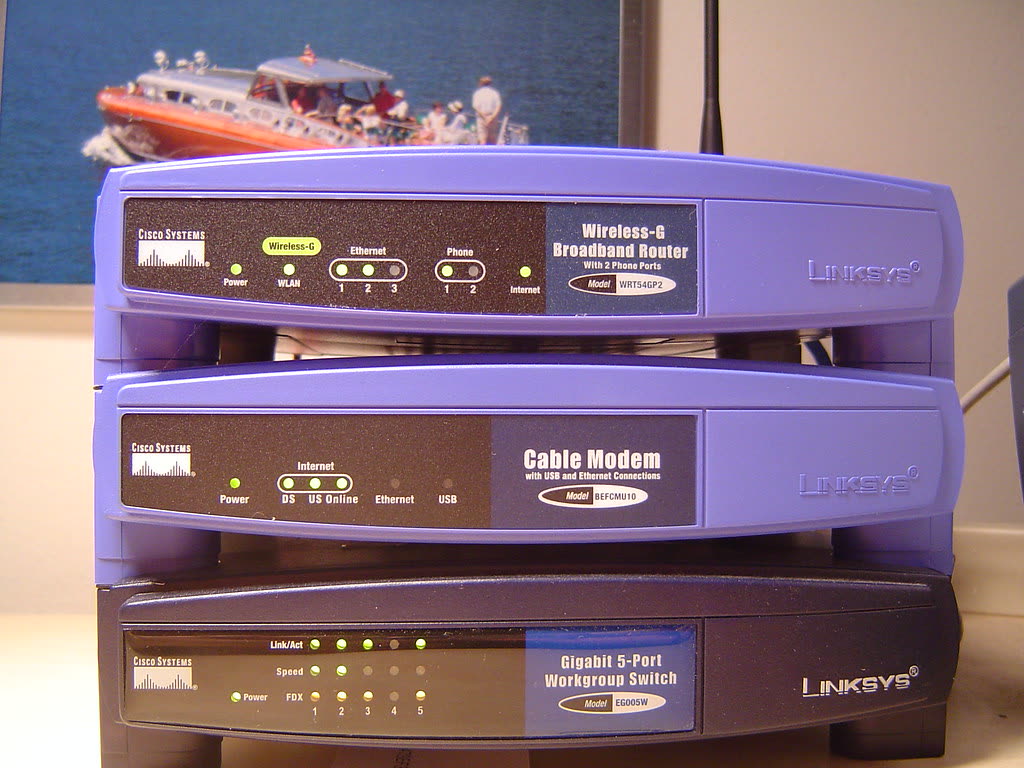
Wireless printers are cheap radios. Most consumer models from HP, Canon, Epson and Brother sold before 2022 have a 2.4 GHz-only adapter, and many current budget models still do. Modern routers from BT, Sky, Virgin Media, Telstra, Optus, Rogers and Bell broadcast one network name across both 2.4 GHz and 5 GHz bands ("band steering"). Your phone sits on 5 GHz, the printer can only see 2.4 GHz, and the setup app cannot bridge the two during discovery. The printer never shows up, or the app times out with "printer not found".
The second big group of failures is discovery. Setup apps find printers using Bluetooth (HP, newer Canon and Epson models) or by listening for the printer's temporary setup network. If the printer stopped broadcasting, or your phone refuses to join a network with no internet, discovery fails. Guest networks and "AP isolation" block client-to-client traffic, which is exactly what printing is. A VPN on the phone routes everything through a tunnel and hides the local network entirely.
Finally, a printer that worked before and suddenly can't find the Wi-Fi network has usually had the network changed underneath it: a new router, a new ISP, a renamed network, or a security change to WPA3-only, which older printers do not support.
Fix 1: Deal with the 2.4 GHz vs 5 GHz problem
Check your printer's spec sheet or the network configuration page (usually Settings › Network › Print Network Configuration). If it lists only 802.11b/g/n, it is 2.4 GHz only. You then have three options:
- Split the bands. Log in to your router and give the 2.4 GHz and 5 GHz networks different names (for example "Home" and "Home-5G"). Join the printer and your setup device to the 2.4 GHz name. BT Smart Hub 2, Sky Broadband Hub, Virgin Hub 3/4/5, Telstra Smart Modem and Rogers Ignite gateways all allow this in their wireless settings, sometimes labelled "Smart Wi-Fi" or "band steering" which you switch off.
- Move close to the router. Band-steering routers push nearby devices to 5 GHz, but if you cannot split the bands, setting the printer up within a metre of the router often works because the printer only ever sees 2.4 GHz anyway. The problem is only discovery from your phone.
- Temporarily disable 5 GHz during setup, then re-enable it. Once the printer has joined the 2.4 GHz band, your phone can go back to 5 GHz; they are the same network and will talk to each other.
Fix 2: Put the printer into Wi-Fi setup mode
A printer only broadcasts for pairing for a limited window (typically two hours after first power-on, then only when you trigger it). The brand-specific ways to restart that window:
- HP: On DeskJet and ENVY models without a screen, press and hold the Wireless button and the Cancel button together for about three to five seconds until the wireless light flashes blue. On touchscreen models open Settings › Network Setup › Restore Network Settings. Then run setup from the HP app (formerly HP Smart).
- Canon PIXMA: Hold the Wireless button until the lamp flashes, then press the Color button; on models with a screen choose Wireless LAN setup › Easy wireless connect. Finish in the Canon PRINT app.
- Epson EcoTank and WorkForce: Use Wi-Fi Setup › Wi-Fi Setup Wizard on the panel, or hold the Wi-Fi button until the lights flash alternately and use Epson Smart Panel.
- Brother: Network › WLAN (Wi-Fi) › Find Network or Setup Wizard on the panel. Laser models without a screen use the Wi-Fi button on the front; hold it for two seconds.
Keep the printer within a few metres of the router during pairing. You can move it back to its usual spot afterwards.
Fix 3: Get off the guest network, VPN and captive portals
Check the Wi-Fi your phone or PC is using. If the name ends in "Guest", or you had to tap through a welcome page to get online (hotels, student accommodation, some office networks), printing will not work from that network. Join both the printer and your device to the main household network. Turn off VPN apps (NordVPN, ExpressVPN, corporate VPN clients) for the duration of setup. On Windows 11 check that the network is set to Private: Settings › Network & internet › Wi-Fi › your network › Network profile type › Private. Public profile blocks printer discovery by design.
Fix 4: Connect printer to Wi-Fi without WPS
WPS push-button pairing is fast but unreliable: many ISP routers have disabled WPS for security, and on Virgin Media and some Telstra modems the button is hidden in the app. If "connect printer to Wi-Fi without WPS" is your goal, use the Wi-Fi Setup Wizard on the printer's own screen. It scans for networks, you pick yours and type the password on the panel. On screenless printers use the brand app over Bluetooth or USB instead:
- Install the brand app on your phone and allow Bluetooth and Local Network permissions when asked.
- Put the printer in setup mode (Fix 2).
- In the app choose Add printer. It should discover the printer within a minute and ask for your Wi-Fi password.
- If it fails, plug the printer into a Windows PC or Mac by USB and run the manufacturer's installer; it can push the Wi-Fi settings across the cable (HP Easy Start, Canon IJ Setup, Brother's installer and Epson's setup all support this).
Fix 5: Printer won't connect after changing router or ISP

A printer stores exactly one network. If the name or password changed, it keeps trying the old one and fails silently. Reset the printer's network settings (HP: Restore Network Settings; Canon: LAN settings › Reset LAN settings; Epson: Restore Default Settings › Network Settings; Brother: Initial Setup › Reset › Network Reset) and run setup from scratch. If you simply copied the old network name and password to the new router, the printer may still fail because the new router defaults to WPA3 or a 5 GHz-preferred mode. Set security to WPA2/WPA3 mixed mode, not WPA3-only.
Fix 6: Router settings that block printers
| Setting | What it does | What to set |
|---|---|---|
| AP isolation / client isolation | Stops devices talking to each other | Off on the main network |
| Band steering / Smart Wi-Fi | Merges 2.4 and 5 GHz under one name | Off during setup, or split names |
| Security mode | WPA3-only rejects older printers | WPA2/WPA3 mixed |
| MAC filtering | Allows only listed devices | Add the printer's MAC from its network page |
| Channel width (2.4 GHz) | 40 MHz confuses some printers | 20 MHz |
| DHCP lease / reservation | Printer IP changes | Reserve a fixed IP for the printer |
Fix 7: Check the printer is actually connected, then add it to the computer
Print the network configuration page from the printer. If it shows an IP address like 192.168.x.x or 10.x.x.x, the printer is on Wi-Fi and the remaining problem is on the computer side, which is a different guide: printer not found during wireless setup. If the IP is 169.254.x.x or blank, the printer did not get an address from the router; repeat Fix 2 and Fix 5. To add a connected printer on Windows 11 go to Settings › Bluetooth & devices › Printers & scanners › Add device; if it does not appear, choose "Add manually" and use the IP address. On a Mac use System Settings › Printers & Scanners › Add Printer, Scanner or Fax. On macOS Sequoia and Tahoe also check System Settings › Privacy & Security › Local Network and make sure the brand app is allowed, or it cannot see the printer at all.
Brand-specific notes
HP
Run HP Print and Scan Doctor on Windows; its Network tab diagnoses band and firewall problems. HP+ printers need an internet connection and an HP account during initial setup, so a captive-portal network will fail even if the printer joins it.
Canon
PIXMA models remember only one network and are sensitive to 40 MHz channel width. If Easy wireless connect times out, use the cable method via Canon IJ Setup on a PC. See also Canon printer won't connect.
Epson
EcoTank models default to a two-minute setup window; if the panel shows "Wi-Fi Setup Wizard" greyed out, the printer is still in a previous Wi-Fi Direct session. Turn Wi-Fi Direct off first. Epson Software Updater on a PC can also push network settings over USB.
Brother
Brother laser printers report TS-xx codes when Wi-Fi setup fails: TS-02 means the access point was not found (wrong band or hidden SSID), TS-05 and TS-06 mean the password or security type is wrong. Fix the router setting the code points to, then retry the Setup Wizard.
If nothing worked
If the printer's own Wi-Fi Setup Wizard cannot see any networks while your phone sees them clearly from the same spot, the wireless module has probably failed. That is a board-level repair which costs more than a replacement for anything under a few hundred dollars or pounds; an Ethernet cable or USB connection is the practical fallback. If the printer sees the network but refuses the password every time, the fault is almost always on the router side and a 20-minute session with someone who can read your router's settings is faster than another evening of retries. You can get help from a printer specialist who will walk through the router and printer with you remotely.
Software mentioned in this guide
- Brother Mobile Connect
Brother's current mobile app for setup, printing, scanning and supplies iOS · Android - Canon PRINT
Canon's single mobile app for printing, scanning and printer setup iOS · Android - Epson Smart Panel
Epson's current mobile app for setup, printing, scanning and ink levels iOS · Android - HP Print and Scan Doctor
Free Windows diagnostic tool that finds and fixes common HP printing faults Windows - HP Smart (the HP app)
HP's official setup, printing, scanning and ink app for home and small-office printers Windows · macOS · iOS
Frequently asked questions
Why won't my printer connect to my Wi-Fi even though the password is correct?
The most common reason is that the printer only supports 2.4 GHz and the router is steering it to a 5 GHz-only name, or the router is set to WPA3-only security. Split the bands or set security to WPA2/WPA3 mixed mode, then retry. Network names with apostrophes or emoji can also break older printer firmware.
Do printers work on 5 GHz Wi-Fi?
Some do. Most HP OfficeJet Pro, Epson WorkForce Pro and newer Brother models have dual-band adapters; most DeskJet, ENVY, PIXMA and EcoTank home models are 2.4 GHz only. Check the spec sheet for 802.11ac or 'dual-band'. When in doubt, set up on 2.4 GHz; the two bands are the same network, so your 5 GHz laptop will still print.
How do I get my printer to recognise my Wi-Fi after changing router?
Reset the printer's network settings so it forgets the old router, put it in setup mode, then run the brand app's add-printer flow again with the new network name and password. If you reused the old name and password, also check the new router is not WPA3-only or band-steering.
How do I connect a printer to Wi-Fi without WPS?
Use the Wi-Fi Setup Wizard on the printer's screen and type the password directly, or use the brand app (HP app, Canon PRINT, Epson Smart Panel, Brother Mobile Connect) over Bluetooth. A USB cable to a computer running the manufacturer's installer also works and is the most reliable method for screenless printers.
Why does my printer say it is connected to Wi-Fi but my computer can't find it?
The printer and computer are on different networks or bands that cannot see each other: a guest network, a VPN on the computer, a Public network profile in Windows, or AP isolation on the router. Put both on the main network, set the Windows profile to Private, and disable the VPN. On macOS Sequoia and Tahoe also allow Local Network access for the printer app.
Should I use Wi-Fi Direct instead?
Wi-Fi Direct is a good temporary workaround for a single device: your phone joins the printer's own DIRECT-xx network and prints without a router. It is not a substitute for a proper connection because your device loses normal Wi-Fi internet while joined. Use it to print an urgent document, then fix the router issue.
IT support veteran who breaks down messy printer problems into simple, ordered fixes.
Questions & comments (0)
No comments yet. Describe your printer model, operating system and the exact message you see; comments appear after review.
Ask about this page
Your comment appears after our team approves it. Or sign in to post faster.