Wi-Fi Direct Printing: How to Set It Up and Print Without a Router (HP, Canon, Epson, Brother)
Wi-Fi Direct turns the printer into its own hotspot so a phone or laptop can print with no router at all. Here is how to enable it, find the password and connect on every major brand, plus its limits.
On this page
Wi-Fi Direct printing lets a phone, tablet or laptop connect straight to the printer over the printer's own private Wi-Fi network, so you can print without a router, without internet and without the printer ever joining your home network. You enable Wi-Fi Direct on the printer, join the network named DIRECT-xx-something from your device's Wi-Fi list with the password shown on the printer, and print as normal. This guide covers setup on HP, Canon, Epson and Brother printers, the catches, and when it is the right tool.
Quick setup
- On the printer, turn on Wi-Fi Direct (HP calls it Wi-Fi Direct or Wireless Direct; Canon, Epson and Brother call it Wi-Fi Direct).
- Note the network name (starts with DIRECT-) and the password from the printer screen or the printed Wi-Fi Direct report.
- On your phone or laptop, open Wi-Fi settings and join that DIRECT- network, entering the password.
- Print: iPhone Share › Print; Android menu › Print; Windows or Mac add the printer if it is not already listed.
- When finished, reconnect your device to its normal Wi-Fi.
How Wi-Fi Direct works

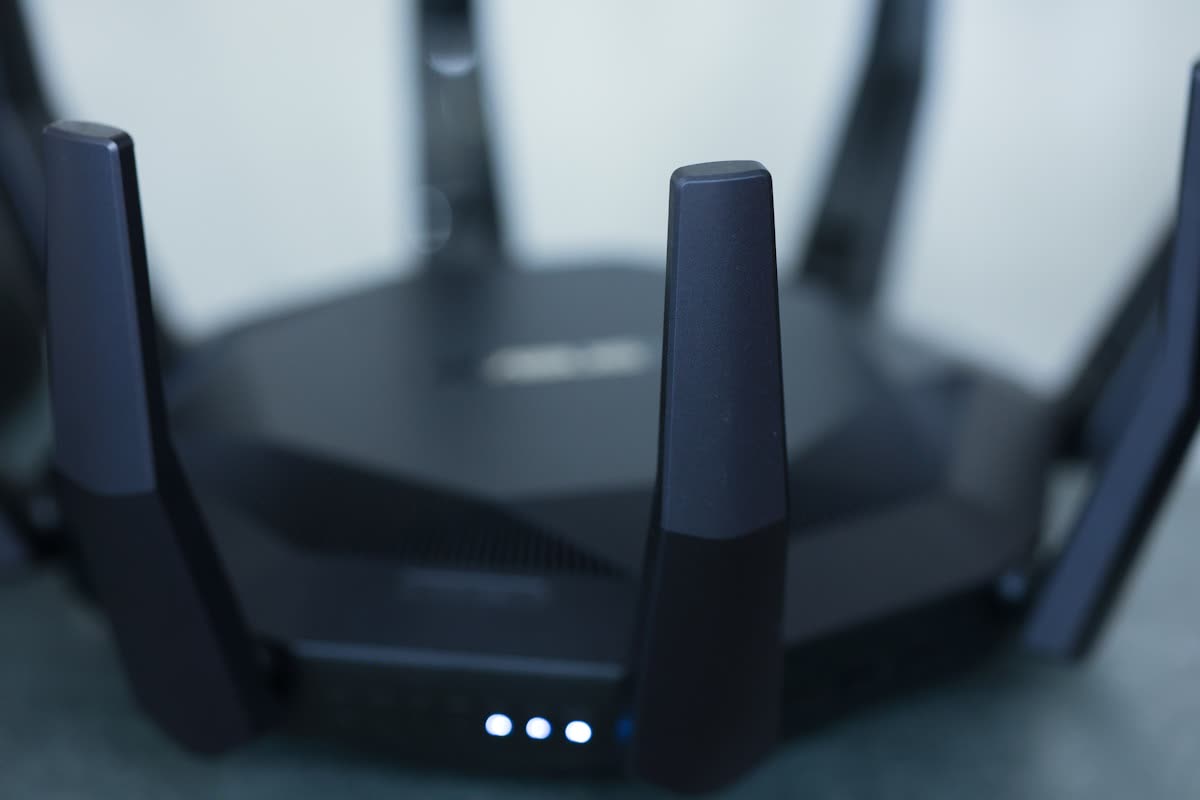
A Wi-Fi Direct printer runs a small access point of its own, separate from any router. Your device sees it as an ordinary network with WPA2 security. Because traffic goes directly between device and printer, nothing else on your home network is involved, which is why it works in hotels, at events, in a shed with no signal, or when the router has died. The printer can be joined to your home Wi-Fi at the same time; the two networks run side by side and do not interfere. The trade-off is that your device can normally hold one Wi-Fi connection: while it is joined to the printer, it has no Wi-Fi internet unless it falls back to mobile data (phones) or has a second adapter (some laptops). Windows 11 and most Android phones can keep mobile data or Ethernet for internet while printing over Wi-Fi Direct, so in practice this matters mostly on iPhones and Macs.
Wi-Fi Direct is not the same as Bluetooth (which modern printers use only for setup), nor the same as the printer's infrastructure Wi-Fi connection. Up to five devices can usually be connected at once.
Enable Wi-Fi Direct by brand
HP
Touchscreen models: tap the Wi-Fi Direct icon at the top of the home screen or go to Settings › Network Setup › Wi-Fi Direct, turn it On, and choose Connection Method Manual (asks for the password) or Automatic (no password, not recommended). The password is displayed under Wi-Fi Direct details. On screenless DeskJet and ENVY models, press the Information button (the i icon) to print a report listing the Wi-Fi Direct name and password, or hold the Wi-Fi Direct button for three seconds to toggle it. The HP app can also connect over Wi-Fi Direct for setup and printing.
Canon
PIXMA with a screen: Setup › Device settings › LAN settings › Wi-Fi Direct › Enable/disable Wi-Fi Direct › Yes. Then Wi-Fi Direct › Show setting info to see the network name and password, or Change password to set your own. On basic models, hold the Wireless button until the lamp flashes and use the Canon PRINT app, which handles the connection. Canon's default Wi-Fi Direct name is DIRECT-xxxx-model.
Epson
Home › Wi-Fi Direct (or Settings › Network Settings › Wi-Fi Direct Setup) › Start Setup, then Other Methods › Other OS Devices to see the SSID and password. EcoTank and WorkForce screens show a QR code that iPhones and Android phones can scan to join. Epson calls the simple mode "Simple AP" in older manuals.
Brother
Settings › Network › Wi-Fi Direct › Manual (or Push Button if your device supports WPS-style pairing). Choose Manual, and the screen displays the SSID and password. On screenless HL laser models, use Brother Mobile Connect, which can set up Wi-Fi Direct over the USB or Bluetooth setup path, or print the WLAN report from the panel. Brother's web page (Network › Wireless › Wi-Fi Direct) lets you set the name and password from a browser.
Connect and print from each device
iPhone and iPad
Settings › Wi-Fi › tap the DIRECT- network › enter the password. iOS may warn "No Internet Connection"; that is expected. Open the document, Share › Print, and the printer appears as an AirPrint printer. When done, switch back to your home Wi-Fi or iOS will stay on the printer network.
Android
Settings › Wi-Fi › join the DIRECT- network. Android asks whether to stay connected without internet; choose Yes or Keep connection. Mobile data keeps working for the internet. Print via menu › Print; the Default Print Service or Mopria finds the printer. Some Android phones also support connecting through Settings › Wi-Fi › Wi-Fi Direct directly, but joining it as a normal network is more reliable. See print from your phone for the print dialog steps.
Windows 11 and 10
Click the Wi-Fi icon in the taskbar, join the DIRECT- network with the password. Then go to Settings › Bluetooth & devices › Printers & scanners › Add device. Windows lists the printer within a minute and uses the built-in IPP Class Driver; choose "Add manually" and the printer's Wi-Fi Direct IP address (usually 192.168.223.1 for HP, 192.168.100.1 or similar for others; it is shown on the printer) if discovery stalls. A laptop on Ethernet keeps internet while connected to the printer by Wi-Fi.
macOS
Join the DIRECT- network from the Wi-Fi menu, then System Settings › Printers & Scanners › Add Printer, Scanner or Fax; the printer appears as an AirPrint device. On macOS Sequoia and Tahoe, if it does not appear, check the Local Network permission for the app under System Settings › Privacy & Security. The Mac has no internet over Wi-Fi while connected.
Chromebook
Join the DIRECT- network from the quick settings panel, then Settings › Print and scan › Printers › Save the printer when it appears.
When to use Wi-Fi Direct (and when not to)

| Situation | Wi-Fi Direct? | Better option |
|---|---|---|
| Guest wants to print one document | Yes | |
| Hotel, student hall, captive-portal Wi-Fi | Yes, it is the only way | |
| Home router down or being replaced | Yes, temporarily | Fix the router, then normal Wi-Fi |
| Printer will not join home Wi-Fi | Stop-gap only | Fix the Wi-Fi connection |
| Everyday printing for a household | No | Join the printer to the router; use a reserved IP |
| Office with several users | No | Ethernet or infrastructure Wi-Fi |
| Market stall, exhibition, van | Yes | A travel router if several devices need internet too |
Problems and fixes
- Cannot see the DIRECT- network. Wi-Fi Direct is off, or the printer is asleep. Wake it and check the setting. HP models show a Wi-Fi Direct icon on the home screen when it is on.
- Password rejected. Passwords are case-sensitive and often eight characters of mixed digits and letters; print the report rather than reading the screen. Some HP defaults are 12345678 in Automatic mode.
- Connected but the printer does not appear. Give it 30 seconds for discovery; on Windows add it manually by the Wi-Fi Direct IP address. On iPhone, check Local Network permission.
- Phone keeps jumping back to home Wi-Fi. Android's "switch to better network" or iPhone Auto-Join on the home network takes over. Temporarily turn off Auto-Join for the home network while you print.
- Printing is slow. Wi-Fi Direct runs at 2.4 GHz with modest bandwidth; big photo jobs take longer than over a router. Normal.
- Two printers with the same DIRECT name. Rename one in its Wi-Fi Direct settings.
Security
A printer with Wi-Fi Direct on and the default password is a network anyone within range can join, and from there they can print, read the device's web page and, on some models, reach the scanner. Set your own password, use Manual (password-required) connection mode rather than Automatic, and turn Wi-Fi Direct off when you do not need it. Office printers should have it disabled by policy. Our printer security basics guide covers the rest.
If nothing worked
If the printer will not broadcast a Wi-Fi Direct network even after a network settings reset, or a device connects but nothing prints over it while the same device prints fine over the router, the printer's wireless module or firmware is at fault; a firmware update from USB or the brand app sometimes fixes it, and on an older printer a USB cable is the pragmatic workaround. If you need it working for an event tomorrow, you can get help from a printer specialist who will walk through the printer and device settings with you live.
Software mentioned in this guide
- Brother Mobile Connect
Brother's current mobile app for setup, printing, scanning and supplies iOS · Android - Canon PRINT
Canon's single mobile app for printing, scanning and printer setup iOS · Android - Epson Smart Panel
Epson's current mobile app for setup, printing, scanning and ink levels iOS · Android - HP Smart (the HP app)
HP's official setup, printing, scanning and ink app for home and small-office printers Windows · macOS · iOS - Mopria Print Service
Cross-brand driverless printing and scanning for Android Android
Frequently asked questions
What is Wi-Fi Direct on a printer?
It is a mode where the printer broadcasts its own small Wi-Fi network, named DIRECT-xx-model, so a phone or laptop can connect to it directly and print without a router or internet. It runs alongside the printer's normal Wi-Fi connection and supports up to about five devices at once.
How do I find my printer's Wi-Fi Direct password?
On a touchscreen printer open the Wi-Fi Direct settings (HP: Wi-Fi Direct icon › Details; Canon: Wi-Fi Direct › Show setting info; Epson: Wi-Fi Direct › Other Methods; Brother: Network › Wi-Fi Direct › Manual). Screenless printers print it on the network or Wi-Fi Direct report, usually via the Information or Wi-Fi button.
Can I print with Wi-Fi Direct and still have internet?
On Android and Windows, yes: the phone uses mobile data and a PC can use Ethernet while Wi-Fi is on the printer. iPhones and Macs normally hold one Wi-Fi connection, so they lose Wi-Fi internet until you switch back, though an iPhone can still use cellular data.
Is Wi-Fi Direct the same as AirPrint?
No. Wi-Fi Direct is the network connection between your device and the printer; AirPrint (and Mopria on Android) is the printing protocol that runs over any network, including a Wi-Fi Direct one. An iPhone connected by Wi-Fi Direct still prints using AirPrint.
Should I leave Wi-Fi Direct turned on?
Only if you use it regularly, and then with your own password in Manual mode. Left on with the default password it is an open network that anyone nearby can join to print or access the printer's settings page. Turn it off in an office or shared building.
Does Wi-Fi Direct work if my printer is not connected to Wi-Fi at all?
Yes. That is its main purpose. The printer does not need to be on any router; it creates its own network. It is the way to print in a hotel, a hall of residence, or anywhere you cannot or do not want to join the printer to the local network.
Questions & comments (0)
No comments yet. Describe your printer model, operating system and the exact message you see; comments appear after review.
Ask about this page
Your comment appears after our team approves it. Or sign in to post faster.