How to Find Your Printer's IP Address (and MAC Address) on Any Device
Your printer's IP address is on its own screen or network page, in Windows or macOS, and in your router. Here is every method, plus the MAC address and what a 169.254 address means.

On this page
- Fastest ways to find it
- Check the printer's own screen or print a network page
- How do I find my printer's IP address in Windows 11?
- How do I find a printer's IP address on a Mac?
- Router, phone and Chromebook methods
- What does a 169.254 address mean? IPv4 vs IPv6
- How to find your printer's MAC address
- What to do with the address once you have it
The quickest way to find your printer's IP address is on the printer itself: open the Wi-Fi or network menu on its screen, or print a network configuration page. You can also find it in Windows 11 printer properties under the Ports tab, on a Mac with the lpstat -v Terminal command, or in your router's list of connected devices.
Fastest ways to find it
- Printer screen: tap the Wi-Fi or network icon and look for IP Address or IPv4 Address.
- Network configuration page: print it from the printer's reports or network menu. It lists the IP address, MAC address and signal strength on one sheet.
- Router app: open your internet provider's app and look for the printer in the list of connected devices.
- Windows 11: printer properties › Ports tab, or run
Get-PrinterPortin PowerShell. - Mac: run
lpstat -vin Terminal.
An IP address looks like four numbers separated by dots, for example 192.168.1.45 or 10.0.0.23. If the number you find starts with 169.254, stop there: the printer does not have a working network connection, which is explained further down.
Check the printer's own screen or print a network page

The printer is the most reliable source, because it reports the address it is using right now, not one a computer remembers from last month. Menu labels vary by model, so treat these as the usual routes.
| Brand | Models with a screen | Models without a screen (typical) |
|---|---|---|
| HP | Tap the Wireless icon for a summary, or go to Settings › Reports › Network Configuration Page | Many DeskJet and ENVY models print it when you press the Information and Wireless buttons together |
| Canon | Setup › Device settings › LAN settings, then view or print the LAN details | Press the Information button if there is one; older PIXMA models use a held Stop button, so check the manual |
| Epson | Settings › General Settings › Network Settings › Network Status, then print the status sheet | Most models print a network status sheet from the Wi-Fi or network button; the press-and-hold combination varies by model |
| Brother | Menu or Settings › Print Reports › Network Configuration | Many lasers print a settings page, including network details, when you press Go three times quickly |
On the printed page, look for IP Address or IPv4 Address in the wireless or Wi-Fi section. If the printer is also plugged in by Ethernet, read the section for the connection you actually use, because the wired and wireless connections can have different addresses.
How do I find my printer's IP address in Windows 11?
Printer properties
- Open Settings › Bluetooth & devices › Printers & scanners and click your printer.
- Click Printer properties and open the Ports tab.
- Find the port with a check mark. If it is a Standard TCP/IP port, its name usually contains the IP address; select it and click Configure Port to see the exact Printer Name or IP Address.
If the checked port starts with WSD, Windows found the printer through Web Services for Devices, and the port name is a code rather than an address. Open Hardware properties from the same printer page instead; for these printers it often includes a Web Services tab that lists the IP address. A WSD port is also a common reason a printer shows offline after its address changes, which our guide to printer offline in Windows 11 explains.
PowerShell
For a list of every printer at once, right-click Start, choose Terminal, and run:
Get-Printer | Format-Table Name, PortName
That shows which port each printer uses. Then run:
Get-PrinterPort | Format-Table Name, PrinterHostAddress
The PrinterHostAddress column shows the IP address for each TCP/IP port. WSD and USB ports leave it blank, which tells you that printer was not set up by address.
How do I find a printer's IP address on a Mac?
Open System Settings › Printers & Scanners, click the printer, then click Options & Supplies. On many network printers the General tab has a Show Printer Webpage button, and the address bar of the page it opens shows the IP.
For a direct answer, open Terminal from Applications › Utilities and run lpstat -v. It lists every printer on the Mac with its device address:
ipp://orsocket://followed by four dotted numbers means the printer was added by address, and those numbers are the IP.dnssd://followed by a name means the Mac found it through AirPrint discovery. That name does not contain the IP, so use the printer's own screen or your router instead.usb://means the printer is connected by cable and has no network address on this Mac.
More on adding and re-adding printers on macOS is in our guide to connecting a printer to a Mac.
Router, phone and Chromebook methods

Your router or internet provider's app
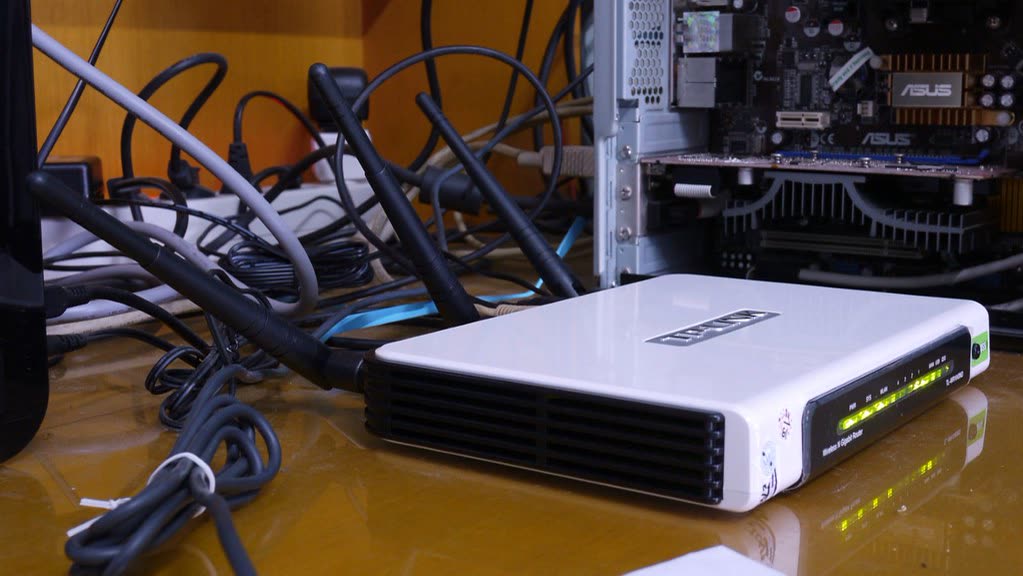
Every router keeps a list of the devices it has given addresses to, usually called connected devices, attached devices or the DHCP client list. Printers normally appear under their model name, or a code that includes the brand, such as HP followed by letters and numbers. In the US, the Xfinity, Spectrum, AT&T, Verizon Fios and T-Mobile Internet apps all show connected devices, although the menu names change with app updates. You can also sign in to the router's admin page in a browser; our US router guide covers where each provider keeps it.
Phone brand apps
The HP app, Canon PRINT, Epson Smart Panel and Brother Mobile Connect each have a printer information or settings screen that usually lists the IP address, as long as the phone is on the same network as the printer. Printing from an iPhone with AirPrint never shows the address, so the app or the router is the better route on a phone.
Chromebook
Open Settings, search for "printers", click the three dots next to a saved printer and choose Edit. Printers added manually show their address there, while ones found automatically may show a name instead. Our guide to printing from a Chromebook covers fixing a saved printer whose address has changed.
What does a 169.254 address mean? IPv4 vs IPv6
An address beginning 169.254 is one the printer gave itself after asking the router for an address and getting no reply. It is called a self-assigned or link-local address, and nothing on your network can print to it. The usual causes are a printer that has lost its Wi-Fi connection, a changed Wi-Fi password, or a router whose DHCP service is off or out of addresses. Rejoin the printer to Wi-Fi with our guide to a printer that won't connect to Wi-Fi, then check the address again. The one time 169.254 is expected is when the printer is cabled straight into a computer with no router in between.
You may also see a much longer address full of colons, letters and numbers, often starting with fe80::. That is an IPv6 address. Most printers have one alongside their normal IPv4 address, and the ones starting fe80 only work on your local network. For adding printers, router reservations and typing into a browser, use the IPv4 address with four dotted numbers. It is simpler and works with everything.
How to find your printer's MAC address

A MAC address is the hardware ID of the printer's network adapter: twelve characters made up of the digits 0 to 9 and the letters A to F, usually written in pairs such as A0:B1:C2:D3:E4:F5. Unlike the IP address, it does not change, which is why routers use it to recognize the printer. You need it for two jobs: a DHCP reservation, which pins an IP address to the printer, and MAC filtering, if your router only lets listed devices join.
Where to find it:
- The network configuration page, labeled MAC Address or Hardware Address. This is the most reliable source.
- The printer's screen, in the same Wi-Fi or network status screen as the IP address.
- The router's device list, next to the printer's name and IP address.
- Windows: in Terminal, run
pingfollowed by the printer's IP address, then runarp -a. The physical address listed next to that IP is the printer's MAC. - A label on the back of or inside the printer, on some models.
A printer with both Wi-Fi and Ethernet has a different MAC address for each, and Wi-Fi Direct may use a third. Match the MAC to the connection the printer actually uses, or the reservation will never take effect. Phones and laptops often use private, randomized MAC addresses on Wi-Fi, but printers almost always use their fixed hardware address, so the one on the printout is the one your router sees.
What to do with the address once you have it
Open the printer's built-in web page
Type the IP address into a browser on a computer on the same network, for example http://192.168.1.45. You will reach the printer's embedded web server, where you can check ink or toner, change network and sleep settings, update firmware and set an admin password. A browser warning about the security certificate is normal for a printer on your own network. If the page asks for a password you never set, it is often printed on a label on the printer; read printer security basics before changing anything.
Reserve the address so it stops changing
Routers lend addresses rather than assigning them for good, and a printer can come back from a power cut with a new one. Computers that stored the old address then show the printer as offline. A DHCP reservation in the router pairs the printer's MAC address with a fixed IP so it gets the same one every time. Look for Reserved IP, DHCP Reservation or Address Reservation in the router's app or admin page, then restart the printer and print the configuration page to confirm. The full procedure, and the matching change in Windows, is in printer keeps going offline.
Setting a static address on the printer's own panel also works, but choose an address outside the router's DHCP range. For most homes a reservation is the safer choice.
Add the printer by address
With the IP address in hand, you can add the printer directly when automatic discovery fails. In Windows 11, use Add manually › Add a printer using an IP address or hostname; the details are in can't add a printer in Windows 11.
If you would rather have someone find the address, set the reservation and re-add the printer on every device with you, our remote printer support plan is independent of the printer brands and covers every printer in your home or office.
Software mentioned in this guide
- Brother Mobile Connect
Brother's current mobile app for setup, printing, scanning and supplies iOS · Android - ChromeOS printing
How Chromebooks add printers and scanners without drivers ChromeOS - Epson Smart Panel
Epson's current mobile app for setup, printing, scanning and ink levels iOS · Android - HP Smart (the HP app)
HP's official setup, printing, scanning and ink app for home and small-office printers Windows · macOS · iOS - Windows printer settings
How Windows installs printers, and the shift to driverless Windows Ready Print Windows - macOS Printers and Scanners
Where macOS adds printers, scans documents and resets the printing system macOS
Frequently asked questions
How do I find my printer's IP address without a computer?
Use the printer itself. On models with a screen, tap the Wi-Fi or network icon to see the address, or print a network configuration page from the reports menu. Button-only printers can usually print the same page with a button combination listed in the manual. The brand app on your phone and your router's app also show it.
Why does my printer's IP address keep changing?
Routers lend addresses for a limited time and can hand out a different one after a restart, a power cut or a busy period. The printer keeps working, but computers that saved the old address lose it. Create a DHCP reservation in your router using the printer's MAC address so it always gets the same one.
Does a USB printer have an IP address?
No. A printer connected only by USB talks to one computer through the cable and has no network address. If the printer also has Wi-Fi or Ethernet and is connected to your router, it has an IP address for that connection, which you can find on its network configuration page even while the USB cable is plugged in.
Is a MAC address the same as an IP address?
No. The MAC address is a fixed hardware ID built into the printer's network adapter, while the IP address is assigned by your router and can change. Routers use the MAC address to recognize the printer, which is why you need it when setting up a reservation or MAC filtering.
What happens if two devices have the same IP address?
You get an address conflict, and the printer may appear and disappear or print only some of the time. It usually happens when someone sets a static address on the printer inside the range the router hands out. Switch the printer back to automatic addressing and use a DHCP reservation instead.
Can I find my printer's IP address from my iPhone?
Not from the iPhone's print screen, which only shows the printer's name. Install the brand app, such as the HP app, Canon PRINT, Epson Smart Panel or Brother Mobile Connect, and open the printer's information or settings screen. Your internet provider's app also lists connected devices with their addresses.
Guides credited to the PrinterSupport.io Editorial Team are researched from the manufacturers' own support documentation and our editorial policy, and updated when menus, apps or policies change. Corrections go to help@printersupport.io.

Questions & comments (0)
No comments yet. Describe your printer model, operating system and the exact message you see; comments appear after review.
Ask about this page
Your comment appears after our team approves it. Or sign in to post faster.