How to Print From a Chromebook: Setup, Scanning and "Printer Unavailable" Fixes (2026)
ChromeOS prints through built-in CUPS and IPP with no drivers to install. Add the printer once in Settings and it appears in every print dialog on the device.
On this page
Printing from a Chromebook is deliberately simple: ChromeOS includes CUPS and speaks IPP, so a modern network printer is added in three clicks and needs no driver. The two things that catch people out are networks that block discovery, which is common on school and work Chromebooks, and saved printers that stop working when the printer's IP address changes. Both have quick fixes.
Quick fixes first
- Put the Chromebook and printer on the same Wi-Fi network. Not the guest network.
- Open Settings › Printing › Printers and look under Add printer for nearby printers.
- Click Save next to your printer, then print a test page from a web page with Ctrl+P.
- If the printer is not listed, click Add printer manually and enter its IP address with protocol IPP.
- Seeing "Printer unavailable"? Remove the saved printer and add it again.
- Restart the Chromebook and power-cycle the printer if anything is still stuck.
How ChromeOS printing works

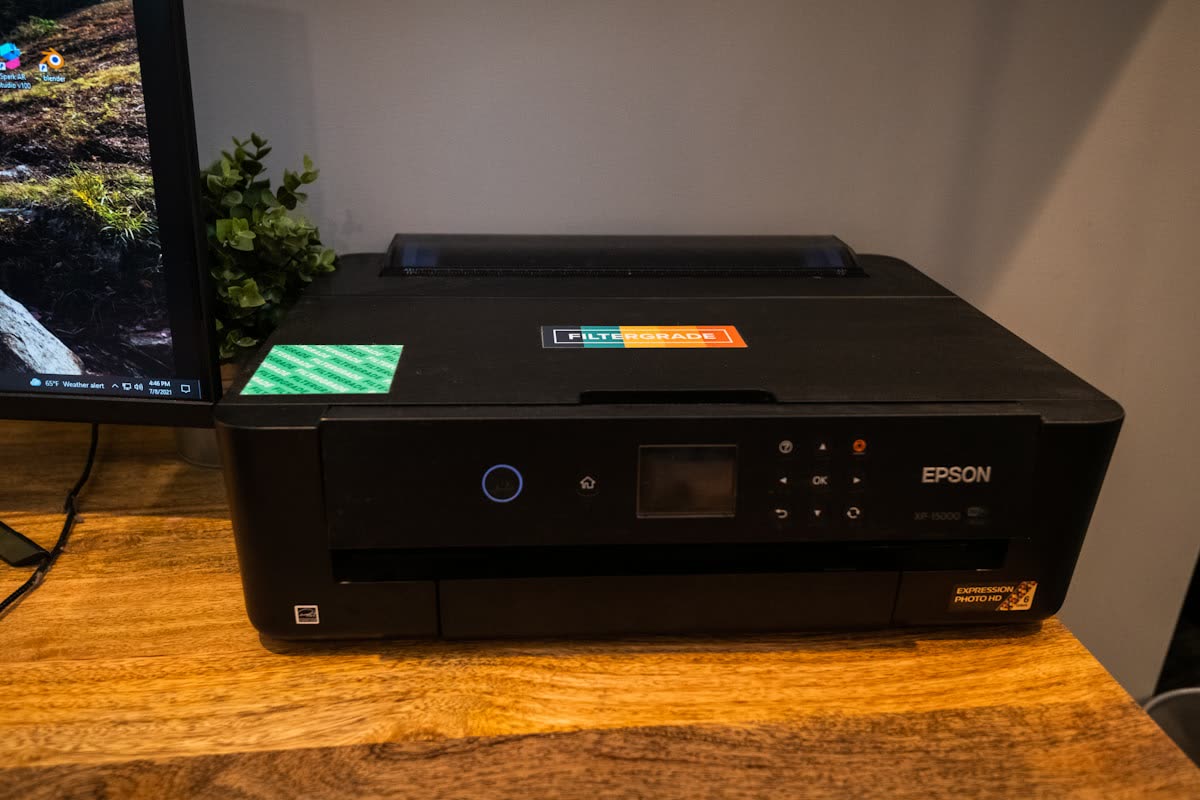
Google retired Cloud Print at the end of 2020 and replaced it with native printing. Since then ChromeOS talks directly to printers on the local network using IPP Everywhere, the same driverless standard behind AirPrint on Apple devices and Windows Ready Print on Windows 11. It also carries a set of built-in PPD definitions for older models, which is why some printers that predate IPP Everywhere still work.
Two practical consequences follow. First, there is nothing to download; if a site offers you a "Chromebook printer driver", it is not legitimate. Second, printing depends entirely on the local network reaching the printer, so anything that isolates clients from each other, which is normal on guest and many managed networks, stops printing dead.
Fix 1: Add a network printer
- Click the clock in the bottom-right, then the gear icon to open Settings.
- In the left menu choose Printing, then Printers.
- Under Available printers, find your printer and click Save.
- ChromeOS configures it automatically. If it asks for a manufacturer and model, pick them from the lists; if your exact model is missing, choose the closest one in the same series or select Generic IPP Everywhere if offered.
- Open any web page, press Ctrl+P, choose the printer under Destination and print.
Adding manually by IP
Use this when discovery fails, and as the default on any network you do not control.
- Print the printer's network configuration page from its own panel and note the IPv4 address.
- In Settings › Printing › Printers, click Add printer manually.
- Give it a name, enter the IP in Address, set Protocol to Internet Printing Protocol (IPP) and leave Queue as the default
ipp/print. - Click Add and select the manufacturer and model if prompted.
Fix 2: USB printing

ChromeOS supports USB printers. Plug the printer into the Chromebook with a USB-A or USB-C cable, open Settings › Printing › Printers, and the printer should appear under available printers ready to save. If it does not appear, try a different cable and a direct port rather than a hub, and check whether the printer is a genuinely old model with no ChromeOS-compatible definition. Very old GDI or host-based printers, the kind that require Windows-only drivers to do the rendering, will not work on ChromeOS at all.
Fix 3: "Printer unavailable"
This is the most common ChromeOS printing error and it means the Chromebook cannot reach the printer at the address it has saved.
- Check the printer is on, awake and showing a connected Wi-Fi icon. Press a panel button to wake it.
- Print the printer's network configuration page and compare the IP address with the one saved in ChromeOS: Settings › Printing › Printers, click the three dots next to the printer, then Edit.
- If the addresses differ, correct it, or remove the printer and add it again.
- Create a DHCP reservation in your router so the address is fixed.
- Confirm the Chromebook is not on a guest network or a VPN, both of which break local access.
- Restart the Chromebook with Refresh plus Power, or from the shutdown menu.
Our printer keeps going offline guide covers the address-reservation step for common routers, and it is the permanent fix rather than the workaround.
School and work Chromebooks
Managed Chromebooks are a special case. An administrator can push printers to the device, restrict which printers can be added, or block manual addition entirely. Signs you are on a managed device include a building icon in Settings, a note that a setting is managed by your organisation, and printers that appear automatically with names you did not choose.
- If a pushed printer fails, you generally cannot fix it yourself; the queue configuration lives in the admin console.
- If you cannot add a home printer to a school Chromebook, that restriction is deliberate. Print from another device instead.
- Guest Wi-Fi at school or work almost always isolates clients, so even an unmanaged Chromebook will find nothing.
Print options and what ChromeOS supports
| Option | Where | Notes |
|---|---|---|
| Copies, layout, colour | Ctrl+P dialog | Always available |
| Two-sided | Ctrl+P › More settings | Only if the printer advertises duplex over IPP |
| Paper size and type | Ctrl+P › More settings | Depends on what the printer reports |
| Print quality | Ctrl+P › More settings | Limited compared with a vendor driver |
| Trays and finishing | Ctrl+P › More settings | Office printers only, and only when advertised |
| Print to PDF | Destination › Save as PDF | Built in, useful for testing |
If an option you need is missing, the printer is not advertising it. There is no way to add it on ChromeOS the way you would install a vendor driver on Windows, so for finishing-heavy office work a Windows or Mac machine remains the better fit.
Scanning on a Chromebook
ChromeOS includes a Scan app in the launcher. Open it, choose your scanner from the dropdown, pick flatbed or document feeder, set the file type and click Scan. Files save to Downloads or My Files by default.
Two limits apply. The scanner has to advertise a driverless scan service, so a printer whose scanning depends on vendor software will not appear. And scan-to-email or scan-to-cloud shortcuts on the printer's own panel work independently of the Chromebook; those are configured on the printer, not in ChromeOS. If your printer scans from a Windows PC but not from the Scan app, that difference is why. Our scanner not working guide covers the general diagnostic path.
Common Chromebook printing problems
- Prints blank pages. Nearly always a printer-side problem rather than ChromeOS: low or clogged ink, or a cartridge with its protective tape still fitted. Print a nozzle check from the printer's own panel to confirm.
- Wrong paper size. ChromeOS defaults to the size the printer reports, which on a printer set up in another region may be Letter rather than A4. Change it under More settings in the print dialog, and change the default on the printer panel so it sticks.
- Only one page prints. Check the page range in the print dialog, and whether the source web page is paginating oddly. Saving as PDF first and printing that is a reliable workaround.
- Printer appears twice. One entry is from automatic discovery and one you added manually. Remove the one that fails and keep the other.
- Job disappears with no error. The printer went to sleep between the dialog opening and the job being sent. Wake it and print again, then increase the sleep delay in the printer's settings.
Android apps on a Chromebook
Many Chromebooks can run Android apps, including the brand printing apps. Those apps use their own printing path rather than ChromeOS printing, which means they can occasionally print when native printing cannot, and they add scanning and supply levels. They are worth trying if you have a printer that ChromeOS cannot configure. Mopria Print Service installed as an Android app also works on many Chromebooks.
If nothing worked
Test from a phone on the same Wi-Fi. If the phone prints, the printer and network are fine and the fault is the Chromebook's saved queue: remove the printer, restart, and add it manually by IP. If nothing on the network can print, treat it as a printer connection problem and start with printer will not connect to Wi-Fi.
If the printer is genuinely too old for ChromeOS, no configuration will fix it, and the honest options are to keep a Windows or Mac machine for printing or to replace the printer with a current model that supports IPP Everywhere. Repairing an old host-based printer to use with a Chromebook makes no sense at any price. If you would rather have someone confirm whether your model is supported before you buy anything, you can get help from a printer specialist.
Software mentioned in this guide
- ChromeOS printing
How Chromebooks add printers and scanners without drivers ChromeOS - Epson Smart Panel
Epson's current mobile app for setup, printing, scanning and ink levels iOS · Android - HP Smart (the HP app)
HP's official setup, printing, scanning and ink app for home and small-office printers Windows · macOS · iOS - Mopria Print Service
Cross-brand driverless printing and scanning for Android Android
Frequently asked questions
Do I need a driver to print from a Chromebook?
No. ChromeOS includes CUPS and speaks IPP Everywhere, so a modern network printer configures itself when you save it in Settings then Printing then Printers. Any site offering a Chromebook printer driver download is not legitimate.
How do I add a printer to a Chromebook?
Open Settings, choose Printing then Printers, find your printer under available printers and click Save. If it is not listed, click Add printer manually and enter its IP address with protocol set to Internet Printing Protocol (IPP).
What does "Printer unavailable" mean on ChromeOS?
The Chromebook cannot reach the printer at the address it has stored, usually because the printer's IP changed, it is asleep, or the Chromebook is on a guest network or VPN. Compare the saved address with the printer's network configuration page and set a DHCP reservation.
Can I print over USB from a Chromebook?
Yes. Plug the printer in directly, not through a hub, then open Settings then Printing then Printers and save it when it appears. Very old host-based printers that rely on Windows to render pages will not work on ChromeOS at all.
Why can't I add a printer to my school Chromebook?
Managed Chromebooks let an administrator push printers and block manual additions. If Settings shows that printing is managed by your organisation, the restriction is deliberate and cannot be changed from the device.
How do I scan on a Chromebook?
Use the built-in Scan app from the launcher: choose the scanner, select flatbed or document feeder, pick the file type and scan. Only printers that advertise a driverless scan service appear, so a model that relies on vendor scanning software will not be listed.
Questions & comments (0)
No comments yet. Describe your printer model, operating system and the exact message you see; comments appear after review.
Ask about this page
Your comment appears after our team approves it. Or sign in to post faster.