How to Set Up a Wireless Printer: The Complete 2026 Guide (Any Brand)
A wireless printer setup has three stages: join the printer to your Wi-Fi, add it on each device, then lock its address so it stays found. This guide covers all three.
On this page
- Quick setup, in order
- Before you start: the 2.4 GHz question
- Method 1: Set up from the printer's own panel
- Method 2: WPS push-button setup
- Method 3: The brand app
- Connect from your device
- Make it stay found
- Wi-Fi Direct as a fallback
- If setup will not complete
- If nothing worked
- Want someone to do it with you?
Setting up a wireless printer is three jobs, not one. First you join the printer itself to your Wi-Fi network. Then you add the printer on each computer and phone that will print to it. Finally you make the printer's network address permanent so it does not disappear a week later. Do all three and the printer stays reliable; skip the third and you will be fixing it again next month.
Quick setup, in order
- Unbox fully: remove every orange or blue shipping tape, clip and foam block, fit the cartridges or fill the tanks, load paper and let the printer run its start-up routine.
- Find your 2.4 GHz Wi-Fi name and password. Write them down exactly, including capital letters.
- On the printer panel, go to the wireless or network menu, run the Wireless Setup Wizard, pick your network and enter the password.
- Print the printer's network configuration page and note the IP address.
- On Windows 11: Settings › Bluetooth & devices › Printers & scanners › Add device. On macOS: System Settings › Printers & Scanners › Add Printer.
- On your phone, print a test page: iPhone uses AirPrint from the share sheet, Android uses the built-in print service.
- In your router, give the printer a DHCP reservation so its address never changes.
Before you start: the 2.4 GHz question

Almost every home printer sold today has a 2.4 GHz radio only. A growing minority of mid-range and office models add 5 GHz, but 2.4 GHz remains the one that always works. This matters because most routers now broadcast one Wi-Fi name for both bands and steer devices between them, so the printer may not see a network it can actually join, or may join and then be steered to a band it cannot use.
Three ways to deal with it, best first:
- Leave the merged name alone and set up close to the router. Most modern routers handle a 2.4 GHz-only client correctly once it is joined. This works more often than the internet suggests.
- Temporarily split the bands. In the router admin, give the 2.4 GHz band its own name, join the printer to it, then merge them again if you prefer. The printer remembers the network it joined.
- Use a permanent separate 2.4 GHz name. The most reliable option in houses with mesh extenders, at the cost of a slightly untidy network list.
ISP-supplied routers each have their own quirks here. In the US, see our guide to connecting a printer to Xfinity, Spectrum, AT&T, Verizon Fios and T-Mobile Wi-Fi. In the UK, Canada or Australia, see our router-specific guides: BT, Sky, Virgin and EE, Rogers, Bell, Telus and Shaw, and Telstra, Optus, TPG and NBN modems.
Method 1: Set up from the printer's own panel
This is the most reliable route because nothing depends on a phone, an app or an account.
- On the printer, open Setup, Settings, Network or the wireless icon, depending on the model.
- Choose Wireless Setup Wizard, Wi-Fi Setup Wizard or Wi-Fi Setup.
- Wait for the scan and select your network name. If it is missing, move the printer closer to the router and scan again, or enter the name manually.
- Enter the password on the on-screen keyboard. Watch case: passwords are case sensitive and most panels start in lower case.
- Wait for the confirmation and check the Wi-Fi icon or light goes solid.
- Print the network configuration or Wi-Fi test report from the same menu.
Printers with only buttons and lights, such as budget HP DeskJet and Canon PIXMA models, have no wizard. Use WPS or the brand app instead.
Method 2: WPS push-button setup
WPS joins the printer without typing a password. It takes two minutes when it is available.
- Find the WPS button on your router. It is often small and sometimes shares the Wi-Fi indicator.
- On the printer, start WPS Push Button mode from the wireless menu, or hold the Wi-Fi button until the light flashes on button-only models.
- Within two minutes, press the router's WPS button.
- Wait for the printer's Wi-Fi light to go solid.
Some printers also offer WPS PIN setup, where the printer shows or prints an eight-digit code that you type into the router's admin page. It is less widely supported than the button. If your printer or a setup app asks for one, our printer WPS PIN guide explains where to find it and what to do when it will not work.
Method 3: The brand app

Brand apps use your phone to hand the Wi-Fi details to the printer, which is genuinely useful on models with no screen.
- HP: the HP app, still widely called HP Smart. Note that during setup it may offer HP+ enrollment, which permanently restricts the printer to HP cartridges; decide before you accept.
- Canon: Canon PRINT for PIXMA and MAXIFY.
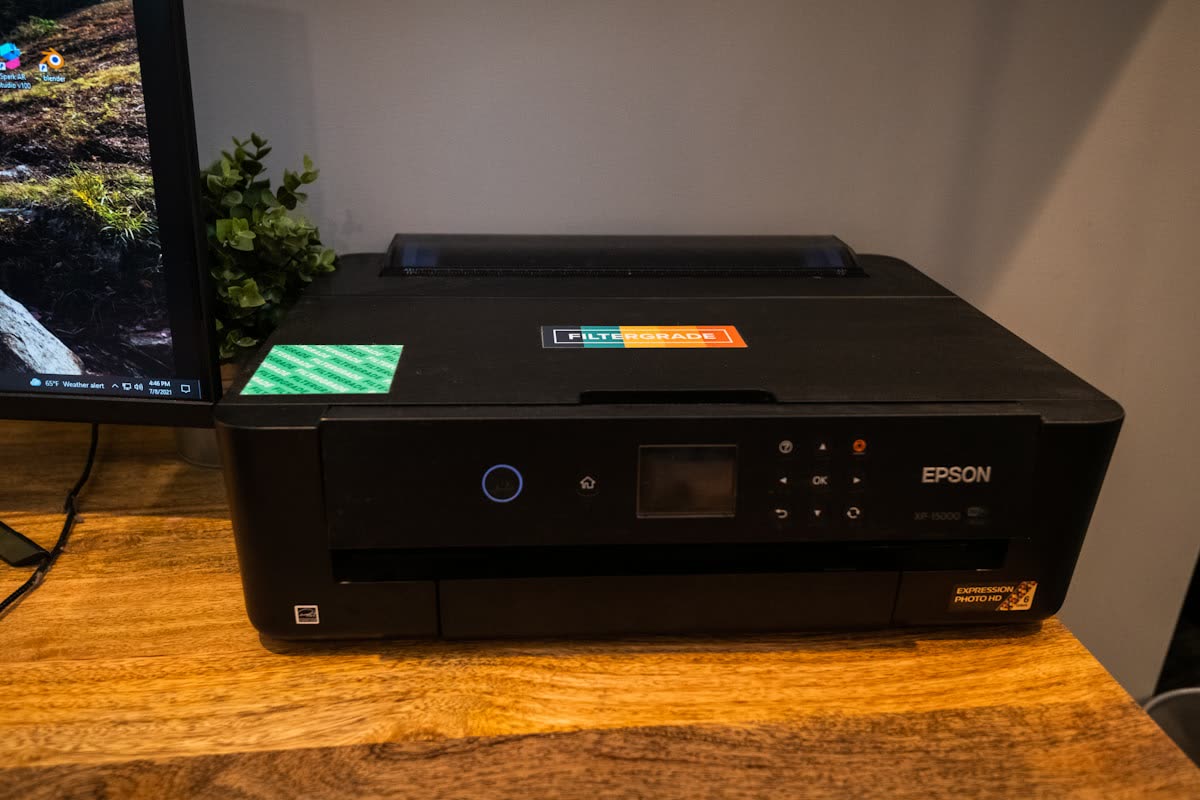
- Epson: Epson Smart Panel.
- Brother: Brother Mobile Connect.
- Pantum: the Pantum app, covered in our Pantum Wi-Fi setup guide.
During app setup, keep your phone on the same 2.4 GHz network, allow the app the local network and location permissions it asks for, and stay within a few feet of the printer. On iOS the app briefly connects your phone to the printer's own temporary network, which looks alarming but is normal.
Connect from your device
Joining the printer to Wi-Fi does not add it to anything. Each computer, phone and tablet that will print needs to add the printer once. The table points to the full guide for each device, and the short version for each follows.
| Device | Built-in method | Full guide |
|---|---|---|
| Windows laptop or desktop | Settings › Bluetooth & devices › Printers & scanners › Add device | Connect a printer to a laptop |
| Mac or MacBook | System Settings › Printers & Scanners, using AirPrint | Connect a printer to a Mac |
| iPhone or iPad | AirPrint from the Share menu | Connect a printer to an iPhone or iPad |
| Android phone or tablet | Default Print Service or Mopria | Print from an Android phone |
| Chromebook | Built-in printing in ChromeOS Settings | Print from a Chromebook |
| Any device, with no router nearby | Wi-Fi Direct | Wi-Fi Direct printing |
Windows 11
- Open Settings › Bluetooth & devices › Printers & scanners.
- Click Add device and wait 30 seconds for discovery.
- Select the printer and let Windows install it. Since July 2026, Windows 11 installs most printers driverless using Windows Ready Print, so no download is needed.
- If it is not found, click Add manually, choose Add a printer using an IP address or hostname, set Device type to TCP/IP Device (Autodetect can create a less reliable WSD port) and enter the printer's IP.
If you need duplex, extra trays or vendor scanning, install the manufacturer's driver instead; our Windows 11 printer driver guide explains when that is worth doing. If the wizard finds nothing at all, see how to add a printer in Windows 11.
macOS
Open System Settings › Printers & Scanners › Add Printer, Scanner or Fax, select the printer and choose AirPrint or Secure AirPrint in the Use menu. On macOS 15 and later, also check System Settings › Privacy & Security › Local Network and switch on the apps you print and scan from. The full walkthrough, including USB, is in our Mac guide linked above.
iPhone and iPad
Nothing to install. Open the document, tap the share icon, tap Print, tap Printer and pick yours. If no printers are found, the phone and printer are on different networks or bands; see No AirPrint printers found.
Android
Most phones print through the built-in default print service or Mopria. Open the document, tap the menu, tap Print and select the printer. Our Android printing guide covers the services and brand plugins.
Chromebook
Open Settings and go to the printing or Print and scan section (its location varies by ChromeOS version), and the Chromebook lists nearby printers to save. Our Chromebook guide covers setup, scanning and "printer unavailable" errors.
Make it stay found
The single biggest cause of a printer that works today and is offline next week is a changing IP address. Routers lease addresses for a fixed period and reassign them after a reboot or a busy period, but the print queue on your computer keeps pointing at the old one.
Fix it in one of two ways:
| Method | Where | Best for |
|---|---|---|
| DHCP reservation | Router admin, usually under LAN, Devices or Advanced | Everyone; keeps the router in charge |
| Static IP on the printer | Printer panel: Network › TCP/IP › Manual | Routers with no reservation option |
If you set a static address on the printer, choose one outside the router's DHCP pool, and copy the subnet mask and gateway from the network configuration page.
Wi-Fi Direct as a fallback

Every recent printer can also accept jobs directly from a phone or laptop without a router, using Wi-Fi Direct. It is useful for guests, for a printer in a garage with no signal, and as a test to prove the printer's radio works. The trade-off is that the device joining the printer usually loses internet access while connected. Our Wi-Fi Direct guide covers turning it on and finding the PIN.
If setup will not complete
- Network not in the list: the printer is seeing 5 GHz only, or is too far away. Move it next to the router for setup, or split the bands.
- Password rejected: retype it slowly. Check for a leading or trailing space and for characters the panel keyboard renders differently.
- Joins then drops: band steering or a mesh node handing the printer around. A DHCP reservation and a 2.4 GHz-only name usually settle it.
- App cannot find the printer: phone on 5 GHz or on a guest network. Guest networks isolate devices from each other by design.
- Nothing works at all: connect the printer with a USB cable temporarily to confirm the printer itself is healthy.
If nothing worked
If the printer will not join any network from any method, and a USB connection prints fine, the wireless module has failed. On a consumer printer that is not an economic repair: a bench assessment alone costs roughly $60 to $120 in the US (about 50 to 100 pounds in the UK, 90 to 150 Canadian dollars or 100 to 180 Australian dollars), as our guide to whether a printer is worth repairing explains. A cheap USB print server or simply leaving it on USB is usually the better answer, and if the printer is under warranty, claim rather than repair.
Want someone to do it with you?
Wireless setup is the job people most often hand over, because it involves the router as well as the printer. Our home printer setup help guide covers what to have ready and the options for getting a new printer working right the first time. If you would rather have it done once and done properly, you can get help from a printer specialist who can set the reservation and add the printer on every device in one session.
Software mentioned in this guide
- Brother Mobile Connect
Brother's current mobile app for setup, printing, scanning and supplies iOS · Android - Canon PRINT
Canon's single mobile app for printing, scanning and printer setup iOS · Android - Epson Smart Panel
Epson's current mobile app for setup, printing, scanning and ink levels iOS · Android - HP Smart (the HP app)
HP's official setup, printing, scanning and ink app for home and small-office printers Windows · macOS · iOS - Windows printer settings
How Windows installs printers, and the shift to driverless Windows Ready Print Windows
Frequently asked questions
Does my printer need 2.4 GHz or 5 GHz Wi-Fi?
Almost all home printers use 2.4 GHz only, and some mid-range and office models support both. Always set up on a 2.4 GHz network name. 2.4 GHz is slower but reaches further through walls, and printing documents needs very little bandwidth.
How do I connect a printer with no screen to Wi-Fi?
Use WPS if your router has the button: start WPS mode on the printer by holding the Wi-Fi button until the light flashes, then press the router's WPS button within two minutes. If there is no WPS, use the manufacturer's app, which hands the Wi-Fi details to the printer from your phone.
What if my printer asks for a WPS PIN?
The printer displays or prints an eight-digit PIN, which you enter on the router's WPS page in its admin site or app, usually within two minutes. Many ISP routers have disabled PIN mode for security, so if the router has no place to enter it, use the push button, the printer's own setup wizard or the brand app instead.
Why can my phone find the printer but my laptop cannot?
They are usually on different networks or bands, or the laptop is on a VPN or a guest network. Put both on the same main Wi-Fi network, turn off any VPN while testing, and add the printer by IP address if discovery still fails.
Do I need to install a driver in 2026?
Usually not. Windows 11 installs most printers driverless with Windows Ready Print, and macOS uses AirPrint. Install the manufacturer's driver only if you need duplex, specific trays, finishing options or the vendor scanning software.
How do I stop my printer going offline after setup?
Give it a fixed address. In your router admin, find the printer in the device list and create a DHCP reservation, or set a static IP on the printer from Network then TCP/IP then Manual, using an address outside the router's DHCP pool.
Should I accept HP+ during setup?
Only if you intend to use HP cartridges for the life of the printer. HP+ enrollment is permanent on the models that offer it and locks the printer to HP-supplied cartridges, so decline it during setup if you want the option of third-party ink later.

Questions & comments (0)
No comments yet. Describe your printer model, operating system and the exact message you see; comments appear after review.
Ask about this page
Your comment appears after our team approves it. Or sign in to post faster.