Printer WPS PIN: Where to Find It and What to Do When It Won't Work
The WPS PIN is an eight-digit code your printer generates for the router. Here is where to find it on each brand, where to type it, and what to do when your router will not accept it.

On this page
- Quick fixes first
- WPS push-button vs WPS PIN: what's the difference?
- Where do I find my printer's WPS PIN?
- Where do you type the WPS PIN?
- Which routers don't support WPS or the PIN method?
- Why is my WPS PIN not working?
- Is WPS safe? Turn off the PIN method afterwards
- Alternatives when WPS isn't an option
- When to stop and get help
A printer's WPS PIN is an eight-digit number the printer shows on its screen, or prints on its network page, when you choose the WPS PIN setup option. You type it into your router's admin page, or into Windows if it asks, within about two minutes. Many routers have dropped the PIN method, so push-button WPS or a normal password setup is often easier.
Quick fixes first
- Check that your router supports WPS at all. eero and Google Nest Wifi systems do not, and many internet provider gateways have turned the PIN method off.
- If the router has a WPS button, use push-button WPS instead of the PIN. It is simpler and far more widely supported.
- Generate a fresh PIN on the printer and enter it on the router straight away. Each attempt usually makes a new PIN, and the window is about two minutes.
- Restart the router if WPS has stopped responding; many routers lock WPS after several failed attempts.
- If Windows asks for a PIN while adding the printer, use the one on the printer's screen or report, or cancel and add the printer another way.
- Skip WPS entirely: the printer's Wi-Fi Setup Wizard, or the brand app with your Wi-Fi password, works with every router.
WPS push-button vs WPS PIN: what's the difference?

WPS (Wi-Fi Protected Setup) is a shortcut for getting a device onto Wi-Fi without typing the network password on a tiny printer keypad. It comes in two versions that people often mix up.
| Feature | Push-button | PIN |
|---|---|---|
| What you do | Start WPS on the printer, then press the router's WPS button | The printer shows an eight-digit PIN, and you type it into the router's settings |
| Where it happens | At the router and the printer, in person | On a computer or phone signed in to the router's admin page |
| Time limit | About two minutes | About two minutes after the PIN appears |
| Router support | Common on stand-alone and provider routers, missing on some mesh systems | Increasingly removed or disabled |
| Security | Acceptable when used briefly | Weak on the router side; turn it off when you are done |
The PIN method exists for routers whose button is hard to reach, and for setups where you would rather type a number than walk to the router. If you can reach the router, push-button is almost always the better choice. Our wireless printer setup guide walks through push-button WPS alongside the other setup methods.
Where do I find my printer's WPS PIN?
The PIN comes from the printer, not from the router box or the printer's packaging. It is generated when you choose the PIN option, and on most models it changes each time you start a new attempt. Menu names vary by model, so treat these as the usual routes rather than exact labels.
HP
On touchscreen models, open the Wireless or Network menu (often the Wi-Fi icon on the home screen), then Wi-Fi Protected Setup and PIN. The screen displays the PIN. HP's main setup path is the HP app, and HP's own guidance is that a WPS PIN is not required: if one is requested during setup on a computer, you can cancel that message and finish setup in the app.
Canon
On PIXMA models with a screen, open the wireless LAN setup menu and scroll to WPS (PIN code); the PIN appears after a few seconds. On several screenless PIXMA models, pressing the Information button prints a network configuration page that includes a PIN. Canon publishes model-by-model steps in its knowledge base, and the Canon PRINT app is the usual alternative.
Epson
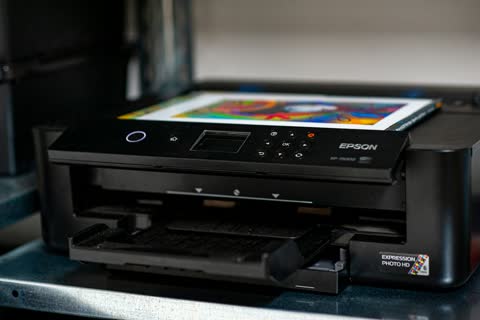
From the home screen, open Wi-Fi Setup (on some models under Settings › Network Settings) and choose PIN Code Setup (WPS). The printer shows the PIN and waits about two minutes for you to enter it on the router. Next to it you will see Push Button Setup (WPS), which is the easier option if your router has a button.
Brother
On current touchscreen models the path is typically Settings › All Settings › Network › WLAN (Wi-Fi) › WPS/PIN Code; older models call it WPS w/ PIN Code. Confirm that you want to enable wireless, and the screen shows an eight-digit PIN while the printer searches for the router.
Printers without a screen
Many button-only printers support push-button WPS, usually started by holding the Wi-Fi button until its light flashes, but have no way to show a PIN. If yours prints a network or Wi-Fi report, check it for a PIN line. If there is none, use push-button or the brand app instead.
Where do you type the WPS PIN?
On your router's admin page
- On a computer or phone that is already on your Wi-Fi, open the router's app or type its address into a browser. Common US defaults are 10.0.0.1 for Xfinity gateways and 192.168.1.254 for AT&T; the label on the router shows yours.
- Sign in with the admin password, which is also on the router label if you have never changed it.
- Find the WPS section, usually under Wireless, Wi-Fi or Advanced.
- Choose the PIN option (sometimes called client PIN or device PIN), type the printer's PIN, and click connect or start.
- Watch the printer; its screen or Wi-Fi light should confirm the connection within two minutes.
Some routers also show a "router PIN" or "AP PIN" of their own for you to type into a device. That works in the opposite direction, and most printers do not use it. If the admin page has no field for a device PIN at all, the method has been removed, and no setting on the printer will make it work.
When Windows asks for the printer's PIN
Sometimes Windows 11's Add device finds a printer and then asks you to enter a PIN for it. This happens when Windows tries to pair with the printer directly, over WPS or Wi-Fi Direct, rather than through your router. The PIN it wants is the one the printer displays on its screen or prints on its Wi-Fi Direct or network report. It is not your Wi-Fi password.
If you cannot find a PIN, cancel the prompt. It often means Windows picked up the printer's own Wi-Fi Direct signal, the entry that starts with DIRECT-, instead of its normal network connection. Join the printer to your Wi-Fi first, then run Add device again and choose the entry without DIRECT- in the name, or add it by IP address as described in our guide to connecting a printer to a laptop.
Which routers don't support WPS or the PIN method?

Router makers have been moving away from WPS for years because of the PIN weakness described below. What you find on US routers today varies by model and firmware, so check your own router's app or manual, but these patterns are common:
| Router or system | WPS situation | What to do instead |
|---|---|---|
| eero | No WPS at all; eero says it leaves WPS out for security reasons | The printer's Wi-Fi wizard or brand app, with your password |
| Google Nest Wifi, Nest Wifi Pro, Google Wifi | No WPS option | The printer's Wi-Fi wizard or brand app |
| Netgear Orbi | Push-button WPS through the Sync button on many models; PIN entry varies | Use push-button rather than the PIN |
| TP-Link Deco | WPS only on some models, started from the Deco app | Look in the app under More; otherwise use the password |
| Provider gateways (Xfinity, Spectrum, AT&T, Verizon Fios, T-Mobile) | Varies by model; many have a WPS button, and the PIN option is often hidden or missing | Try push-button first; see our US router guide |
Two settings also switch WPS off on most routers that otherwise support it: a hidden network name and WPA3-only security. If either is turned on, WPS will not work, and the password method is the way in.
Why is my WPS PIN not working?
Work through these in order. Most failures come down to timing, an old PIN, or a router that has quietly disabled the feature.
- Use a fresh PIN. Start a new PIN attempt on the printer and use the number on screen now. A number from an earlier attempt or an old printout will usually be rejected.
- Beat the two-minute window. Sign in to the router's WPS page first and have the PIN field open, then start the PIN on the printer and type it immediately. The printer stops listening when its timer runs out, even if the router still says it is connecting.
- Type all eight digits exactly. The last digit is a check digit, so a single typo fails the whole PIN. Leave out any spaces or dashes unless the router asks for them.
- Clear a WPS lockout. After several wrong PINs, many routers lock WPS to stop guessing, sometimes shown as "WPS locked" or "AP setup locked". Restarting the router usually clears it.
- Check that WPS is switched on. A firmware update or a new provider gateway can turn it off. Look for a WPS on/off setting in the router's wireless settings.
- Stay on 2.4 GHz and close to the router. Most home printers only join 2.4 GHz networks. For setup, put the printer in the same room as the main router rather than near a mesh satellite.
- Remove blockers. Temporarily turn off MAC filtering, and undo a hidden network name or WPA3-only mode.
- Reset the printer's network settings if it is still trying to reach an old router, then start again.
If the printer connects but then drops, or joins and cannot be found by your computer, the WPS part worked and the problem is elsewhere. Our guide to a printer that won't connect to Wi-Fi covers band steering, guest networks and the router settings that block printers.
Is WPS safe? Turn off the PIN method afterwards
Push-button WPS is reasonably safe, because it only opens for about two minutes after someone physically presses a button. The PIN method is weaker. A well-known design flaw lets an attacker within range check the router's PIN in two halves, which freely available tools can exploit in a matter of hours on vulnerable routers. Once the PIN falls, so does your Wi-Fi password.
The attack targets the router's own PIN feature, which stays switched on in the background on many routers that support WPS PIN. That is why eero and others dropped WPS altogether. The sensible rule is simple: once the printer is connected, go back into the router settings and turn off WPS PIN, or WPS entirely if you never use the button. The printer keeps its connection and will not need WPS again unless you change routers. For the rest of the printer's own security settings, see printer security basics.
Alternatives when WPS isn't an option
- The printer's Wi-Fi Setup Wizard. On any printer with a screen, pick your network and type the password. It is slow on a small keypad, but it works with every router, including eero and Nest.
- The brand app. The HP app, Canon PRINT, Epson Smart Panel and Brother Mobile Connect pass your Wi-Fi details from your phone to the printer, over Bluetooth on many newer models. Keep the phone on your main network and allow the location, Bluetooth and local network permissions the app asks for.
- USB setup from a computer. Connect the printer by USB temporarily and run the manufacturer's installer. Many can send the Wi-Fi settings to the printer over the cable, and then you unplug it.
- Wi-Fi Direct for one-off printing. If you just need a page now, connect straight to the printer's own network. See Wi-Fi Direct printing.
If the HP app in particular stalls while searching for the printer, HP Smart can't find printer covers that case.
When to stop and get help
If the printer will not join by WPS, by the panel wizard or by the brand app, test it on USB. A printer that prints over the cable but cannot join any network may have a failed wireless module, and on most home printers that is not worth repairing. If it prints fine and the router is the sticking point, you have a setup problem, not a broken printer.
If you would rather not wrestle with router menus yourself, our remote printer support plan is independent of HP, Canon, Epson and Brother and covers every printer in your home, including getting it onto Wi-Fi without WPS.
Software mentioned in this guide
- Brother Mobile Connect
Brother's current mobile app for setup, printing, scanning and supplies iOS · Android - Canon PRINT
Canon's single mobile app for printing, scanning and printer setup iOS · Android - Epson Smart Panel
Epson's current mobile app for setup, printing, scanning and ink levels iOS · Android - HP Smart (the HP app)
HP's official setup, printing, scanning and ink app for home and small-office printers Windows · macOS · iOS
Printers covered here
Frequently asked questions
Is the WPS PIN the same as my Wi-Fi password?
No. Your Wi-Fi password is the long passphrase for your network, set on the router. The WPS PIN is an eight-digit number the printer creates for a single setup attempt, which lets the router hand over the network details without you typing the password. If a screen asks for a WPS PIN, typing your Wi-Fi password will not work.
Where is the WPS PIN on an HP printer?
On HP models with a touchscreen, open the Wireless or Network menu, choose Wi-Fi Protected Setup, then PIN, and the printer displays the number. Many screenless HP models only support push-button WPS. HP says a PIN is not required for setup, so if one is requested you can cancel and set the printer up in the HP app.
Does eero have a WPS button?
No. eero does not support WPS in any form, either push-button or PIN, and says this is a deliberate security choice. To connect a printer to an eero network, use the printer's own Wi-Fi Setup Wizard or the manufacturer's app and enter your Wi-Fi password. Google Nest Wifi works the same way.
Why does Windows ask for a WPS PIN when I add my printer?
Windows is trying to pair with the printer directly, usually through the printer's Wi-Fi Direct connection, rather than finding it on your home network. The PIN is shown on the printer's screen or printed on its report. The simpler fix is often to cancel, join the printer to your Wi-Fi, and add the regular network entry instead.
How long do I have to enter the WPS PIN?
About two minutes on most printers and routers. The printer starts a timer as soon as it shows the PIN and stops listening when it runs out, even if the router still appears to be trying. Open the router's WPS page before you start the PIN on the printer so you can type it straight away.
Should I leave WPS turned on after my printer connects?
It is better not to. The printer keeps its Wi-Fi connection without WPS, and the router's PIN feature is a known weakness that attackers within range can exploit. Turn off WPS PIN in the router settings, and turn off WPS entirely if you never use the push button. You can switch it back on the next time you need it.
Guides credited to the PrinterSupport.io Editorial Team are researched from the manufacturers' own support documentation and our editorial policy, and updated when menus, apps or policies change. Corrections go to help@printersupport.io.

Questions & comments (0)
No comments yet. Describe your printer model, operating system and the exact message you see; comments appear after review.
Ask about this page
Your comment appears after our team approves it. Or sign in to post faster.