Printer Keeps Going Offline or Disconnecting From Wi-Fi? How to Stop It for Good
A printer that keeps going offline or disconnecting has a changing IP address, an aggressive sleep timer or a weak signal. Reserving a fixed address and disabling SNMP status polling fixes most cases.

On this page
- Quick fixes first
- Why this happens
- Why does my printer keep disconnecting from the computer or Wi-Fi?
- Fix 1: Reserve a fixed IP address
- Fix 2: Stop Windows polling a sleeping printer
- Fix 3: Change the printer's power behavior
- Fix 4: Fix the signal
- Fix 5: Remove the other repeat offenders
- macOS and mobile
- Brand-specific notes
- If nothing worked
A printer that keeps going offline or disconnecting from Wi-Fi has a structural problem, and there are only two common ones. Either its IP address keeps changing, so your computer is talking to an address nobody answers, or it sleeps so deeply that Windows' status check gets no reply and marks it offline. Fixing both takes about fifteen minutes and it stays fixed.
A printer that goes offline once is usually a coincidence. One that drops every morning, or after every router reboot, is telling you something, and a weak signal is the third cause worth ruling out.
Quick fixes first
- Print the printer's network configuration page and note its IP address and MAC address.
- In your router, create a DHCP reservation pairing that MAC address with a fixed IP.
- In Windows, open Printer properties › Ports › Configure Port and uncheck SNMP Status Enabled.
- On the printer, raise the sleep timer and disable Auto Power Off or deep sleep.
- Check the signal strength on that same configuration page - if it is weak, that is your real problem.
Why this happens

Home routers lease IP addresses for a fixed period, often 24 hours. When the lease expires, or after a power cut, firmware update or router replacement, a device can be handed a different address. Phones and laptops rediscover services automatically and never notice. Windows printer ports do not - the address is written into the port when the printer is added and stays there permanently. So the day the printer's address changes, the port becomes a dead end and the printer reads Offline until you fix the port or the address.
The second mechanism is status polling. Windows periodically asks each network printer over SNMP whether it is available. Many printers, particularly Brother and Epson models, drop their network stack into a low-power state that does not answer SNMP. The printer would happily accept and print a job, but the poll times out, and Windows reports Offline. This is why the classic pattern is "offline every morning, fine after I turn it off and on".
The third, quieter cause is signal. A printer at the edge of coverage connects, drops, and reconnects on a cycle. Each reconnection can produce a new address. Users see the intermittent offline behavior and troubleshoot the computer, when the actual issue is that the printer is in a closet three rooms from the router.
Why does my printer keep disconnecting from the computer or Wi-Fi?
"Keeps disconnecting" and "keeps going offline" are usually the same fault described from different ends. The quickest way to tell which end is at fault is to look at the printer itself at the moment the computer says it has lost it.
| What you see | What is really happening | Where to start |
|---|---|---|
| The printer's Wi-Fi light is off or blinking, or its panel says it is not connected | The printer really has dropped off Wi-Fi: weak signal, band steering, a mesh node handing it around, or a router change | Fix 4, and the router notes below |
| Wi-Fi light solid and the configuration page shows it connected, but the computer says Offline or Disconnected | The printer's address changed, or it is asleep and ignoring Windows' status check | Fix 1 and Fix 2 |
| Only one computer loses it; phones still print | That computer has a stale port, a WSD port or a VPN | Fix 2 and Fix 5 |
| A USB printer disconnects and reconnects, often with the Windows device sound | USB power saving, a failing cable, or a hub or front-panel port | The USB steps below |
If it really is dropping off Wi-Fi
Print the network configuration page and check two lines: the signal strength and the IP address. Write the address down and compare it the next time the printer disappears; if it has changed, Fix 1 is your answer. Our guide to finding your printer's IP address also shows how to spot it in your router's connected-devices list without printing anything.
On the big US ISP gateways, band steering and "smart" Wi-Fi features are the usual reason a 2.4 GHz-only printer keeps getting pushed off the network. The exact settings for Xfinity, Spectrum, AT&T, Verizon Fios and T-Mobile gateways are in our US router guide.
If a USB printer keeps disconnecting from the computer
- Plug the cable straight into a port on the PC itself, not a hub, dock or keyboard, and keep the cable short.
- Swap in a known-good USB cable. Cables fail more often than printers do.
- In Device Manager, expand Universal Serial Bus controllers, open each USB Root Hub and, where a Power Management tab is shown, clear Allow the computer to turn off this device to save power.
- On many PCs you can also turn off USB selective suspend under Control Panel › Power Options › Change plan settings › Change advanced power settings › USB settings.
If the printer is not detected at all rather than dropping in and out, see USB printer not detected.
Fix 1: Reserve a fixed IP address
This is the single most valuable step on the page.
- Get the MAC address. It is on the printer's network configuration page - twelve hexadecimal characters, sometimes labeled Hardware Address. Print it from the panel: HP under Settings › Reports › Network Configuration Page; Canon under Setup › Device settings › LAN settings › Print LAN details; Epson under Settings › General Settings › Network Settings › Network Status › Print Status Sheet; Brother under Menu › Print Reports › Network Configuration.
- Log into your router via its app or admin page. On Xfinity, Spectrum, AT&T and Fios gateways this is usually the ISP's app rather than a web page.
- Find DHCP Reservation, sometimes called Address Reservation, Static Lease or Reserved IP, usually under LAN, Connected Devices or Advanced.
- Pair the MAC with an address inside the router's range but high enough to avoid collisions - something ending .200 is a safe habit.
- Reboot the printer and print the configuration page again to confirm it took the reserved address.
Then update Windows to match. Open Printer properties › Ports, and either edit the existing port or click Add Port › Standard TCP/IP Port › New Port and enter the reserved address. Check the box for the new port and print a test page.
Fix 2: Stop Windows polling a sleeping printer

Even with a fixed address, a deeply sleeping printer will not answer SNMP and Windows will keep flagging it offline.
- Open Settings › Bluetooth & devices › Printers & scanners › your printer › Printer properties › Ports.
- Select the checked Standard TCP/IP port and click Configure Port.
- Uncheck SNMP Status Enabled.
- Click OK twice and print a test page.
Windows now sends jobs without asking permission first. The printer wakes on receiving data and prints. You lose the ink-level and status reporting in the Windows queue, which is a small price for a printer that stays online.
If the Configure Port button is grayed out, the printer is on a WSD port. WSD ports are the most common cause of chronic offline behavior and cannot be configured this way. Create a Standard TCP/IP port pointed at the reserved address and use that instead.
Fix 3: Change the printer's power behavior
Every manufacturer buries this somewhere different, and the setting names differ:
- HP: Settings › Power Management, or via the embedded web server. Raise Sleep Mode delay and disable Auto-Off. Some models also have "Wake on LAN" or "Keep Wi-Fi on in sleep" options - enable them.
- Canon: Setup › Device settings › Other settings › Power settings. Extend Auto power off, and disable it if the printer is used daily.
- Epson: Settings › General Settings › Basic Settings › Sleep Timer and Power Off Timer. Raise both.
- Brother: Settings › General Setup › Ecology › Sleep Time, and disable Auto Power Off. Brother's deep sleep is the most aggressive of the four brands and is the usual explanation for Brother-specific offline complaints.
Balance this honestly: a printer kept awake uses a few more watts. That is a reasonable trade for a printer that works when you need it, but if the machine is used weekly rather than daily, leaving sleep enabled and disabling SNMP is the better combination.
Fix 4: Fix the signal
Check the signal strength reported on the network configuration page. If it is described as weak, poor, or below roughly half strength, no amount of address or port configuration will make the connection stable.
- Move the printer or the router. Even a few feet, or a clear line of sight past a wall, makes a measurable difference.
- Change the 2.4GHz channel. Most printers are 2.4GHz-only, and that band is crowded. Setting your router to channel 1, 6 or 11 - whichever is least used nearby - reduces drops.
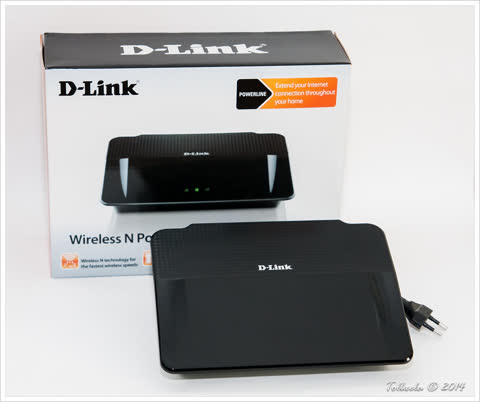
- Use Ethernet. If the printer has an Ethernet port, a powerline adapter delivers a wired connection anywhere in the house for less than the price of a mesh node, and it eliminates this entire problem class permanently.
- Check the band. If your router recently enabled band steering or you added a mesh system, the printer may be bouncing between access points. Some mesh systems let you pin a device to a specific node.
If the printer will not rejoin at all rather than dropping intermittently, see printer not found during wireless setup and printer won't connect to Wi-Fi.
Fix 5: Remove the other repeat offenders
| Cause | Symptom | Fix |
|---|---|---|
| VPN on the computer | Offline only while the VPN is connected | Enable the VPN's local network bypass |
| Duplicate printer entries | Some jobs work, some vanish | Remove all but one queue per printer |
| Windows managing the default printer | Default changes on its own | Turn off "Let Windows manage my default printer" |
| Fast startup on a desktop PC | Offline after every restart | Disable Fast startup in Power Options |
| Guest network | Printer visible sometimes, never from some devices | Move everything to the main network |
| Print Spooler crashing | Offline plus jobs disappearing | See print spooler keeps stopping |
macOS and mobile

On a Mac, the equivalent of the SNMP problem is Bonjour discovery timing out. Removing and re-adding the printer at System Settings › Printers & Scanners rebinds it to the current address, and a reserved IP keeps it valid. On macOS 26 Tahoe, also check System Settings › Privacy & Security › Local Network and enable the toggle for the apps you print from - without it, discovery silently returns nothing and a working printer appears to have gone.
On iPhone and Android, printers are discovered fresh each time rather than stored by address, so mobile devices are far less affected. If a printer is unreachable from a phone but fine from a computer, the printer is genuinely asleep or off the network rather than merely appearing offline.
Brand-specific notes
HP models are the most-reported for this behavior purely because they are the most common; the HP app can re-establish the connection but does not stop it recurring. The permanent fix is the same reservation plus SNMP change - see HP printer keeps showing offline and our HP hub.
Brother deep sleep is the single most distinctive cause on that brand; raise Sleep Time first. Epson EcoTank models hold stale network settings after a router change and often need Network Settings › Restore Default Settings before re-running setup. Canon PIXMA models respond poorly to SNMP polling in standby, so Fix 2 matters most there - see our Canon and Epson hubs.
If nothing worked
If the printer has a reserved address, SNMP is off, sleep is extended and the signal is good, and it still drops - test it on Ethernet or USB for a week. A printer that is rock solid wired and unreliable wirelessly has a failing Wi-Fi module. These degrade gradually: shorter range, more frequent drops, eventually connecting only from a few feet away.
Replacing a wireless module is a board-level repair on virtually every consumer printer, and the labor alone typically exceeds the price of a comparable new machine. Parts for sub-$150 printers are usually unavailable at any price. The pragmatic answer is not repair but bypass: a powerline adapter or a small Wi-Fi bridge into the printer's Ethernet port restores wireless printing for a fraction of a repair cost and is more reliable than the built-in radio ever was.
Repair genuinely makes sense on business-class lasers with low page counts, machines under warranty, and ink tank printers with a lot of ink inside. Otherwise the money is better spent on the network than on the printer.
If you would rather have someone set up the reservation, port and power settings with you rather than working through router menus alone, you can get help from a printer specialist.
Software mentioned in this guide
- Brother Mobile Connect
Brother's current mobile app for setup, printing, scanning and supplies iOS · Android - Epson Connect
Free Epson cloud service for Email Print, Remote Print and Scan to Cloud Windows · macOS · iOS - HP Smart (the HP app)
HP's official setup, printing, scanning and ink app for home and small-office printers Windows · macOS · iOS - Windows printer settings
How Windows installs printers, and the shift to driverless Windows Ready Print Windows - macOS Printers and Scanners
Where macOS adds printers, scans documents and resets the printing system macOS
Frequently asked questions
Why does my printer keep disconnecting from my computer?
If the printer's Wi-Fi light stays solid, the computer is losing track of it: the IP address changed, or the printer is too deeply asleep to answer Windows' status check. Reserve its address in the router and uncheck SNMP Status Enabled on the port. If the Wi-Fi light goes out, the signal or router is at fault. For a USB printer, check the cable, the port and USB power saving.
Why does my printer keep going offline even though it is working?
Windows decides a printer is offline when it polls it and gets no answer. A printer in deep sleep, or one whose IP address has changed since the port was created, will not answer even though it would print perfectly if you sent it a job. Reserving its address and disabling SNMP status polling addresses both.
How do I stop my printer going offline after sleep?
Raise the sleep timer in the printer's own settings, usually under General Setup, Ecology or Power Management, and disable Auto Power Off or deep sleep if offered. Then uncheck SNMP Status Enabled on the printer's port in Windows so a sleeping printer is not flagged offline.
Should I set a static IP on the printer or reserve one in the router?
Reserve it in the router. A reservation keeps the router in charge of addressing, so the gateway, subnet and DNS stay correct automatically. Setting a static address on the printer works but is easy to get wrong, and some ISP gateways override it anyway.
Why did my printer go offline after I changed routers?
The printer still holds the old network name and password, and even after rejoining it will be given a new address that your existing printer port does not know about. Re-run the printer's Wi-Fi setup, then reserve its new address and update or recreate the port in Windows.
Does a weak Wi-Fi signal cause printers to go offline?
Yes, and it is often missed because the printer shows as connected. At marginal signal the printer drops and rejoins repeatedly, and each drop can lose its address. Print the network configuration page and check the reported signal strength; if it is weak, move the printer or use Ethernet over a powerline adapter.
Technical writer focused on printer drivers, wireless setup and error-code troubleshooting.

Questions & comments (0)
No comments yet. Describe your printer model, operating system and the exact message you see; comments appear after review.
Ask about this page
Your comment appears after our team approves it. Or sign in to post faster.