Canon PIXMA Won't Connect to Wi-Fi? How to Finish Setup When Easy Wireless Connect Fails
Canon PIXMA models are 2.4GHz only, so a 5GHz network is invisible to them. Most setup failures come down to that, the printer not being in setup mode, or router client isolation.
On this page
- Quick fixes first
- Why this happens
- Fix 1: Get everything onto 2.4GHz
- Fix 2: Use the right setup method
- Fix 3: Set the Wi-Fi from the printer itself
- Fix 4: Remove the network obstacles
- Fix 5: Clear old credentials
- Reading the wireless lamp
- After setup: make it stay connected
- Printing from phones and tablets
- If nothing worked
When a Canon PIXMA will not join Wi-Fi, or the Canon app cannot find it, the cause is almost always one of three things: the printer's radio is 2.4GHz-only and your network is presenting 5GHz, the printer is not sitting in the setup mode the app expects, or something on the router is blocking device discovery. None of them is a printer fault, and all three are quick to work through.
Quick fixes first
- Connect your phone or computer to the 2.4GHz network, not the 5GHz one.
- On the printer, go to Setup › Device settings › LAN settings › Wireless LAN › Wireless LAN setup and start setup fresh.
- Move the printer within a couple of metres of the router for the pairing step.
- Turn off any VPN on your phone or laptop, and switch off the guest network temporarily.
- Re-enter the Wi-Fi password carefully - it is case-sensitive, and this is a genuinely common cause.
Why this happens

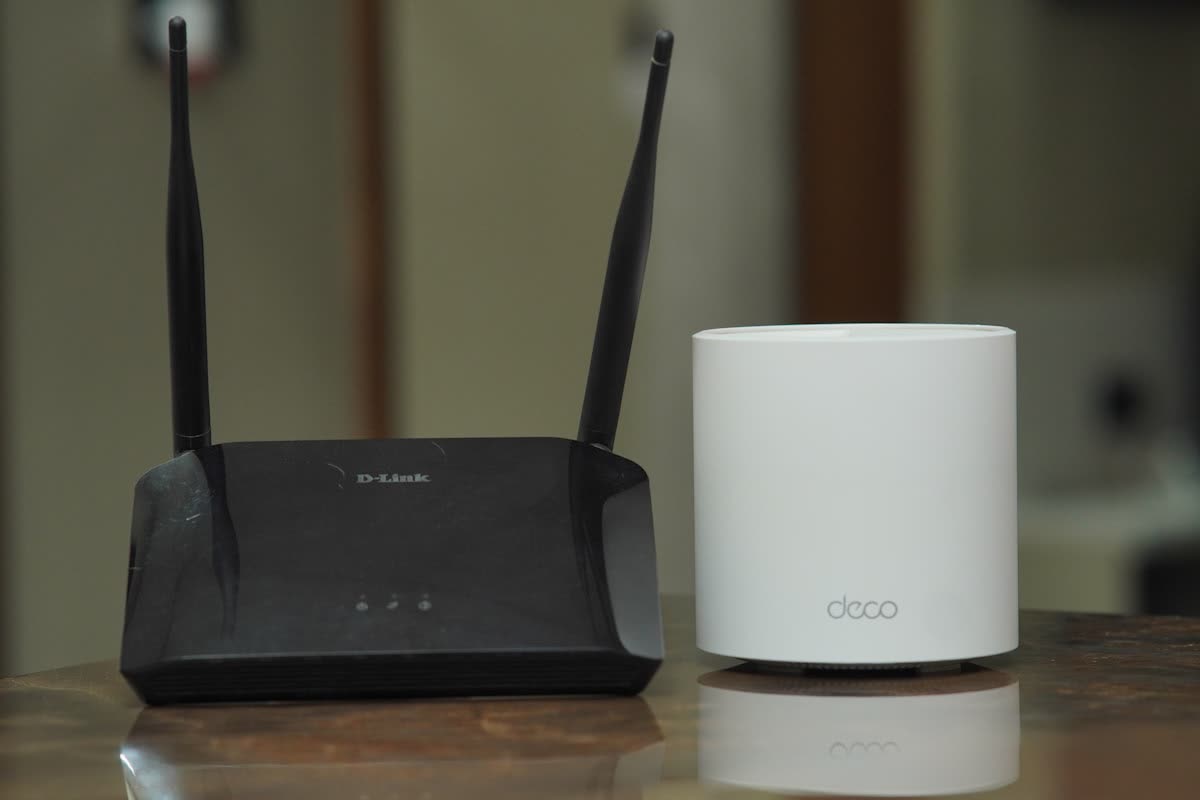
Canon builds PIXMA wireless to a price, and almost every consumer model uses a 2.4GHz-only radio. That band has better range and print jobs need very little bandwidth, so it is a sensible engineering choice - but it means a 5GHz network is simply invisible to the printer. Modern routers make this worse by advertising both bands under a single name and deciding for you which band each device uses. If your phone lands on 5GHz while the printer needs 2.4GHz, the app's discovery traffic does not reliably reach the printer.
The second cause is setup state. Easy Wireless Connect only works if the printer is waiting in that specific mode when you start the app. A printer that has been powered on for a day, or that already holds credentials for an old network, will not be found no matter how many times you retry.
The third is discovery blocking. Canon's setup finds printers using multicast traffic. Guest networks, client isolation settings, mesh systems with strict device separation, and consumer VPN clients all drop that traffic. The printer may be perfectly reachable by IP address while being entirely invisible to discovery.
Fix 1: Get everything onto 2.4GHz
In your router's app or admin page, under Wireless settings, look for either:
- Separate network names per band - add a suffix such as -2.4G to the 2.4GHz network name, or
- A Band Steering, Smart Connect or Dual-Band Wi-Fi switch you can turn off for the duration of setup.
Connect your phone or laptop to the 2.4GHz name, run setup, then switch back afterwards. Once the printer has joined it stays on 2.4GHz regardless of what your other devices do.
If your router offers no way to split the bands - common with ISP-supplied gateways - skip straight to Fix 3 and set the Wi-Fi from the printer's own screen. That bypasses discovery entirely.
Fix 2: Use the right setup method
Easy Wireless Connect
This is Canon's app-based route and the one most people are pointed at.
- On the printer: Setup › Device settings › LAN settings › Wireless LAN › Wireless LAN setup › Easy wireless connect.
- The printer displays a message telling you to continue in the app, and waits.
- On your phone, already connected to your 2.4GHz Wi-Fi, open the Canon PRINT app and follow the setup flow.
- The app passes your network name and password to the waiting printer.
The order matters: the printer must be waiting before you start the app step. If the app searches and finds nothing, go back to the printer and restart Easy Wireless Connect rather than retrying in the app.
WPS push button
If your router has a WPS button: on the printer, LAN settings › Wireless LAN setup › WPS (Push button method), then press the router's WPS button within two minutes. Quick when it works, but many current routers ship with WPS disabled for security reasons, so do not assume it is available.
ij.start.canon
Canon directs users to ij.start.canon for setup software. Type the address carefully - lookalike domains targeting this exact term are common, and some offer paid "support" services with no connection to Canon. Download only from the address shown in your printer's documentation, and see Canon IJ setup for what the package includes.
Fix 3: Set the Wi-Fi from the printer itself
On any PIXMA with a screen, this is the most reliable method of all and it involves no app, no phone and no discovery.
- Setup › Device settings › LAN settings › Wireless LAN › Wireless LAN setup › Standard setup (wording varies slightly by model).
- The printer scans and lists nearby networks. Choose yours - if it does not appear, that confirms the 2.4GHz problem in Fix 1.
- Type the password on the printer's keypad or touchscreen. Take care with case and with characters that are easy to mistype.
- Wait for the wireless lamp to go solid.
- Print the LAN details: Setup › Device settings › LAN settings › Print LAN details. Note the IP and MAC addresses.
Then add the printer on your computer: on Windows at Settings › Bluetooth & devices › Printers & scanners › Add device, or manually by IP address if discovery fails; on a Mac at System Settings › Printers & Scanners › Add Printer.
Fix 4: Remove the network obstacles
- Guest network. Guest Wi-Fi isolates clients by design. Put the printer and your devices on the main network.
- Client isolation. Look for AP Isolation, Client Isolation or Device Isolation in the router and turn it off for the main network.
- VPN. Consumer VPN apps route local traffic through the tunnel, hiding your whole LAN. Disconnect for setup.
- Windows network profile. Set the network to Private at Settings › Network & internet › Wi-Fi › your network › Network profile type. A Public profile blocks discovery.
- macOS 26 Tahoe. Grant Local Network permission at System Settings › Privacy & Security › Local Network for the Canon software and for System Settings, or the Add Printer list stays empty.
- Firewall. Pause third-party security software for setup, then re-enable it and allow the Canon software through.
Fix 5: Clear old credentials
A PIXMA that previously joined a different network often refuses to accept new ones cleanly. Reset its network settings before trying again: Setup › Device settings › Reset setting › LAN settings, or Reset LAN settings depending on model. This clears only the network configuration - cartridges, page counts and other settings are untouched.
Then start Wireless LAN setup fresh. This is the standard answer when a printer stopped connecting after a router change or a new broadband installation.
Reading the wireless lamp
| Lamp behaviour | Meaning | Action |
|---|---|---|
| Solid on | Connected to Wi-Fi | Print LAN details and add the printer |
| Flashing steadily | In setup mode or attempting to join | Complete setup within the window |
| Flashing then off | Connection attempt failed | Wrong password, wrong band, or out of range |
| Off | Wireless disabled | Enable Wireless LAN in LAN settings |
After setup: make it stay connected
A PIXMA that joins successfully and then disappears in a few days has an address problem, not a setup problem. Your router handed it a new IP when the lease renewed, and Windows is still sending jobs to the old one.
- Take the MAC address from the printed LAN details.
- In your router, create a DHCP reservation pairing that MAC with a fixed IP.
- On the computer, check Printer properties › Ports matches, and untick SNMP Status Enabled under Configure Port so a sleeping printer is not flagged offline.
- On the printer, extend the auto power off timer under Setup › Device settings › Other settings › Power settings.
Full detail in printer keeps going offline, and general cross-brand setup troubleshooting in printer not found during wireless setup.
Printing from phones and tablets

Once the printer is on the network, iPhone and iPad print through AirPrint with no setup at all - if nothing appears, the printer is not actually on your network yet. Android uses Mopria Print Service or the Canon app, and both need Location permission granted before they can scan the local network. ChromeOS finds the printer automatically at Settings › Printing › Printers.
If nothing worked
If the printer will not join even sitting beside the router on a dedicated 2.4GHz network with the correct password typed on its own screen, test the radio. Connect by USB, or Ethernet if the model has a port. A printer that works perfectly wired but never wirelessly has a failing Wi-Fi module.
That is a board-level repair on virtually every consumer PIXMA, and the labour alone typically exceeds the price of a comparable new printer. The pragmatic answer is bypass rather than repair: a powerline adapter into the printer's Ethernet port, or a small Wi-Fi bridge, restores network printing for a fraction of a repair cost and is more reliable than the built-in radio ever was.
Repair is worth pricing on business-class Canon machines with low page counts, on printers still under warranty, and on MegaTank models with substantial ink already in the tanks. On a brand-new printer that has never connected, an exchange at the retailer is faster than any support process. More Canon-specific guidance is at the Canon hub and Canon printer support.
If you would rather have someone work through the router settings and setup mode with you rather than guessing, you can get help from a printer specialist.
Software mentioned in this guide
- Apple AirPrint
Driverless printing built into iPhone, iPad and Mac iOS · macOS - Canon IJ Scan Utility
The scanning front end bundled with Canon inkjet drivers Windows · macOS - Canon IJ Setup (ij.start.canon)
Canon's setup portal that walks you through installing a PIXMA or MAXIFY printer Windows · macOS · iOS - Canon PRINT
Canon's single mobile app for printing, scanning and printer setup iOS · Android - Mopria Print Service
Cross-brand driverless printing and scanning for Android Android
Frequently asked questions
Why will my Canon printer not connect to Wi-Fi?
Most PIXMA models have 2.4GHz-only radios, so a 5GHz network does not appear in their list at all. If your router broadcasts both bands under one name, the printer may also fail to join. Create or enable a separate 2.4GHz network name and connect the printer to that.
How does Canon Easy Wireless Connect work?
You put the printer into Easy Wireless Connect mode from its LAN settings, then start setup in the Canon app on a phone already connected to your Wi-Fi. The app passes the network name and password to the waiting printer. It only works if the printer is in that mode first and the phone is on 2.4GHz.
Can I set up a Canon printer without the app?
Yes, and on models with a screen it is more reliable. Go to Setup, Device settings, LAN settings, Wireless LAN setup, and choose your network from the list, then type the password on the printer. The printer joins directly and you can then add it in Windows or macOS normally.
What does a flashing Wi-Fi lamp mean on a PIXMA?
A flashing wireless lamp usually means the printer is in setup mode or actively trying to join a network. A lamp that flashes and never goes solid means it cannot complete the connection - typically a wrong password, a 5GHz-only network, or the printer being out of range of the router.
My Canon connected but goes offline after a few days. Why?
The router gave it a new IP address when the lease renewed, and your computer's printer port still points at the old one. Reserve a fixed address for the printer in your router using its MAC address, then update or recreate the printer port on your computer.

Questions & comments (0)
No comments yet. Describe your printer model, operating system and the exact message you see; comments appear after review.
Ask about this page
Your comment appears after our team approves it. Or sign in to post faster.