Printer Maintenance Tips: How to Clean Printheads, Rollers and Keep an Inkjet or Laser Running for Years
Most printer failures are preventable: dried printheads, dusty rollers, worn drums and stale firmware. This is the maintenance routine a technician would set up, for inkjets and lasers, with the exact menus.

On this page
- The five-minute monthly checklist
- Why printers fail when they are not used
- Inkjet maintenance
- Paper path: how to clean printer rollers
- Laser printer maintenance
- Scanner and ADF
- Firmware, drivers and software
- Maintenance schedule
- Resets, counters and sensors: when upkeep turns into a fix
- Placement and environment
- When maintenance is not enough
Good printer maintenance comes down to five habits: keep ink moving through an inkjet's printhead by printing weekly, keep the paper path clean so the rollers grip, treat laser toner and drums by their counters rather than by guesswork, keep the scanner glass spotless, and keep firmware and drivers current. Do those and a home inkjet or laser will outlast its warranty by years. Below is the routine, with the exact menu paths for HP, Canon, Epson and Brother printers.
The five-minute monthly checklist
- Print a nozzle check (inkjet) or a test page (laser) and look at it.
- Pull the paper out of the tray, fan it, and check the guides are snug.
- Wipe the scanner glass and the ADF scan strip with a microfiber cloth.
- Check for a firmware update in the brand app or the printer's web page.
- Glance at the consumables: ink levels, toner, drum and maintenance box counters.
Why printers fail when they are not used

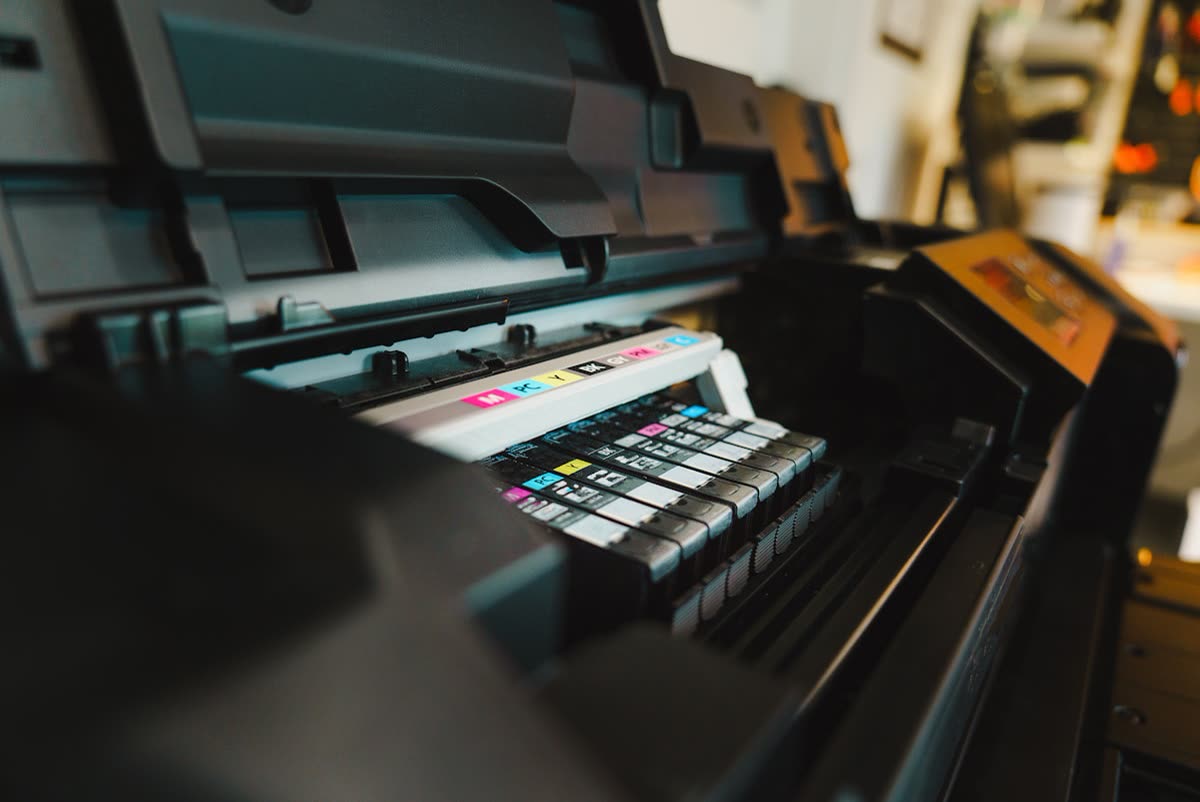
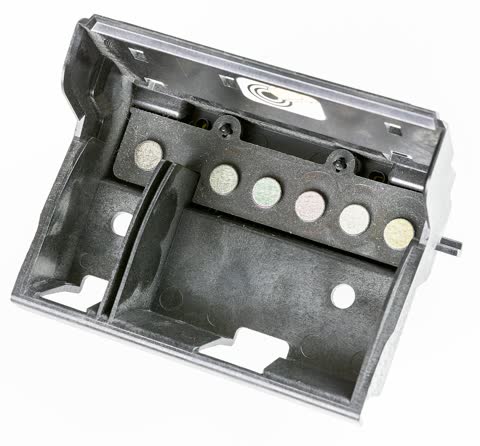
Inkjet printheads are a plate with hundreds of microscopic nozzles. Between jobs the printer parks the head on a rubber cap to slow evaporation, but over two to four weeks the pigment black dries anyway and cleaning cycles, which push ink through to dissolve the plug, waste several pages' worth of ink each time. If the printer is switched off at the wall it cannot even cap properly, and it skips the brief automatic maintenance most models run on a schedule. Laser printers have no liquid ink but their rubber pickup rollers harden and glaze with paper dust, so the first symptom of neglect is "printer not picking up paper" rather than a print-quality problem.
Inkjet maintenance
Print weekly and leave it on
One page a week, even the nozzle check, keeps every nozzle wet. Leave the printer powered on and let it sleep; set Auto Power Off to Never (HP: Settings › Power Management; Canon: ECO settings › Auto power off; Epson: General Settings › Basic Settings › Power Off Timer; Brother: General Setup › Ecology › Auto Power Off). If you are going away for a month, print a nozzle check before you leave and again when you return.
How to clean the print head (the right sequence)
If you already have a print quality problem rather than preventing one, our print quality guide matches each symptom to its fix. For routine cleaning:
- Nozzle check first. HP: Settings › Tools › Print Quality Report; Canon: Setup › Maintenance › Nozzle Check; Epson: Maintenance › Print Head Nozzle Check; Brother: Ink › Print Quality Check.
- If bars are broken, run one standard cleaning. HP: Clean Printhead (also in the HP app under Print Quality Tools); Canon: Cleaning; Epson: Print Head Cleaning; Brother: Cleaning › the affected color.
- Wait 15 to 20 minutes, print the nozzle check again.
- Still broken? One deep cycle (Canon Deep Cleaning, Epson Power Cleaning on tank models, HP second-level clean). Then stop.
- If that fails, the fix is a soak, not more cycles: see printer not printing black.
Align the head after a cartridge change
Run Print Head Alignment (Canon: Maintenance › Print Head Alignment; Epson: Maintenance › Print Head Alignment; HP: Tools › Align Printhead) after fitting a new cartridge or if vertical lines look jagged. On Canon and HP models where the printhead is in the cartridge, every new cartridge is a new head and alignment matters.
Ink tanks and cartridges
Refill tank printers before they run dry so air does not enter the tubes, and confirm the refill on the panel so the gauge stays accurate. Store spare cartridges sealed, upright, at room temperature. Do not remove a cartridge and leave the slot empty for more than a few minutes; the exposed head dries quickly.
Paper path: how to clean printer rollers
Dusty or glazed pickup rollers are the cause of most "printer keeps jamming" and "printer not picking up paper" complaints. Clean them every few months, or as soon as feeding becomes unreliable:
- Power off and unplug. Remove the paper tray and any rear access door.
- Find the gray or black rubber rollers above the tray. Wipe them with a lint-free cloth lightly dampened with water (or isopropyl alcohol on laser rollers only), rotating to clean the whole circumference.
- Clean the separation pad (the small rubber or cork pad under the roller) the same way.
- Let everything dry for five minutes, refit the tray, and load fresh, fanned paper with the guides snug but not tight.
Rollers that are shiny and smooth after cleaning are worn; many HP, Brother and Canon models sell a roller kit for $10 to $25 that takes ten minutes to fit. Store paper flat in its wrapper; curled or humid paper jams regardless of roller condition. Our paper jam guide covers clearing and recurring jams.
Laser printer maintenance
Toner
When the printer reports toner low, remove the cartridge and rock it gently side to side five or six times to redistribute the powder; most have several hundred pages left. Keep spares sealed in the dark. Never shake a cartridge near the scanner glass or a fan.
Drum unit
The drum is the green or blue cylinder that carries the image. Brother sells it separately from the toner and it is rated around 12,000 pages; HP and Canon usually build it into the toner cartridge. Do not touch or expose the drum surface to bright light for more than a minute. Replace it when the printer counts it out or when prints show a repeating mark every 75 to 95 mm (about 3 to 3.75 inches) down the page. See Brother drum end of life.
Corona wire and interior
Brother drums have a green tab on the corona wire; slide it fully left and right a few times whenever vertical streaks appear, then return it to its home position. Vacuum loose toner with a toner-rated vacuum only; a household vacuum blows fine toner through its filter and can be damaged. For small spills use a dry cloth and cold water; warm water sets toner.
Fuser
Fusers are rated for 50,000 to 100,000 pages. Paper jams in the fuser area and vertical smears that rub off point to fuser wear. On budget lasers the fuser costs about what the printer did, which settles the repair question.
Scanner and ADF

Lift the lid and wipe the main glass with a microfiber cloth and a little glass cleaner sprayed on the cloth, never on the glass. The narrow strip of glass to the left of the main platen is the ADF scan strip; a single toner speck or glue dot there produces a line down every copy and scan fed through the document feeder. Wipe the white backing on the lid and the ADF rollers as well. If your scans have lines and the flatbed copy is clean, that strip is the culprit every time. For scanning software faults see scanner not working.
Firmware, drivers and software
Firmware updates fix Wi-Fi drops, paper-handling bugs and security holes. Update from the brand app, the printer's web page (type its IP address into a browser) or the panel: HP Settings › Printer Update; Canon Setup › Device settings › Firmware update; Epson Settings › Firmware Update; Brother via the Brother Update tool or the web page's Administrator › Firmware Update. The caveat: HP and some Epson and Canon updates add cartridge checks that reject third-party ink. If you use compatibles, read the release notes and turn off automatic updates; our third-party ink guide explains the trade-off, and our printer firmware update guide covers updating safely and when to hold off. On the computer, keep the driver current but do not reinstall it unless something is broken. Windows 11 now installs its own IPP Class Driver for most printers, which needs no updating.
Maintenance schedule
| Task | Inkjet | Laser |
|---|---|---|
| Print a page | Weekly | Monthly |
| Nozzle check / test page | Monthly and before big jobs | Quarterly |
| Clean scanner glass and ADF strip | Monthly | Monthly |
| Clean pickup rollers | Every 3 to 6 months | Every 3 to 6 months |
| Head alignment | After cartridge change | n/a |
| Rock toner | n/a | At "toner low" |
| Corona wire (Brother) | n/a | At first sign of streaks |
| Firmware check | Quarterly | Quarterly |
| Replace rollers | When glazed, 3 to 5 years | When glazed, 50k pages |
Resets, counters and sensors: when upkeep turns into a fix
A few jobs sit on the line between maintenance and troubleshooting. They are worth knowing about before you need them.
- Factory reset. Returns the printer's settings to how they left the factory, which clears a tangled network setup or a menu change you cannot find again. It is not routine maintenance and will not fix worn parts, and you will need to set up Wi-Fi again afterwards. Steps for each brand, including network-only resets, are in how to factory reset a printer.
- Firmware updates. Worth checking quarterly, as above, but read the release notes first if you use third-party ink, and never switch the printer off mid-update.
- Waste ink counters and "resetter" software. Inkjets count the ink that cleaning cycles send to the waste pad and eventually stop with an end-of-service-life message. Third-party "resetter" tools promise to clear that count, but the pad itself is still full and the downloads carry real risks; read printer resetter software explained before running anything, and Epson ink pad reset for the official options.
- "Out of paper" with a full tray. Usually glazed pickup rollers, paper loaded past the guides, or a dusty paper sensor rather than a fault. Clean the rollers as described above, then work through printer says out of paper.
Placement and environment
Keep the printer away from radiators, direct sun and windows; heat dries printheads and humidity curls paper. Leave the space the manual specifies behind a laser for fuser heat to escape. Keep it off the floor where dust is worst, and cover an inkjet that will sit unused for weeks. Power it down with its own button, not the wall switch, so an inkjet parks and caps the head.
When maintenance is not enough
If a nozzle check never recovers after a soak, a laser's drum or fuser has reached its counter on a printer worth less than the part, or the rollers are replaced and paper still will not feed, the printer has reached the end of its economic life. Anything under a few hundred dollars is cheaper to replace than to have repaired. For a problem that is not maintenance-related, our printer troubleshooting checklist is the place to start. If you are not sure whether yours is in that category, you can get help from a printer specialist who will look at the test page and the counters with you before you spend anything.
Software mentioned in this guide
- Brother iPrint and Scan
Desktop print and scan front end that replaces ControlCenter4 on newer Brother models Windows · macOS · iOS - Canon IJ Setup (ij.start.canon)
Canon's setup portal that walks you through installing a PIXMA or MAXIFY printer Windows · macOS · iOS - Epson Software Updater
Keeps Epson drivers, utilities and firmware current on Windows and macOS Windows · macOS - HP Smart (the HP app)
HP's official setup, printing, scanning and ink app for home and small-office printers Windows · macOS · iOS
Frequently asked questions
How often should I clean my printer's print head?
Only when a nozzle check shows gaps. Routine cleaning cycles waste ink and fill the waste pad. Printing one page a week is better prevention than any cleaning; if a gap appears, run one cleaning, wait 20 minutes and check again.
How do I stop my printer ink from drying out?
Print at least once a week, leave the printer powered on with sleep enabled so it caps the head and runs its own maintenance, keep it away from heat and sun, and never leave a cartridge slot empty. If you print rarely, a mono laser avoids the problem entirely.
How do I clean printer rollers?
Unplug the printer, remove the tray, and wipe the rubber pickup rollers and separation pad with a lint-free cloth dampened with water, rotating them to clean all round. Let them dry, then reload fanned paper. Shiny, smooth rollers after cleaning are worn and should be replaced with the manufacturer's roller kit.
Should I update my printer's firmware?
Usually yes: updates fix Wi-Fi, jam and security bugs. The exception is if you use third-party cartridges, since HP and occasionally Canon and Epson updates add checks that reject them. In that case read the release notes and turn off automatic updates before deciding.
Should I factory reset my printer as part of maintenance?
No. A factory reset returns every setting to default and removes the Wi-Fi connection, so it creates setup work without cleaning or protecting anything. Use it to clear a tangled network setup, or before selling or recycling the printer, not as routine upkeep. Weekly printing, roller cleaning and firmware checks are the real maintenance.
Why does my printer have lines on copies but not prints?
Dirt on the scanner, not the printer. A speck on the narrow ADF scan strip next to the main glass puts a line down every page fed through the document feeder. Wipe the strip, the main glass and the white lid backing with a microfiber cloth.
Which printers need the least maintenance?
Mono laser printers. Toner does not dry out, there is no printhead, and the only consumables are toner and (on Brother) a drum with a long counter. Ink-tank inkjets are next if used weekly; standard cartridge inkjets that sit idle need the most attention.
Technical writer focused on printer drivers, wireless setup and error-code troubleshooting.
Questions & comments (0)
No comments yet. Describe your printer model, operating system and the exact message you see; comments appear after review.
Ask about this page
Your comment appears after our team approves it. Or sign in to post faster.