Printer Not Printing Black but Has Ink? 8 Fixes (HP, Canon, Epson EcoTank, Brother)
A full black cartridge that prints nothing is nearly always a clogged printhead, a sealed new cartridge, or a color setting, not empty ink. Here is the order of fixes that gets black back without wasting ink.

On this page
- Quick fixes first
- Why the printer won't print black when it has ink
- Fix 1: Nozzle check and head cleaning, the right way
- Fix 2: Pigment black vs dye black (Canon and HP two-black printers)
- Fix 3: Power Cleaning, System Cleaning and the soak
- Fix 4: Check the cartridge itself
- Fix 5: Settings that hide black
- Fix 6: Laser printers: faint or no black
- Brand-specific notes
- Stop it happening again
- If nothing worked
A printer that is not printing black even though it has ink is almost always suffering from a clogged black printhead, a new cartridge with its vent or seal still on, or a driver setting that is sending black text through the colour channels. Dye-based colour inks flow through a clog more easily than pigment black, which is why you get a perfect colour test page with a blank black row. The fixes below are ordered from fastest to most invasive and cover HP, Canon, Epson EcoTank and Brother printers.
Quick fixes first
- Print a nozzle check from the printer's maintenance menu or the brand app. Look at the black section: solid bars mean the head is fine; gaps or nothing mean a clog.
- Run one printhead cleaning, wait 15 to 20 minutes with the printer idle, and print the nozzle check again.
- Reseat the black cartridge. Remove it, check that the tape or orange clip is off and the vent hole is clear, and click it firmly back in.
- Check the print settings. Make sure "Print in grayscale" is not set to "Use colour inks only", Draft mode is off, and paper type matches.
- Print a plain text page from Notepad or TextEdit. If it prints now, the earlier document was the problem, not the printer.
Why the printer won't print black when it has ink

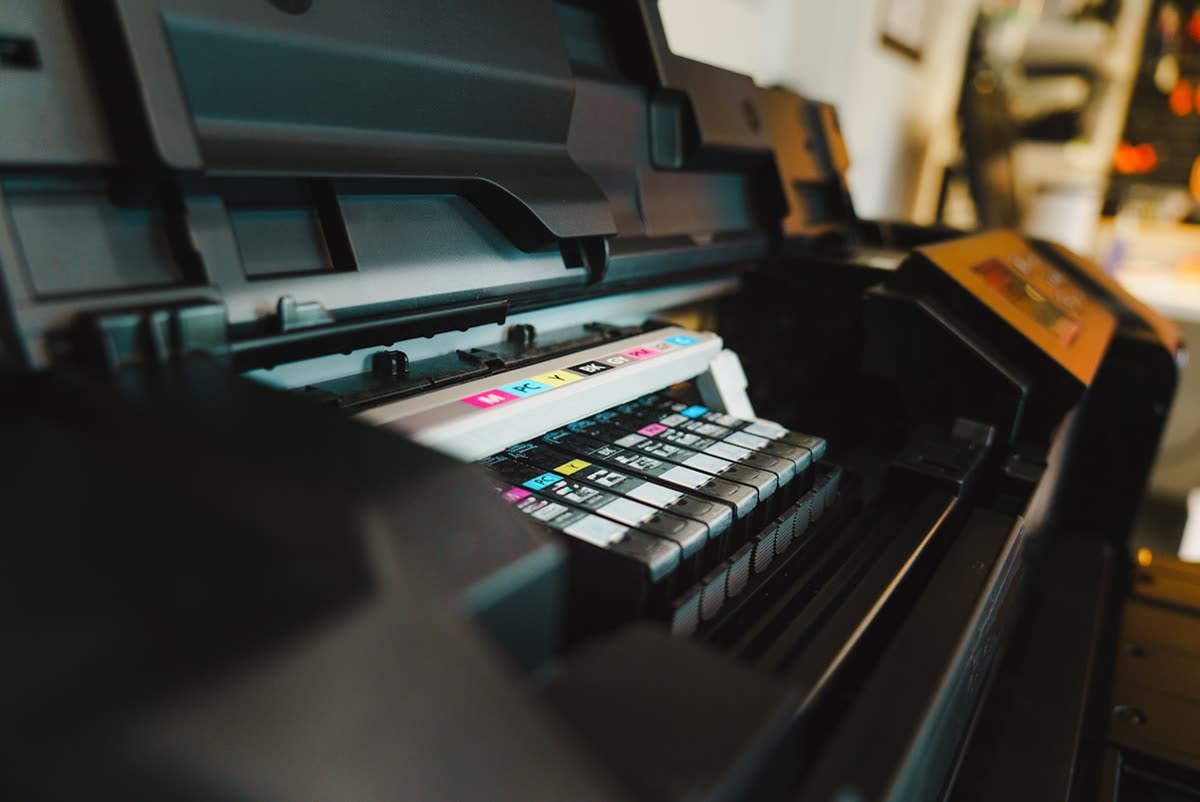
Black inks on most home inkjets are pigment-based: solid particles suspended in liquid. When the printer sits unused for a week or more, especially in a warm room or near a heater, the water evaporates from the nozzles and the pigment dries into a plug. Colour inks are usually dye-based and dissolve again more readily, so they survive the same neglect. That is why "printer prints colour but not black" is by far the most common version of this complaint, and why it hits Epson EcoTank, Canon PIXMA and HP OfficeJet owners who print in bursts.
The second cause is mechanical: a new cartridge whose protective tape is still on, or one whose tiny vent hole is blocked so ink cannot flow out. The third is software: drivers that convert black to a mix of cyan, magenta and yellow ("composite black") when a grayscale option is set a certain way, or a Word document whose text colour is "automatic" but rendered as very dark grey.
On laser printers "not printing black" means faint or blank pages from a toner that is empty, still sealed, or from a drum that has reached end of life. Lasers have no nozzles to clog, so skip to the laser section.
Fix 1: Nozzle check and head cleaning, the right way
Where to find it:
- HP: Printer panel Settings › Tools › Clean Printhead, or in the HP app under Printer settings › Print Quality Tools › Clean Printhead, then print a Print Quality Report.
- Canon: Setup › Maintenance › Nozzle Check, then Cleaning, then Deep Cleaning. The same menu exists on the computer in the driver's Maintenance tab.
- Epson: Settings › Maintenance › Print Head Nozzle Check, then Print Head Cleaning. In Windows use the Epson driver's Maintenance tab; on a Mac use the Epson Printer Utility from System Settings › Printers & Scanners › Options & Supplies.
- Brother inkjet: Ink › Print Quality Check, then Cleaning › Black only.
Clean once, wait, check. The wait matters: cleaning pushes solvent through the nozzles and the next 20 minutes let it soften the plug. Running three cleanings back to back empties a cartridge and fills the waste ink pad without giving the solvent time to work. If the nozzle check improves between cycles, continue up to three cycles total. If it does not change at all, cleaning alone will not fix it; go to Fix 3.
Fix 2: Pigment black vs dye black (Canon and HP two-black printers)
Most Canon PIXMA models and many HP ENVY and OfficeJet models carry two black cartridges: a large pigment black (Canon PGI/PG "PGBK", HP labelled "Black") for plain-paper text and a small dye black (Canon CLI "BK", HP "Photo Black") for photographs. The driver chooses which to use based on paper type. If text documents are missing black but photos and the colour nozzle check look perfect, the pigment black is clogged or empty. Clean that cartridge specifically, replace it if the nozzle check shows nothing after two cleanings, and make sure the paper type is set to Plain Paper so the driver uses it.
Fix 3: Power Cleaning, System Cleaning and the soak

Tank printers have a stronger cycle that flushes the ink tubes as well as the nozzles. Epson EcoTank: Settings › Maintenance › Power Cleaning (needs every tank above the lower line, takes about 10 to 15 minutes, and can only be run once every 12 hours). Canon MegaTank and some PIXMA: Maintenance › System Cleaning. HP Smart Tank: Tools › Clean Printhead runs up to three escalating levels. Use these once, not repeatedly.
If the black is still missing, the plug needs to be dissolved, not blasted:
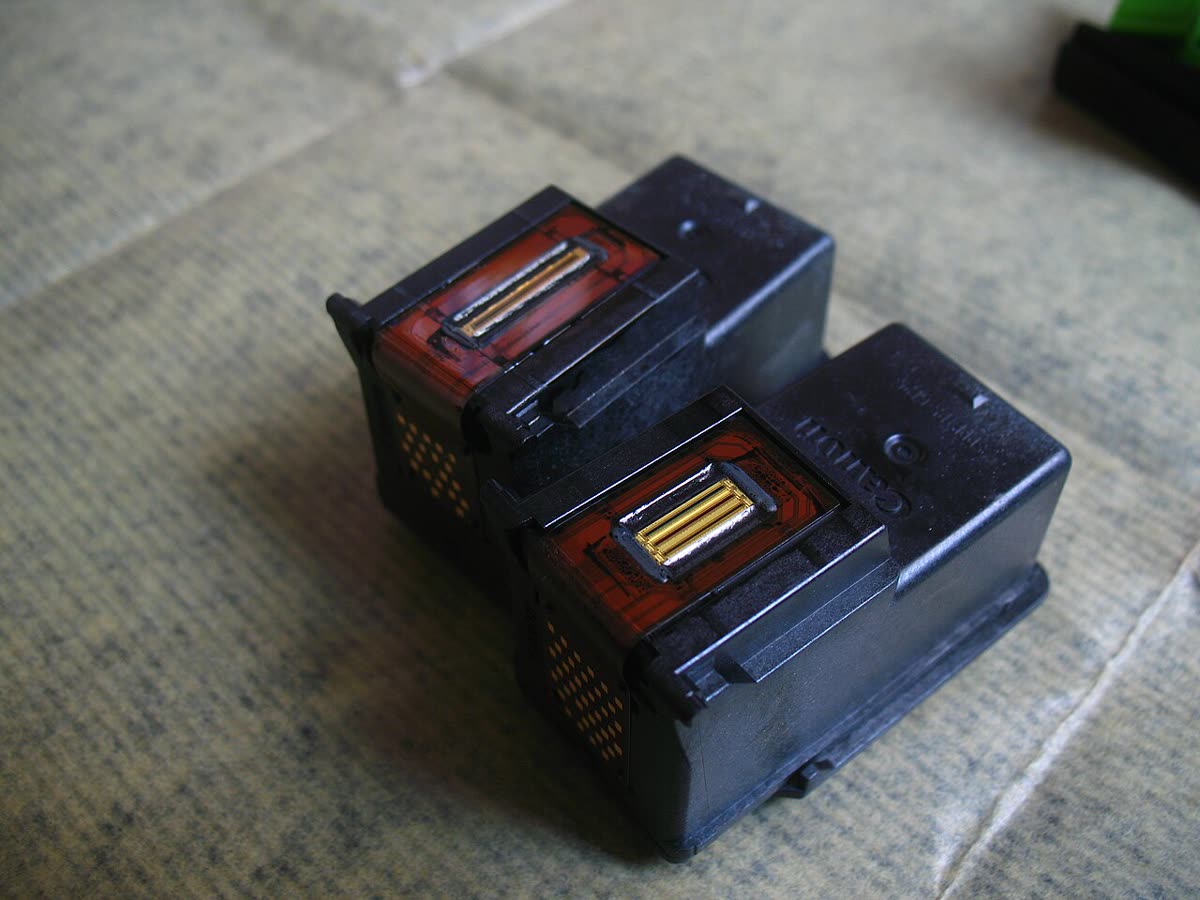
- Integrated-head cartridges (HP 61/62/63/64/65/67/302/303/304/305 and ENVY 6000 series, Canon PG-245/275/540/545/560/575 and similar): remove the black cartridge, hold the nozzle plate under warm running water for 30 seconds, or rest the nozzle plate on a folded paper towel soaked with warm water for 10 minutes, blot gently, let it dry for 10 minutes, refit and run one cleaning.
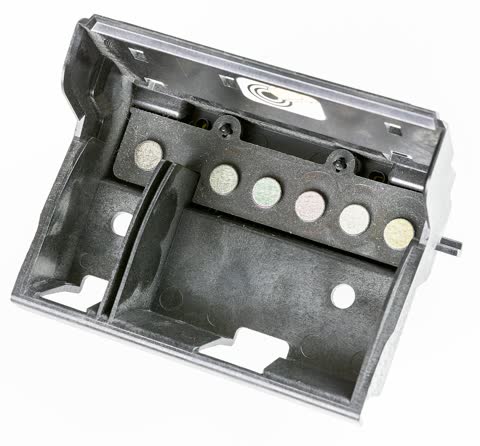
- Removable printheads (Canon PIXMA with separate CLI tanks, HP OfficeJet Pro 8000/9000 series): lift out the printhead, set it nozzle-down in 1 cm of warm distilled water (or a printhead cleaning solution) for one to two hours, blot, dry for at least 30 minutes, refit.
- Fixed printheads (all Epson, Brother inkjets, HP Smart Tank): you cannot remove the head. Buy a printhead cleaning kit with a syringe and silicone tube, remove the black cartridge or disconnect the black tube, push 2 to 3 ml of cleaner into the black inlet, leave it overnight, then run one cleaning.
Fix 4: Check the cartridge itself
Pull the black cartridge and check three things: the tape or plastic clip over the nozzles is gone; the small vent hole on top is not covered by a label; and the cartridge is the right one for the printer (an HP 65 will not fit an HP 67 slot, but an HP 64 and 64XL are interchangeable). On an ink-tank printer check that the black tank is actually above the lower line. The gauge on the printer's screen is an estimate, and on EcoTank models the black runs out first because it is used for every page. If you use third-party ink and only black has failed, try a genuine black; clogs from poorly formulated pigment inks are common and our third-party ink guide explains why.
Fix 5: Settings that hide black
- Windows 11: Settings › Bluetooth & devices › Printers & scanners › your printer › Printing preferences. Check Quality is Normal, not Draft; Color is set to Color or to Grayscale using "Black ink only" (HP calls this "Black Ink Only", Epson "Black/Grayscale", Canon "Grayscale Printing"). Some drivers' grayscale mode builds grey from colour inks, which prints nothing when the colour tanks are low.
- macOS: in the Print dialog expand the options, choose the brand's Print Settings or Color Matching pane, and set Grayscale with black ink only. On macOS 26 Tahoe with the generic AirPrint driver the option may be absent; install the vendor driver if you need it.
- The document: in Word select all text and set colour explicitly to Black (not Automatic); in PDFs choose "Print in grayscale" in the Acrobat dialog.
Fix 6: Laser printers: faint or no black
A laser that is not printing black is in a different situation. Pull the toner cartridge, remove the pull-tab seal if it is a new one, rock it gently side to side five or six times to redistribute toner, and refit. Turn off Toner Save (HP EconoMode; Brother Toner Save Mode; Canon Toner Saver) in the driver and on the panel. If pages are uniformly grey or pale, the drum unit may be at the end of its life; Brother separates the drum from the toner, so check for a "Replace Drum" message and see Brother drum end of life. Completely blank pages on a laser point to a missing seal, a faulty transfer roller, or the laser unit, covered in printer printing blank pages.
Brand-specific notes
| Brand | Typical culprit | Best tool |
|---|---|---|
| HP (DeskJet, ENVY, OfficeJet) | Integrated black cartridge dried out; HP+ ink status blocking | HP app Print Quality Tools; warm-water cartridge soak |
| Canon PIXMA | PGBK pigment clog; support code 1403/1430 if head fails | Deep Cleaning, printhead soak |
| Epson EcoTank / WorkForce | Black nozzles dried after weeks idle; air in black tube after refill | Power Cleaning once, then syringe flush |
| Brother inkjet | Black dried after Auto Power Off; maintenance count | Cleaning › Black, keep printer powered on |
| All lasers | Sealed/low toner, Toner Save, drum end | Rock toner, disable Toner Save, replace drum |
Stop it happening again
Print one page a week, ideally the nozzle check, so ink keeps moving. Leave the printer powered on rather than switched off at the wall; the scheduled self-cleaning and the capping station only work with power. Keep it away from radiators and direct sun. If you print rarely and mostly text, a cheap mono laser never clogs, which is the honest answer for a lot of people in this situation; see inkjet vs laser.
If nothing worked
When a soaked printhead still prints no black, the nozzle plate or its heating elements have failed. A replacement printhead for a Canon PIXMA or HP OfficeJet Pro costs between 40 and 90 dollars or pounds and is a 10-minute swap; on Epson and Brother inkjets the head is not user-replaceable and a service repair usually costs more than the printer did. If you are unsure which case you are in, or the printer has started showing a printhead error code, you can get help from a printer specialist who will look at your nozzle check and tell you whether the head is worth saving.
Software mentioned in this guide
- Brother Mobile Connect
Brother's current mobile app for setup, printing, scanning and supplies iOS · Android - Canon IJ Setup (ij.start.canon)
Canon's setup portal that walks you through installing a PIXMA or MAXIFY printer Windows · macOS · iOS - Epson Software Updater
Keeps Epson drivers, utilities and firmware current on Windows and macOS Windows · macOS - HP Smart (the HP app)
HP's official setup, printing, scanning and ink app for home and small-office printers Windows · macOS · iOS
Frequently asked questions
Why is my printer not printing black when the cartridge is full?
The black nozzles are clogged with dried pigment ink. Ink level has nothing to do with it: a full cartridge with a blocked nozzle plate prints nothing. Run a nozzle check, then one cleaning cycle, wait 20 minutes and check again. If there is still no black, soak the printhead rather than running more cleanings.
How many times should I run head cleaning?
Two cycles with a 20-minute pause between them, three at most. If the nozzle check does not improve at all between cycles, more cleaning will only waste ink and fill the waste pad. Move on to a Power Cleaning on tank models or a warm-water soak of the printhead.
Why does my Epson EcoTank print colour but not black?
EcoTank black is pigment ink and dries in the nozzles faster than the dye colours when the printer sits unused. Run Print Head Cleaning once, then Power Cleaning if needed (tanks must be above the lower line). If black is still missing, flush the black inlet with cleaning solution and leave it overnight.
Can a new black cartridge print nothing?
Yes. New cartridges have a tape or clip over the nozzles and a sealed vent that must be removed. Some also need one cleaning cycle to prime. If a brand-new cartridge prints nothing after priming, try it in the printer with the paper type set to Plain and grayscale off; if still blank, the cartridge may be faulty and most retailers will exchange it.
Why does my HP printer print blank pages for black only?
On HP DeskJet and ENVY models the black cartridge contains the printhead, so a clog means the cartridge itself is blocked. Use the HP app's Clean Printhead tool twice, then hold the cartridge nozzle plate under warm water for 30 seconds, dry it and retry. If that fails the cartridge needs replacing; the printer is fine.
Does printing in grayscale stop black from printing?
It can. Some drivers offer two grayscale modes: black ink only, and composite grey made from colour inks. If the colour tanks are low or the driver picks composite, text comes out faint or missing. Set grayscale to black ink only, or turn grayscale off and print normally.
Technical writer focused on printer drivers, wireless setup and error-code troubleshooting.
Questions & comments (0)
No comments yet. Describe your printer model, operating system and the exact message you see; comments appear after review.
Ask about this page
Your comment appears after our team approves it. Or sign in to post faster.