HP "Problem with Printhead"? How to Reseat, Clean or Replace It
HP reports a printhead problem when it cannot communicate with the printhead or detect it at all. On models with a removable printhead, reseating and cleaning the contacts fixes most cases.

On this page
- Quick fixes first
- Why this happens
- Fix 1: Work out which kind of printer you have
- Fix 2: Reseat the printhead
- Fix 3: Hard reset
- Fix 4: Cleaning cycles, used sparingly
- Fix 5: Manual cleaning of a removable printhead
- Fix 6: Rule out the cartridges
- Fix 7: Confirm the software side is not confusing matters
- If the error returns immediately
- If nothing worked
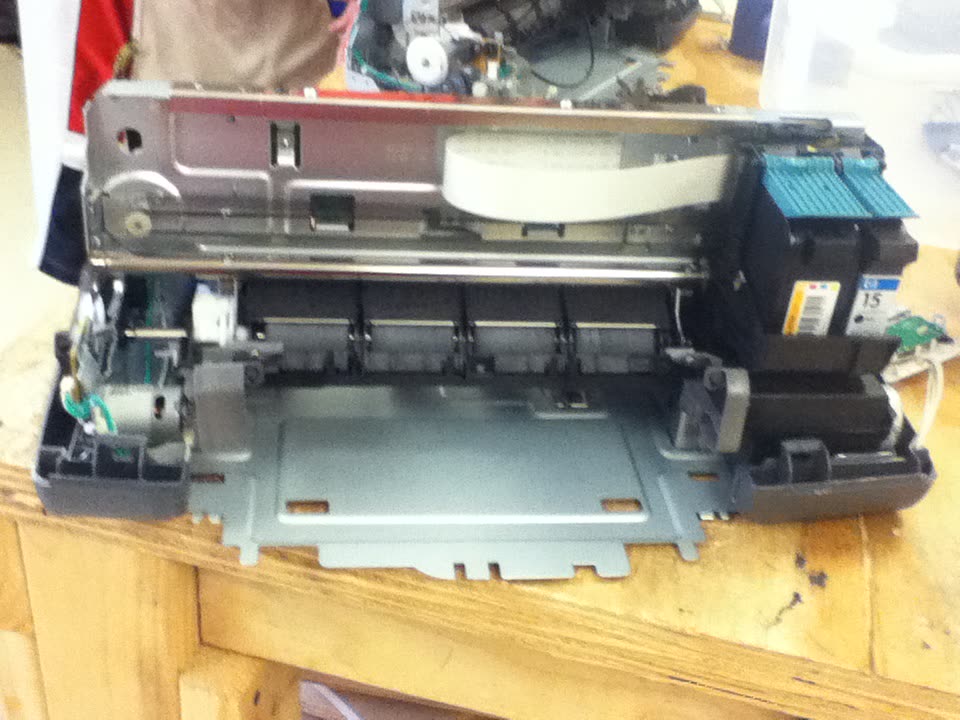
When an HP printer reports a problem with the printhead, it is telling you it cannot talk to the component that actually fires ink onto the page. Whether you can do anything about that depends almost entirely on one question: does your model have a removable printhead, or is the printhead built into the cartridge? Answer that first and the rest of the troubleshooting follows.
Quick fixes first
- Open the cartridge access door and look under the cartridges. If you see a separate blue or grey latched unit, your printhead is removable.
- Remove and refit each cartridge until it clicks firmly.
- If removable, unlatch the printhead, wipe its gold contacts and the matching carriage contacts with a dry lint-free cloth, and refit with the latch fully closed.
- Power the printer off with its button, unplug from the wall for 60 seconds, reconnect and switch on.
- Run one printhead cleaning cycle from the printer's tools or the HP app, and let it rest before judging the result.
Why this happens

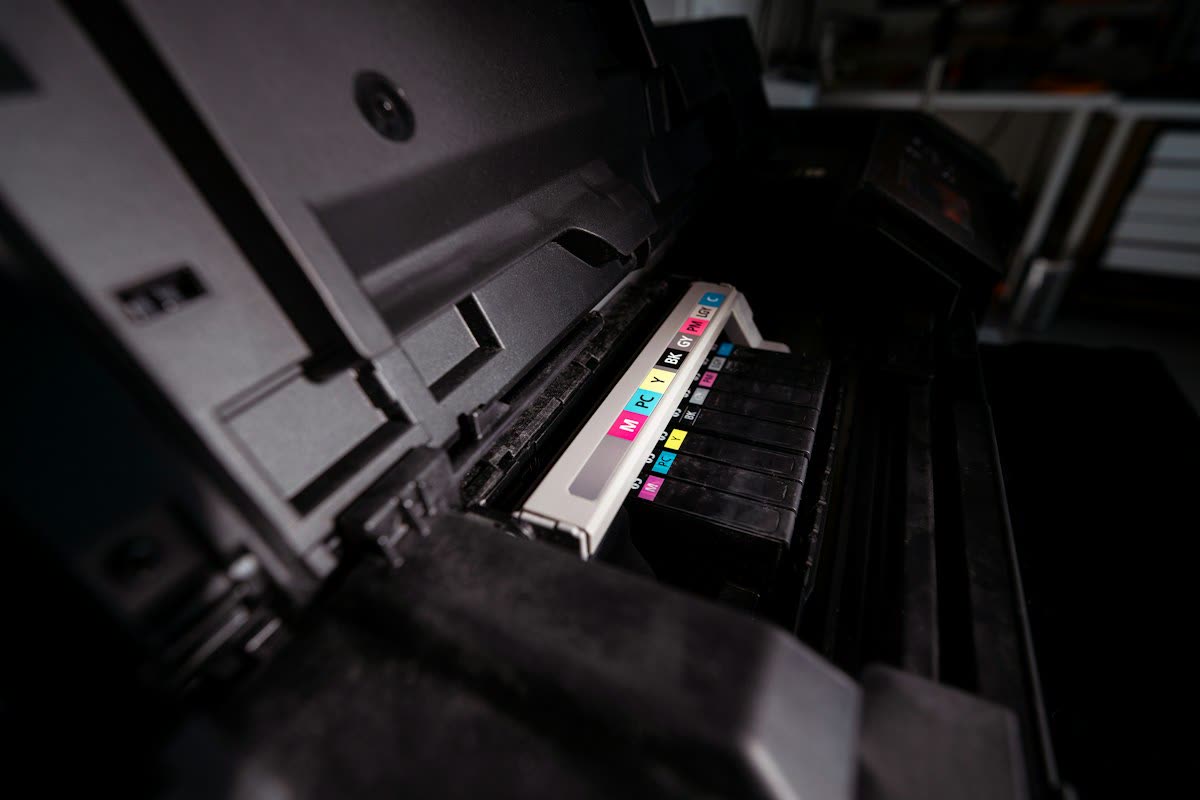
The printhead is a dense array of microscopic nozzles, each with a tiny heating element that vaporises a droplet of ink to fire it at the page. It connects to the printer through a set of gold contacts, and those contacts sit in an environment of ink mist and paper dust.
Four things produce this error, roughly in order of frequency:
- Not fully latched. After a cartridge change or a jam clearance, the printhead latch can be left slightly open. The printhead is physically present but not making reliable contact.
- Contaminated contacts. Ink or dust on the gold contacts breaks the electrical connection, and the printer reports the head as missing.
- Air in the system. Running a cartridge completely dry draws air into the ink path. Beyond causing blank pages, it removes the cooling that ink flow provides, and the nozzle heaters can overheat.
- Electrical failure. Burnt-out heating elements or a failed driver circuit produce a head the printer genuinely cannot address.
Fix 1: Work out which kind of printer you have
| Range | Printhead type | What you can do |
|---|---|---|
| OfficeJet Pro (8000, 9000 series) | Separate, removable | Reseat, clean, and replace as a part |
| OfficeJet (non-Pro) | Varies by model | Check under the cartridges for a latch |
| Smart Tank | Usually separate | Reseat and clean; replacement available on some models |
| DeskJet | Integrated into the cartridge | Replace the cartridge to replace the head |
| ENVY | Mostly integrated | Replace the cartridge; some models differ |
To check physically: open the cartridge door, remove the cartridges, and look at what is underneath. A separate unit with its own latch and a visible nozzle plate is a removable printhead. If the cartridges sit directly over the paper path with no intermediate component, the printhead is in the cartridge.
Fix 2: Reseat the printhead
This resolves a large share of cases and takes two minutes.
- Switch the printer on and open the cartridge access door so the carriage moves to the centre.
- Remove all cartridges and set them aside on paper, nozzles down.
- Lift the printhead latch - usually a blue or grey handle - fully up.
- Lift the printhead straight out. It may need a firm, even pull.
- Wipe the gold electrical contacts on the side of the printhead with a dry lint-free cloth, in one direction. Do the same for the matching contacts inside the carriage.
- Refit the printhead squarely and press the latch fully closed. It should meet clear resistance and click.
- Refit the cartridges until each clicks.
- Close the door and let the printer initialise - this takes longer than a normal startup.
Fix 3: Hard reset

After a reseat, clear the printer's error state:
- With the printer on, unplug the power cord from the back of the printer.
- Unplug it from the wall socket too, not just from a switched extension lead.
- Wait a full 60 seconds so residual charge drains from the logic board.
- Plug directly into the wall, bypassing surge protectors for the test.
- Reconnect to the printer and switch on with the printer's own power button.
Let the initialisation routine complete. Some models run a longer ink-system prime after a printhead reseat, which can take several minutes and sound alarming - that is normal.
Fix 4: Cleaning cycles, used sparingly
If the printer boots but output is missing colours, run a cleaning from the printer's tools menu or the HP app, previously called HP Smart. Run one cycle, wait 20 to 30 minutes, then print a Print Quality Report from Settings › Tools. Only run a second cycle if the first improved things.
Running cleanings back to back is the most expensive mistake here - each cycle uses a meaningful amount of ink, and six consecutive cycles can drain a cartridge set without clearing a hard clog. More on reading the results in printer printing blank pages and printing lines or streaks.
Fix 5: Manual cleaning of a removable printhead
Only attempt this on a removable printhead, and only after cleaning cycles have failed.
- Remove the printhead as in Fix 2.
- Fold a lint-free cloth, dampen a small area with warm distilled water - not tap water, not alcohol, not glass cleaner - and dab the nozzle plate gently. You should see ink transfer onto the cloth.
- Repeat with a clean area of cloth until transfer is even across all colours.
- For a stubborn clog, rest the nozzle plate on a folded cloth soaked in warm distilled water for 10 to 15 minutes. Do not submerge the printhead and keep water away from the gold contacts entirely.
- Blot dry, then leave it to air-dry for at least 30 minutes - longer is better.
- Refit, latch fully, refit cartridges, and run one cleaning cycle.
Alcohol is specifically damaging: it dissolves adhesives inside the printhead assembly and can permanently ruin it. Tap water leaves mineral deposits that create new clogs.
Fix 6: Rule out the cartridges

A cartridge fault can present as a printhead message, particularly on models where the two are closely coupled. Install cartridges one at a time to see whether a specific one triggers the error, and check for tape left over the contacts. If the message changes to a cartridge error, that is progress - see HP ink cartridge problem.
Also check for firmware updates through the HP app or the printer's embedded web server. HP has issued firmware addressing printhead detection faults on specific models, and it costs nothing to check.
Fix 7: Confirm the software side is not confusing matters
Run HP Print and Scan Doctor on Windows to confirm the driver, port and queue are healthy - there is no macOS version. If the printer's own panel shows the error, the software is not the cause, but a healthy driver removes one variable. For a clean reinstall, HP Easy Start handles removal and installation in one pass on both Windows and macOS.
If the error returns immediately
A printhead problem that reappears within seconds of every reset, with the head correctly latched and clean contacts, is an electrical failure. Indicators that confirm it:
- One or more colours are permanently absent from a Print Quality Report and never improve with cleaning.
- The error appeared right after a cartridge ran completely dry.
- The printer initialises, then errors as soon as it tries to fire nozzles.
- Visible scorching or discolouration on the nozzle plate.
Compare with HP error 0x6100004a, which is a carriage movement fault rather than a printhead one - the two are often confused because both stop the printer at startup.
If nothing worked
The decision now depends on your model. On an OfficeJet Pro or business machine, replacement printheads are available and user-fittable, typically at somewhere between a third and two-thirds of the price of a new printer. On a machine with a low page count and expensive cartridges already in it, that is usually worth doing. On a machine that has printed tens of thousands of pages, it is not - other components will be near the end of their life too.
On a DeskJet or ENVY with an integrated printhead, replacing the cartridge replaces the head. If new cartridges do not resolve it, the fault is in the carriage contacts or the logic board, and repair labour alone will exceed the price of a comparable new printer. Parts for these ranges are also frequently unavailable outside HP's own service channel.
Before buying anything, check the warranty position. HP's standard warranty may still apply, and consumer protection law in the UK, Canada and Australia gives you a claim against the retailer for a reasonable period beyond that - often a faster route than a manufacturer repair. More HP-specific guidance is at the HP hub, HP printer support and common printer error codes.
If you would like someone to look at your Print Quality Report and confirm whether the printhead is clogged or genuinely failed before you order a part, you can get help from a printer specialist.
Software mentioned in this guide
- HP Easy Start
Small bootstrap installer that fetches the right HP driver for your model Windows · macOS - HP Print and Scan Doctor
Free Windows diagnostic tool that finds and fixes common HP printing faults Windows - HP Smart (the HP app)
HP's official setup, printing, scanning and ink app for home and small-office printers Windows · macOS · iOS - Windows printer settings
How Windows installs printers, and the shift to driverless Windows Ready Print Windows - macOS Printers and Scanners
Where macOS adds printers, scans documents and resets the printing system macOS
Frequently asked questions
What does problem with printhead mean on an HP printer?
It means the printer cannot communicate with the printhead or cannot detect it at all. The usual causes are a printhead that is not fully latched, dirty electrical contacts, air in the ink system after running a cartridge dry, or a printhead that has failed electrically.
Does my HP printer have a removable printhead?
It depends on the range. Most OfficeJet Pro and some Smart Tank models have a separate, user-removable printhead beneath the cartridges. Most DeskJet and many ENVY models build the printhead into the cartridge itself, so fitting a new cartridge installs a new printhead.
How do I clean an HP printhead manually?
Only on a removable printhead. Lift it out, wipe the gold electrical contacts with a dry lint-free cloth, and dab the nozzle plate with a lint-free cloth dampened with warm distilled water. Never use alcohol, never scrub, and let it dry for at least 30 minutes before refitting.
Why did my printhead fail after I let a cartridge run empty?
Inkjet printheads rely on ink flowing through them for cooling as well as printing. Firing nozzles with no ink causes rapid overheating and can burn out the heating elements permanently. Replacing cartridges promptly when low is the single best way to protect a printhead.
Is replacing an HP printhead worth it?
On an OfficeJet Pro or business model with a low page count, often yes - the part is available and user-fittable. On a consumer DeskJet or ENVY the printhead is usually part of the cartridge or not sold separately, and a repair costs more than a comparable new printer.
Consumer-tech editor covering printers and home-office gear for US and Canadian readers.
Questions & comments (0)
No comments yet. Describe your printer model, operating system and the exact message you see; comments appear after review.
Ask about this page
Your comment appears after our team approves it. Or sign in to post faster.