HP Error 0x6100004a: What It Means and How to Clear the Carriage Jam
Error 0x6100004a is HP telling you the ink carriage cannot move freely or the printhead will not initialize. Packing material, a paper scrap or an unseated cartridge cause most cases.

On this page
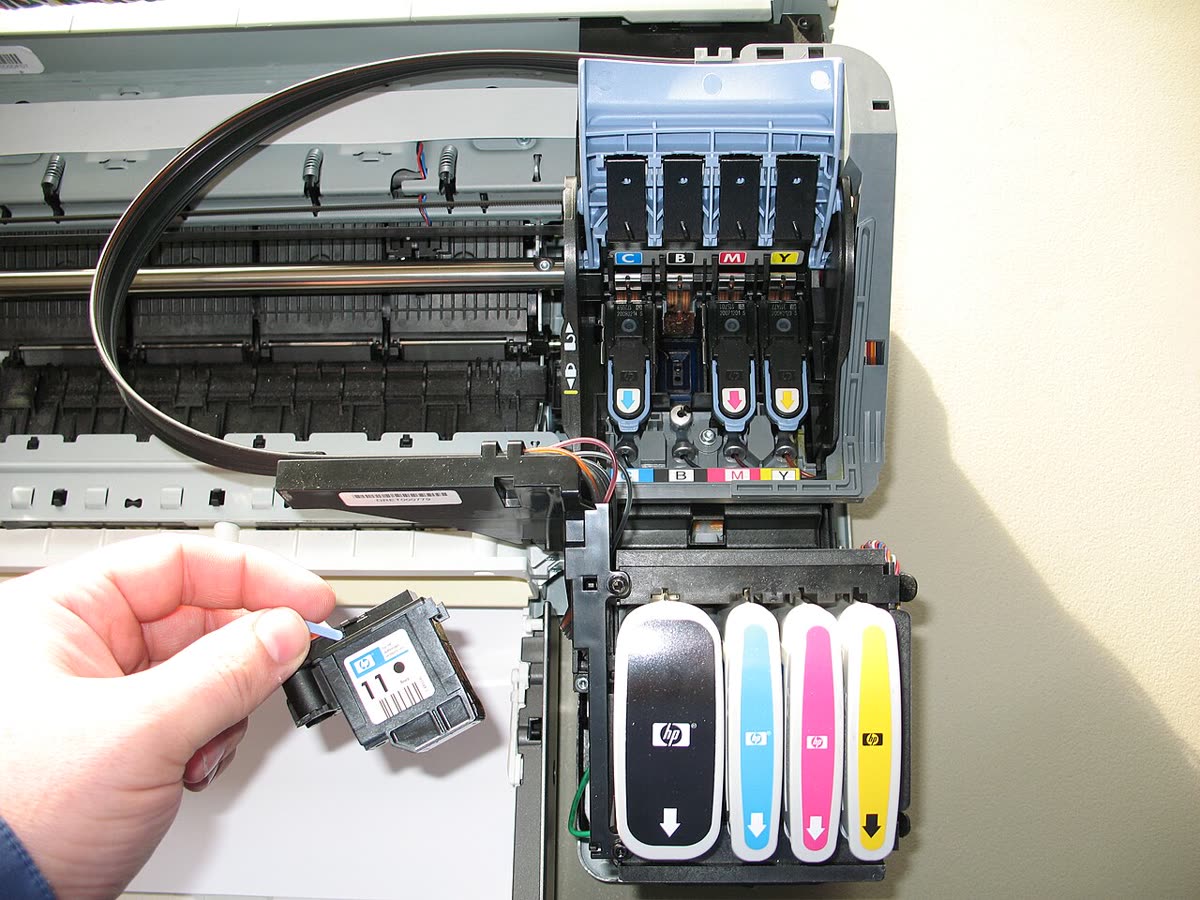
HP error 0x6100004a means the printer tried to move the ink carriage or initialise the printhead during startup and something went wrong. In practice that is one of three things: something is physically blocking the carriage, a cartridge or printhead is not seated properly, or the printer has lost track of where the carriage is. The first two are fixable in ten minutes with the printer open in front of you.
Quick fixes first
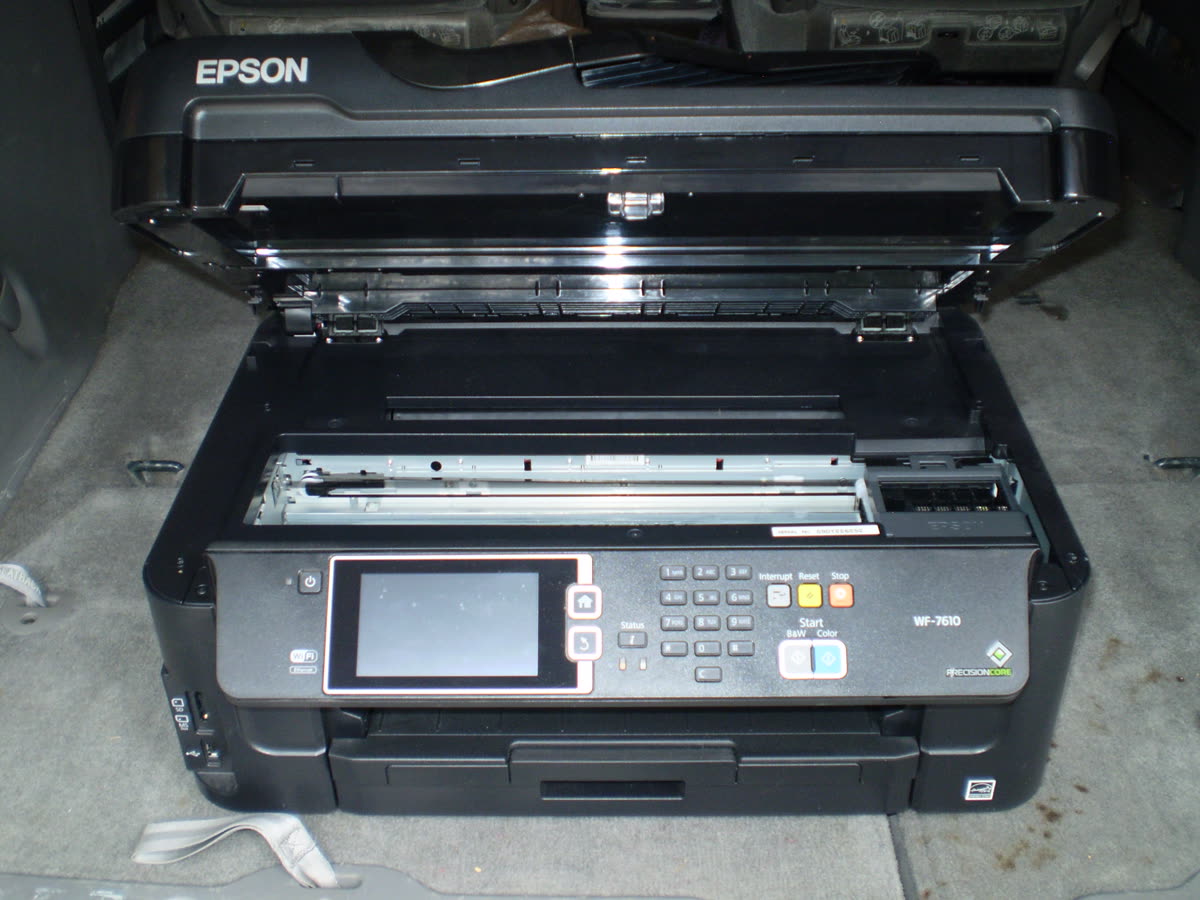
- With the printer on, open the cartridge access door and wait for the carriage to move to the centre.
- Unplug the power cord from the printer while the door is open. The carriage can now be moved by hand.
- Slide the carriage gently to the far left and far right, removing any paper, tape, foam or debris from its track.
- Reseat each cartridge until it clicks firmly into place.
- Reconnect power, wait 60 seconds, and switch on with the printer's own button.
Why this happens

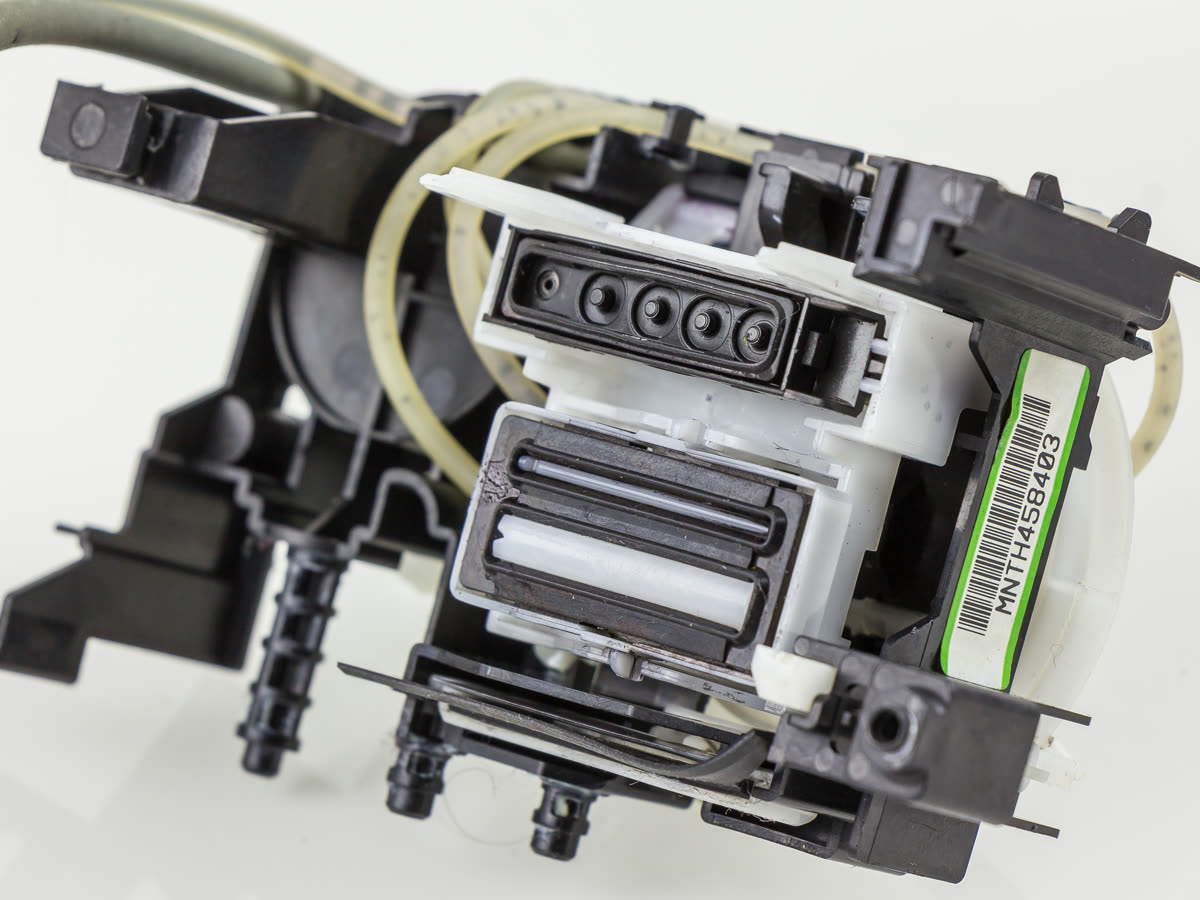
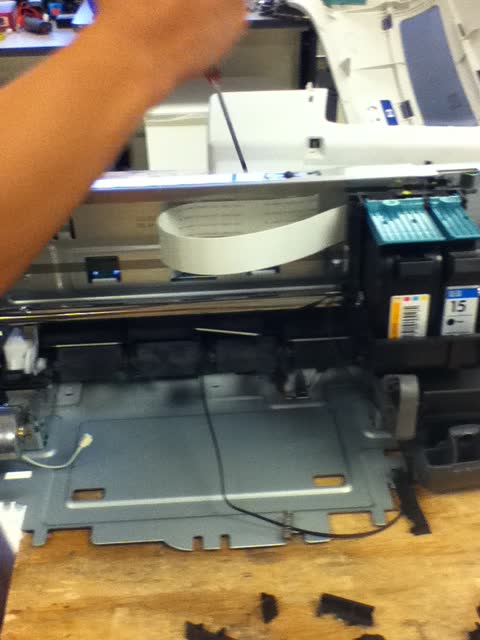
The ink carriage rides on a metal rail and is pulled across the page by a rubber belt driven by a small motor. A clear plastic ribbon behind it - the encoder strip, sometimes called a timing strip - carries fine printed lines that a sensor on the carriage reads to know exactly where it is. Every part of that system has to work for the printer to initialise.
0x6100004a is raised when the expected movement does not happen. The specific causes, roughly in order of how often they turn out to be responsible:
- Packing material. On a new printer this is the leading cause. Orange tape, foam blocks and a cardboard insert protect the carriage in transit, and one piece routinely gets missed.
- Paper scrap in the track. A fragment left behind after a jam sits in the carriage path and stops it dead.
- Unseated cartridge or printhead. A cartridge sitting slightly proud fouls the carriage as it moves, or the printhead fails to make electrical contact.
- Contaminated encoder strip. Ink mist or a smear from handling makes the printer misread the carriage position.
- Mechanical or electrical failure. A stretched or slipped belt, a failed carriage motor, or a printhead that has stopped responding.
Fix 1: Clear the carriage path properly
The order here is deliberate - opening the door while powered moves the carriage clear of its parked position, and unplugging afterwards releases the motor so you can move it by hand.
- Switch the printer on and let it finish whatever it is doing.
- Open the cartridge access door. The carriage should travel to the middle.
- Unplug the power cord from the printer.
- Shine a torch into the carriage track. Look along the full width, including behind the carriage and at both extreme ends where the carriage parks.
- Move the carriage by hand to one side, inspect, then to the other side and inspect again. It should glide with light, even resistance.
- Remove anything you find: paper fragments, tape, foam, a stray cartridge cap, packaging clips.
- Open the rear access door and duplexer as well - a scrap there can jam the paper path in a way that stalls the carriage.
Fix 2: Remove all packing material
If the printer is new or recently moved, work through every piece:
- Orange or blue tape on the outside and inside of the cartridge door.
- A foam block or cardboard insert wedged beside the carriage.
- Tape securing the carriage to one side.
- Protective film on each cartridge, including the small strip over the contacts.
- Tape in the paper tray and on the rear door.
Check with a torch rather than by feel. Transit foam is often the same colour as the printer's internals.
Fix 3: Reseat cartridges and printhead

Remove each cartridge one at a time and refit it until you hear or feel a definite click. Cartridges frequently look installed while sitting a millimetre proud, which is enough to catch as the carriage moves.
On models with a separate removable printhead - many OfficeJet Pro units - unlatch and lift the printhead out, wipe its electrical contacts and the matching contacts in the carriage with a dry lint-free cloth, then refit and lock the latch down firmly. A printhead that is not fully latched produces exactly this error. Further detail in HP problem with printhead.
If reseating produces a cartridge error rather than the carriage error, that is progress - see HP ink cartridge problem.
Fix 4: Clean the encoder strip
The encoder strip is a thin, clear plastic ribbon running the full width of the printer, immediately behind the carriage, with a very fine pattern printed on it. Ink mist settles on it over time, and a single smear can make the printer lose its position reference.
- With power disconnected, locate the strip and pinch it very gently between a folded dry lint-free cloth.
- Draw the cloth along the strip once from one end to the other.
- Do not use alcohol, glass cleaner or any solvent - these dissolve the printed markings and permanently ruin the strip.
- Check the strip is still seated in its clip at each end and is not twisted or torn.
A torn or unclipped strip is a common cause of carriage errors after someone has been working inside the printer. If it has come off its mounting spring at one end, refit it there.
Fix 5: Hard reset

Once the path is clear and everything is seated, reset the printer's error state:
- With the printer on, unplug the power cord from the back of the printer.
- Unplug it from the wall socket too - not from a power strip switch, from the wall.
- Wait a full 60 seconds. This lets residual charge drain from the logic board.
- Plug directly into the wall socket, bypassing any surge protector or extension lead for the test.
- Reconnect to the printer and switch on with the printer's own power button.
The printer will run its initialisation routine, which takes longer than a normal startup. Let it finish.
Fix 6: HP's own tools
Once the printer boots, run HP Print and Scan Doctor on Windows to confirm the driver and queue are healthy - there is no macOS version. The HP app, previously called HP Smart, will show whether the printer reports any remaining hardware condition and lets you check for a firmware update, which occasionally resolves initialisation faults on models with known firmware issues.
Which models this affects
| Range | Most likely cause | Notes |
|---|---|---|
| OfficeJet and OfficeJet Pro | Printhead not latched, or a paper scrap | Removable printhead - reseat it before anything else |
| ENVY and ENVY Photo | Packing material, cartridge not seated | Narrow internals; use a torch |
| DeskJet | Paper scrap, foam left in transit | Integrated printhead in the cartridge |
| Smart Tank | Transport lock not released | Check the ink transport lock is in the unlocked position |
On Smart Tank models specifically, confirm the ink valve or transport lock has been released - shipping with it locked produces carriage and ink-system errors that look like this one. Related HP codes and behaviour are collected at common printer error codes and the HP hub.
If it returns immediately
An error that reappears within seconds of every reset, with the carriage path visibly clear, points at hardware:
- Belt. Look at the rubber belt behind the carriage. If it is slack, frayed, or has jumped off a pulley, the carriage cannot be driven accurately.
- Carriage motor. A failed motor produces no movement at all and often a brief buzz.
- Printhead electronics. A printhead that has failed electrically will not initialise regardless of the mechanics.
- Logic board. Less common, but it presents the same way.
Compare with Canon error 5100, which is the same class of fault on a different brand - the diagnostic approach is identical.
If nothing worked
Be realistic about what comes next. A carriage motor, belt or printhead replacement on a DeskJet, ENVY or consumer OfficeJet is a technician job, and the labour alone typically exceeds the price of a comparable new printer. Replacement parts for these ranges are frequently unavailable outside HP's own service channel.
Repair is worth pricing in three situations: the printer is still under warranty, in which case this is HP's problem and not yours; it is an OfficeJet Pro or business-class model with a low page count; or it is a Smart Tank with a substantial amount of ink already in the tanks, which changes the arithmetic considerably. Note also that if the printer is recently purchased, consumer protection law in the UK, Canada and Australia gives you a claim against the retailer, and that route is usually faster than a manufacturer repair.
If you would like someone to look at what the carriage is actually doing and confirm whether this is a jam or a failed motor before you spend anything, you can get help from a printer specialist.
Software mentioned in this guide
- HP Easy Start
Small bootstrap installer that fetches the right HP driver for your model Windows · macOS - HP Print and Scan Doctor
Free Windows diagnostic tool that finds and fixes common HP printing faults Windows - HP Smart (the HP app)
HP's official setup, printing, scanning and ink app for home and small-office printers Windows · macOS · iOS - Windows printer settings
How Windows installs printers, and the shift to driverless Windows Ready Print Windows - macOS Printers and Scanners
Where macOS adds printers, scans documents and resets the printing system macOS
Frequently asked questions
What does HP error 0x6100004a mean?
It is a carriage or printhead initialisation error. The printer tried to move the ink carriage during startup and either it did not move, moved further than expected, or the printhead did not respond. Physical obstruction is the most common cause, followed by an unseated cartridge or printhead.
How do I clear a carriage jam on an HP printer?
With the printer powered on, open the cartridge access door so the carriage moves to the centre, then unplug the power cord. Now the carriage can be moved by hand. Slide it gently to each side and remove any paper, tape or debris in its track, then reconnect power and switch on.
Why does 0x6100004a appear on a brand new HP printer?
Because packing material was left inside. New printers ship with tape, foam blocks and a cardboard insert around the carriage, and it is easy to miss a piece. Open the cartridge door, remove every piece of orange tape and foam, and check the full width of the carriage track.
What is the encoder strip and why does it matter?
It is a thin clear plastic ribbon running the width of the printer behind the carriage, marked with fine lines the printer reads to know where the carriage is. Ink smears or scratches on it make the printer lose track of position and report a carriage error. Wipe it gently with a dry lint-free cloth, never alcohol.
Is 0x6100004a worth repairing?
Rarely on a consumer model. If a hard reset and physical inspection do not clear it, the fault is usually a failed carriage motor, belt or printhead, all of which are technician-level jobs. Labour alone typically exceeds the price of a comparable new printer on DeskJet and ENVY models.
Printer and home-networking specialist who has set up hundreds of inkjet and laser printers across Windows and macOS.
Questions & comments (0)
No comments yet. Describe your printer model, operating system and the exact message you see; comments appear after review.
Ask about this page
Your comment appears after our team approves it. Or sign in to post faster.