HP "Ink Cartridge Problem"? Missing, Damaged, Incompatible and Non-HP Chip Errors Explained
HP cartridge errors split into two kinds: contact problems you can fix in minutes, and cartridge authentication messages that are policy rather than fault. The wording tells you which you have.

On this page
- Quick fixes first
- Read the message first
- Why this happens
- Fix 1: Remove every piece of tape
- Fix 2: Clean the contacts, both sides
- Fix 3: Isolate the faulty cartridge
- Fix 4: Check the cartridge number and region
- Fix 5: The authentication and HP+ question
- Fix 6: When the printer says empty but refuses to print at all
- Fix 7: Reset the printer's cartridge state
- If nothing worked
HP cartridge errors come in two distinct families, and the wording tells you which you have. Messages about a cartridge being missing, damaged or not detected are almost always physical - tape left in place, contacts that need wiping, or a cartridge that has not clicked home. Messages about a non-HP chip, counterfeit cartridge or cartridge protection are authentication decisions rather than faults, and they need a different response entirely.
Quick fixes first
- Remove the cartridge and check for the small clear film over the chip contacts - the piece almost everyone misses.
- Wipe the copper contacts on the cartridge and inside the carriage with a dry lint-free cloth.
- Refit firmly until it clicks. Cartridges need more pressure than feels natural.
- Power the printer off with its own button, unplug it from the wall for 60 seconds, reconnect and power on.
- If you changed several cartridges, install them one at a time to identify the one at fault.
Read the message first

| What HP says | What it means | Where to start |
|---|---|---|
| Cartridge missing or not detected | No electrical reading from the chip | Fix 1 and Fix 2 - contacts and seating |
| Cartridge damaged | Chip reads but returns invalid data | Fix 2, then isolate that cartridge |
| Incompatible cartridge | Wrong number, or wrong region | Fix 4 - check the cartridge number |
| Non-HP chip detected | Authentication policy, not a fault | Fix 5 - acknowledge or change cartridge |
| Counterfeit or used cartridge | Chip already seen, or not recognised as new | Fix 5 |
| Cartridge protection enabled | Cartridge locked to a different printer | Fix 5 - disable protection on the original printer |
| Problem with printhead | Different fault entirely | See HP problem with printhead |
Why this happens
Every HP cartridge carries a chip that reports its type, capacity, region and remaining level. The printer reads it through a handful of tiny contacts each time the carriage moves into position. Those contacts sit in an environment of paper dust and ink mist, and a single fingerprint is enough to break the connection - which is why so many cartridge errors are genuinely mechanical.
Separately, HP enforces supply policy through the same chip. Cartridges are region-coded, so a cartridge bought in another market is rejected even when it physically fits. Chips are authenticated, so compatible cartridges rely on cloned or emulated chips that firmware updates can invalidate - HP's cartridge authentication behaviour has resurfaced through firmware in recent update cycles. And on HP+ printers, enrolment commits the machine to Original HP cartridges permanently as a condition of the extended warranty and free ink allowance.
Fix 1: Remove every piece of tape
New cartridges carry several protective elements and people routinely remove one and miss the rest:
- The orange or coloured strip over the ink outlet or nozzle plate.
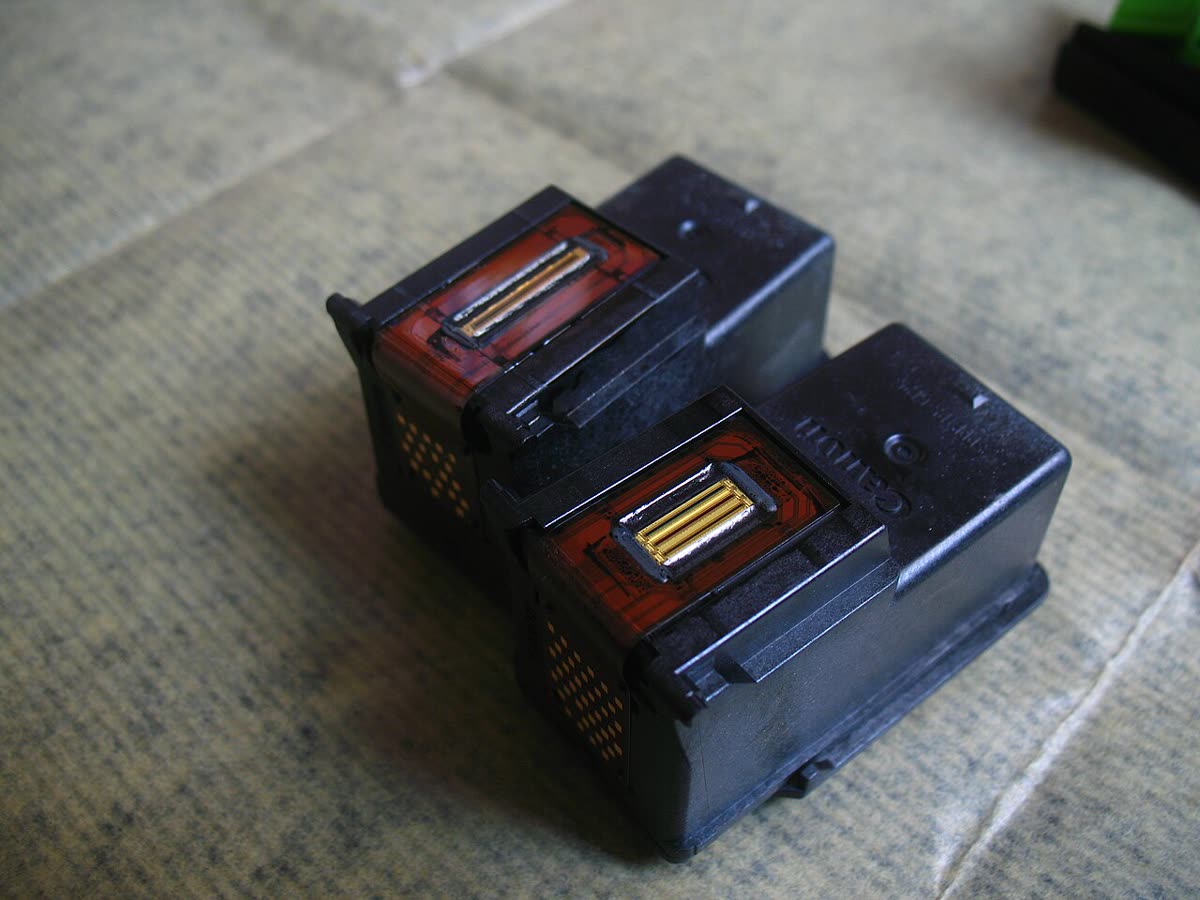
- A small clear film over the chip contacts. This is nearly invisible against the plastic - hold the cartridge to the light and look from several angles.
- An air vent seal on the top of some cartridges. Leaving it on creates a vacuum lock, which the printer may report as a cartridge fault rather than a flow problem.
Fix 2: Clean the contacts, both sides

- Power the printer off with its button and unplug it.
- Open the access door and remove the cartridge. Rest it on a sheet of paper, contacts facing up.
- Wipe the cartridge's copper contacts with a dry lint-free cloth - microfibre or a coffee filter works well. Wipe in one direction rather than scrubbing.
- Look into the carriage for the matching contacts and wipe those too. A cotton bud very lightly dampened with distilled water is acceptable, but let it dry completely before refitting.
- Refit until it clicks, reconnect power and switch on.
Dried ink on the contacts is worth cleaning carefully - it is conductive enough to confuse the reading. Never use alcohol on the nozzle plate.
Fix 3: Isolate the faulty cartridge
If you replaced a full set, you have no idea which one HP is objecting to. Work through it methodically:
- Refit the old cartridges if you kept them, and confirm the printer is happy.
- Swap in one new cartridge, power cycle, and check.
- Repeat for each new cartridge in turn.
One specific cartridge failing while the others are accepted means a defective unit and a straightforward claim with the seller. Every new cartridge failing while the old ones work means an authentication or compatibility issue - go to Fix 5.
Fix 4: Check the cartridge number and region
HP uses different cartridge numbers in different markets for the same physical printer. A cartridge bought abroad, or ordered from an overseas seller, will be rejected as incompatible even though it fits perfectly. Check the number printed on your existing cartridge and match it exactly rather than relying on the printer's model name.
Also confirm you have the right cartridge for the specific model variant. HP's regional suffixes - a DeskJet 2720e in the UK and Australia being a 2755e in the US and Canada, for instance - mean a compatibility list based on model name alone can mislead.
Fix 5: The authentication and HP+ question
If the message names non-HP, counterfeit, used, or cartridge protection, the printer is enforcing a rule.
Ordinary HP printers
On most non-HP+ models you can acknowledge the warning and continue printing. Press OK, or hold the acknowledgement button for a few seconds, and the printer proceeds - it will warn again at each power cycle and it will not report ink levels accurately, but it prints. What genuinely helps:
- Buy compatibles that state your firmware version. Reputable sellers track this. Find your firmware version on the printer's status or configuration page and check with the seller before buying in quantity.
- Turn off automatic firmware updates if you depend on compatibles - accepting that you also decline security fixes, which is a real trade-off discussed in printer security basics.
- Disable Cartridge Protection if you move cartridges between printers. It is in the printer's settings or embedded web server, and it locks cartridges to the first printer they are used in.
- Fit one Original HP cartridge as a diagnostic. It tells you definitively whether the slot, contacts and carriage work, which is worth the cost as a test even if you go back to compatibles afterwards.
HP+ printers
HP+ enrolment is a contractual commitment to Original HP cartridges for the life of the printer, in exchange for an extended warranty and an ink allowance. A third-party cartridge in an HP+ printer will be refused outright, and there is no setting to change that. Enrolment also cannot be reversed after the initial setup window. If you did not intend to enrol, check whether you are still inside HP's stated cancellation period.
Our balanced view of the wider question, including the warranty position in each market, is in are third-party ink and toner safe to use.
Fix 6: When the printer says empty but refuses to print at all
Many HP all-in-ones stop entirely when any single cartridge reads empty, including for black-only documents, because internal maintenance routines need all channels. Some models offer a single-cartridge mode or ink backup mode that lets you keep printing with one cartridge removed - check the printer's settings menu or the HP app. Where that is not available, replacing the empty cartridge is the only route.
Bear in mind that ink levels are estimates from a page counter, not a measurement. A refilled cartridge will usually report empty permanently while still holding usable ink.
Fix 7: Reset the printer's cartridge state

The printer caches what it thinks it knows about each cartridge, and it does not always re-read on a normal restart.
- With cartridges installed, power the printer off with its own button.
- Unplug the power cord from the printer and from the wall socket.
- Wait 60 seconds.
- Reconnect directly to the wall, bypassing any extension lead, and power on with the button.
Then check for a firmware update through the HP app or the printer's embedded web server - occasionally an update resolves a genuine cartridge-detection bug, though it may equally tighten authentication.
If nothing worked
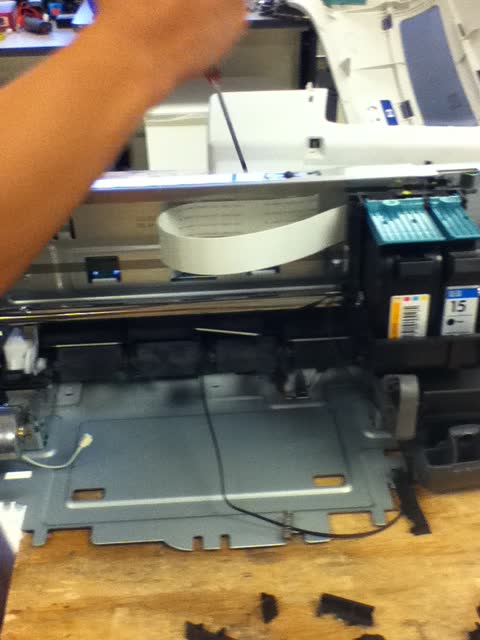
When an Original HP cartridge is also rejected, after cleaning both sets of contacts and a hard reset, the fault is in the printer. The usual causes are damaged or corroded carriage contacts, a cracked carriage flex cable, or a printhead that has failed - the flex cable in particular is a known wear item, since it bends with every carriage pass.
The economics rarely favour repair on DeskJet, ENVY and consumer OfficeJet models. A flex cable or carriage replacement is a technician job and the labour alone typically exceeds the price of a comparable new printer. Repair is worth pricing on OfficeJet Pro and business-class machines with low page counts, on printers still under warranty - where this is HP's problem rather than yours - and on Smart Tank models with substantial ink already inside.
Before writing anything off, run one last check: confirm the cartridge number and region match your exact model variant. A mismatched import is a common, entirely fixable cause of persistent rejection that looks identical to a hardware failure. More HP-specific issues are collected at the HP hub and HP printer support.
If you would like a second opinion on whether your message is a contact fault or an authentication block before buying more cartridges, you can get help from a printer specialist.
Software mentioned in this guide
- HP Easy Start
Small bootstrap installer that fetches the right HP driver for your model Windows · macOS - HP Print and Scan Doctor
Free Windows diagnostic tool that finds and fixes common HP printing faults Windows - HP Smart (the HP app)
HP's official setup, printing, scanning and ink app for home and small-office printers Windows · macOS · iOS - Windows printer settings
How Windows installs printers, and the shift to driverless Windows Ready Print Windows - macOS Printers and Scanners
Where macOS adds printers, scans documents and resets the printing system macOS
Frequently asked questions
What does HP cartridge problem mean?
It means the printer cannot read or accept one or more cartridges. If the wording mentions missing, damaged or not detected, it is usually a physical contact issue - tape left on, dirty contacts or a cartridge not seated. If it mentions non-HP, counterfeit or protected cartridge, the printer is rejecting the chip rather than reporting a fault.
How do I fix a non-HP chip detected message?
You can normally dismiss the message and continue printing by pressing OK or the acknowledgement button, unless the printer is HP+ enrolled. If the printer refuses outright, the cartridge is not accepted by your current firmware - use a cartridge advertised for that firmware version, or fit an Original HP cartridge.
Why did my third-party cartridges stop working after an update?
HP periodically tightens cartridge chip authentication through firmware updates, and cartridges that worked before can be rejected afterwards. Check whether a firmware update installed recently. Reputable compatible sellers track firmware versions and will tell you which of their chips work with your current build.
Does using non-HP ink void my HP warranty?
Not automatically. In the US, UK, Canada and Australia a manufacturer generally cannot void an entire warranty because you used third-party supplies - they would have to show the ink caused the specific fault. HP+ printers are a separate case: enrolment contractually commits the printer to Original HP cartridges.
My printer says one cartridge is empty and will not print anything at all. Why?
Many HP all-in-ones stop entirely when any single cartridge is empty, including for black-only documents, because maintenance routines need all channels available. Some models offer a single-cartridge or ink-backup mode in their settings; otherwise replacing the empty cartridge is the only route.
Technical writer focused on printer drivers, wireless setup and error-code troubleshooting.
Questions & comments (0)
No comments yet. Describe your printer model, operating system and the exact message you see; comments appear after review.
Ask about this page
Your comment appears after our team approves it. Or sign in to post faster.