Ink or Toner Cartridge Not Recognized? How to Get Your Printer to Accept It
A cartridge the printer will not read is usually a contact problem: tape left in place, dirty gold contacts, or a cartridge not clicked fully home. Firmware blocking is the other main cause.

On this page
- Quick fixes first
- Why this happens
- Fix 1: Remove every piece of tape
- Fix 2: Clean the contacts on both sides
- Fix 3: Reseat properly and reset the state
- Fix 4: Isolate which cartridge is at fault
- Fix 5: The firmware and compatibility question
- Fix 6: When the printer says empty but the cartridge is full
- Brand-specific notes
- If nothing worked
When a printer refuses to recognise a cartridge, it is reading - or failing to read - a small chip on the cartridge through a set of contacts. Three things break that: something physical in the way, contacts that need cleaning, or a firmware rule that has decided the chip is not acceptable. The first two take five minutes to rule out, and doing so tells you immediately whether you are dealing with a mechanical problem or a policy one.
Quick fixes first
- Remove the cartridge and check every surface for protective tape, especially the small strip over the chip contacts.
- Wipe the gold or copper contacts on the cartridge and inside the carriage with a dry lint-free cloth.
- Refit firmly until it clicks - most cartridges need noticeably more pressure than feels natural.
- Power the printer off with its own button, unplug it for 60 seconds, plug it back in and power on.
- If several cartridges were changed at once, install them one at a time to identify the faulty unit.
Why this happens

Every modern cartridge carries a chip that reports its type, capacity, region and remaining level. The printer reads that chip through a handful of tiny contacts each time the carriage moves into position. Those contacts are small, exposed, and sit in an environment full of paper dust and ink mist. A single fingerprint on a contact is enough to break the connection.
Manufacturers also enforce policy through those chips. Cartridges are region-coded, so a cartridge bought abroad may be rejected outright. Chips are authenticated cryptographically on some ranges, so compatible cartridges rely on cloned or emulated chips that firmware updates can invalidate. And "starter" cartridges shipped with a new printer sometimes behave differently from retail ones.
Finally, there is genuine cartridge failure. Compatible cartridge quality varies widely, and a proportion of any batch will have a dead chip out of the box. This is why testing one cartridge at a time is not fussiness - it is the fastest route to an answer.
Fix 1: Remove every piece of tape
New cartridges ship with multiple protective elements, and people commonly remove the obvious one and miss the rest:
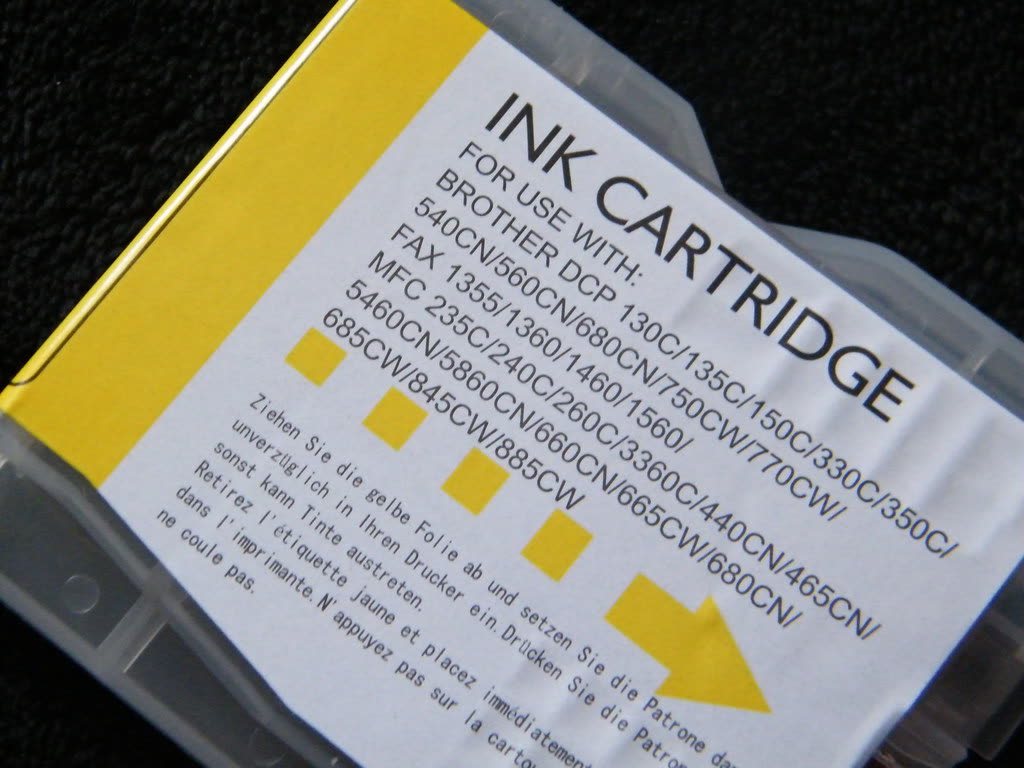
- The large orange or coloured strip over the ink outlet or nozzle plate.
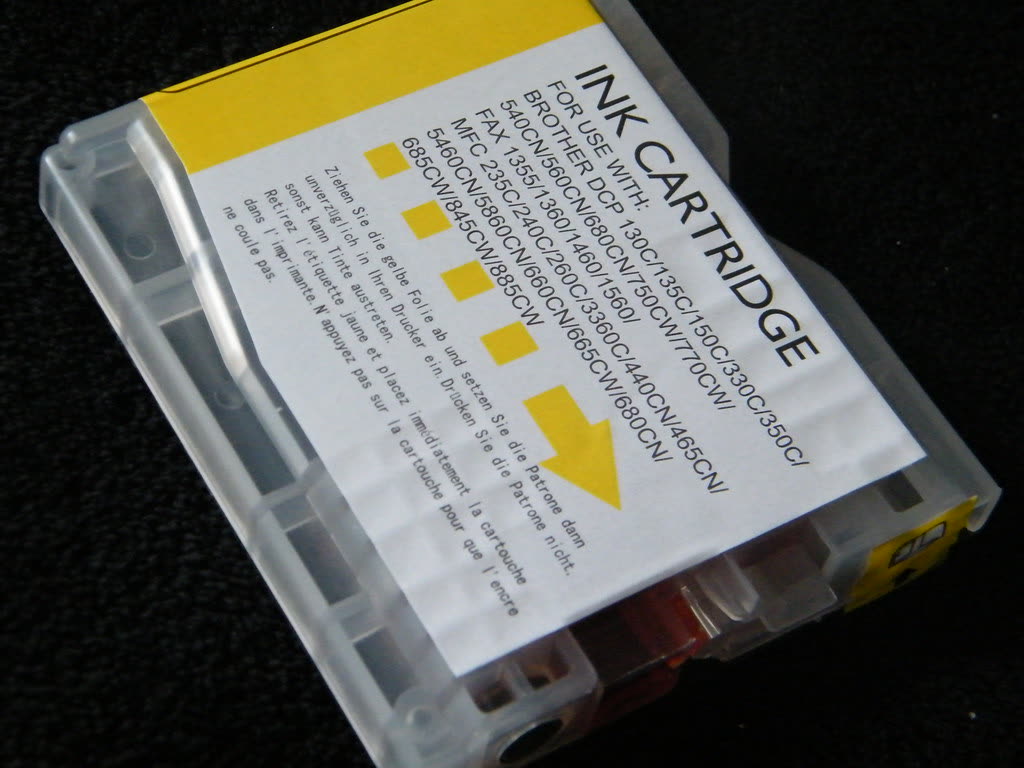
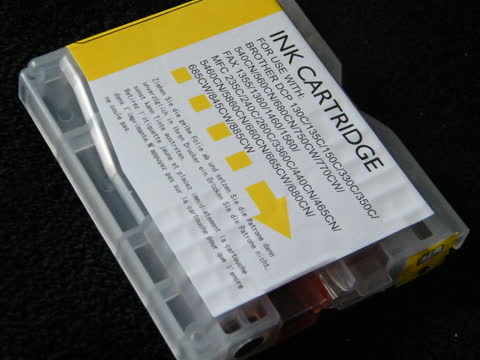
- A small clear film over the chip contacts - this is the one that gets missed, because it is nearly invisible.
- An air vent seal on the top of some inkjet cartridges. Leaving this on causes a vacuum lock and no ink flow, which the printer may report as a cartridge fault.
- On laser toner, a long pull-tab that must come out completely, plus a foam or card insert.
Hold the cartridge to a good light and look at it from several angles. Film catches the light differently from the plastic underneath.
Fix 2: Clean the contacts on both sides
This resolves a large share of cases, including cartridges the printer read fine yesterday.
- Power the printer off and unplug it.
- Remove the cartridge and set it on a sheet of paper, contacts facing up, so it does not leak.
- Wipe the cartridge's contacts with a dry, lint-free cloth - a microfibre cloth or a coffee filter works well. Wipe in one direction rather than scrubbing.
- Look into the carriage and find the matching contacts. Wipe those with the same cloth. A cotton bud very lightly dampened with distilled water is acceptable here, but let it dry completely.
- Refit and power on.
If you can see ink smeared across the contacts, that is worth cleaning carefully - dried ink is conductive enough to confuse the reading. Never use alcohol on the nozzle plate, and never use anything abrasive on the contacts.
Fix 3: Reseat properly and reset the state

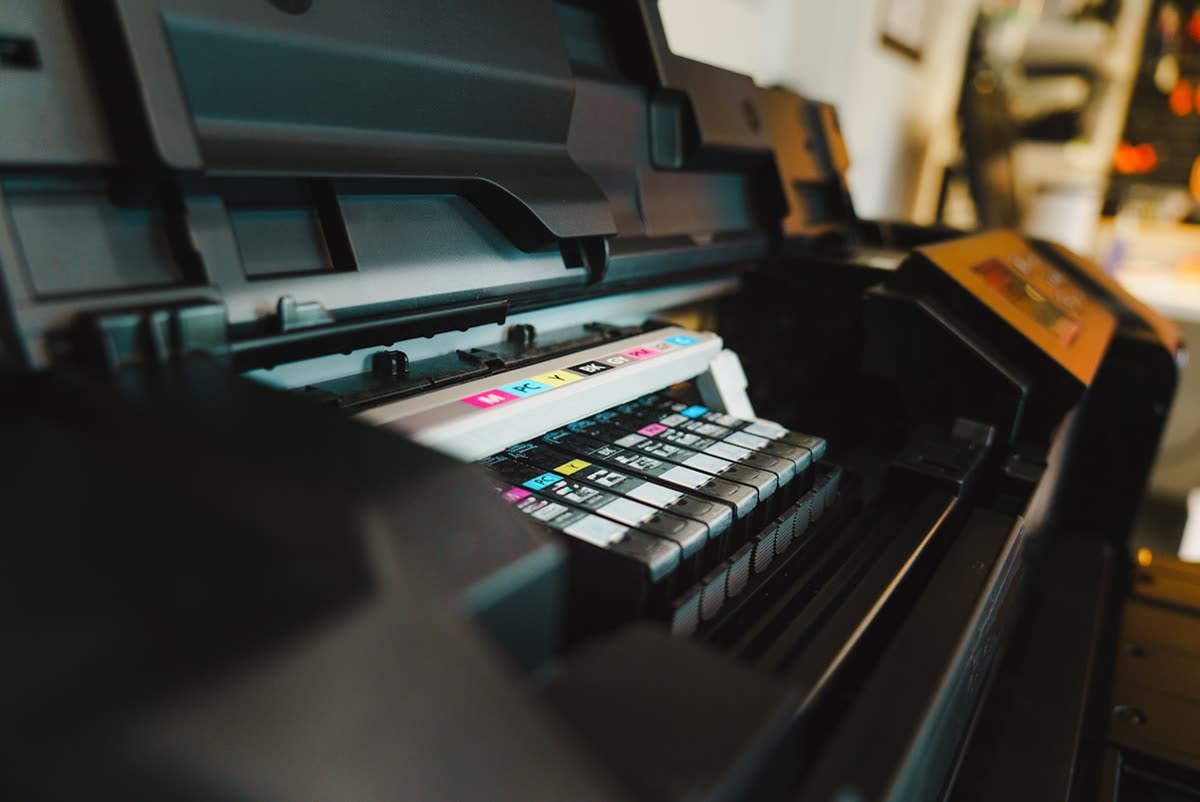
Cartridges frequently look fitted but are not making contact. The click is the point - if you did not hear or feel one, it is not home.
Then clear the printer's cached view of the cartridge. Printers hold cartridge status in memory and do not always re-read on every power cycle:
- With the cartridge installed, power the printer off using its own button.
- Unplug the power cord from both the printer and the wall socket.
- Wait 60 seconds.
- Reconnect and power on with the button.
This is the same hard reset used for carriage errors and it clears a surprising number of cartridge complaints. Note that unplugging at the wall while the printer is on does not do the same thing - and on an inkjet it leaves the head uncapped, which risks drying.
Fix 4: Isolate which cartridge is at fault
If you replaced a full set, you have no idea which one the printer is objecting to. Work it out methodically:
- Refit the old cartridges, if you kept them, and confirm the printer is happy.
- Swap in one new cartridge. Power cycle. Check.
- Repeat for each new cartridge in turn.
When one specific cartridge fails and the others are accepted, you have a defective unit and a straightforward warranty or refund claim with the seller. When every new cartridge fails and the old ones work, you have a firmware or compatibility issue rather than a hardware one.
Fix 5: The firmware and compatibility question

If the problem started after a firmware update, or immediately with a new batch of compatible cartridges, the printer is enforcing a policy rather than reporting a fault. The error wording is a clue - messages mentioning "non-genuine", "counterfeit", "protected cartridge" or "cartridge protection" are policy messages, while "missing", "not detected" and "damaged" are usually contact problems.
What actually works
- Buy compatibles that state your firmware version. Reputable sellers track this and will say which firmware revisions their chips work with. Contact the seller with your printer's current firmware version - it is on the printer's status or configuration page.
- Fit a genuine cartridge as a diagnostic. One genuine cartridge tells you definitively whether the slot, contacts and carriage work. It is worth the cost purely as a test.
- Turn off cartridge protection features where offered. Some printers have a setting that locks cartridges to that device; disabling it before you move cartridges between machines avoids a rejection later.
- Turn off automatic firmware updates if you depend on compatibles - accepting that you are also declining security fixes, which matters. The trade-off is discussed in printer security basics.
Our balanced look at the wider question is in are third-party ink and toner safe to use, including the warranty position in the US, UK, Canada and Australia.
Fix 6: When the printer says empty but the cartridge is full
This is a related but distinct complaint. Printers estimate ink from a page counter, not by measuring the liquid, so a refilled or reset cartridge can read empty while still holding ink - and a genuine cartridge can read empty with a usable amount left.
- Most printers let you acknowledge the warning and continue: hold the OK, Continue or Resume button for five seconds.
- On refilled cartridges, level monitoring is often permanently unreliable afterwards. The printer will keep warning; you can keep printing until quality drops.
- On EcoTank and MegaTank models, the level is a software counter that must be reset manually after refilling, in the printer's maintenance menu or the Epson Smart Panel app.
Brand-specific notes
| Brand | Typical message | First thing to try |
|---|---|---|
| HP | Cartridge Problem, Non-HP chip detected, Missing or damaged | Contacts, then check whether firmware updated recently |
| Canon | The following ink may have run out, U052 or U051 support codes | Reseat until the lamp lights; hold Stop for 5 seconds to acknowledge |
| Epson | Cannot recognize the cartridge, Ink cartridge error | Reseat, then power cycle; check for a bent chip |
| Brother | No Cartridge, Cannot Detect, Replace Toner despite a new one | Reset the toner counter via the panel sequence for your model |
HP's behaviour is the most policy-driven of the four; see HP ink cartridge problem for the specifics and the HP hub. Brother lasers are the opposite case - a new toner that still reports Replace Toner usually just needs its counter reset, covered in Brother replace toner. Canon and Epson both use support codes worth noting before troubleshooting; see Canon and Epson.
If nothing worked
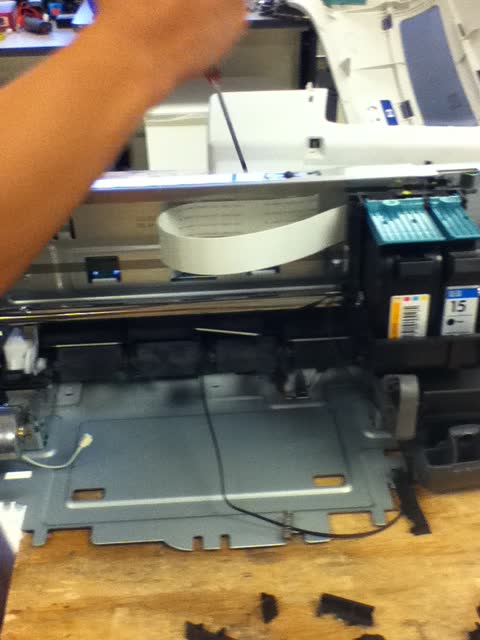
When a genuine cartridge is also rejected, after cleaning both sets of contacts and a hard reset, the fault is in the printer. The usual culprits are damaged or corroded carriage contacts, a failed carriage flex cable, or a logic board fault. On inkjets the flex cable is a known wear item - it flexes with every carriage pass and eventually cracks.
The economics rarely favour repair on consumer machines. A carriage flex cable replacement is fiddly enough to need a technician, and the labour alone usually exceeds the price of a comparable new printer. Repair is worth pricing on business-class lasers, on machines under warranty, and on ink tank printers where you have a substantial investment in ink already inside the machine.
One thing worth checking before you write a printer off: confirm the cartridge is the right region and the right revision for your model. Cartridges sold for the same printer name in different markets are genuinely incompatible, and a mismatched import is a common and entirely fixable cause of persistent rejection.
If you would like a second opinion on whether the message you are seeing is a contact fault or a firmware block, you can get help from a printer specialist before buying anything else.
Software mentioned in this guide
- Brother Mobile Connect
Brother's current mobile app for setup, printing, scanning and supplies iOS · Android - Canon PRINT
Canon's single mobile app for printing, scanning and printer setup iOS · Android - Epson Smart Panel
Epson's current mobile app for setup, printing, scanning and ink levels iOS · Android - HP Smart (the HP app)
HP's official setup, printing, scanning and ink app for home and small-office printers Windows · macOS · iOS - Windows printer settings
How Windows installs printers, and the shift to driverless Windows Ready Print Windows
Frequently asked questions
Why does my printer say the cartridge is not recognized when it is brand new?
The most common causes are tape still covering the chip contacts, contacts that need wiping, or a cartridge not pushed fully home until it clicks. Remove it, check every surface for protective film, wipe the gold contacts with a dry lint-free cloth and refit firmly. If it still fails, try that cartridge alone in the printer.
How do I reset an ink cartridge?
There is no universal reset, but two things help. Power the printer off with its own button, unplug it for 60 seconds, then power on with the cartridge installed - this clears the cached cartridge state on many models. On printers that show a cartridge-error prompt, holding OK or Continue for several seconds acknowledges and bypasses it.
Can a firmware update stop my third-party cartridges working?
Yes. Manufacturers periodically tighten cartridge chip authentication through firmware, and cartridges that worked before the update can be rejected afterwards. Check whether an update installed recently. Buying compatibles that state support for your current firmware version, or switching to genuine, are the practical options.
Does using third-party ink void my printer warranty?
Not automatically. In the US, the UK, Canada and Australia, a manufacturer generally cannot void an entire warranty simply because you used third-party supplies - they would need to show the supply caused the specific fault. That said, a machine still under warranty with a fault is simpler to claim on if it has genuine supplies fitted.
My printer says one colour is empty and refuses to print anything at all. Why?
Many all-in-ones will not print, copy or scan while any single cartridge reads empty, including black-only documents, because the printer runs maintenance cycles that need all channels. Some models offer a black-only or single-cartridge mode in their settings; otherwise replacing the empty cartridge is the only route.
Technical writer focused on printer drivers, wireless setup and error-code troubleshooting.
Questions & comments (0)
No comments yet. Describe your printer model, operating system and the exact message you see; comments appear after review.
Ask about this page
Your comment appears after our team approves it. Or sign in to post faster.