Printer Printing Faded or Light? How to Get Full Density Back
Faded prints usually mean an economy mode is switched on, a cartridge is low, or an inkjet has a partial nozzle clog. Each has a different fix and none of them requires a service visit.
On this page
Faded prints have three common causes, and you can tell them apart in under a minute. If the pages have always been light, an economy setting is on or the density is set low. If they went light gradually, a cartridge is running out. If they went light suddenly on an inkjet with full cartridges, you have a partial nozzle clog. None of these needs a service visit.
Quick fixes first
- Open Settings › Bluetooth & devices › Printers & scanners › your printer › Printing preferences and turn off Draft, Eco or Toner Save.
- Check the same setting on the printer's own panel - it usually overrides the driver.
- On a laser, remove the toner cartridge, hold it level and rock it gently side to side five or six times, then refit.
- On an inkjet, print a nozzle check from the printer's panel.
- Set the driver's media type to match the paper actually loaded.
Why this happens

Printers are designed to use less supply than they could, and several settings do exactly that. Draft mode reduces the number of passes an inkjet makes; Toner Save or EconoMode reduces how much toner a laser deposits. Both are useful and both make pages noticeably paler. They can be enabled at the printer, in the driver, or by a system administrator, and users frequently find one switched on without ever having turned it on themselves.
The second cause is supply level, and it behaves differently by technology. Laser toner does not run out cleanly - as it depletes, the remaining powder distributes unevenly, so pages fade progressively and often unevenly across the page before the printer reports empty. Inkjet cartridges tend to hold density until close to empty, then drop off quickly.
The third is nozzle blockage. Ink at the nozzle plate thickens when a printer is idle. A partial clog does not stop printing; it reduces the volume of ink each nozzle fires, so the whole page looks thin and washed out rather than showing obvious gaps.
Fix 1: Turn off every economy setting
Check both places, because the printer's own setting normally wins over the driver's:
- In the driver: Printing preferences › Quality or Paper/Quality tab. Set quality to Normal or Standard rather than Draft or Fast. Check the Advanced tab for a separate EconoMode or Toner Save checkbox.
- HP: panel Settings › Print Settings, or EconoMode on LaserJets.
- Canon: Setup › Device settings › Print settings.
- Epson: Settings › General Settings › Printer Settings.
- Brother: Settings › General Setup › Ecology › Toner Save.
While you are in the driver, look for Print Density, Darkness or Toner Density, usually a numeric scale. If your printer has always run slightly light, raising this by one or two steps is a legitimate permanent fix. It increases supply consumption proportionally, which is a fair trade for readable output.
Fix 2: Laser printers - toner, drum and transfer
Rock the cartridge
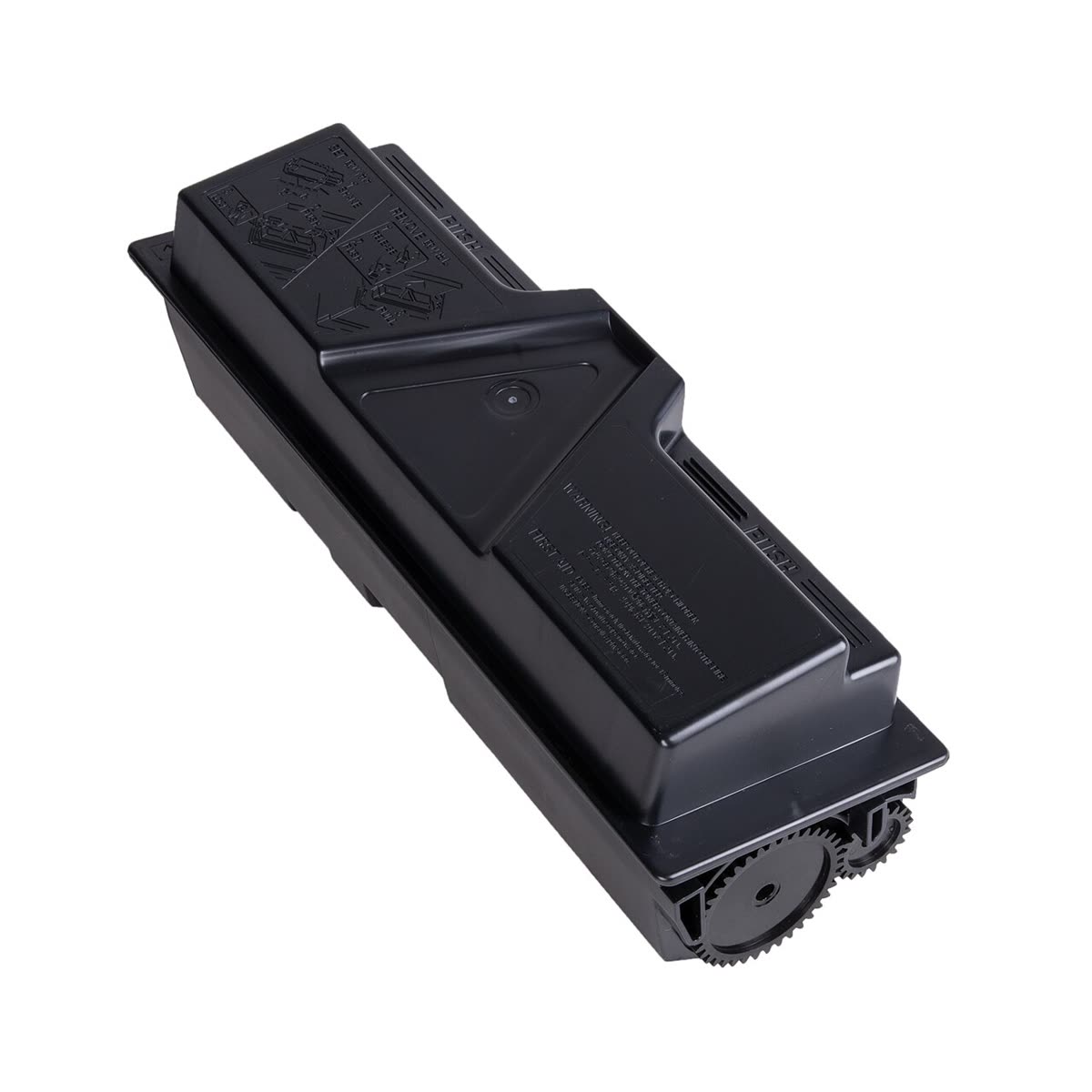
This is the highest-value thirty seconds on this page. Power the printer off, remove the toner cartridge, hold it level with both hands and rock it gently side to side five or six times. Do not shake it vertically and do not tilt it steeply - that spills toner. Refit until it clicks and print a test page. When toner is low, this typically restores full density for another few dozen pages.
Check the drum
On Brother machines and some others, the drum is a separate consumable with a life several times that of a toner cartridge. A worn drum produces progressively fainter output that no toner change fixes, and the printer will usually warn about it before it becomes severe - see Brother drum end of life. Remove the drum unit and look at the green or blue photosensitive surface in indirect light; visible wear, scoring or discolouration means it needs replacing. Do not touch that surface, and keep it out of bright light.
Clean the corona wire
On Brother lasers, slide the green tab inside the drum unit fully left and right several times, finishing in the home position. A dirty corona wire causes faded and patchy output. Leaving the tab out of position causes a vertical line instead, which is covered in printer printing lines or streaks.
Consider the cartridge itself
If output went pale immediately after fitting a new cartridge, the cartridge is the suspect. Compatible toner varies in density between batches and manufacturers, sometimes noticeably. Fitting a genuine cartridge briefly is the definitive test - see are third-party ink and toner safe to use.
Fix 3: Inkjets - nozzle check, then clean

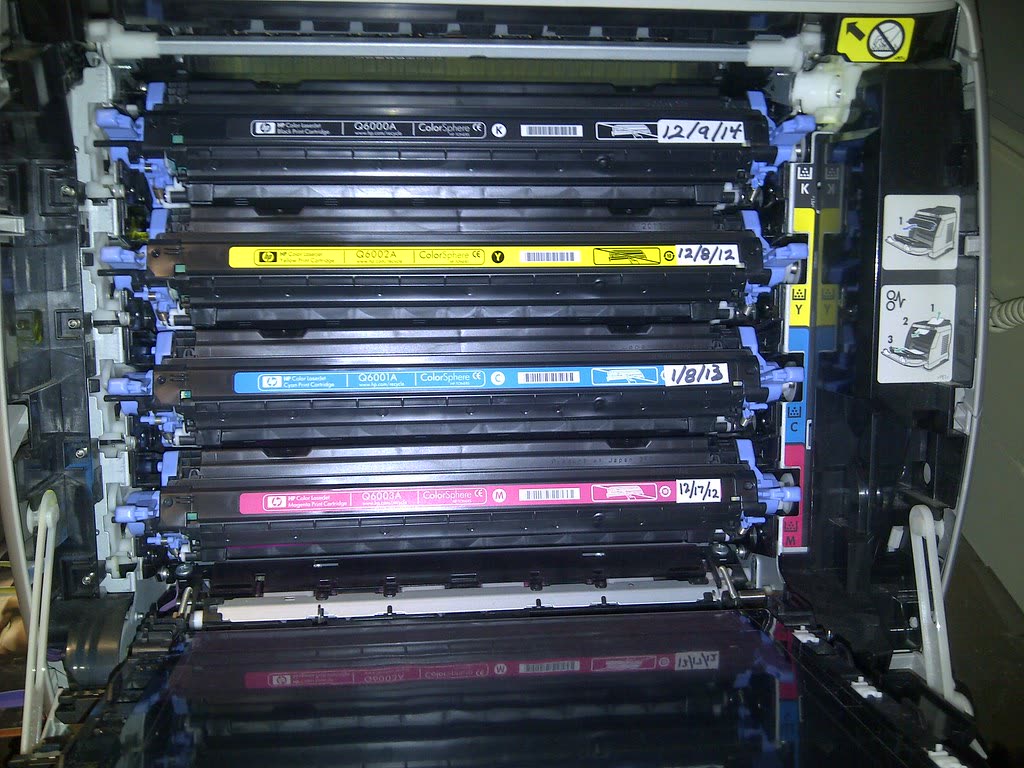
Print a nozzle check from the printer's own panel so the computer is not part of the test:
- HP: Settings › Tools › Print Quality Report
- Canon: Setup › Maintenance › Print nozzle check pattern
- Epson: Settings › Maintenance › Print Head Nozzle Check
- Brother: Maintenance › Improve Print Quality › Check Print Quality
A pattern with thin, broken or faint lines rather than missing blocks is the signature of a partial clog. Run one cleaning cycle, wait 20 to 30 minutes, and print another nozzle check. Only run a second cycle if the first improved things.
Follow any cleaning with a print head alignment from the same menu. Cleaning restores ink flow; alignment restores sharpness, and text that looks fuzzy rather than pale is usually an alignment problem.
On EcoTank and MegaTank models, check the actual ink level through the tank windows rather than trusting the software counter, which is an estimate that must be reset manually after refilling.
Fix 4: Paper and media settings
The driver's media type tells the printer how much ink or toner to lay down and, on a laser, how hot to run the fuser. Get it wrong and output looks wrong regardless of supply levels.
| Situation | Effect | Fix |
|---|---|---|
| Media set to a heavy or glossy type, plain paper loaded | Too little ink for the surface, pale output | Set media type to Plain Paper |
| Photo paper with a plain paper setting | Flat, washed-out photos | Set the matching photo paper type |
| Damp or humid paper | Uneven absorption, patchy fading | Use fresh paper from a sealed pack |
| Rough or heavily recycled stock | Ink spreads, text looks thin | Use a smoother grade for text documents |
| Wrong paper type for the ink chemistry | Banding and washed-out colour | Match paper to dye or pigment ink |
Testing with fresh paper from a sealed pack rules out an entire class of problems in a single page, and it is worth doing before opening the printer.
Fix 5: Colour that looks washed out rather than simply pale
If colours are present but flat and lifeless, that is a colour management issue rather than a density one:
- Run colour calibration or registration from the printer's maintenance menu.
- Confirm no single colour is empty or clogged - one weak channel drags the whole image.
- Check the driver's colour settings for a greyscale, monochrome or "print in black and white" option that has been left on.
- For photos, use the printer's own photo settings rather than letting the application manage colour, or vice versa - but not both, which double-corrects and produces flat results.
If specific colours are wrong rather than weak, see wrong colours printing.
Brand-specific notes
HP: the Print Quality Report from the panel or the HP app shows which channels are underperforming. On models where the printhead is part of the cartridge, replacing that cartridge replaces the head. See the HP hub.
Canon: PIXMA models have removable printheads, so a stubborn partial clog can be soaked and recovered rather than replaced. Canon also offers a separate density setting per media type.
Epson: heads are permanent, so prevention matters more here than on any other brand - print a colour page weekly. Power Cleaning is effective but consumes a lot of ink and advances the counter toward ink pad end of service life.
Brother: Toner Save under Ecology is on by default on some models straight out of the box, which surprises people whose brand-new printer prints pale. Turn it off first. See the Brother hub.
If nothing worked
If economy modes are off, density is raised, the cartridge is new and genuine, the paper is fresh and a nozzle check is clean, the problem is in the imaging hardware. On a laser that means the drum, the transfer roller or the high-voltage power supply. On an inkjet it means a head that has degraded rather than clogged.
The economics split clearly by part. A drum unit is a consumable, reasonably priced and user-fitted - buy one without hesitation if the drum is the cause. A transfer roller or high-voltage supply is a technician job, and on a consumer laser the labour alone typically approaches the price of a new machine. An inkjet head that cleaning cannot recover is replaceable on Canon and Brother models at roughly a third to two-thirds of a new printer, and not user-replaceable at all on most Epson and HP models.
Repair is worth pricing on business-class lasers with low page counts, machines under warranty, and ink tank printers with significant ink inside. Elsewhere, replacement usually wins - and reduce printing costs is worth reading first, because a machine that fades early is often one with expensive supplies.
If you would like someone to look at your nozzle check or test page and say which component the pattern indicates, you can get help from a printer specialist before ordering parts.
Software mentioned in this guide
- Brother iPrint and Scan
Desktop print and scan front end that replaces ControlCenter4 on newer Brother models Windows · macOS · iOS - Canon PRINT
Canon's single mobile app for printing, scanning and printer setup iOS · Android - Epson Smart Panel
Epson's current mobile app for setup, printing, scanning and ink levels iOS · Android - HP Smart (the HP app)
HP's official setup, printing, scanning and ink app for home and small-office printers Windows · macOS · iOS - Windows printer settings
How Windows installs printers, and the shift to driverless Windows Ready Print Windows
Frequently asked questions
Why is my printer printing so light all of a sudden?
The three usual causes are an economy setting such as Draft, Eco or Toner Save being switched on, a cartridge running low, and on inkjets a partial nozzle clog after a period of inactivity. Check the driver settings first because that costs nothing, then run a nozzle check or rock the toner cartridge.
How do I turn off toner save mode?
On most lasers it is on the printer panel under Settings or General Setup, often called Toner Save or EconoMode, and also in the driver's Advanced or Quality tab. Both need to be off - the printer's own setting usually overrides the driver, so changing only one is why the fix sometimes appears not to work.
Does rocking a toner cartridge really work?
Yes, when the cartridge is genuinely low. Toner settles and clumps at one end, leaving parts of the drum underfed. Removing the cartridge, holding it level and rocking gently side to side five or six times redistributes it and typically buys another few dozen pages before a replacement is needed.
Why is one side of my page lighter than the other?
That points at the imaging hardware rather than settings. On a laser it usually means uneven toner distribution or a drum wearing unevenly; on an inkjet it can mean the head is not making consistent contact across the page. Rock the cartridge first, then check the drum surface for wear.
Can print density be adjusted on a printer?
On most models, yes. Look for Print Density, Darkness or Toner Density in the printer's panel settings or in the driver's Advanced tab, usually on a numeric scale. Raising it makes text darker at the cost of higher supply consumption, and it is a legitimate fix for a printer that has always run slightly light.

Questions & comments (0)
No comments yet. Describe your printer model, operating system and the exact message you see; comments appear after review.
Ask about this page
Your comment appears after our team approves it. Or sign in to post faster.