Printer Prints the Wrong Colors or a Color Cast: How to Diagnose and Fix It
Wrong colors usually mean a blocked nozzle, an empty channel, or a paper and profile mismatch. A nozzle check tells you which within thirty seconds.
On this page
- Quick fixes first
- Why colours go wrong
- Fix 1: Read the nozzle check properly
- Fix 2: Clean the head, but with restraint
- Fix 3: Check the cartridge or tank properly
- Fix 4: Run colour calibration on a laser
- Fix 5: Fix the paper and profile settings
- Fix 6: Align the printhead
- Diagnosing from the cast
- A word about screens
- If nothing worked
When colours come out wrong, the first job is to work out whether the printer is unable to lay down the right ink, or is being told to lay down the wrong ink. A nozzle check answers that in under a minute, and everything after that follows from the result. Missing or broken colour blocks mean a hardware or ink problem; perfect blocks with wrong output on the page mean a settings or profile problem.
Quick fixes first
- Print a nozzle check or print quality report from the printer's own panel, not from the computer. Look for gaps or missing blocks in any colour.
- Check every ink or toner level. One empty channel changes every colour on the page, not just its own.
- Confirm you are not in grayscale or draft mode in the print dialog.
- Check the paper type setting matches what is actually loaded - plain paper settings on glossy photo paper produce dramatic casts.
- Print the same file from a different application. If one app is wrong and another is right, the problem is in that app's colour handling.
Why colours go wrong

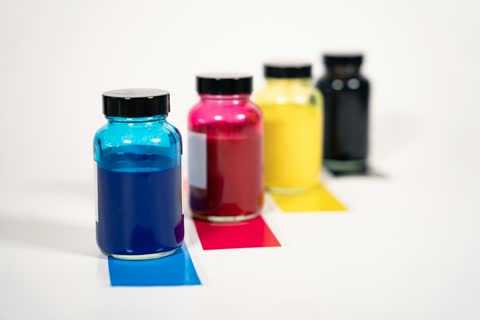
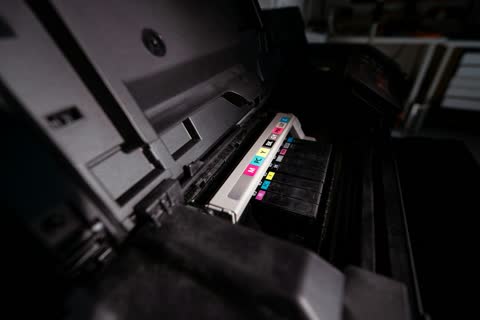
An inkjet builds every colour from cyan, magenta and yellow plus black, and photo models add light versions of some inks. If one channel is partially blocked, the printer still tries to mix the same recipe and the result skews toward whatever remains. A blocked cyan gives a warm, pinkish cast; a blocked magenta gives a green one; a blocked yellow gives blue and purple tones. That predictable relationship is a useful diagnostic all by itself.
Colour lasers work differently. Four toner drums lay down separate layers, and if they drift out of alignment by fractions of a millimetre the colours no longer register on top of each other. The result is fringing on text and muddy mid-tones rather than a uniform cast.
Then there is the software layer. Paper type settings change how much ink is laid down and how it is dried. Colour profiles translate what the screen shows into what the printer can reproduce. Get either wrong and the hardware is doing exactly what it was told, just badly.
Fix 1: Read the nozzle check properly
On Epson models the panel path is usually Setup, then Maintenance, then Print Head Nozzle Check. On Canon it is Setup, then Maintenance, then Nozzle Check. On HP, print the Print Quality Diagnostic Page from the tools or reports menu. Brother inkjets offer a Print Test Page under Ink or Maintenance.
Look at the printed grid. Complete, unbroken blocks in every colour means the printhead is fine and you should move to the settings section. Gaps, missing lines or an entirely absent block identify the failing channel.
Fix 2: Clean the head, but with restraint

If a channel is broken, run one cleaning cycle from the same menu. Then print another nozzle check. If it improved, run one more. If two cleans produce no improvement, stop and wait several hours before trying again - a rest lets solvent soften dried ink, and repeated back-to-back cleaning wastes a great deal of ink for no gain.
This restraint matters financially. Cleaning cycles are the main reason waste ink pads fill up, which produces the messages covered in our Epson ink pad guide and Canon 5B00 guide. Ten desperate cleans can genuinely bring forward the end of a printer's usable life.
Fix 3: Check the cartridge or tank properly
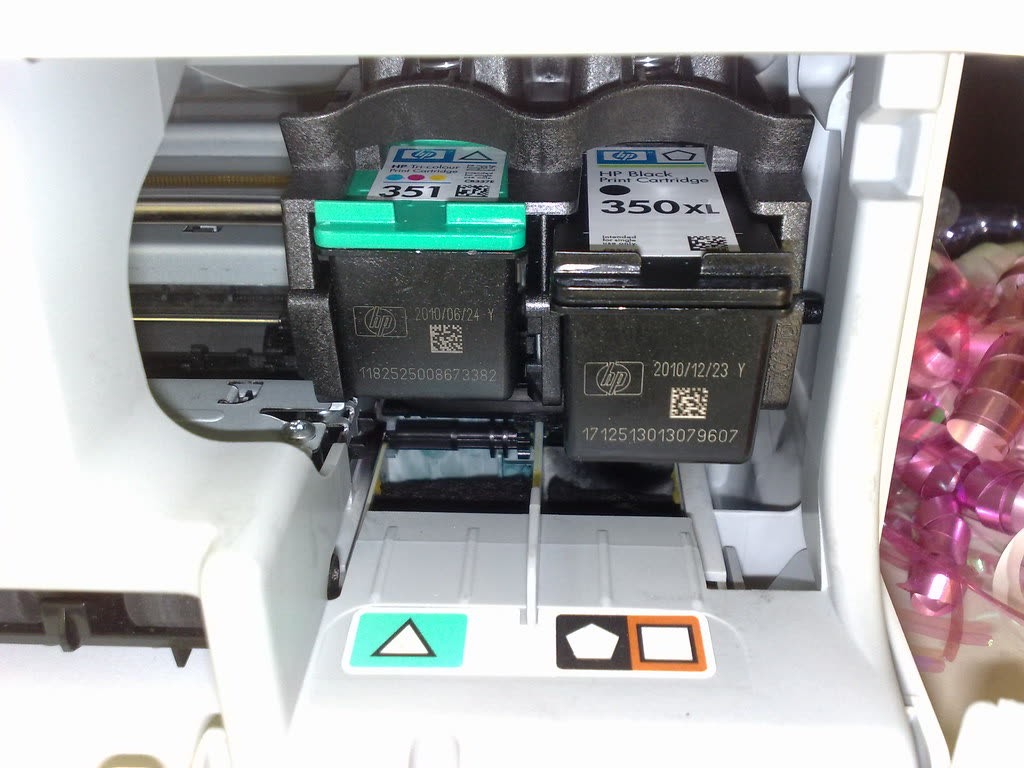
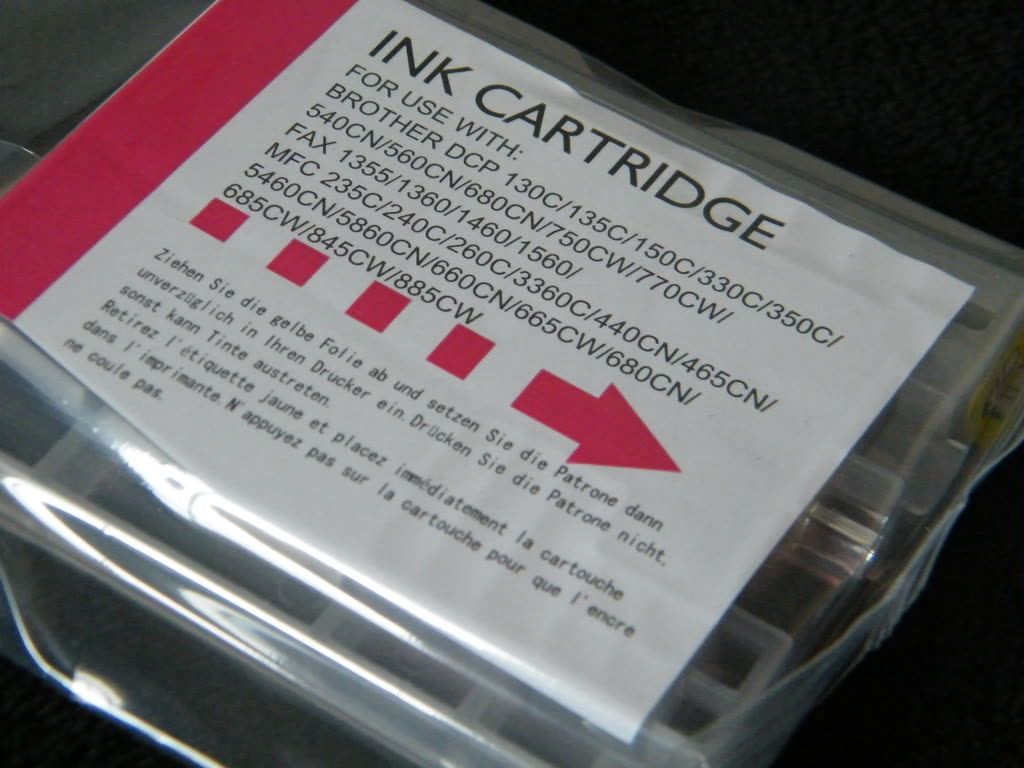
On cartridge machines, remove each cartridge and check the vent hole on top is not blocked by a sticker that should have been removed at installation. Wipe the copper contacts with a dry lint-free cloth. Reseat until each clicks. A cartridge reporting full but printing nothing is often one whose vent is sealed, which prevents ink flowing.
On ink tank machines, look at the actual ink level through the tank window rather than trusting the software estimate. Tank printers estimate consumption and can be badly wrong, especially after cleaning cycles. Also check the tubes running to the carriage for air bubbles - a long air gap in one line means that colour is not reaching the head.
Fix 4: Run colour calibration on a laser
Colour lasers have a calibration and registration routine that must be run periodically. The panel path is typically under Setup or Settings, then Maintenance or Print Settings, then Calibration or Colour Correction, with separate entries for calibration (density) and registration (alignment). Run both, in that order.
Calibration takes a few minutes and prints test patches internally. Do it after replacing any toner cartridge, after moving the printer, and whenever colour drifts. Many colour laser complaints are resolved entirely by this routine.
Fix 5: Fix the paper and profile settings
This is where most non-hardware colour problems live.
Set the paper type in the driver to match the paper physically loaded. Glossy photo paper printed with plain paper settings receives far too much ink, resulting in muddy dark tones and a colour shift. Plain paper printed with photo settings receives too little and looks washed out.
On Windows 11, open Settings, then Bluetooth & devices, then Printers & scanners, select the printer, choose Printing preferences, and check the media type, quality and any colour management tab. Set colour management to let the printer manage colour for everyday use, and only override that if you are working with specific ICC profiles. On macOS 26 Tahoe, the print dialog's Colour Matching pane offers ColorSync or the vendor's own matching - vendor matching is the safer default for consumer printing.
Also check the application. Photoshop, Lightroom and professional layout tools can manage colour themselves, and if both the application and the driver apply a profile you get double correction and visibly wrong colour. Pick one, not both.
Fix 6: Align the printhead
Misalignment shows up as colour fringing on edges and text rather than an overall cast. Run the alignment routine from the printer's maintenance menu - Print Head Alignment on Epson and Canon, or the alignment option in HP's tools menu. Use plain white paper and follow the on-screen selections carefully.
Diagnosing from the cast
| What you see | Likely cause | Fix |
|---|---|---|
| Pink or warm cast overall | Cyan channel blocked or empty | Nozzle check, then clean cyan |
| Green cast overall | Magenta channel blocked or empty | Nozzle check, then clean magenta |
| Blue or purple cast overall | Yellow channel blocked or empty | Nozzle check, then clean yellow |
| Everything too dark and muddy | Paper type set to plain on glossy media | Correct the media setting |
| Everything washed out | Draft mode, or photo settings on plain paper | Check quality and media settings |
| Colour fringing on text edges | Head misalignment or laser registration drift | Alignment or registration routine |
| Colours right on screen, wrong on paper only in one app | Double colour management | Let either the app or the driver manage colour, not both |
A word about screens
A great many colour complaints come from comparing a print against an uncalibrated, bright, blue-shifted screen in a warm-lit room. Paper reflects the light in the room; a screen emits its own. They will never match exactly. Judge prints under daylight or a neutral lamp, and if colour accuracy genuinely matters to you, calibrate the display before blaming the printer.
If nothing worked
If a channel remains dead after several cleaning cycles spread over a couple of days, the nozzle row has likely failed or dried beyond recovery. On printers where the head is part of a replaceable cartridge - many HP and some Canon designs - a new cartridge fixes it outright and cheaply. On printers with a fixed head, including most Epson models and Canon ink tank machines, a head replacement is a workshop job whose cost frequently exceeds the printer's value.
Colour lasers that stay wrong after calibration and registration usually have a failing drum or transfer belt, both of which are real parts with real prices; get a quote and compare it with a current equivalent machine before committing.
If you would rather have someone read the nozzle check with you and tell you whether the head is recoverable, you can get help from a printer specialist.
Related: streaks and lines on prints, faded print quality, and fixing poor print quality.
Software mentioned in this guide
- Canon IJ Printer Assistant Tool
Windows maintenance panel for Canon inkjets: cleaning, alignment and nozzle checks Windows - Epson Smart Panel
Epson's current mobile app for setup, printing, scanning and ink levels iOS · Android - HP Print and Scan Doctor
Free Windows diagnostic tool that finds and fixes common HP printing faults Windows - Windows printer settings
How Windows installs printers, and the shift to driverless Windows Ready Print Windows - macOS Printers and Scanners
Where macOS adds printers, scans documents and resets the printing system macOS
Frequently asked questions
Why is my printer printing pink instead of black?
A warm or pink cast points to the cyan channel being blocked or empty. Print a nozzle check from the printer's own panel; if the cyan block is broken or missing, run one cleaning cycle and re-test.
How many head cleaning cycles should I run?
One, then check. If it improved, one more. If two cleans produce no change, wait several hours before trying again. Repeated back-to-back cleaning wastes a lot of ink and fills the waste ink pads much faster.
Why do my photos look different on paper than on screen?
Screens emit light and papers reflect it, so an exact match is impossible without a calibrated display and a matched profile. Judge prints under neutral daylight, and check that only one of the application or the driver is managing colour.
How do I calibrate colour on a laser printer?
Use the printer's own routine, usually under Settings or Setup, then Maintenance or Print Settings, then Calibration and Registration. Run calibration first, then registration. Do this after any toner change or after moving the printer.
Does the paper type setting really affect colour?
Substantially. Glossy photo paper printed with a plain paper setting receives far too much ink and goes muddy with a colour shift; plain paper printed with photo settings looks washed out. Match the setting to the media loaded.
Can third-party ink cause wrong colours?
It can. Compatible inks are formulated to approximate the original, not match it exactly, and mixing brands across channels compounds the difference. If colour accuracy matters for your work, genuine ink removes one large variable.
Questions & comments (0)
No comments yet. Describe your printer model, operating system and the exact message you see; comments appear after review.
Ask about this page
Your comment appears after our team approves it. Or sign in to post faster.