Printer Printing Blank Pages? Why It Happens and How to Fix It (Inkjet and Laser)
Blank pages from an inkjet almost always mean dried or clogged nozzles. On a laser, the first thing to check is whether the protective seal was removed from the new toner cartridge.

On this page
- Quick fixes first
- Why this happens
- Fix 1: Run a nozzle check and read it properly
- Fix 2: Clean the print head without wasting a full set of ink
- Fix 3: Laser printers - seals, seating and supplies
- Fix 4: When the nozzle check is perfect but documents are blank
- Fix 5: Stop it happening again
- Brand-specific notes
- If nothing worked
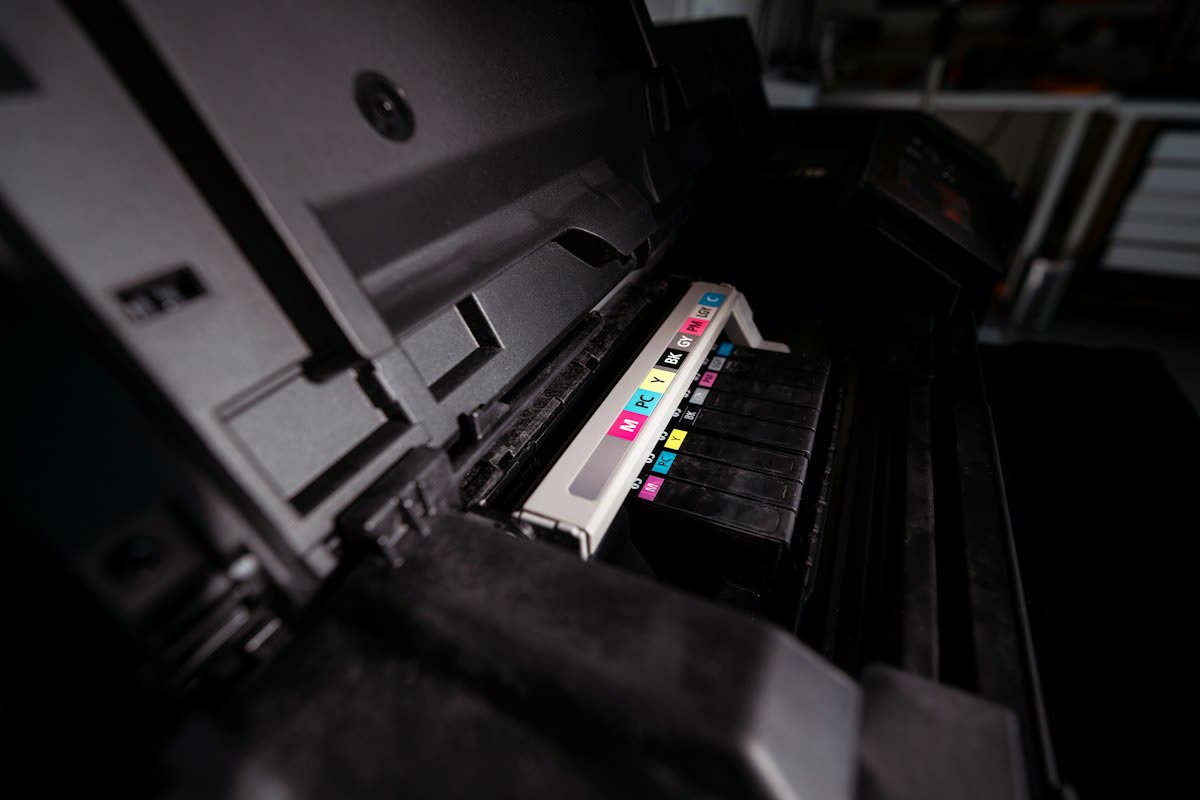
A printer that feeds paper and returns it blank is telling you that the mechanics work and the imaging does not. On an inkjet, that means ink is not reaching the paper - dried nozzles, an air bubble, or a cartridge that is not being read. On a laser, a completely blank page most often means the new toner cartridge still has its protective seal in place. Both are diagnosable in a couple of minutes with the printer's own test page.
Quick fixes first
- Run a nozzle check (inkjet) or a test page (laser) from the printer's own control panel, not from the computer.
- If the nozzle check is missing blocks, run one head cleaning and wait 20 minutes.
- On a laser, remove the toner cartridge and check for any remaining orange strip or tape, then rock it gently side to side and refit.
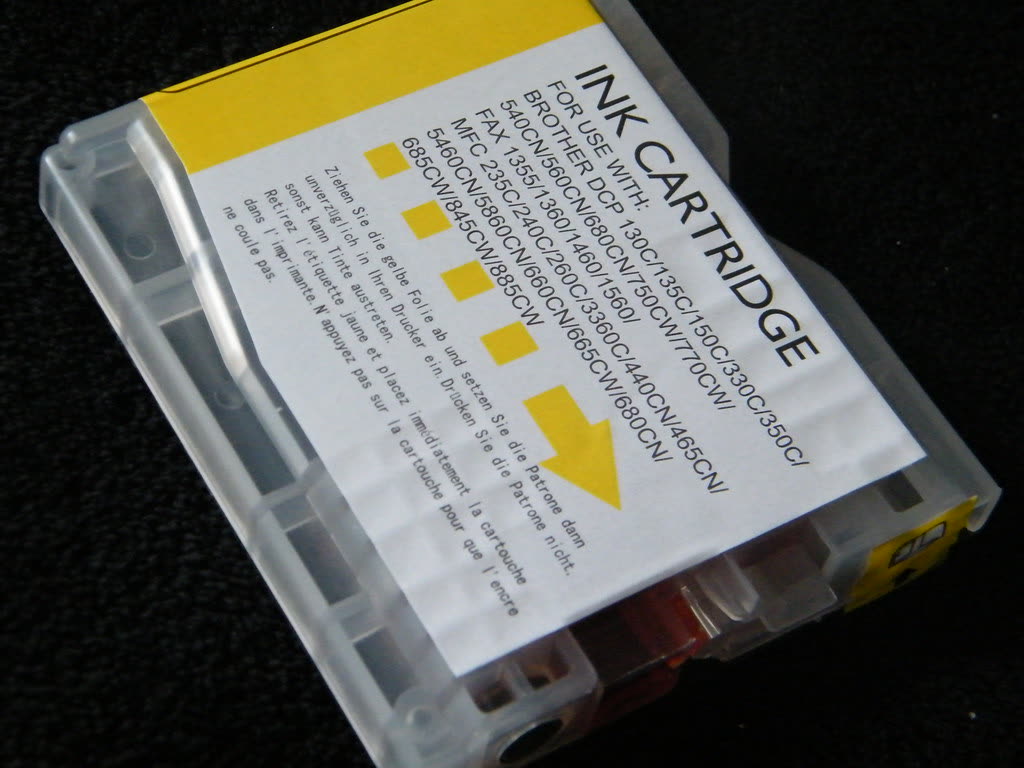
- Reseat every cartridge until it clicks, and remove any tape over the contacts.
- Confirm the driver's paper type matches what is loaded, and print a plain text document as a test.
Why this happens

Inkjet nozzles are microscopic. Ink at the nozzle plate is exposed to air, and when a printer sits unused the ink at the surface thickens and then dries into a plug. Two weeks of inactivity is enough on some models. The printer still reports full cartridges because it measures ink in the cartridge, not ink arriving on the page.
The second inkjet cause is air. If a cartridge or tank runs completely empty and the printer keeps trying, it draws air into the ink line. A normal cleaning cycle is designed to shift dried ink, not to purge an air lock, which is why refilling an EcoTank that ran dry often does not restore printing immediately.
On laser printers the picture is simpler. Toner is fused to paper by heat after being attracted to a charged drum. A blank page means either no toner is being released - seal still in place, cartridge empty, or a cartridge the printer refuses to use - or the transfer roller is not charging. The seal is by far the most common.
Fix 1: Run a nozzle check and read it properly
The nozzle check is the single most informative test on an inkjet. Run it from the printer's panel so the computer is not involved:
- HP: Settings › Tools › Print Quality Report, or via the HP app
- Canon: Setup › Maintenance › Print nozzle check pattern
- Epson: Settings › Maintenance › Print Head Nozzle Check
- Brother: Ink or Menu › Maintenance › Improve Print Quality › Check Print Quality
Then read the result:
| Nozzle check result | What it means | Next step |
|---|---|---|
| Completely blank | No ink reaching the head at all | Check cartridges are seated and recognised; then Fix 2 |
| Some colours present, others missing | Clogged nozzle rows in specific channels | Fix 2, head cleaning |
| Broken or gappy lines | Partial clog | Fix 2, then alignment |
| Perfect pattern | The printer is fine | Skip to Fix 4 - it is a computer-side problem |
Fix 2: Clean the print head without wasting a full set of ink
Head cleaning forces ink through the nozzles under pressure. It works, but each cycle uses a surprising amount of ink - on some models, several percent of a cartridge per cleaning.
- Run one cleaning cycle from the maintenance menu.
- Print a nozzle check.
- If it improved but is not perfect, wait 20 to 30 minutes and run a second cycle. The rest period genuinely matters - it lets solvent soften the remaining plug.
- Print a nozzle check again. If there is no further improvement, stop.
Deep cleaning and power cleaning
Most manufacturers offer a stronger cycle - Epson calls it Power Cleaning, Canon calls it Deep Cleaning, HP offers a second-level clean in its tools. Use it once, not repeatedly, and only after normal cleaning has failed. On Epson EcoTank models, Power Cleaning is also the correct response to air in the lines after running dry, and it may need enough ink that the printer refuses until the tanks are topped up.
When the head needs soaking
For a printer left idle for months, a hard clog will not shift with cycles alone. On models with a removable print head - many Canon PIXMA and some Brother machines - the head can be removed and the nozzle plate rested in a shallow layer of warm distilled water for an hour, then dried thoroughly for at least 30 minutes before refitting. On printers with an integrated head, place a folded piece of kitchen towel dampened with warm distilled water under the parked carriage overnight. Details for specific brands are in HP problem with printhead and Canon error B200.
Fix 3: Laser printers - seals, seating and supplies
- Remove the toner cartridge and look for a coloured plastic pull-tab, usually orange, along one long edge. Pull it straight out until the entire strip is free. On a new cartridge this alone fixes the problem.
- Check for protective tape or a shipping sheet over the drum surface on drum-and-toner units.
- Rock the cartridge gently side to side five or six times to redistribute toner, then refit until it clicks.
- Check whether the printer accepts the cartridge. A cartridge the printer will not authenticate can produce blank output rather than an error on some models - see ink or toner not recognized.
- Consider the drum separately. On Brother machines with separate drum and toner units, a drum at end of life produces progressively fainter output that can end up effectively blank; see Brother drum end of life.
If the page comes out with a faint image that smudges when rubbed, that is a fuser fault rather than a blank page problem - the toner reached the paper but was never fused.
Fix 4: When the nozzle check is perfect but documents are blank

This is a genuinely different problem. The printer works; something between the application and the printer is producing an empty page.
- Test with a different document. Print a simple text file, then a web page. If one prints and another does not, the source document is the issue - hidden layers, white text, or a PDF with content in an unsupported layer.
- Try Print as image. In Adobe Acrobat and Reader, Print › Advanced › Print as Image forces rasterisation and bypasses font and transparency problems that produce blank output.
- Check the paper type setting. A driver set to a heavy media type on plain paper can lay down so little ink that pages look blank. Set it to Plain Paper.
- Check for Draft or Toner Save. At the extreme end, economy modes on some lasers produce output faint enough to read as blank.
- Reinstall the driver. A corrupt driver renders empty pages surprisingly often. Follow the clean removal in driver installation fails or rolls back.
Fix 5: Stop it happening again
- Print something in colour once a week. This is the single most effective preventive step for a cartridge inkjet. A page with all colours on it keeps every channel wet.
- Always power off with the power button, never at the wall or a switched extension lead. The button parks and caps the head; cutting power leaves nozzles exposed to air.
- Refill ink tanks before they run dry. Topping up at a quarter full avoids air in the lines entirely.
- Keep the printer out of heat and direct sun, and away from unheated rooms.
- Consider the machine type. If your printer sits unused for weeks at a time, a mono laser or an ink tank model will suit you far better than a cartridge inkjet - see inkjet vs laser.
Brand-specific notes
HP
Use the Print Quality Report from the panel or the HP app. HP integrated printheads on DeskJet and ENVY models are part of the cartridge on some ranges, meaning a replacement cartridge also replaces the head - worth knowing before attempting a soak.
Canon
PIXMA printheads are removable on most models, which makes soaking practical. If cleaning cycles produce no change and the printer stops with a B200 code, the head has likely failed electrically.
Epson
Epson heads are permanent and not user-replaceable, so prevention matters more here than on any other brand. Power Cleaning is effective but consumes a lot of ink and increments the waste ink counter, which eventually triggers the ink pad end of service life message.
Brother
Brother inkjets offer a Special Cleaning option beyond the standard cycle. On Brother lasers, blank pages after a toner change are usually the seal, and after a drum change are usually the drum counter not being reset - see Brother replace toner.
If nothing worked
If two cleanings, a deep clean and an overnight soak have not restored a channel, the head is likely damaged rather than clogged - burnt-out nozzle firing elements do not recover. On Canon and Brother models with removable heads, a replacement head is available and typically costs somewhere between a third and two-thirds of a new printer, which is a genuine decision rather than an obvious one. On Epson and most HP models with integrated permanent heads, replacement is not a user-serviceable option and a workshop repair will usually exceed the machine's value.
The honest calculation: on a printer under three years old with expensive ink still in it, a head replacement or service quote is worth getting. On a sub-$150 all-in-one past warranty, it almost never is - and if you are replacing, ink tank vs cartridge is worth reading first, because ink tank machines tolerate idle time far better.
If you want a second opinion on whether a nozzle check pattern indicates a clog or a failed head, you can get help from a printer specialist before spending anything.
Software mentioned in this guide
- Brother iPrint and Scan
Desktop print and scan front end that replaces ControlCenter4 on newer Brother models Windows · macOS · iOS - Canon IJ Scan Utility
The scanning front end bundled with Canon inkjet drivers Windows · macOS - Epson Smart Panel
Epson's current mobile app for setup, printing, scanning and ink levels iOS · Android - HP Smart (the HP app)
HP's official setup, printing, scanning and ink app for home and small-office printers Windows · macOS · iOS - Windows printer settings
How Windows installs printers, and the shift to driverless Windows Ready Print Windows
Frequently asked questions
Why is my printer printing blank pages when it has ink?
Having ink and delivering ink are different things. If the nozzles have dried or a bubble has formed in the ink path, a full cartridge still produces nothing on the page. Run a nozzle check - if the pattern has missing blocks or is entirely absent, run one or two head cleanings with a rest in between.
My new toner cartridge prints blank pages. What did I miss?
Almost certainly the protective seal. New toner cartridges have an orange or coloured plastic strip that must be pulled fully out before installation, plus tape over the drum on some models. Remove the cartridge, check for any remaining tape or strip, rock it gently side to side and refit it.
How many head cleanings should I run before giving up?
Two, with 20 to 30 minutes between them, then reassess. Each cleaning cycle uses a meaningful amount of ink, and running six in a row is a well-known way to empty a set of cartridges without fixing anything. If two cleanings have not helped, the clog needs soaking or manual attention instead.
Why does my EcoTank print blank pages after refilling?
Running the tanks completely dry pulls air into the ink lines, and a standard cleaning cannot always clear it. Use the Power Cleaning or Deep Cleaning option in the printer's maintenance menu, which uses considerably more ink but purges the lines. Refill before tanks are empty to avoid repeating it.
The nozzle check prints perfectly but documents come out blank. Why?
That rules out the printer's ink delivery entirely, so the fault is on the computer side. Check that the document itself has content, that white or invisible text has not been selected, and that the driver's paper type and quality settings are correct. Reinstalling the driver clears most remaining cases.
IT support veteran who breaks down messy printer problems into simple, ordered fixes.

Questions & comments (0)
No comments yet. Describe your printer model, operating system and the exact message you see; comments appear after review.
Ask about this page
Your comment appears after our team approves it. Or sign in to post faster.