Canon Error B200: What It Really Means and Whether It Can Be Fixed
B200 means the Canon printhead has drawn too much current, usually from overheating or a clog. A power reset and a proper printhead clean recover a good share of cases.

On this page
Canon error B200 is a printhead protection shutdown. The printer measured the printhead drawing more current than it should and stopped immediately to avoid damaging its own electronics. It is not a paper jam, an ink level warning, or a network problem - and understanding that is what stops people wasting time on the wrong fixes.
Quick fixes first
- Switch the printer off with its own power button and unplug it from the wall socket for 10 minutes.
- Plug it back in directly to the wall, bypassing any extension lead, and power on.
- If B200 returns, open the cover, remove all cartridges, and lift out the printhead.
- Inspect the printhead's gold contacts and the nozzle plate; clean both if there is any ink or residue.
- Dry the printhead thoroughly - at least 30 minutes, and longer is better - then refit, replace cartridges and power on.
Why this happens

An inkjet printhead fires droplets by vaporising a tiny amount of ink with a heating element. Those elements are cooled by the ink flowing through them. Anything that interrupts that flow while the printer keeps firing causes rapid overheating, and Canon's protection circuit responds by cutting power and reporting B200.
The practical causes, in order of how often they turn out to be responsible:
- Running a cartridge dry. Firing nozzles with no ink is exactly the condition the protection exists for. This is the most common cause by a wide margin.
- A hard clog. A blocked nozzle row means ink cannot flow away from the heater, with the same result.
- Ink or moisture on the contacts. A short between contacts produces a current reading the printer interprets as a fault.
- Refill or third-party ink problems. Poorly matched ink can foam, clog, or conduct differently to genuine ink.
- Genuine electrical failure. A burnt-out heater array or a failed driver circuit in the printhead.
Related codes B201, B203 and B204 point at the same subsystem. The troubleshooting below applies to all of them.
Fix 1: The power reset
This is not a placebo. The protection circuit latches, and clearing residual charge from the logic board releases it - if the underlying condition was temporary overheating rather than damage, the printer will start normally.
- Power off with the printer's own button.
- Unplug from the wall socket, not just a switched extension lead.
- Wait 10 minutes. Five is often enough but ten is more reliable, and it also lets the printhead cool properly.
- Plug directly into the wall and power on with the button.
If the printer starts and prints, do not assume it is fixed. Check every cartridge level immediately and replace anything low, because the condition that caused it is likely still present.
Fix 2: Remove and inspect the printhead

Most PIXMA models have a removable printhead, which is genuinely good news - it makes B200 a repairable fault rather than a terminal one.
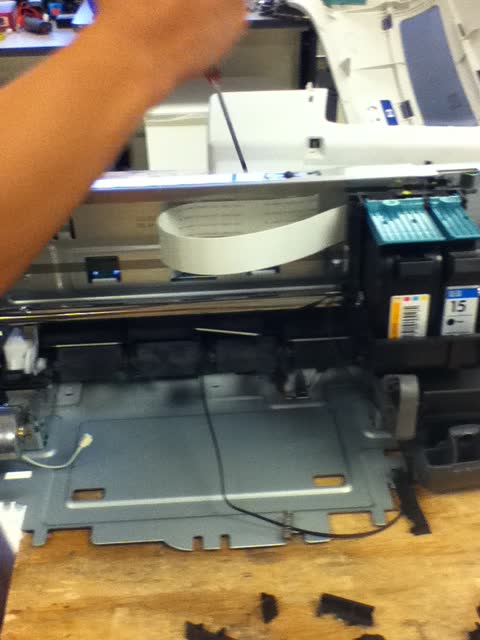
- Switch the printer on and open the top cover so the carriage moves to the centre. Then unplug it.
- Remove all ink cartridges and set them aside on paper, nozzle-side down.
- Lift the grey or black printhead latch fully upright.
- Lift the printhead straight out. It may need a firm, even pull.
- Look at the underside - the nozzle plate. Heavy dried ink, or discolouration and scorch marks, tell you a lot.
- Look at the side - the gold electrical contacts. Ink here is a common cause and easy to fix.
Fix 3: Clean the printhead properly
Method matters more than effort here, and one detail decides whether this works: complete drying.
- Wipe the gold contacts with a dry lint-free cloth, in one direction. If ink is dried on, dampen a fresh area of cloth with a little warm distilled water and wipe again, then dry it thoroughly.
- For the nozzle plate, fold a lint-free cloth, dampen it with warm distilled water - not tap water, never alcohol - and dab the nozzle area. Ink should transfer onto the cloth.
- For a stubborn clog, rest the nozzle plate in a shallow layer of warm distilled water, roughly 5mm deep, for 10 to 15 minutes. Do not submerge the printhead body and keep water well away from the contacts.
- Blot dry with clean lint-free cloth.
- Leave it to dry for at least 30 minutes, ideally several hours. Any moisture left on the contacts when you power on will short them and produce B200 again immediately - and can cause real damage.
- Refit squarely, close the latch fully until it clicks, refit the cartridges until each clicks, close the cover.
- Plug in, power on, and let the initialisation routine complete.
Tap water leaves mineral deposits that create fresh clogs. Alcohol dissolves adhesives inside the printhead assembly. Distilled water at hand temperature is the only thing that should touch it.
Fix 4: Rule out the cartridges
A cartridge with a damaged chip or a leak can trigger B200 by itself.
- Refit the printhead with no cartridges installed and power on. If B200 does not appear until cartridges go in, one of them is the cause.
- Install cartridges one at a time, powering on between each, to identify which one triggers it.
- Check each cartridge for ink on its contacts or leakage around the base.
If you are using refilled or third-party cartridges, fit a genuine Canon set as a test. It is worth the cost purely as a diagnostic - see are third-party ink and toner safe to use and ink or toner not recognized.
What about reset sequences?
You will find button sequences online claiming to clear B200. Be clear about what they do: they suppress the message, they do not repair the printhead. The printer raised B200 as a protection measure, and forcing it to continue printing with a shorting or overheating printhead risks damaging the logic board - turning a printhead-only fault into a scrapped machine.
There is a legitimate use for a service-mode reset in one narrow case, which is Canon error 5B00, the waste ink counter. B200 is not that case.
Prevention
- Replace cartridges when the printer says low, not when it says empty. This alone prevents most B200 errors.
- Print something in colour weekly. A page using every channel keeps the nozzles wet and prevents the clogs that lead here.
- Always power off with the printer's own button. The button parks and caps the printhead; cutting power at the wall leaves it uncapped and drying.
- Do not run repeated deep cleaning cycles. They generate heat and use a great deal of ink for diminishing returns.
- Keep the printer out of hot rooms and direct sun. Ambient heat reduces the margin the protection circuit is working with.
Which models this affects
| Range | Printhead | Practical outlook |
|---|---|---|
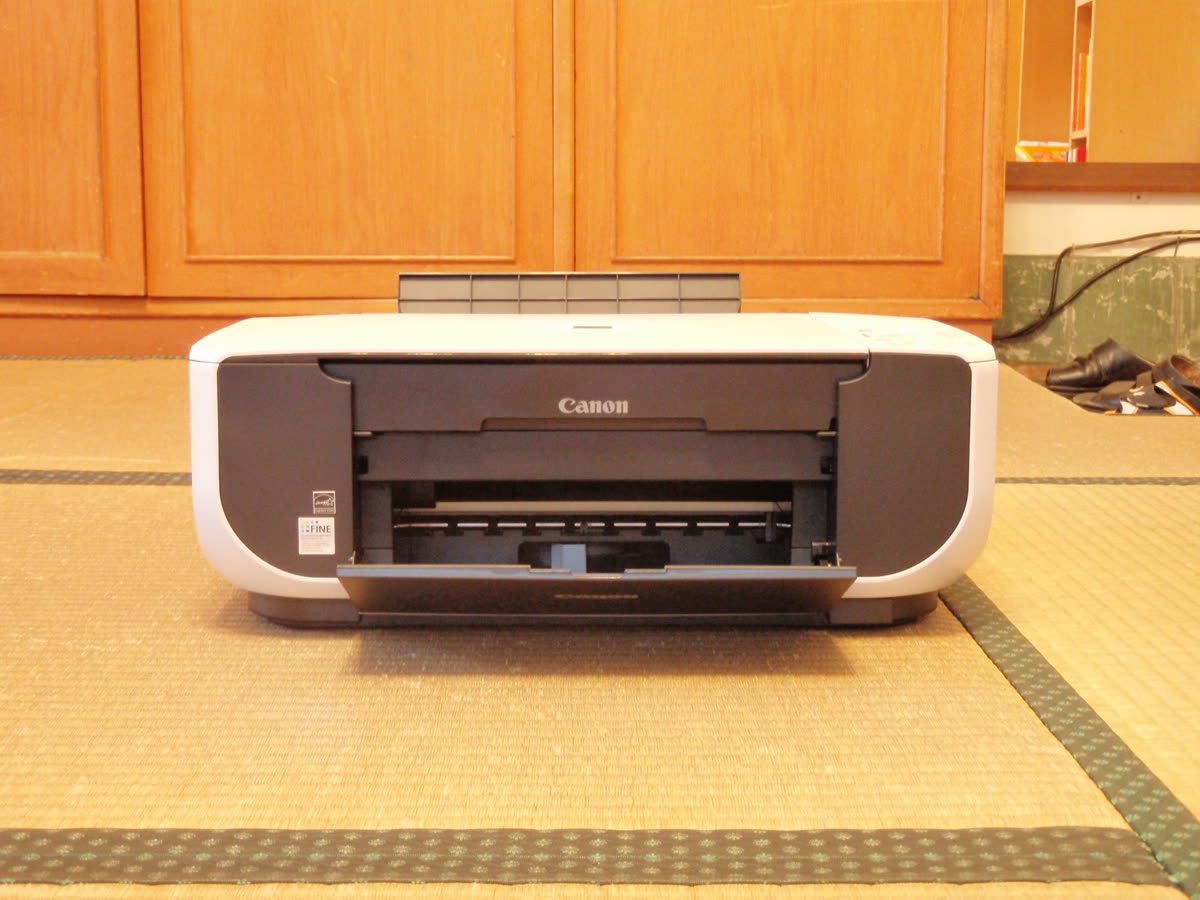
| PIXMA MG and TS entry-level | Removable, inexpensive machine | Clean is worth trying; replacement head rarely economic |
| PIXMA TR and TS mid-range | Removable | Clean first; head replacement is a real option |
| PIXMA MX and MG office models | Removable, often QY6-series head | Replacement heads widely available |
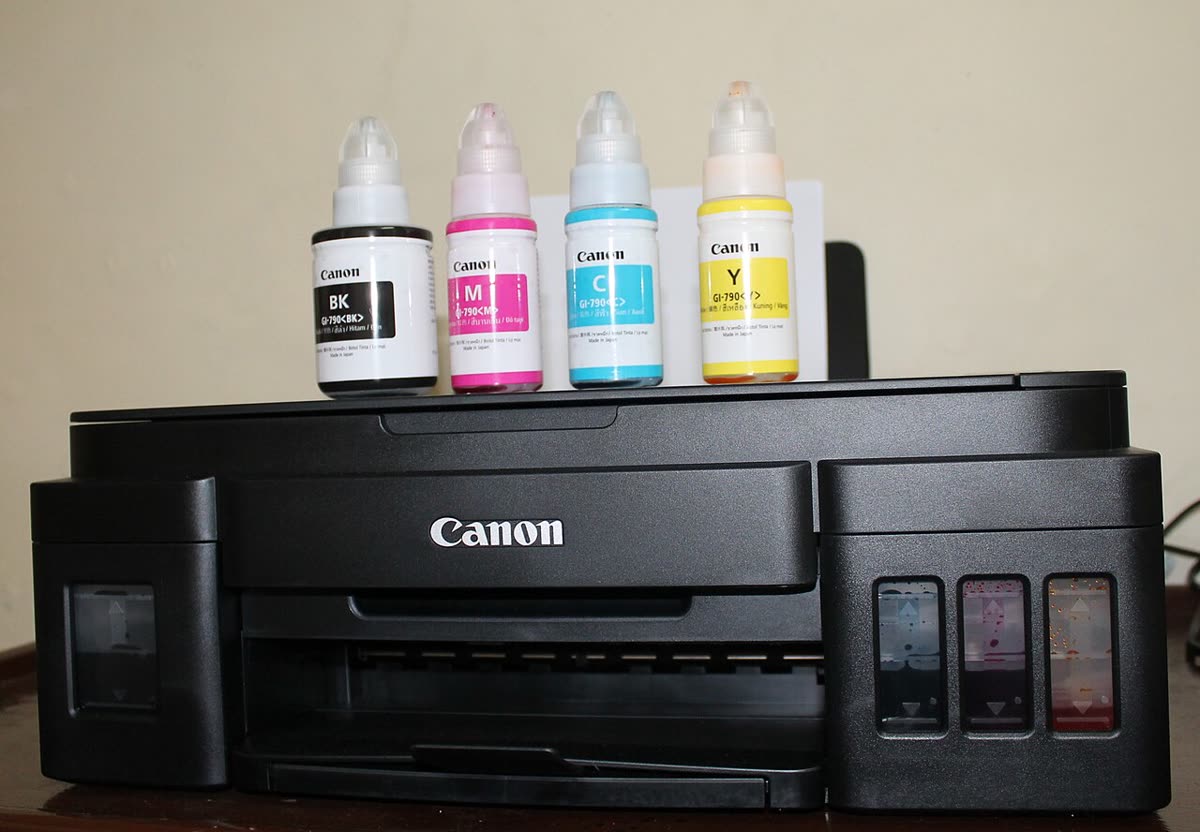
| PIXMA G MegaTank | Removable on most | Worth repairing - the ink investment is significant |
Other Canon codes worth distinguishing: 5100 is a carriage obstruction, 1300 is a paper jam, and 5B00 is the waste ink absorber. See the Canon hub and common printer error codes for the wider list.
If nothing worked
A B200 that returns after a correctly cleaned and fully dried printhead means the head has failed electrically, and no amount of further cleaning will change that. The decision is then a straightforward price comparison.
Replacement PIXMA printheads are sold as a part and are user-fittable - the job takes about five minutes. On mid-range and MegaTank models, particularly where you have a full set of cartridges or full ink tanks already, that is often worth doing. On entry-level PIXMA models the printhead frequently costs more than half the price of a new printer, at which point replacement is the rational choice: a new machine comes with a warranty, a fresh set of ink, and a printhead with no history.
Two things to check before you buy anything. First, the warranty - Canon's own warranty may still apply, and consumer protection law in the UK, Canada and Australia gives you a claim against the retailer for a reasonable period beyond that, which is usually faster than a manufacturer repair. Second, if you are replacing, ink tank vs cartridge is worth reading, because the running-cost difference over a few years dwarfs the price of the printer.
If you would like someone to look at your printhead's condition and tell you whether cleaning is likely to work before you commit time to it, you can get help from a printer specialist.
Software mentioned in this guide
- Canon IJ Scan Utility
The scanning front end bundled with Canon inkjet drivers Windows · macOS - Canon IJ Setup (ij.start.canon)
Canon's setup portal that walks you through installing a PIXMA or MAXIFY printer Windows · macOS · iOS - Canon PRINT
Canon's single mobile app for printing, scanning and printer setup iOS · Android - Windows printer settings
How Windows installs printers, and the shift to driverless Windows Ready Print Windows - macOS Printers and Scanners
Where macOS adds printers, scans documents and resets the printing system macOS
Frequently asked questions
What does Canon error B200 mean?
It is a printhead protection error. The printer detected the printhead drawing more current than expected - typically from overheating, a blockage, or an electrical fault - and shut down to avoid damaging itself. It is not a paper, ink level or connectivity problem.
Can Canon B200 be fixed at home?
Sometimes. A power reset clears a proportion of cases, and on PIXMA models with a removable printhead a thorough clean and complete dry recovers many more. If the error returns after a correctly cleaned and dried printhead, the head has failed electrically and needs replacing.
Why does running out of ink cause a B200?
Ink flowing through the printhead cools the tiny heating elements that fire each droplet. Printing with an empty cartridge means those elements fire dry, overheat rapidly, and can burn out. Replacing cartridges when the printer says low rather than empty is the single best prevention.
Is there a B200 reset code or bypass?
There is no legitimate reset that fixes the underlying fault. Some sequences clear the message temporarily, but the printer raised it as a protection measure, so bypassing it risks further damage. Address the cause - clean or replace the printhead - rather than suppressing the warning.
Is a B200 worth repairing?
It depends entirely on the model. On a mid-range or business PIXMA with expensive cartridges already fitted, a replacement printhead can be worthwhile. On an entry-level model, the printhead alone often costs more than half a new printer, and replacement is usually the better decision.
IT support veteran who breaks down messy printer problems into simple, ordered fixes.
Questions & comments (0)
No comments yet. Describe your printer model, operating system and the exact message you see; comments appear after review.
Ask about this page
Your comment appears after our team approves it. Or sign in to post faster.