Brother Print Unable 0B: What It Means and How to Clear It
Print Unable 0B is a hardware error on Brother laser printers and all-in-ones. A proper restart and a corona wire clean clear many cases; if it keeps coming back, it is a service job.

On this page
"Print Unable 0B" (shown as "Machine Error 0B" on some screens) is a hardware error on Brother laser printers and laser all-in-ones. Brother's support articles describe it as a mechanical or hardware malfunction and give the same short sequence: restart the machine properly, print a report to test it, and if the error returns, clean the corona wire and the drum unit's contacts. If 0B still comes back after that, the fault is inside the machine and needs warranty service or a repair.
What does Print Unable 0B mean?
Brother printers report internal faults as "Print Unable", "Unable to Print" or "Machine Error" followed by a two-character code. The code tells a technician which part of the machine failed its self-check. For 0B, Brother's US and Canadian help articles state that a hardware or mechanical malfunction has occurred. The articles list laser models only, both mono and colour, including popular machines such as the DCP-L2550DW, HL-L2390DW, MFC-L2690DW, MFC-L2710DW, MFC-L2717DW and MFC-L2750DW, older models like the HL-2270DW and MFC-7860DW, and colour machines such as the HL-3180CDW, MFC-9330CDW and MFC-L8900CDW.
Brother does not publish which component each code maps to, so treat any website that claims to know the exact failed part from the code alone with caution. What matters is that Brother's own fix list starts with simple steps that clear a temporary fault, then moves to the drum unit, and only then to service.
If your Brother is an inkjet and shows a different code, see our guides to Brother "Unable to Print 46" or the Brother "Unable to Print 0A" page instead.
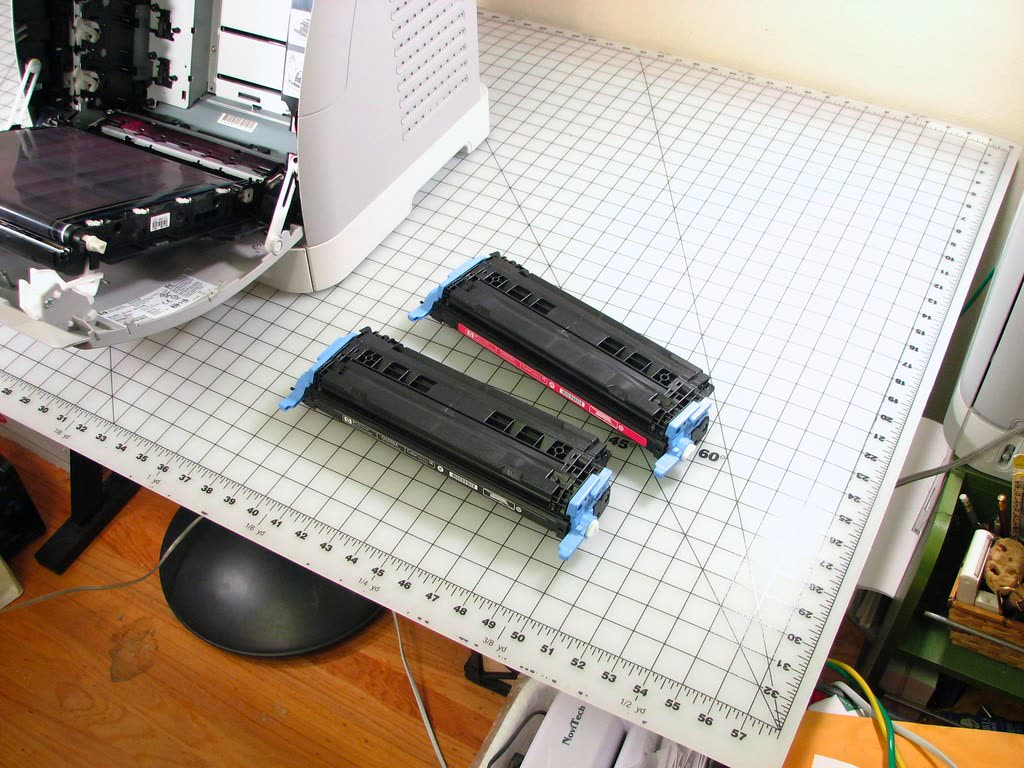
Step 1: Restart the machine properly

A restart sounds too simple, but Brother lists it first because many 0B errors are one-off faults that clear once the machine re-runs its start-up checks.
- Press and hold the power button until the display shows "Shutting Down", then let the machine turn itself off. Holding the button is the normal shutdown; pulling the plug mid-job is not.
- Wait about 10 seconds. If you want to be thorough, unplug the power cord from the wall for a minute so the power supply fully discharges.
- Plug the machine directly into a wall outlet rather than a power strip or extension lead, and turn it on.
If the machine starts without an error, go to Step 2 to confirm it can print. If "Print Unable 0B" appears again straight away, go to Step 3.
Step 2: Print a report to test it
A report is a quick, consistent print job that uses no computer, driver or network, so it isolates the printer itself.
- Models with buttons and a two-line display: press Menu, choose Print Reports, then Printer Settings (sometimes shown as Print Settings), and press Start or OK. Press Stop/Exit when it finishes.
- Touchscreen colour models: Brother's Canadian article for colour lasers uses Settings, then Toner, then Test Print.
If the report prints cleanly and no error appears, the problem is solved. Send a normal job from your computer to be sure. If the error comes back as soon as the machine tries to print, continue to Step 3.
Step 3: Clean the corona wire and drum contacts

On mono lasers, Brother's next step is cleaning the drum unit's corona wire and the metal contacts on the drum. Toner dust on these parts can upset the high-voltage system, and the clean takes five minutes.
- Open the front cover and lift out the drum unit and toner cartridge assembly. Put it on a sheet of scrap paper, because loose toner can spill.
- Find the green tab on the drum unit. Slide it gently from left to right and back several times. This drags a cleaner along the corona wire inside.
- Return the green tab to its home position, with its arrow lined up with the arrow on the drum unit. Brother warns that if the tab is left out of position, printed pages may show a vertical stripe.
- Wipe the metal contacts on the side of the drum unit with a soft, dry, lint-free cloth. Do not touch the green drum surface itself.
- Put the drum and toner assembly back, close the front cover, and print the Printer Settings report again.
If the report prints without the error, you are done. Our Brother drum guide covers cleaning, resetting and replacing the drum unit in more detail, and the Brother "Drum Error" page covers the related corona wire message.
Colour lasers: let it settle for 15 minutes
Brother's article for colour laser models adds a step. If the restart shows "Fuser Error" or "Self-Diagnostic" instead of, or after, 0B, leave the machine switched on and untouched for 15 minutes, then turn it off and on again. Some colour lasers need that time to cool down and complete their checks. If "Print Unable", "Fuser Error" or "Self-Diagnostic" is still on the screen after that, Brother's next step is contacting Brother support.
Our pages on the Brother "Fuser Error" and Brother "Self-Diagnostic" messages explain those codes on their own.
Things that make 0B more likely
You cannot prevent every hardware fault, but a few habits reduce the strain on a laser printer:
- Power. Lasers draw a burst of current every time the fuser heats up. Give the printer its own wall outlet rather than sharing a crowded power strip with heaters or other high-draw devices, and check your model's safety guide before connecting it to a small uninterruptible power supply.
- Supplies. Brother recommends genuine supplies and notes that its warranty does not cover damage caused by non-genuine supplies. A poorly made toner cartridge or drum can leak toner onto contacts.
- Environment. Keep the printer out of direct sun, away from heaters, and on a flat, stable surface with space around its vents.
- Firmware. Once the printer works again, check for a firmware update through Brother's support site. Our firmware update guide explains how to do it safely.
When 0B keeps coming back
If you have restarted the machine, cleaned the corona wire and contacts, and the error returns, stop troubleshooting. Repeated power cycles will not fix a failed part. Brother's articles send you to warranty and service at this point:
- Check the warranty status with Brother's machine warranty tool on the Brother support site for your country. Have the serial number from the label on the back or inside the front cover.
- If it is under warranty, follow Brother's instructions for a replacement or repair. In the US, Brother's laser machines typically come with a limited exchange warranty, so check the terms for your model.
- If it is out of warranty, Brother points owners to an authorized service center, and repair fees may apply.
For an inexpensive mono laser, a bench repair can cost a large share of a new machine. Our guide to whether a printer is worth repairing helps you decide, and the Brother "Machine Error" guide explains how to read other start-up codes before you pay for a diagnosis. If you are replacing it, our Brother HL-L2350DW vs HL-L2460DW comparison covers two current home lasers.
Use only the contact routes listed on Brother's own website. Search ads and lookalike sites that offer a "Brother support number" are often paid services with no connection to Brother.
Sources
Software mentioned in this guide
Printers covered here
Frequently asked questions
What does Print Unable 0B mean on a Brother printer?
Brother says it indicates a hardware or mechanical malfunction in the machine. It appears on Brother laser printers and laser all-in-ones, sometimes worded as Machine Error 0B, and the code does not identify a part you can replace yourself.
How do I clear Print Unable 0B?
Hold the power button until the machine shuts down, wait about 10 seconds and turn it on. Print the Printer Settings report. If the error returns, remove the drum and toner assembly, clean the corona wire with the green tab, wipe the drum contacts, reinstall it and test again.
Is Print Unable 0B caused by the toner cartridge?
Not directly, but Brother includes cleaning the drum unit corona wire and contacts in its fix, because toner dust there can upset the machine. Poor-quality cartridges that leak toner make that more likely, which is one reason Brother recommends genuine supplies.
What if Print Unable 0B keeps coming back?
Then the fault is inside the printer. Check the warranty with Brother using the serial number, and if it is out of warranty use a Brother authorized service center or compare the repair quote with the price of a new machine.
Guides credited to the PrinterSupport.io Editorial Team are researched from the manufacturers' own support documentation and our editorial policy, and updated when menus, apps or policies change. Corrections go to help@printersupport.io.
Questions & comments (0)
No comments yet. Describe your printer model, operating system and the exact message you see; comments appear after review.
Ask about this page
Your comment appears after our team approves it. Or sign in to post faster.