Brother "Replace Toner" Won't Clear: Continue Mode, Resets and the Sensor Window
Brother lasers stop at Replace Toner even when toner remains. Continue mode, a proper reset after fitting a new cartridge and a clean sensor window solve almost every case.

On this page
Brother mono lasers warn at Toner Low and then stop at Replace Toner. If there is still toner in the cartridge - and there usually is - you can either enable Continue mode to keep printing, or reset the sensor after fitting a new cartridge. A new cartridge that immediately reports empty almost always means the reset step was skipped or the small sensor window is blocked.
Quick fixes first
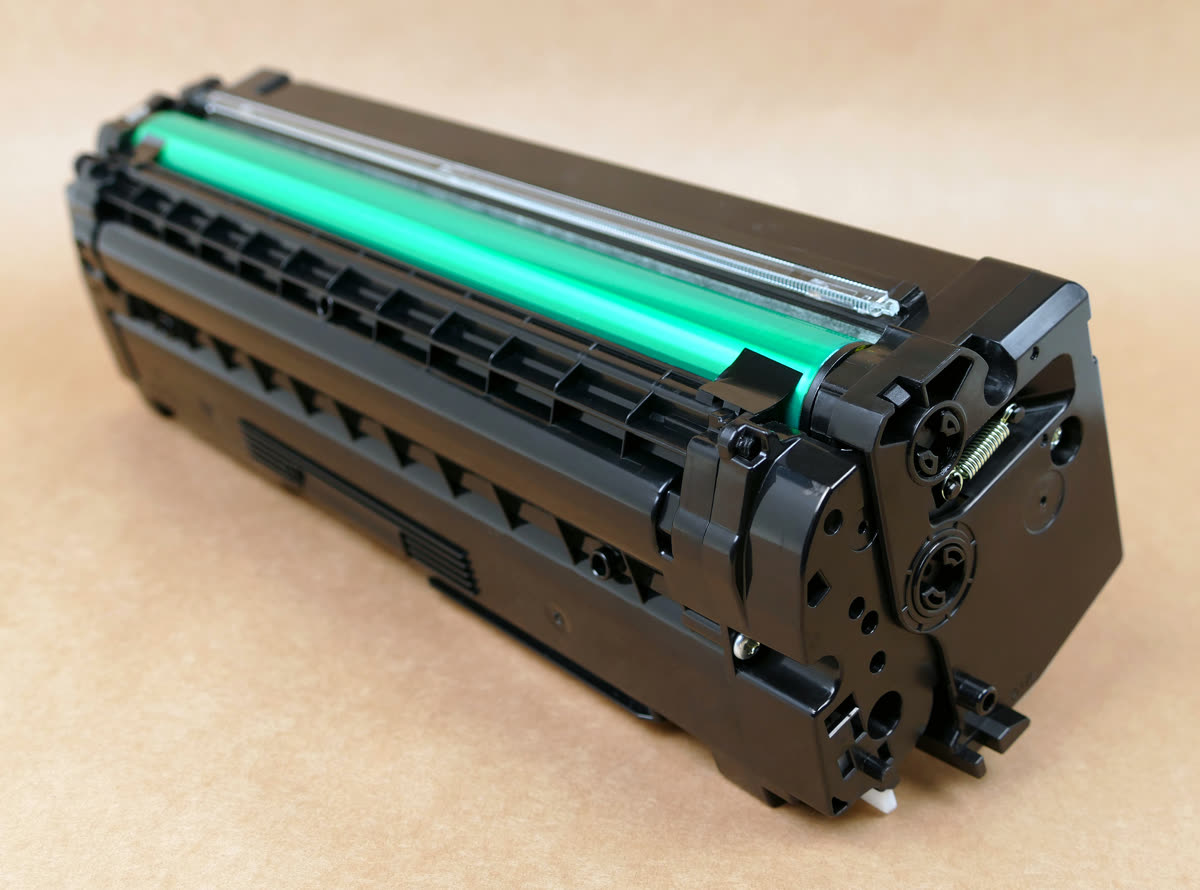
- Open the front cover, pull out the drum and toner assembly as one unit, and rock it gently side to side five or six times to redistribute the remaining toner. Refit and close the cover.
- If the message clears, print immediately - you may get several hundred more pages.
- If you have just fitted a new cartridge, remove it, check the orange or protective packaging is fully removed, and reseat it until it clicks into the drum frame.
- Wipe the clear plastic window on the side of the drum unit with a dry lint-free cloth. This is the sensor path and toner dust settles on it.
- Close the front cover firmly. On many Brother models an open-and-close cover cycle is what triggers the cartridge re-read.
Why Brother stops before the toner is empty

There is no fuel gauge inside a laser cartridge. Brother's firmware tracks how many pages have been printed and how much of each page was covered in toner, then compares that against the cartridge's rated yield. When the estimate reaches the limit, the printer declares the cartridge empty regardless of what is physically inside.
The estimate is calibrated to a standard five percent page coverage. If you print mostly light text, your real coverage is often lower and there is genuinely toner left. If you print dense graphics, the reverse is true and the estimate may be optimistic. Either way, the stop is a policy decision by the firmware, not a measurement.
Two other factors matter. First, the starter cartridge shipped with a new printer typically holds around half the toner of the standard replacement, which is why the first Replace Toner message often arrives shockingly early. Second, some Brother models use a mechanical sensor arm and an optical window on the drum frame - if that window is dusty, the reading fails and the printer defaults to reporting empty.
Fix 1: Enable Continue mode
Continue mode is Brother's own supported override. It tells the printer to carry on past the Toner Low threshold and keep printing until quality visibly drops.
On models with a menu LCD: press Menu, navigate to General Setup, then Replace Toner, and change the setting from Stop to Continue, then press OK. On touchscreen models the same setting lives under Settings, then All Settings, then General Setup, then Replace Toner. The exact wording varies slightly - on some models the option is called Toner Setting.
With Continue selected, the printer shows Toner Low but does not stop. Print quality will fade gradually and unevenly; when you start seeing pale bands down the page, the cartridge really is finished. Keep a spare on hand before you enable this, because the failure is now silent.
Fix 2: Reset the sensor after fitting a new cartridge

Most Brother mono lasers detect a new toner cartridge automatically through a mechanical flag reset when the cover is closed. When that does not happen, the machine keeps reporting the old cartridge's state.
The general method is: open the front cover with the printer powered on, leave it open, and hold the confirmation button until the display or the LEDs acknowledge the reset, then close the cover. On models with an OK button that is the button to hold; on button-only models without an LCD it is the Go button. Some models instead expose the reset in the menu under Machine Info or a Reset Menu.
Brother varies this sequence between model families, so check the exact steps for your model number in the user guide rather than applying a sequence from a different machine. The wrong sequence does no harm, but it also does nothing, and people conclude the cartridge is faulty when it is not.
Fix 3: Clean the sensor window
Remove the drum and toner assembly. On the side of the drum frame, look for a small clear plastic window - roughly the size of a fingernail - through which the machine reads the cartridge. Wipe it with a dry lint-free cloth. Do the same for the corresponding window on the inside wall of the printer where the light path terminates.
While you have the assembly out, slide the green corona wire tab from end to end three or four times and return it firmly to the home position. Leaving it off-centre causes vertical streaking that people often mistake for a toner problem.
Fix 4: Check whether the cartridge is compatible
Brother uses different cartridge codes in different regions - TN-730 and TN-760 in the US and Canada, TN-2410 and TN-2420 in the UK, Europe and Australia. A cartridge bought from an overseas seller may physically fit but be rejected or misread. Similarly, high-yield versions carry a different code from standard-yield ones, and a printer configured for one will report the other inconsistently.
Some third-party cartridges use a reusable chip or no chip at all and require the manual reset every time. That is not a fault, it is how they are designed; our third-party ink and toner guide explains what to expect.
Fix 5: Rule out the computer's status display
Sometimes the printer is fine and it is the Windows or Mac status monitor showing stale information. On Windows 11, open Settings, then Bluetooth & devices, then Printers & scanners, select the Brother and open the queue - the printer's own status text there is refreshed from the device. If it disagrees with the panel, restart the spooler: press Windows+R, run services.msc, right-click Print Spooler and choose Restart. On macOS 26 Tahoe, open System Settings, then Printers & Scanners, select the printer and check Options & Supplies, then Supply Levels.
Message reference
| Panel message | What it means | What to do |
|---|---|---|
| Toner Low | Estimated yield nearly reached; printing continues | Order a replacement, keep printing |
| Replace Toner | Estimate exhausted; printing stops unless Continue is set | Rock the cartridge, then enable Continue or replace |
| Toner Ended | Hard stop after Continue mode has been used | Fit a new cartridge |
| Cannot Detect Toner | Sensor cannot read the cartridge | Reseat, clean the sensor window, check the cartridge code |
| Drum End Soon | Separate part - the drum unit, not the toner | See our Brother drum guide |
| Replace Toner after a new cartridge | Reset step not completed, or chip not read | Run the reset sequence for your model |
If nothing worked
If a genuine Brother cartridge, correctly seated with a clean sensor window and the reset performed, still reports Replace Toner, the likely fault is the sensor mechanism itself - a broken flag lever or a failed optical sensor inside the machine. That is a service item.
Here the economics are much friendlier than they are for inkjets. Brother mono lasers are built simply and repairers are comfortable with them, so a sensor repair on an HL or MFC laser is often a sensible spend, particularly since these machines routinely run for a decade. It is still worth comparing against the price of a current equivalent - if the machine has also had a drum replacement and is showing wear on the rollers, replacement may win.
If you are unsure which reset sequence applies to your exact model, or whether the cartridge you bought is the right regional code, you can get help from a printer specialist before spending on parts.
Related: Brother drum end of life, faded print quality, streaks and lines on prints, and the Brother support hub.
Software mentioned in this guide
- Brother Full Driver and Software Package
The complete driver, scanner and utility bundle for a specific Brother model Windows · macOS - Brother Mobile Connect
Brother's current mobile app for setup, printing, scanning and supplies iOS · Android - Brother iPrint and Scan
Desktop print and scan front end that replaces ControlCenter4 on newer Brother models Windows · macOS · iOS - Windows printer settings
How Windows installs printers, and the shift to driverless Windows Ready Print Windows - macOS Printers and Scanners
Where macOS adds printers, scans documents and resets the printing system macOS
Frequently asked questions
How do I override Brother's Replace Toner message?
Enable Continue mode. On menu models press Menu, then General Setup, then Replace Toner, and switch the setting from Stop to Continue. The printer then keeps printing past the low-toner threshold until quality visibly degrades.
Why does my Brother printer still say Replace Toner with a new cartridge?
Either the reset step was not completed, the protective packaging was not fully removed, the cartridge is a different regional code, or the small clear sensor window on the drum frame is covered in toner dust. Work through those four in order.
How do I reset the toner counter on a Brother laser?
The general method is to open the front cover with the printer on and hold the OK button (or Go on models without an LCD) until the display acknowledges the reset, then close the cover. The exact sequence differs by model family, so check your model's user guide.
Is it safe to keep printing after Replace Toner appears?
Yes. Continue mode is a Brother feature, not a hack. The only real risk is running out mid-job without warning, so keep a spare cartridge available once you enable it.
Why did my starter toner run out so fast?
Cartridges shipped with new Brother lasers typically hold around half the toner of a standard replacement. The first Replace Toner message therefore arrives much earlier than the printer's rated yield would suggest.
Do third-party Brother cartridges cause this message?
Some do. Compatible cartridges with reusable or absent chips may require the manual reset each time they are fitted. That is a design consequence rather than a fault, but it is worth knowing before you buy.
IT support veteran who breaks down messy printer problems into simple, ordered fixes.
Questions & comments (0)
No comments yet. Describe your printer model, operating system and the exact message you see; comments appear after review.
Ask about this page
Your comment appears after our team approves it. Or sign in to post faster.