Brother "Machine Error" Codes at Startup: How to Clear Them and When to Stop Trying
A Brother Machine Error at power-on means the printer hit a fault while initializing. A full power reset clears transient ones; the exact code tells a technician which component failed.

On this page
- Quick fixes first
- What a Machine Error actually is
- Fix 1: The full power-drain reset
- Fix 2: Clear the mechanical path
- Fix 3: Deal with TS codes separately
- Fix 4: Update firmware if the machine reaches Ready
- Fix 5: Clear the queue so the error does not repeat
- Reading the symptom pattern
- If nothing worked: the honest position
A Brother "Machine Error" with a two-character code appears when the printer detects a fault during initialisation and stops before reaching the Ready state. Some are transient - a sensor read that failed once - and clear with a full power reset. Others identify a specific failed component. The code is the key: it is what separates a five-minute fix from a service booking.
Quick fixes first
- Photograph or write down the exact code as displayed, including any letters. "Machine Error 4F" and "Machine Error E50" lead to completely different conversations.
- Power off with the panel button, unplug the mains lead from the wall, and disconnect the phone line on MFC models.
- Wait a full two minutes. Press and hold the power button for 30 seconds while the machine is unplugged.
- Reconnect to a wall socket directly - not a surge strip - and power on. Watch the whole startup sequence.
- If it reaches Ready, print a test page immediately and note whether the error returns under load.
What a Machine Error actually is

When a Brother printer powers on, the firmware runs a startup routine: it homes the carriage or the scanner head, spins the motors briefly, checks each sensor reports a plausible value, and on lasers brings the fuser up to temperature. If any of these steps returns an unexpected result, the routine aborts and displays a Machine Error rather than continuing into a state where it might damage itself.
On Brother lasers the same idea appears as "Print Unable" with a code. The most searched one has its own walkthrough: Brother Print Unable 0B, where Brother's fix runs from a restart to cleaning the corona wire.
That means the same class of message covers wildly different severities. A scanner carriage that could not home because a sheet of paper was left on the glass is a Machine Error. So is a failed fuser. Both stop the machine; only one is expensive.
Brother uses several code formats and they are not interchangeable. Numeric codes such as 46 relate to the ink system on inkjets. Alphanumeric codes such as 4F and 5F appear on inkjets for carriage and purge faults. E-prefixed codes appear largely on lasers. TS-prefixed codes are wireless setup failures and have nothing to do with hardware. Because Brother does not publish a single public master list, the honest approach is: use the code to search Brother's own support site for your exact model, and treat generic code lists on other sites with caution.
Fix 1: The full power-drain reset
Do this properly rather than quickly. Power off with the panel button so the machine parks its head or carriage. Unplug from the wall. On MFC models, unplug the telephone line as well - a line fault can hold the modem in an error state that survives a power cycle. Hold the power button for 30 seconds. Wait two minutes. Reconnect directly to a wall socket and power on.
If the machine has a battery-backed clock, you may need to reset the date and time afterwards. That is normal and confirms the reset was deep enough to matter.
Fix 2: Clear the mechanical path
Open every cover the machine has and inspect systematically.
On lasers: remove the drum and toner assembly and look into the empty bay with a torch. Check for paper scraps around the fuser at the rear, packing foam under the drum, and anything resting on the transfer roller. Check the rear cover and the duplex tray. Refit the drum assembly firmly - a partially seated drum stops initialisation.
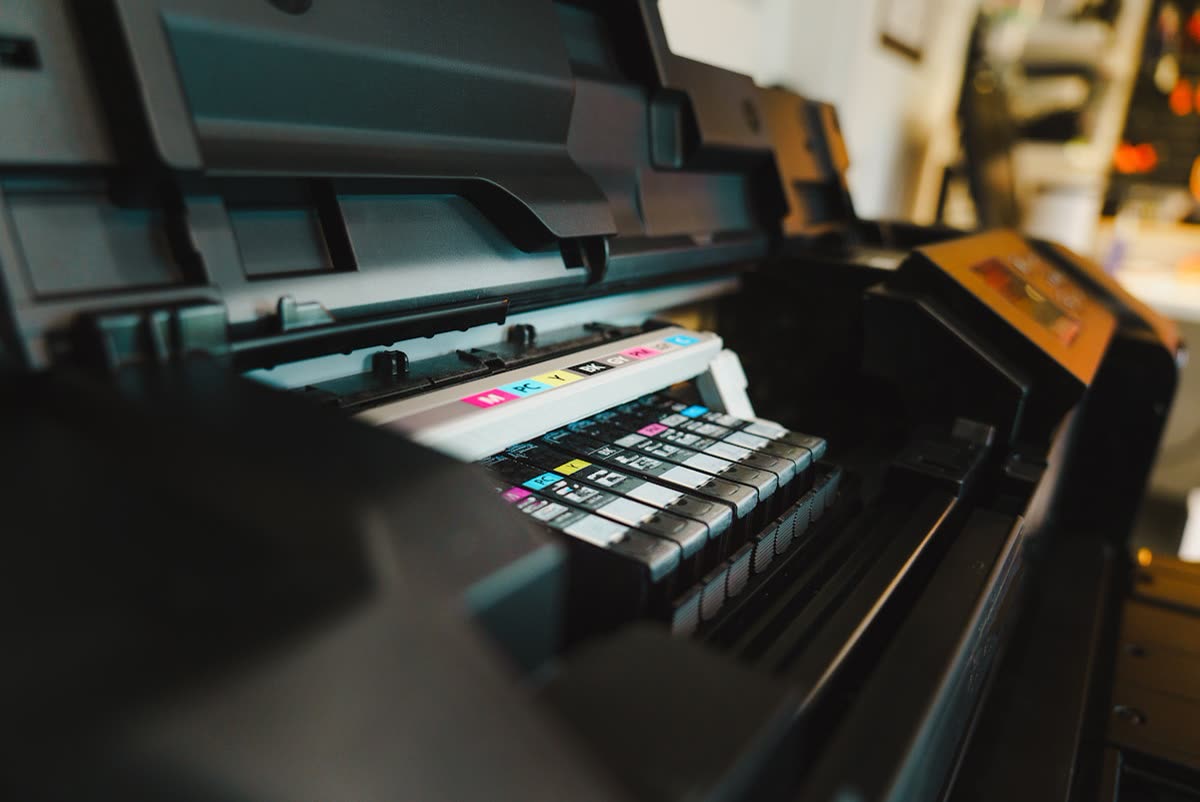
On inkjets: open the scanner unit, move the carriage gently by hand across its full travel, and remove any scrap, tape or foreign object. Check the ink cartridge cover is fully closed and each cartridge is clicked home. Check the rear paper feed cover and the duplex module.
On all MFC models: lift the document feeder and check nothing is on the scanner glass or wedged in the feeder path. A scanner head that cannot home is a common cause of a startup error on machines that were working yesterday.
Fix 3: Deal with TS codes separately
If your code begins with TS - TS-01, TS-02, TS-07 and similar - this is a wireless setup failure, not a machine fault. The printer could not find or join the network you selected. Fixes are network-side: confirm you selected the right network name, re-enter the password carefully (it is case sensitive), and make sure the printer is joining a 2.4 GHz network, since many Brother models do not support 5 GHz.
Move the printer closer to the router for the setup, then move it back. If your router broadcasts one merged name across both bands, temporarily creating a separate 2.4 GHz name makes setup dramatically more reliable. Our guide to printers that will not connect to Wi-Fi covers the full sequence.
Fix 4: Update firmware if the machine reaches Ready

If the error is intermittent and the printer sometimes boots normally, install current firmware during a good window. Use Brother Mobile Connect on a phone, or the Firmware Update Tool from Brother's support site on a computer. On models with a menu, the panel path is usually Settings, then All Settings, then Machine Info, then Firmware Update.
Firmware will not repair a failed fuser, but it does resolve some sensor timing issues that present as intermittent startup errors, and it is free.
Fix 5: Clear the queue so the error does not repeat
A job that failed mid-print will be resent as soon as the printer recovers, potentially triggering the same fault. On Windows 11, open Settings, then Bluetooth & devices, then Printers & scanners, select the Brother, open the queue and cancel everything. If jobs will not clear, press Windows+R, run services.msc, right-click Print Spooler and choose Restart. On macOS 26 Tahoe, open System Settings, then Printers & Scanners, select the printer, clear the queue and click Resume if it shows as paused.
Reading the symptom pattern
| Behaviour | Most likely category | Next step |
|---|---|---|
| Error appears on a brand new machine | Packing material still fitted | Check the drum bay and carriage path |
| Error appeared once, cleared after a reset | Transient sensor read | Monitor; no action needed |
| Error returns within seconds every time | Failed component | Record the code and get a quote |
| Error only after a jam was cleared | Scrap left in the path, or a bent sensor flag | Re-inspect the whole path with a torch |
| Error with a TS prefix | Wireless setup failure | Network fixes, not hardware |
| Error 46 or similar numeric on an inkjet | Ink absorber capacity | See our Brother error 46 guide |
| Machine gets hot then errors | Fuser or thermistor on lasers | Stop using it; service item |
If nothing worked: the honest position
A Machine Error that returns instantly after a full power-drain reset, with a clear paper path and no packing material, means a component has failed. On Brother lasers, the usual suspects are the fuser, the main motor and the scanner assembly. Those are all replaceable, and Brother lasers are among the more repair-friendly consumer printers - a fuser replacement on an HL or MFC machine with years of life left is frequently a sensible spend rather than a write-off.
On Brother inkjets, the calculation is less favourable. A carriage or board fault on a home DCP-J or MFC-J commonly costs more to diagnose and repair than a current equivalent costs new, and the machine will still have an ageing printhead and a partly filled ink absorber afterwards.
Either way, get a quote against the code rather than against the symptom, and compare it with today's price for the same class of machine. If you want someone to interpret the code and tell you which side of that line you are on before you pay a bench fee, you can get help from a printer specialist.
Related: Brother Unable to Print 46, Brother paper jam messages, printer grinding noise, and the Brother support hub.
Software mentioned in this guide
- Brother Full Driver and Software Package
The complete driver, scanner and utility bundle for a specific Brother model Windows · macOS - Brother Mobile Connect
Brother's current mobile app for setup, printing, scanning and supplies iOS · Android - Brother iPrint and Scan
Desktop print and scan front end that replaces ControlCenter4 on newer Brother models Windows · macOS · iOS - Windows printer settings
How Windows installs printers, and the shift to driverless Windows Ready Print Windows - macOS Printers and Scanners
Where macOS adds printers, scans documents and resets the printing system macOS
Frequently asked questions
How do I reset a Brother printer showing Machine Error?
Power off with the panel button, unplug the mains lead from the wall (and the phone line on MFC models), hold the power button for 30 seconds while unplugged, wait two minutes, then reconnect directly to a wall socket and power on.
What do Brother TS error codes mean?
TS-prefixed codes such as TS-01 and TS-02 are wireless setup failures, not hardware faults. The printer could not find or join the network. Check the network name and password, and make sure you are joining a 2.4 GHz network.
Why does the same Machine Error keep coming back?
A code that returns within seconds of every reset points to a failed component rather than a transient glitch. Common culprits are the fuser or main motor on lasers, and the carriage or main board on inkjets.
Is a Brother Machine Error worth repairing?
On Brother mono lasers, often yes - they are repair-friendly and long-lived, so a fuser or motor replacement can be economic. On home inkjets, the diagnosis fee plus parts usually exceeds the cost of a new machine of the same class.
Can packing material cause a Machine Error?
Yes, and it is one of the most common causes on brand new machines. Check the drum bay on lasers and the carriage path on inkjets for orange inserts, foam blocks and tape before assuming anything is broken.
Should I keep power-cycling a printer that errors after warming up?
No. On a laser, an error immediately after warm-up, especially with any burning smell, suggests a fuser or thermistor fault. Unplug the machine and have it looked at rather than repeatedly restarting it.
Technical writer focused on printer drivers, wireless setup and error-code troubleshooting.

Questions & comments (0)
No comments yet. Describe your printer model, operating system and the exact message you see; comments appear after review.
Ask about this page
Your comment appears after our team approves it. Or sign in to post faster.