Epson "Parts Inside Your Printer Are at the End of Their Service Life": What It Means and How to Clear It
The message means Epson's waste ink pads are saturated. Some models take a user-replaceable maintenance box; others need service or a counter reset. Here is how to tell which you have.

On this page
- Quick fixes first
- Why the pads fill up
- Fix 1: Replace the maintenance box (if your model has one)
- Fix 2: Internal felt pads - what service actually involves
- Fix 3: Counter resets - what they do and do not do
- Fix 4: Clear the message from your computer's side
- How to make the next set of pads last longer
- If nothing worked: be honest about the economics
This message means your Epson's waste ink absorption system is full. Every head clean and every start-up purge flushes a small amount of ink into either a felt pad inside the chassis or a removable maintenance box. When the printer's internal counter says that capacity is used up, it stops printing to prevent ink escaping inside the machine. It is a designed safety stop, not a random fault.
Quick fixes first
- Read the exact wording on the panel. If it mentions a maintenance box, you have a user-replaceable part and can fix this yourself in two minutes. If it says Printer error. Contact Epson Support. Non-printing features are available instead, that is a different fault with no pad involved; see Epson's non-printing features error.
- If it says parts inside your printer are at the end of their service life with no box reference, look at the rear of the chassis for a small removable cartridge-shaped module. Many WorkForce and EcoTank models have one.
- Check whether the printer still prints. Some models give a warning phase first (W-11 style) where printing continues; use that window to order the part.
- Power the printer off and on once. This does not reset the counter but confirms whether you are in the warning phase or the hard stop.
- Note the model number from the front of the machine - the answer differs completely between generations.
Why the pads fill up
Inkjet printheads must stay wet. Every time an Epson powers on, and every time you run a cleaning cycle, it pushes ink through the nozzles and into a capping station, from where it drains into absorbent material. Nothing is recovered. Over the printer's life this quietly accumulates.
Three habits accelerate it dramatically. Running head cleanings repeatedly when a print looks slightly banded - each deep clean can consume several percent of a cartridge. Powering the printer off at a wall switch rather than the panel button, which forces a full purge on every restart because the head was never capped properly. And printing very infrequently, so the printer runs a maintenance purge before almost every job.
EcoTank owners hit this earlier than they expect, because cheap ink encourages liberal use of cleaning cycles, and the pads do not care that the ink was cheap.
Fix 1: Replace the maintenance box (if your model has one)

This is the good outcome. Models including many WorkForce Pro, WorkForce WF-series and later EcoTank machines use a serviceable maintenance box. It looks like a flat plastic cartridge, usually accessible from the rear or from behind a small door on the left or right side.
- Power the printer off at the panel and unplug it.
- Locate the box. On rear-mounted designs you may need to remove the rear paper feed cover first.
- Pull the old box straight out and keep it level - the absorbent core is saturated and will drip if tilted.
- Seal the old box in the plastic bag the new one came in.
- Push the new box fully home until it seats, replace covers, plug in and power on.
The counter resets automatically because the new box carries its own chip. Order by the maintenance box part number printed on the old unit, not by printer model alone - Epson reuses the same box across many machines but not all.
Fix 2: Internal felt pads - what service actually involves
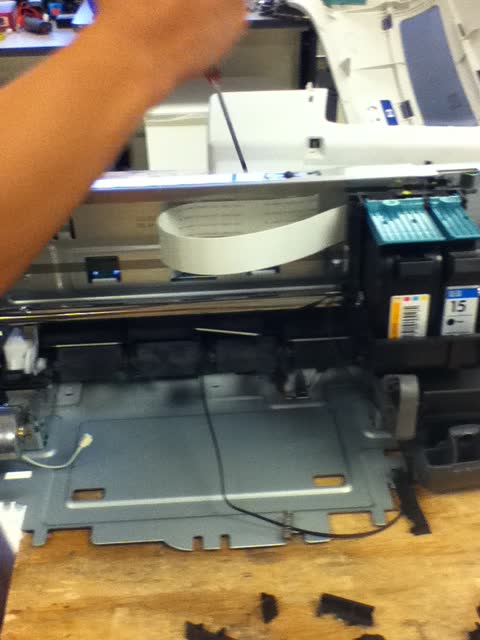
Older and cheaper models, including many Expression and older Stylus machines, have no removable box. The waste ink soaks into felt pads sitting in a tray at the base of the chassis. Replacing them means stripping the printer down far enough to reach the tray, swapping the felt, refitting everything and resetting the counter with Epson's service tool.
A service centre will typically quote for an hour of labour plus parts. On a business machine that is reasonable. On a home all-in-one it very often exceeds the printer's replacement cost, which is the honest reason so many people go looking for reset utilities instead.
Fix 3: Counter resets - what they do and do not do
Epson publishes an official Ink Pad Reset Utility for some models and territories, available through Epson's own support pages, and a reset key must usually be purchased. Third-party utilities exist too. All of them do exactly one thing: set the internal waste counter back to zero so the printer resumes printing.
They do not empty the pads. The physical absorbent material is still saturated. After a reset, waste ink continues to arrive with nowhere to go, and on a genuinely full machine it eventually seeps out of the base of the chassis onto whatever the printer is standing on. If you reset, put the printer on a washable surface and treat it as borrowed time.
There is a legitimate middle path used by many technicians: reset the counter and fit a waste ink tube out of the back of the machine into an external bottle. That converts an unfixable problem into a maintenance task, but it is a modification, not a repair, and it is only sensible on a machine you are otherwise about to discard.
Fix 4: Clear the message from your computer's side

The stop is enforced by the printer, so a computer cannot override it, but a failed job left in the queue will keep throwing errors after the printer is fixed. On Windows 11, open Settings, then Bluetooth & devices, then Printers & scanners, choose your Epson, open the queue and cancel everything. If jobs will not delete, press Windows+R, type services.msc, then restart the Print Spooler service. On macOS 26 Tahoe, open System Settings, then Printers & Scanners, select the printer, open the queue and clear it, then resume the printer if it shows as paused.
How to make the next set of pads last longer
| Habit | Effect on waste ink | What to do instead |
|---|---|---|
| Repeated deep cleaning cycles | Very high - the single biggest driver | Run one nozzle check, one clean, then wait an hour before retrying |
| Switching off at the wall | High - forces a purge on every restart | Always power down with the panel button so the head parks and caps |
| Printing once a month | Moderate - each job triggers maintenance | Print one colour page weekly to keep nozzles wet |
| Leaving the printer in a hot, dry room | Moderate - ink dries faster, more cleaning needed | Keep it out of direct sun and away from radiators |
| Frequent power cycling | Moderate | Leave it in sleep mode rather than off between jobs |
Our printer maintenance guide covers the wider routine, and reducing printing costs looks at where inkjet running costs really go.
If nothing worked: be honest about the economics
If your model takes a maintenance box, buy the box and move on - it is a consumable, priced like one, and this is a five-minute job. If your model has internal pads, the calculation is bleaker. A paid strip-down and pad replacement on a home all-in-one commonly costs more than a current equivalent printer, and the machine is by definition several years old with worn rollers and an ageing printhead.
The three rational options are: replace the printer and choose a model with a user-replaceable maintenance box next time; pay for a proper pad service if the machine is a business-class unit worth keeping; or reset the counter knowingly, place the printer on a tray, and accept it is a stopgap. What is not rational is paying repeatedly for reset keys on a machine that is leaking.
If you are unsure which category your model falls into, or the panel wording does not match anything above, you can get help from a printer specialist to identify the part and the correct procedure before you spend anything.
See also: Brother Unable to Print 46 and Canon error 5B00, which are the same problem under different brand names, plus the Epson support hub.
Software mentioned in this guide
- Epson Smart Panel
Epson's current mobile app for setup, printing, scanning and ink levels iOS · Android - Epson Software Updater
Keeps Epson drivers, utilities and firmware current on Windows and macOS Windows · macOS - Windows printer settings
How Windows installs printers, and the shift to driverless Windows Ready Print Windows - macOS Printers and Scanners
Where macOS adds printers, scans documents and resets the printing system macOS
Frequently asked questions
Can I keep printing after the ink pad message appears?
During the warning phase, yes - the printer keeps working and is telling you to plan ahead. Once it becomes a hard stop, printing is blocked until either a maintenance box is fitted or the counter is reset.
Does an ink pad reset damage my printer?
The reset itself is harmless, but it removes the safeguard. If the absorbent material is genuinely saturated, continued printing can push waste ink out of the base of the chassis. Resetting on a printer with a nearly-full pad is fine; resetting repeatedly is not.
How do I know if my Epson has a maintenance box or internal pads?
Check the rear and side panels for a flat plastic cartridge behind a small door, and search your model number plus maintenance box. Most WorkForce Pro and recent EcoTank models have one; older Expression and Stylus models generally do not.
Why did my EcoTank hit this so quickly?
EcoTank ink is cheap, so owners tend to run cleaning cycles freely, and every cleaning cycle dumps ink into the waste system. The pads have a fixed capacity regardless of how little the ink cost.
Is the Epson reset utility safe to use?
Epson's own utility, obtained from Epson's support site with a purchased reset key, is safe in the sense that it will not corrupt the printer. Third-party tools vary widely. Either way, the physical pads are unchanged after the reset.
Can I replace the internal pads myself?
It is possible on some models and there are teardown guides, but it involves substantial disassembly, handling saturated felt, and you still need a counter reset afterwards. For most home users the labour is not worth it against the price of a new printer.
Printer and home-networking specialist who has set up hundreds of inkjet and laser printers across Windows and macOS.
Questions & comments (0)
No comments yet. Describe your printer model, operating system and the exact message you see; comments appear after review.
Ask about this page
Your comment appears after our team approves it. Or sign in to post faster.