HP Printer Support: Setup, Drivers, HP Smart and Error Fixes (Independent Guide)
An independent map of HP printer support: official regional driver links, what HP Smart and HP Easy Start each do, first-time Wi-Fi setup, common error codes, and how HP+ and Dynamic Security affect ink.
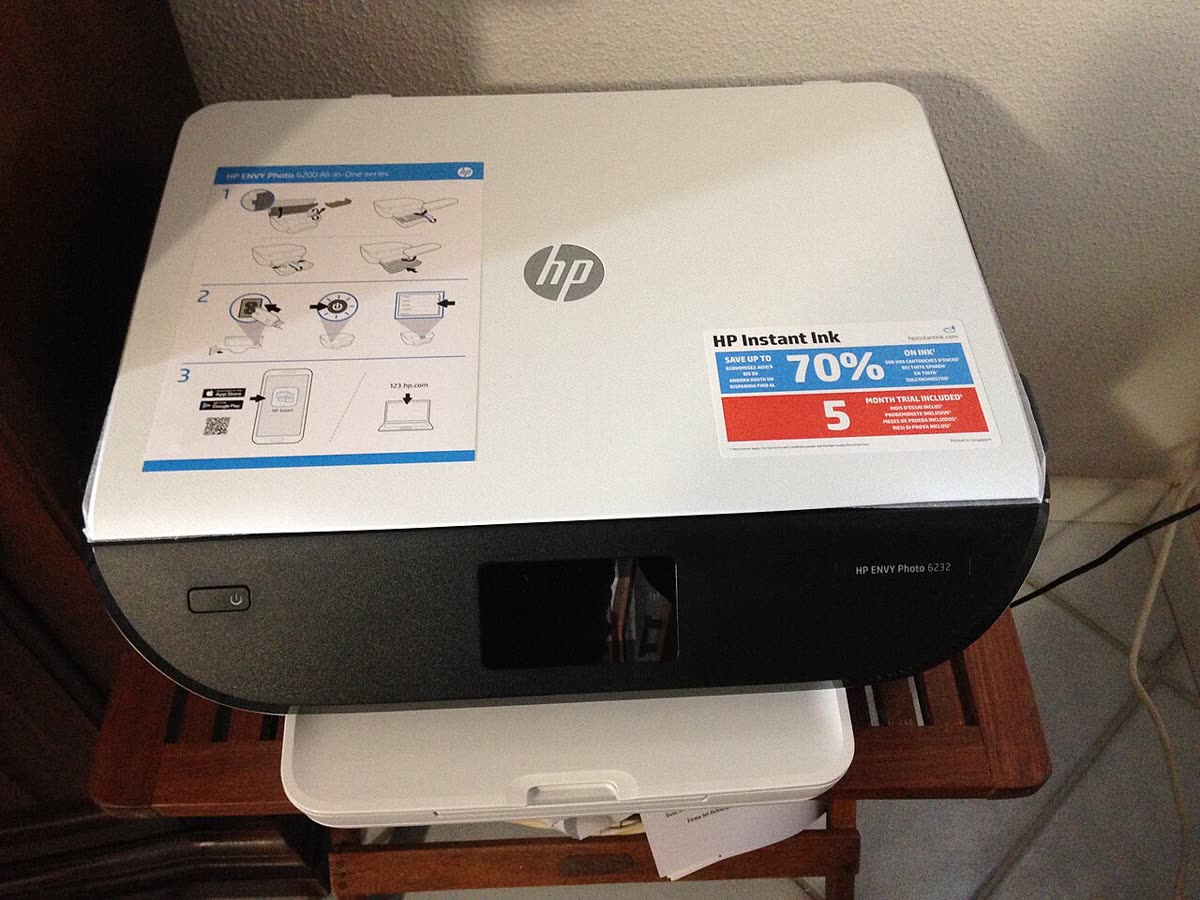
HP puts more printers into homes and small offices across the United States, Canada, the United Kingdom and Australia than any other brand, and it also generates more support questions than any other brand. That is partly volume and partly the number of moving parts: a cloud app, an optional account-linked service tier, a subscription ink programme, and firmware that has a documented history of rejecting third-party cartridges.
This page is an independent map of the HP support ecosystem. It covers where the real download pages are for your country, which HP application does what, how a first-time wireless setup actually goes, what the common HP error codes mean, and how HP+, Instant Ink and Dynamic Security will affect your running costs.
Official HP support links by region
HP runs one support platform with country subpaths. Use the one that matches where you bought the printer, because warranty entitlement, driver language packs and contact options are all keyed to region.
| Region | Support and drivers | What it is for |
|---|---|---|
| United States | support.hp.com/us-en | Drivers, manuals, warranty check, case logging |
| United Kingdom | support.hp.com/gb-en | UK drivers, UK warranty terms and contact options |
| Canada | support.hp.com/ca-en | English and French driver packages |
| Australia | support.hp.com/au-en | AU drivers and Australian Consumer Law information |
| All regions | 123.hp.com | Guided first-time setup portal that hands off to HP Smart |
HP software: which app do you actually need?
HP Smart, now also called the HP app
HP Smart is the main consumer application and HP has been rebranding it simply as the HP app, which is why you will see both names in stores and in HP documentation. It runs on Windows, macOS, iOS and Android and handles wireless setup, scanning, mobile printing, ink level display and Instant Ink management. On Windows it is also the front end that pulls down the print driver from Windows Update or HP's servers. Full details are on our HP Smart software page.
HP Easy Start
HP Easy Start is the desktop setup and driver installer for Windows and macOS. Where HP Smart is the everyday app, Easy Start is the thing that puts a proper print queue and scan driver on the computer. On a Mac it is usually the fastest route to a working queue, and on Windows it is the right choice when you need the full feature driver rather than the basic class driver. See our HP Easy Start notes.
HP Print and Scan Doctor
HP Print and Scan Doctor is a free diagnostic utility that checks the queue, the spooler, the driver, the network path and the scan pipeline, then offers automated fixes. It is Windows only. There is no macOS version, and any site offering you an HP Print and Scan Doctor download for Mac is not distributing HP software. Mac users should use HP Easy Start plus the built-in printer reset in System Settings instead. Our HP Print and Scan Doctor guide covers what each test actually does.
HP Universal Print Driver
For fleets, the HP Universal Print Driver gives one PCL6 or PostScript driver that drives most LaserJet and OfficeJet Pro models. It is the right tool for a print server or a managed Windows image, and the wrong tool for a single home printer that needs its scanner working.
Setting up an HP printer for the first time
- Unbox fully. Remove every orange or blue transit clip and the cartridge tape, then load paper before powering on. HP printers run an alignment page during setup and will stall without paper.
- Power on and wait. On a new printer the control panel enters setup mode automatically and the wireless light flashes. If it does not, hold the Wireless and Cancel buttons together for five seconds, or use Restore Network Settings in the panel menu.
- Check your Wi-Fi band. Almost all HP consumer printers connect to 2.4 GHz only. Some 2024 and later OfficeJet Pro and Smart Tank models are dual band, but if yours is not, a single merged 2.4/5 GHz network name is the reason it cannot see your network.
- Install HP Smart on your phone or computer, or open
123.hp.comin a browser and enter the model. Both routes end in the same place. - Let the app find the printer. On a phone this uses Bluetooth and the printer's temporary setup Wi-Fi; keep Bluetooth and location permissions on for the app or discovery silently fails.
- Choose your network and enter the password. If you prefer, press WPS on the router within two minutes of holding the printer's Wireless button, though WPS is disabled by default on many modern ISP routers.
- Decide on HP+ if offered. This is the point of no return described below.
- Finish on the computer. Add the printer in Windows Settings or macOS Printers and Scanners so applications outside HP Smart can see it.
HP model families explained
| Family | Technology | Best for |
|---|---|---|
| DeskJet | Cartridge inkjet | Very low volume home printing, cheapest to buy and dearest per page |
| ENVY and ENVY Inspire | Cartridge inkjet | Home use with photos, borderless printing, better build than DeskJet |
| Smart Tank | Refillable ink tank | Households printing 100 pages a month or more who want low page cost |
| OfficeJet and OfficeJet Pro | Cartridge inkjet, business grade | Small offices needing an ADF, duplex, fax and higher duty cycle |
| LaserJet and LaserJet Pro | Mono or colour laser | Document-heavy offices, sharp text, no drying or clogging |
| LaserJet Enterprise | Managed laser | Fleets with device management, security policy and finishing options |
| DesignJet | Wide format | CAD, drawings, posters and technical plots |
A suffix matters as much as the family. An e at the end of a model number, as in 6055e or 9125e, signals an HP+ eligible unit sold with bundled Instant Ink months. Compare specific units on our printer database.
Common HP error codes and what they mean
| Message or code | Meaning in one line |
|---|---|
| Printer is offline | The computer cannot reach the printer's IP, usually after a DHCP lease change - see HP printer offline |
| Ink cartridge problem | A chip is not being read, from tape, a bad seat, or a non-HP chip - see HP ink cartridge problem |
| Printhead missing or failed | The printhead is unseated, clogged or electrically failed - see HP printhead problem |
| Error 0x6100004a | A carriage or paper path obstruction stopping the carriage moving - see error 0x6100004a |
| E0 to E9 blinking lights | DeskJet and ENVY shorthand for paper, cartridge and jam states shown on the small display |
| HP Smart: something went wrong | A generic app or account error, not a hardware fault - see that message explained |
Our full index of printer messages across all brands lives on the error code directory.
Ink, toner, Instant Ink and HP+
Instant Ink is HP's subscription: you pay per page tier per month rather than per cartridge, and HP ships replacements before you run out. It is genuinely cheaper for households printing colour regularly, and poor value for people who print ten pages a month, because unused pages only roll over up to a cap and cancelling returns you to buying cartridges at full price.
HP+ is a separate decision made during setup. Accepting it extends the warranty by a year, adds cloud features and often bundles Instant Ink months, but it requires the printer to stay connected to the internet, requires an HP account, and permanently restricts the printer to Original HP cartridges. It is not reversible in normal use. If cartridge choice matters to you, decline it.
Firmware and third-party cartridges
HP Dynamic Security is firmware that checks the chip on each cartridge and can refuse cartridges without an HP chip. HP has shipped and re-shipped this behaviour through firmware updates for years, so a printer that happily accepted compatible cartridges can stop doing so after an overnight update.
Warranty and official contact channels
Standard HP consumer printer warranty is one year in most markets, extended where you accept HP+. Warranty is verified by serial number on support.hp.com, and the product page for your serial is also where HP surfaces live chat, callback and case logging. In the UK and Australia your statutory rights against the retailer sit alongside the manufacturer warranty and often outlast it.
Keep the retail receipt, register the printer to your HP account, and photograph the serial label on the back or under the scanner lid before the printer goes behind a desk.
How this site fits
We are not affiliated with HP. We write vendor-neutral fixes, we link to HP's own pages for anything that must come from HP, and we never ask for payment to unlock a fix. If you want structured help beyond an article, our support plan explains what independent remote assistance does and does not include. You can also browse everything we have on this brand from the HP brand hub.
HP software and drivers
- HP Easy Start
Small bootstrap installer that fetches the right HP driver for your model Windows · macOS - HP Instant Ink
HP's ink and toner subscription, billed by pages printed rather than cartridges bought Windows · macOS · iOS - HP Print and Scan Doctor
Free Windows diagnostic tool that finds and fixes common HP printing faults Windows - HP Scan and Capture
Legacy Windows Store scanning app, now superseded by HP Smart Windows - HP Smart (the HP app)
HP's official setup, printing, scanning and ink app for home and small-office printers Windows · macOS · iOS - HP Universal Print Driver (UPD)
One Windows driver that drives most HP printers in a fleet Windows
HP error codes
HP printer models
Grouped by series. Every model page has setup steps, the right cartridge or toner numbers, driver links and the faults owners report.
OfficeJet Pro 23
LaserJet Pro 22
DeskJet 17
LaserJet 12
ENVY 11
OfficeJet 5
Photosmart 5
DeskJet Ink Advantage 3
ENVY Inspire 3
ENVY Photo 3
Sprocket 3
OfficeJet Mobile 2
Color LaserJet Pro 1
Smart Tank 1
No model matches that. Try the model number only, e.g. "2800".
HP support FAQ
Is HP Smart free?
Yes. HP Smart, which HP now also calls simply the HP app, is a free download from the Microsoft Store, the Mac App Store, Google Play and the Apple App Store. You do not have to pay for it, and you do not need a subscription to print. You will be prompted to create a free HP account, and on HP+ models an account is mandatory, but on standard models you can skip account creation and still print and scan.
How do I contact HP support in the UK?
Go to support.hp.com/gb-en, enter your product's serial number, and use the Contact Support option on the product page. That page shows the live chat, callback and case-logging channels HP currently offers for your specific model and warranty status. We deliberately do not publish HP phone numbers here because they change by product line and region, and fake HP support numbers are widely advertised online.
Do I have to enable HP+ when I set up my printer?
No. HP+ is optional and is offered during setup on eligible models. Accepting it extends the warranty and may add Instant Ink months, but it permanently requires an internet connection and an HP account, and it locks the printer to Original HP cartridges for life. If you want to use third-party ink or print offline, decline HP+ during setup. Once accepted, it generally cannot be reversed.
Why can't my HP printer see my Wi-Fi network?
Nearly always because the printer only supports 2.4 GHz Wi-Fi and your router broadcasts a single merged name for both 2.4 GHz and 5 GHz. Split the bands temporarily, or use the router app to create a 2.4 GHz guest network, connect the printer, then merge again. Also check that the network name has no unusual characters and that band steering or client isolation is off.
Can I use third-party ink in an HP printer?
On a standard, non-HP+ printer, yes, though HP Dynamic Security firmware has periodically blocked non-HP chips. If you plan to use compatible cartridges, turn off automatic firmware updates in the printer's web interface or in HP Smart before installing them, and keep a set of Original HP cartridges for troubleshooting. On an HP+ printer, third-party cartridges will not work at all.
Where do I download HP drivers if my Samsung printer is listed nowhere?
HP acquired Samsung's printer business, so Samsung laser printer drivers and support documents now live on support.hp.com. Search the Samsung model number, such as an SL- or ML- prefix, on your regional HP support site and it will return the HP-hosted driver package.
Let a printer specialist fix it with you, remotely
Share your screen, we diagnose the driver, Wi-Fi or firmware problem and fix it while you watch. One affordable annual plan covers every printer in your home or office.