Brother Toner Reset: How to Clear "Replace Toner" on HL-L2000, DCP and MFC Lasers
Brother lasers estimate toner mechanically, so a refilled cartridge still reports empty. Resetting the counter is a panel sequence or a physical gear, depending on the model.

On this page
- Quick fixes first
- How Brother toner counting works
- Method 1: LED-panel models with a Go button
- Method 2: LCD models (HL-L2350DW, L2370DW, L2390DW, DCP-L2540DW, MFC-L2710DW, MFC-L2750DW)
- Method 3: The reset gear on the cartridge
- Method 4: Continue mode
- Toner numbers and yields
- Colour models
- When you should stop resetting
- If nothing worked
Brother mono lasers do not measure how much toner is in the cartridge. They estimate it from page coverage and a mechanical reset flag on the cartridge, which is why a refilled cartridge or one you have shaken back into life still says "Replace Toner". Clearing that message means resetting the counter, and the method depends on whether your machine has an LED panel with a Go button or an LCD with a menu. This guide covers both, plus the physical reset gear and Brother's continue mode.
Quick fixes first
- Open the front cover, take the drum and toner assembly out, and rock it gently side to side five or six times to redistribute the toner. Refit and close.
- If you only need a few more pages, turn on continue mode from the machine's toner settings rather than resetting anything.
- Check whether the message is Toner Low, Replace Toner or Toner Ended. Only the last one stops printing on most models.
- Confirm your exact model number from the label on the front or under the scanner lid before following any sequence.
- If you have fitted a genuine new cartridge and the message persists, check that the cartridge's reset gear has engaged and that the toner is fully clicked into the drum unit.
- Separate the toner message from the drum message; they are different counters with different resets.
How Brother toner counting works

Two mechanisms are involved. The first is a small plastic reset gear or flag on the side of the toner cartridge. When you fit a genuine new cartridge, the printer turns this gear during its first cycle, which tells the machine a fresh cartridge is present and starts the page count at zero. Once turned, the gear stays in its finished position, which is why refitting the same cartridge does not reset anything.
The second is an optical sensor that shines through a window in the toner cartridge. When the beam passes through unobstructed for long enough, the machine concludes the cartridge is empty. Dust or toner on that window can produce a false empty reading on some models.
Neither mechanism knows about refills. A cartridge refilled with toner still has a spent reset gear and a counter that has reached its limit, so the machine keeps reporting empty until you reset it manually.
Method 1: LED-panel models with a Go button
This applies to the button-and-light models in the HL-L2300 family, such as the HL-L2300D, HL-L2320D and their siblings that have a Go button and Toner, Drum, Error and Ready lights rather than a screen. It is the sequence I am most confident of because it has not changed across that generation.
- Turn the machine on and open the front cover. Leave the drum and toner assembly in place.
- Press and hold the Go button until all the panel lights illuminate, then release it.
- Close the front cover.
- The Toner light should go out and the machine should return to Ready.
If the lights do not all come on, you are not holding Go long enough, or the cover switch is not registering as open.
Method 2: LCD models (HL-L2350DW, L2370DW, L2390DW, DCP-L2540DW, MFC-L2710DW, MFC-L2750DW)
On models with a screen, the reset is a menu sequence performed with the front cover open, and the exact button labels vary between models: some use OK, some use Clear/Back, some use the up and down arrows to select a reset option, and touchscreen models use on-screen buttons. Because of that variation, the reliable approach is the pattern rather than a fixed key sequence:
- Turn the machine on and open the front cover. The display shows that the cover is open.
- Press and hold the confirmation button for your panel, which is OK on arrow-key models and Clear/Back on some others, until a toner or reset prompt appears on the display.
- Use the up and down arrows to select the reset option shown, then confirm.
- Close the front cover and check the display returns to Ready.
Look up the exact keys for your model before starting. In the User's Guide the section is usually under toner or maintenance rather than under settings, and Brother publishes a separate FAQ per model on its support site.
Some LCD models also expose a reset under Menu › Machine Info or a Reset Menu, which covers drum, machine and network resets. Only reset the counter that matches your message.
Method 3: The reset gear on the cartridge

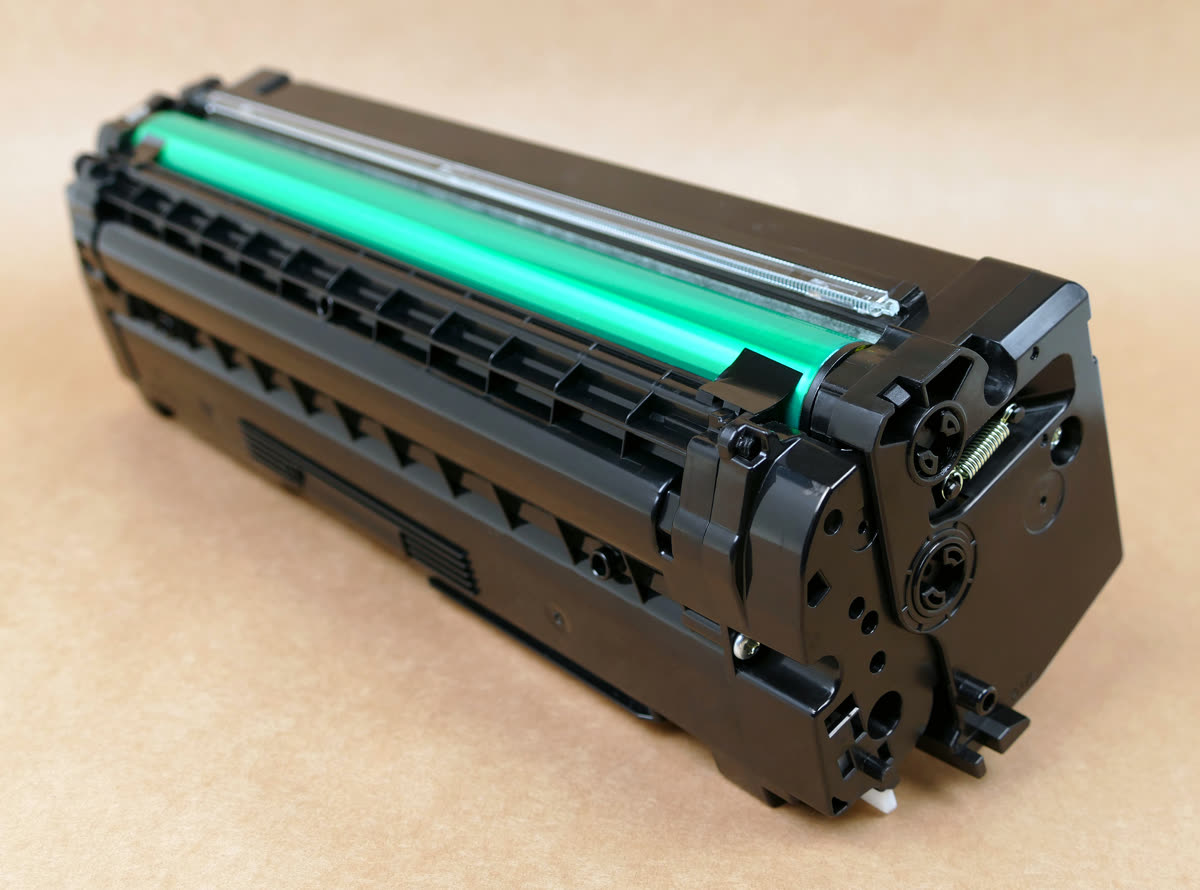
On refilled and some remanufactured cartridges, the reset gear on the side has already turned to its finished position. Refill suppliers deal with this in one of two ways:
- A replacement gear or flag supplied with the refill kit, which you swap in so the printer sees a fresh cartridge.
- A manual rotation of the existing gear back to its start position, using the marks on the gear.
If a refilled cartridge reports empty immediately in a machine where the panel reset works for other cartridges, the gear is the reason. This is also why some refilled cartridges work perfectly first time: the supplier already reset or replaced the gear.
Method 4: Continue mode
If your goal is simply to keep printing, Brother has a supported way to do it. Continue mode tells the machine to carry on past the toner-end point until print quality genuinely fails.
- Press Menu on the panel, or open Settings on a touchscreen model.
- Navigate to General Setup or All Settings › General Setup.
- Find the Replace Toner or Toner Setting option.
- Choose Continue rather than Stop.
In continue mode the machine keeps the warning on the display but prints. Print quality drops gradually rather than suddenly, so watch for fading and streaks. Our faded print guide covers what to expect as toner runs out.
Toner numbers and yields
| Cartridge | Region | Type | Typical use |
|---|---|---|---|
| TN-730 | US and Canada | Standard yield | Ships in the box on many HL-L2350 and MFC-L2710 machines |
| TN-760 | US and Canada | High yield | Same printers, lower cost per page |
| TN-2420 | UK and Europe | High yield | HL-L2350DW, MFC-L2710DW and related models |
| DR-730 / DR-2400 | US-CA / UK-EU | Drum unit | Separate part with its own counter |
The drum is a separate consumable that lasts several toner cartridges. A "Drum End Soon" or "Replace Drum" message needs its own reset after fitting a new drum, and resetting the toner does not clear it. See our Brother drum guide.
Colour models
Colour Brother lasers in the L3000 series, such as the HL-L3270CDW and MFC-L3750CDW, use TN-227 and TN-223 in North America and TN-247 and TN-243 in the UK and Europe. The principle is identical: a per-colour counter, a reset flag on each cartridge, and a belt unit and waste toner box with their own counters. Reset sequences on these models are menu-driven and differ from the mono machines, so check the User's Guide for your model. A colour machine also has more consumables that can produce a stop, so read which one the panel names before assuming it is toner.
When you should stop resetting
Resetting a counter is fine when the cartridge genuinely has toner in it: a refill, a cartridge you shook back to life, or a new cartridge the machine failed to detect. It stops being sensible when you are resetting the same cartridge repeatedly to squeeze out a few more pages, because printing with an almost empty cartridge leaves toner deposits on the drum, produces streaking, and shortens drum life. A drum unit costs considerably more than a toner cartridge, so the false economy is real. Our Brother replace toner guide covers fitting a new cartridge correctly.
If nothing worked
If a genuine new cartridge is fitted, seated correctly and still reports empty after a reset attempt, check three things in order: that the toner is clicked fully into the drum unit rather than resting in it, that the sensor window on the cartridge and the corresponding sensor in the machine are clean, and that you are looking at a toner message rather than a drum or machine error. Brother machine errors show as a code on the display and are covered in our Brother machine error guide.
If the message persists across two different cartridges, the sensor or the drive that turns the reset gear has failed. On a machine of this class, a bench assessment costs roughly 60 to 120 US dollars, 50 to 100 pounds, 90 to 150 Canadian dollars or 100 to 180 Australian dollars before parts, which is a large fraction of the price of a replacement HL-L2000-series machine. If the printer has a low page count, repair is defensible; if it has printed tens of thousands of pages, replacement is the better use of the money. If you want the exact sequence for your model checked and walked through with you, you can get help from a printer specialist.
Software mentioned in this guide
Frequently asked questions
How do I reset the toner on a Brother HL-L2300D?
Turn the machine on, open the front cover with the drum and toner still fitted, press and hold the Go button until all the panel lights come on, release it and close the cover. The Toner light should go out and the machine should return to Ready.
Why does my Brother still say replace toner after a reset?
Usually because the cartridge's reset gear is already in its spent position, or because you reset the wrong counter. Check whether the message names toner or drum, confirm the toner is clicked fully into the drum unit, and if the cartridge is a refill, check whether the supplier included a replacement reset gear.
Is the reset sequence the same on every Brother model?
No. LED-panel models with a Go button use the cover-open plus hold-Go method, while LCD models use a menu sequence whose exact buttons vary between families. Always confirm the steps in the User's Guide for your exact model number before following a sequence from elsewhere.
What is continue mode on a Brother laser?
It tells the machine to keep printing past the toner-end point instead of stopping. You set it under Menu or Settings, then General Setup, then the Replace Toner or Toner Setting option, choosing Continue rather than Stop. Print quality then fades gradually rather than stopping abruptly.
Should I cover the toner sensor window with tape?
It is better to use continue mode. Taping over the window disables the only warning you get before the cartridge runs dry, and printing with an empty cartridge leaves toner deposits that streak the page and shorten the drum's life.
Is TN-730 the same as TN-760?
They fit the same North American machines but TN-730 is the standard-yield cartridge and TN-760 is the high-yield version, with a lower cost per page. In the UK and Europe the equivalent high-yield part for the same printers is TN-2420.
Consumer-tech editor covering printers and home-office gear for US and Canadian readers.
Questions & comments (0)
No comments yet. Describe your printer model, operating system and the exact message you see; comments appear after review.
Ask about this page
Your comment appears after our team approves it. Or sign in to post faster.