Zebra · G-Series desktop label printers
Zebra GX420d
Fulfilment rooms using peel-and-present label workflows
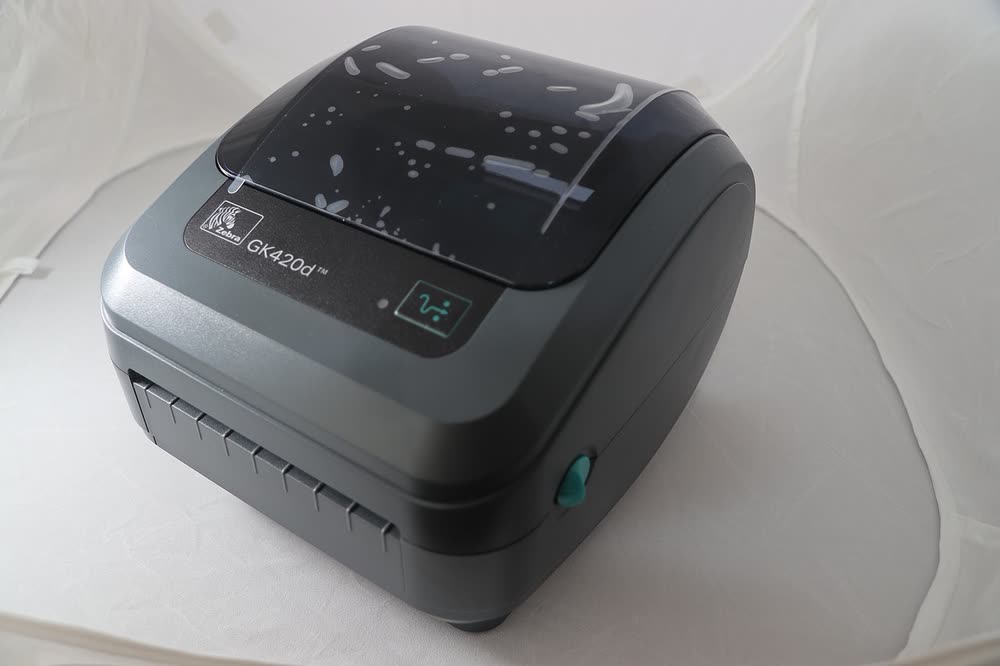
The GK420d is the second-hand label printer of choice for thousands of eBay and Etsy sellers, and despite being discontinued it still works with current Windows and macOS drivers. It is direct thermal only, so there is no ribbon to manage, and it prints a standard 4x6 shipping label in about a second. Common trouble spots are worn platen rollers on older units and label sensors that need recalibrating after switching stock.
Sold in Worldwide
The GK420d is the second-hand label printer of choice for thousands of eBay and Etsy sellers, and despite being discontinued it still works with current Windows and macOS drivers. It is direct thermal only, so there is no ribbon to manage, and it prints a standard 4x6 shipping label in about a second. Common trouble spots are worn platen rollers on older units and label sensors that need recalibrating after switching stock.
Best for: Online sellers buying a proven used printer for 4x6 shipping labels
Download the current Zebra Windows driver through Setup Utilities rather than using Windows' built-in generic driver, connect USB, and run an auto-calibration by holding the feed button through two flashes. On macOS, the Zebra CUPS driver is needed for proper sizing. If labels print blank, flip the roll so the heat-sensitive side faces up toward the printhead.
The Zebra GK420d uses the following consumables. Match the number exactly when you buy: the same printer family often uses several different cartridge numbers by region.
High-yield (XL) versions almost always cost less per page if you print regularly. On third-party ink and toner, read our honest assessment first, and note that some manufacturers push firmware that rejects non-original chips.
| Print Speed | 5 ips (127 mm/s) |
|---|---|
| Resolution | 203 dpi |
| Duplex | None |
| Adf | None |
| Paper Capacity | Up to 4.25-inch wide media; 5-inch OD roll |
| Display | Single status LED and feed button |
| Connectivity | USB, Serial, Ethernet |
| Mobile | |
| Os | Windows 11/10, macOS, Linux |
| Dimensions | 8.0 x 10.0 x 7.0 in |
| Weight | 3.0 lb |
| Extra | Direct thermal only; EPL2 and ZPL II; extremely common on eBay and in small shipping rooms |
| Functions |
Every link goes to the manufacturer or an official app store. We never host modified installers.
| Code or message | What it means |
|---|---|
| Green LED flashing | Printer is paused or waiting; press feed to resume |
| Red LED solid | Cover open or out of media |
No reviews yet. If you own this model, share what works and what does not.
Reviews appear after moderation.
Share your screen, we diagnose the driver, Wi-Fi or firmware problem and fix it while you watch. One affordable annual plan covers every printer in your home or office.
Questions & comments (0)
No comments yet. Describe your printer model, operating system and the exact message you see; comments appear after review.
Ask about this page
Your comment appears after our team approves it. Or sign in to post faster.