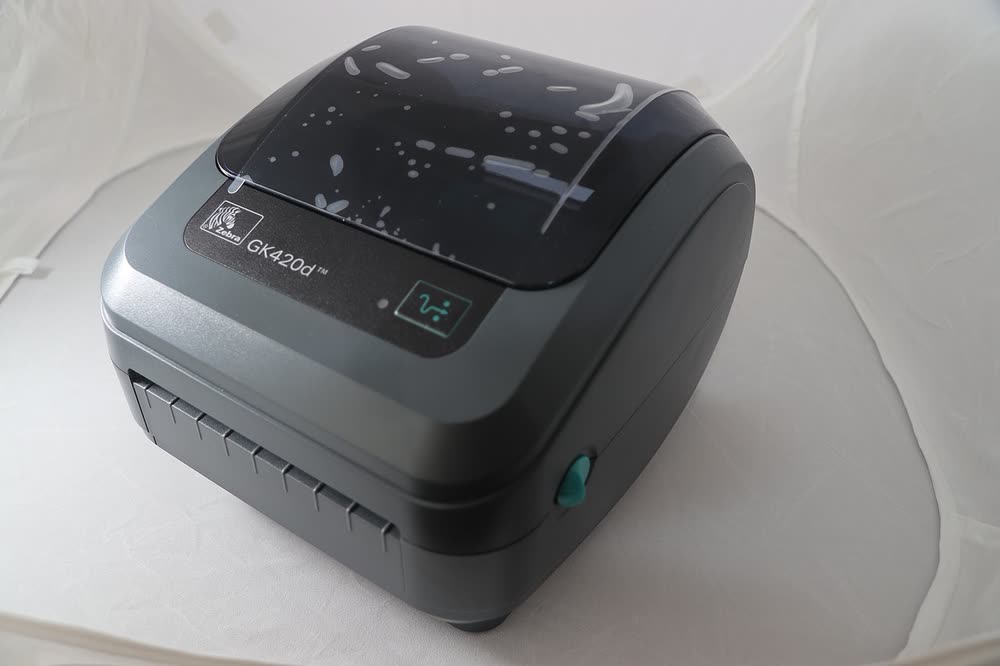
Zebra · G-Series desktop label printers
Zebra GK420d
Online sellers buying a proven used printer for 4x6 shipping labels
The GX420d is the higher-spec G-Series direct thermal printer with a 6 ips engine and factory options such as a label peeler and cutter, which made it popular in warehouses and fulfilment centres. Used units are abundant and remain supported by Zebra's current drivers. Buyers of second-hand units should check the printhead for worn lines and the peeler sensor for dust.
Sold in Worldwide
The GX420d is the higher-spec G-Series direct thermal printer with a 6 ips engine and factory options such as a label peeler and cutter, which made it popular in warehouses and fulfilment centres. Used units are abundant and remain supported by Zebra's current drivers. Buyers of second-hand units should check the printhead for worn lines and the peeler sensor for dust.
Best for: Fulfilment rooms using peel-and-present label workflows
Install the Zebra driver through Setup Utilities, connect USB or Ethernet, and calibrate with the feed button or the Setup Utilities calibration command. If you have the peeler option, enable peel-off mode in the driver so the printer waits for each label to be taken. Wireless versions use older Wi-Fi standards and may not join WPA3-only networks.
The Zebra GX420d uses the following consumables. Match the number exactly when you buy: the same printer family often uses several different cartridge numbers by region.
High-yield (XL) versions almost always cost less per page if you print regularly. On third-party ink and toner, read our honest assessment first, and note that some manufacturers push firmware that rejects non-original chips.
| Print Speed | 6 ips (152 mm/s) |
|---|---|
| Resolution | 203 dpi |
| Duplex | None |
| Adf | None |
| Paper Capacity | Up to 4.25-inch wide media; 5-inch OD roll |
| Display | Single status LED and feed button (LCD option) |
| Connectivity | USB, Serial, Parallel, Ethernet, Wi-Fi |
| Mobile | |
| Os | Windows 11/10, macOS, Linux |
| Dimensions | 8.0 x 10.0 x 7.0 in |
| Weight | 3.1 lb |
| Extra | Faster sibling of the GK420d with peeler and cutter options; direct thermal; EPL and ZPL |
| Functions |
Every link goes to the manufacturer or an official app store. We never host modified installers.
| Code or message | What it means |
|---|---|
| Red LED flashing | Media error; reload labels and calibrate |
No reviews yet. If you own this model, share what works and what does not.
Reviews appear after moderation.
Online sellers buying a proven used printer for 4x6 shipping labels
Businesses printing small-text durable labels at 300 dpi
Healthcare and retail sites printing 2-inch labels and wristbands
Warehouses and factories needing an entry-level industrial printer
Share your screen, we diagnose the driver, Wi-Fi or firmware problem and fix it while you watch. One affordable annual plan covers every printer in your home or office.
Questions & comments (0)
No comments yet. Describe your printer model, operating system and the exact message you see; comments appear after review.
Ask about this page
Your comment appears after our team approves it. Or sign in to post faster.