Toshiba Printer Support: e-STUDIO Drivers, Universal Printer 2 and MFP Fixes (Independent Guide)
An independent guide to Toshiba printer support: the business downloads hub, the Universal Printer 2 driver, e-BRIDGE Print & Capture, and the MFP problems that generate the most calls.
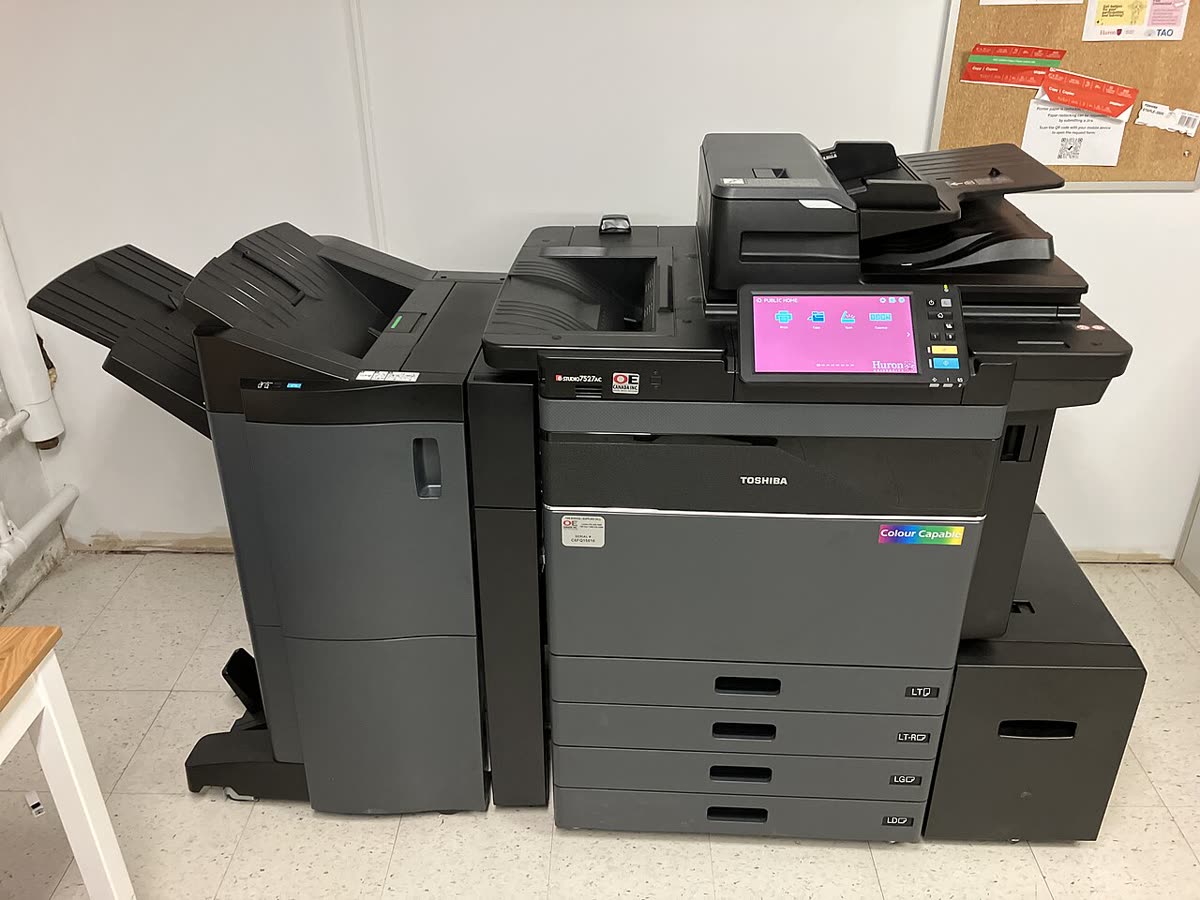
Toshiba's printing business is e-STUDIO, a line of office multifunction devices sold through dealers and supported by engineers. It has nothing to do with the Toshiba brand on a television or a laptop, and it is not the same organisation. That split is the first practical thing to know, because it explains why searching for Toshiba support so often produces pages that cannot help you with a copier.
This page is an independent map of Toshiba business imaging support: where drivers download, which driver and app to use, how setup runs, what the error codes mean, and how the dealer model determines who is obliged to help.
Official Toshiba support links
Go to the business imaging division, not the consumer side.
| Purpose | Address | Notes |
|---|---|---|
| Drivers and support | business.toshiba.com/support-drivers | Search by exact e-STUDIO model and operating system |
| Business products and dealers | business.toshiba.com | Product range, dealer locator, managed print |
| Global business imaging | toshibatec.com | Corporate and regional routing |
Toshiba software and drivers
Universal Printer 2
Universal Printer 2 is Toshiba's mainstream driver, and its distinguishing feature is that it switches between PCL6 and PostScript emulation from a single installation. In practice that means one package satisfies both the office applications that prefer PCL and the design or accounting applications that require PostScript, without maintaining two drivers per device. It also drives a wide range of e-STUDIO models, which makes fleet deployment much simpler. Details on our Toshiba Universal Printer driver page.
e-BRIDGE Print & Capture
The mobile application for iOS and Android. It prints from the phone and, more usefully, captures scans from the e-STUDIO directly to the phone. See our e-BRIDGE Print and Capture page. For straightforward printing, AirPrint on iOS and Mopria on Android are usually simpler and need no app at all.
TopAccess
Every networked e-STUDIO exposes TopAccess, Toshiba's embedded web interface, at the device's IP address. This is where you set a static address, manage the address book, configure scan destinations, read counters, set department codes and apply security policy. For an administrator it is the single most useful tool, and it is more capable than anything installed on a workstation.
Model-specific packages
Where a device needs scanning as well as printing, take the full package for the model rather than the universal driver alone. It bundles the scan components and the region-correct paper sizes and finishing options.
Setting up an e-STUDIO device
- Remove all packing material, seat the toner cartridges, and load paper with the tray guides set to the actual paper size. e-STUDIO trays report size from the guides and will halt on a mismatch.
- Power on and let the device complete warm-up. Colour models run an image stabilisation cycle that takes several minutes on first start.
- Connect by Ethernet. e-STUDIO hardware is designed for wired office networks; wireless is normally an optional kit rather than a default fitment.
- Where a wireless kit is present, expect 2.4 GHz support on smaller devices, so a merged 2.4/5 GHz network name will stop the device from listing your network.
- Print the configuration page from the panel, note the IPv4 address, and reserve it in your router or DHCP server so it cannot move.
- Open TopAccess in a browser at that address and change the default administrator password before doing anything else.
- Deploy Universal Printer 2 to workstations, or the model package where scanning is needed, then configure scan destinations centrally on the device.
Toshiba model families explained
| Family | What the name signals | Best for |
|---|---|---|
| e-STUDIO AC series | Current colour multifunction devices | Offices and departments needing colour and finishing |
| e-STUDIO A series (mono) | Current mono multifunction devices | Document-heavy workgroups where colour is unnecessary |
| e-STUDIO desktop models | Compact A4 multifunction machines | Small offices wanting a proper MFP without a floor-standing unit |
| e-STUDIO production | High-volume colour and mono engines | In-house print rooms and high-volume departments |
| Barcode and label printers | A separate Toshiba Tec line for labelling and retail | Retail, logistics and asset labelling |
Within a family the number generally reflects engine speed in pages per minute and paper capacity rather than a different feature set.
Common e-STUDIO problems
| Problem | What is actually happening |
|---|---|
| Fault code on the panel that returns after restart | A latched service condition; repeated restarts will not clear it and can mask the cause |
| Device offline in Windows | The queue cannot reach the device IP after a DHCP change - see printer offline |
| Scan to email stopped working | The mail provider withdrew basic authentication; the device login no longer exists |
| Scan to folder fails silently | SMB version, credential expiry or share permissions on the destination - see scanner not working |
| Misfeed at a named location | The panel diagram shows the door to open; pulling paper backwards damages rollers - see paper jam |
| Jobs take a long time to start | Usually PostScript rendering on the workstation rather than the device - see slow printing |
Codes across every brand are indexed in our error code directory.
Department codes and print accounting
One Toshiba feature deserves explaining because it causes more confused calls than any mechanical part: department codes. e-STUDIO devices can require a numeric code before a job prints, which lets an organisation attribute pages to teams, cost centres or clients. When it is configured well it is invisible. When it is configured badly, jobs vanish without an error and nobody can work out why.
The usual failure is a workstation whose driver has no code entered, or a stale code left from a previous configuration. The device accepts the job, finds no valid code, and discards or holds it depending on the setting. The user sees a job that left the queue and never arrived, which looks exactly like a network fault and is not one.
If jobs disappear silently on an e-STUDIO, check the department code in the driver properties on that workstation before investigating anything else. And if you are enabling accounting for the first time, plan the rollout: every existing queue on every computer needs the code adding, and doing it after enforcement is switched on means a day of complaints.
Consumables and the dealer model
e-STUDIO consumables include toner, drums, developer, waste toner containers, fusers and transfer belts, each with a separate rated yield. Working out a true cost per page from those parts is genuinely difficult, which is precisely why the click-charge model dominates: the dealer absorbs the complexity and bills a rate per printed page, typically with separate mono and colour rates and a minimum monthly volume.
On such an agreement toner arrives automatically when the device reports low, engineers are dispatched on device alerts, and fitting third-party toner is a contract breach that can void service cover. On an outright purchase you have normal freedom, subject to chip recognition on some models.
Firmware, security and data at end of life
Firmware is applied through TopAccess or remotely by the dealer on managed devices. Because e-STUDIO machines store address books, scan destinations, mail credentials and, on larger models, print jobs and scanned documents on an internal drive, both firmware currency and disposal handling are security matters rather than housekeeping.
Warranty applies to outright purchases and is registered regionally. On dealer-placed devices the agreement replaces it and defines response times, parts and consumables, so read it before assuming an entitlement.
How this site fits
We are independent and not affiliated with Toshiba. We publish vendor-neutral fixes, link to Toshiba's own pages for anything that must come from Toshiba, and never charge to unlock a fix. Everything we have on this brand is collected on the Toshiba brand hub.
Toshiba software and drivers
Toshiba error codes
Toshiba printer models
Grouped by series. Every model page has setup steps, the right cartridge or toner numbers, driver links and the faults owners report.
e-STUDIO A3 mono MFP 7
e-STUDIO AC A3 colour MFP 5
e-STUDIO AC compact A3 colour MFP 2
e-STUDIO entry A3 mono MFP 2
e-STUDIO A4 colour MFP 1
e-STUDIO A4 mono MFP 1
No model matches that. Try the model number only, e.g. "2800".
Toshiba support FAQ
Where do I download Toshiba printer drivers?
From business.toshiba.com/support-drivers. Toshiba's business imaging division is separate from its consumer electronics and laptop businesses, and only the business site carries e-STUDIO drivers. Search your exact model number, choose your operating system, and take the full package if you need scanning as well as printing. A general search for Toshiba support usually lands on the wrong division.
What is the Universal Printer 2 driver?
It is Toshiba's main print driver and it can switch between PCL6 and PostScript emulation from a single installation, which is unusual and genuinely useful. One driver package therefore covers both the applications that prefer PCL and the ones that need PostScript, and it drives a wide range of e-STUDIO models. For a fleet it removes a great deal of deployment work.
What is e-BRIDGE Print & Capture?
It is Toshiba's mobile application for iOS and Android. It prints documents held on the phone to an e-STUDIO device and captures scans from the device directly to the phone. The scan-to-phone direction is the part worth having, because standards-based printing protocols cover printing but not scanning. For simple printing, AirPrint or Mopria is usually easier.
How do I contact Toshiba support in the UK?
If a dealer placed your e-STUDIO or you hold a managed print agreement, contact the party named in that agreement, because they hold the service obligation. General Toshiba support will route you back to them. For outright purchases, use the support options on the Toshiba business site. We do not publish phone numbers because they change and because Toshiba's business and consumer divisions are contacted separately.
What do e-STUDIO error codes mean?
They are engineer-facing service codes rather than user messages. The number identifies a subsystem, broadly covering paper transport, imaging, fusing, scanning and the controller. Many latch deliberately, meaning they will not clear on a power cycle because the condition should be inspected. If a code returns immediately after restarting, stop restarting and log it with your service provider.
Can I use compatible toner in a Toshiba e-STUDIO?
On an outright-purchased device sometimes, though chip recognition varies and supply reporting will be unreliable. On a click-charge agreement, toner is supplied as part of the contract and fitting third-party cartridges is a breach that can void service cover. Because virtually all e-STUDIO devices are placed on such agreements, check the paperwork before buying anything.
Let a printer specialist fix it with you, remotely
Share your screen, we diagnose the driver, Wi-Fi or firmware problem and fix it while you watch. One affordable annual plan covers every printer in your home or office.