Rollo, MUNBYN and Phomemo Label Printer Not Printing: Blank Labels and Wrong Sizes Fixed
Blank thermal labels usually mean the roll is loaded upside down or the media is the wrong type. Wrong sizes are a page-setup problem, not a printer fault.

On this page
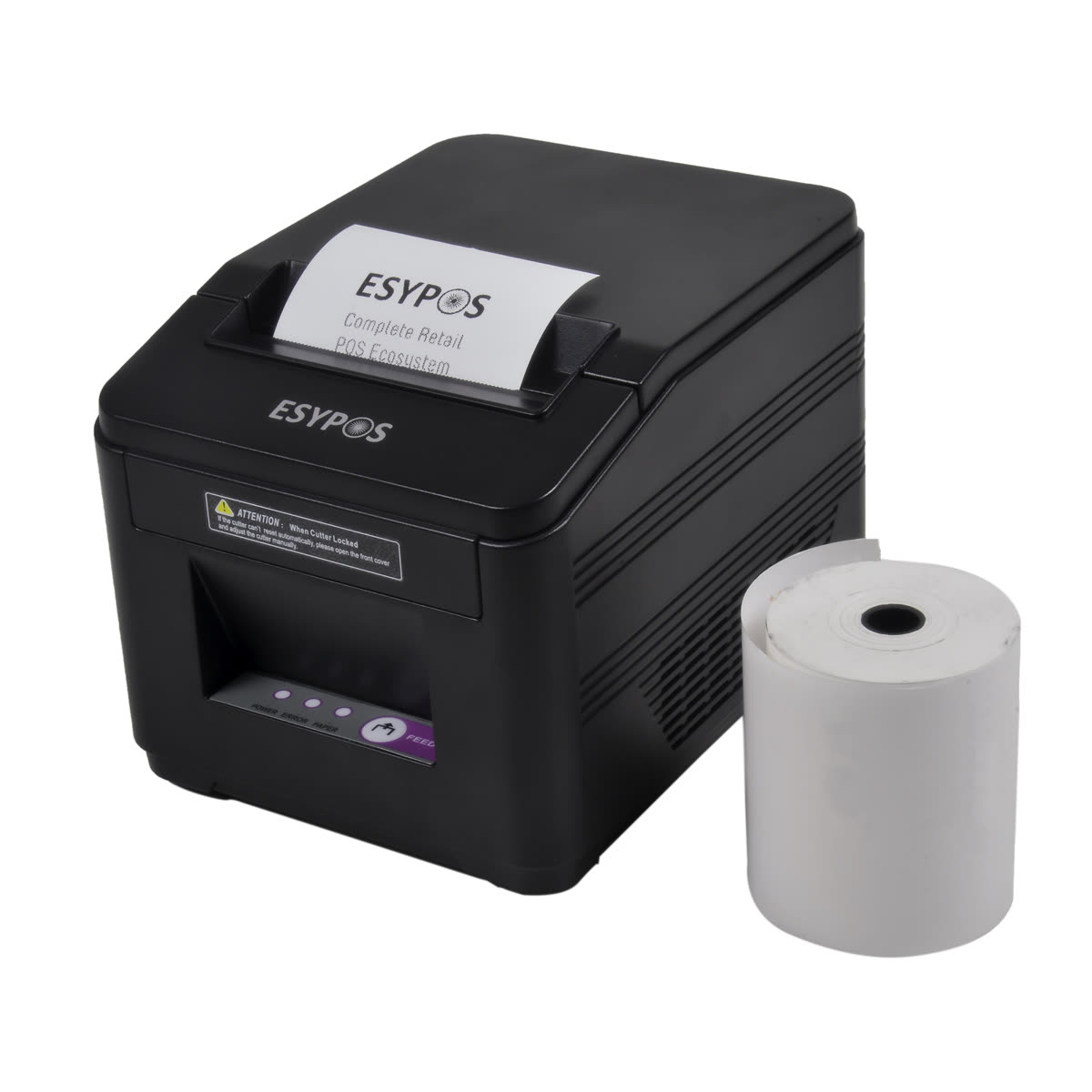
Direct thermal label printers from Rollo, MUNBYN, Phomemo and similar brands have no ink or toner: the printhead heats the label and the coating darkens. That makes almost every fault one of three things. Blank labels mean the heat is not reaching the coated side. Wrong sizes mean the page setup does not match the media. Skipped or misaligned labels mean the printer has not been calibrated for the roll you are using. Very little of it is a hardware failure.
Quick fixes first
- Scratch test the label. Drag a coin or fingernail firmly across it. A dark line appears on the printable side of a direct thermal label. If neither side marks, the media is thermal transfer and will never work in this printer.
- Flip the roll. The coated side must face the printhead. On most of these printers the labels feed with the printable side upwards.
- Calibrate. Hold the feed button until the printer runs a calibration pass so it learns the label length and gap.
- Set the page size to 4x6 inches in the driver, and again in whatever application or shipping platform you are printing from.
- Set scaling to 100 per cent or Actual size, never Fit to page.
- Try a different USB cable and port, directly on the computer rather than through a hub.
Symptom to cause

| Symptom | Most likely cause | Fix |
|---|---|---|
| Completely blank labels feed through | Roll upside down, or thermal transfer media | Scratch test, flip the roll |
| Label prints small in one corner | Page size set to Letter or A4 | Set 4x6 in driver and app |
| Label prints across two labels | Not calibrated, or wrong length set | Calibrate, then set exact size |
| Printer feeds several blank labels | Gap sensor not calibrated | Calibrate |
| Faint or patchy print | Dirty printhead or low darkness setting | Clean the head, raise darkness |
| Vertical white line down every label | Debris or a failed element on the printhead | Clean; if it persists, the head is failing |
| Nothing happens at all | USB, power or driver | Cable, port, reinstall driver |
Fix 1: Blank labels
Work through this in order; the first two account for the overwhelming majority.
- Confirm the media type. Do the scratch test. Direct thermal labels darken under friction heat; thermal transfer labels need a ribbon and will not work in these printers at all. Fanfold stacks and rolls sold for shipping are almost always direct thermal, but not always.
- Check the orientation. The printable side must face the printhead. If you have a roll wound the other way, unroll it, flip it, and feed it in from the correct side.
- Raise the darkness or density. In the driver's preferences there is a darkness, density or heat setting. Some label stock needs a higher value than the default.
- Clean the printhead. Power off, open the printer, and wipe the thin metal strip with a lint-free cloth lightly dampened with isopropyl alcohol. Let it dry fully before closing.
- Check the label path. Adhesive residue on the roller or a label stuck under the head prevents contact.
Fix 2: Wrong label size
This is the most common complaint and it is a settings problem in three places rather than one.
Windows 11
- Open Settings › Bluetooth & devices › Printers & scanners and click the label printer.
- Open Printing preferences and set the paper size to 4x6 inches or the exact size of your labels. If it is not listed, create a custom size.
- Open Printer properties › Advanced and confirm the default paper size matches.
- In your application, set the same page size and set scaling to Actual size or 100 per cent.
- In your shipping platform, choose the label format that matches: most offer a 4x6 thermal option separately from an 8.5x11 sheet layout.
macOS
Open System Settings › Printers & Scanners, select the printer and open Options & Supplies to check the default. In the print dialog, set Paper Size to your label size, or create one under Manage Custom Sizes with all margins set to zero, and set Scale to 100 per cent.
Fix 3: Calibration
Thermal printers detect the gap or the black mark between labels so they know where each one starts. A roll change, a different label length, or a media type change all require recalibration.
- Load the roll correctly and close the printer.
- With the printer idle, press and hold the feed button. On most of these printers the machine feeds several labels and then stops; that pass is the calibration.
- If the printer's utility software has a calibration or auto-sense function, use that instead as it is more precise.
- Print one label and check the alignment before printing a batch.
Exact button behaviour varies by brand and model, so check the leaflet in the box for your specific machine. If labels still skip after calibration, the gap sensor may be obstructed by adhesive residue; clean the sensor area with a dry cotton bud.
Fix 4: Drivers and connection

Windows
Install the driver from the manufacturer's own site for your exact model. Then:
- Plug the printer directly into the computer, not a hub or a monitor port.
- If the printer does not appear, check Device Manager for an unknown device, which indicates a cable or driver problem.
- Remove any duplicate queues: press Win+R, run
printmanagement.msc, and delete every copy except the one you use. - If jobs queue and never print, restart the spooler: run
services.msc, right-click Print Spooler and choose Restart.
Our Windows 11 driver guide covers clean removal if a previous install went wrong.
macOS
Install the vendor's macOS driver, then add the printer from System Settings › Printers & Scanners. If a macOS update breaks it, remove and re-add the printer; the process is the same as for any other model and is covered in printing after a macOS update.
Network and wireless models
Wireless variants of these printers behave like any other network printer: they need a 2.4GHz network, a fixed address, and a device that is not on a guest network. Reserve the address in your router so the queue does not break, as described in our going offline guide.
Label stock quality
Cheap label rolls are the hidden cause of a surprising number of problems: inconsistent coating produces patchy print, poor die-cutting confuses the gap sensor, and low-grade adhesive leaves residue on the roller and the printhead that then degrades every subsequent label. If print quality varies from roll to roll rather than within a roll, the stock is the variable. Buying labels rated for direct thermal shipping use, from a supplier who states the coating type, resolves more quality complaints than any driver setting.
Store rolls away from heat, sunlight and solvents. Direct thermal labels darken with heat by design, so a roll left in a hot car or against a radiator can be partly ruined before it goes near the printer, and printed labels fade over months in sunlight.
If nothing worked
A vertical white line that survives cleaning means a failed element in the printhead, and that is the one genuine hardware fault these printers commonly develop. Printheads are consumable parts with a rated life measured in kilometres of label stock, and on a machine at this price point a replacement head plus labour rarely makes sense against a new printer. Check the warranty first: these brands typically offer 12 months or more, and support is usually handled by email with a replacement rather than a repair.
If the printer feeds and calibrates but prints nothing at all after the scratch test confirms the media is correct and the roll is the right way up, the printhead or its cable has failed. Do not pay a workshop bench fee of 60 to 120 US dollars or 50 to 100 pounds to confirm that on a printer of this value; contact the seller instead.
If the problem is that labels print but at the wrong size or position no matter what you change, the fault is nearly always in the shipping platform's output rather than the printer, and a second pair of eyes across the driver, the application and the platform settings resolves it quickly. You can get help from a printer specialist if you would rather not work through all three yourself.
Software mentioned in this guide
- MUNBYN Print App
Label and shipping printing for MUNBYN thermal printers iOS · Android - Phomemo Print Master
App for Phomemo label printers, distinct from the pocket photo printer app iOS · Android - Rollo App
Shipping label creation and printing for Rollo label printers iOS · Android - Rollo Printer Driver
Windows and macOS driver for USB Rollo label printers Windows · macOS - Windows printer settings
How Windows installs printers, and the shift to driverless Windows Ready Print Windows
Frequently asked questions
Why is my Rollo or MUNBYN printing blank labels?
Almost always the roll is loaded with the coated side away from the printhead, or the media is thermal transfer rather than direct thermal. Scratch a label firmly with a coin: the printable side of a direct thermal label leaves a dark mark. If neither side marks, the media is wrong for this printer.
How do I fix labels printing the wrong size?
Set 4x6 inches, or your exact label size, in three places: the printer's Printing preferences, the application's page setup, and the shipping platform's label format. Set scaling to Actual size or 100 per cent, never Fit to page.
How do I calibrate a thermal label printer?
Load the roll, close the printer, and press and hold the feed button until it feeds several labels and stops. That pass teaches the printer the label length and the gap. Recalibrate after every roll change or whenever you switch label size.
Why does my label printer feed several blank labels at a time?
The gap sensor has not been calibrated for the current roll, or adhesive residue is obstructing it. Recalibrate first, and if that fails, clean the sensor area with a dry cotton bud and check the roller for stuck label edges.
What causes a white line down every label?
Debris on the printhead, or a failed heating element. Power off, wipe the printhead strip with a lint-free cloth lightly dampened with isopropyl alcohol and let it dry fully. If the line survives cleaning, an element has failed and the head needs replacing.
Is it worth repairing a thermal label printer?
Rarely. Printheads are consumable parts with a rated life, and a replacement head plus labour usually approaches the price of a new machine at this price point. Check the warranty first, since these brands typically replace rather than repair within the warranty period.
IT support veteran who breaks down messy printer problems into simple, ordered fixes.
Questions & comments (0)
No comments yet. Describe your printer model, operating system and the exact message you see; comments appear after review.
Ask about this page
Your comment appears after our team approves it. Or sign in to post faster.