Zebra Printer Support: Nucleus Connector, ZebraDesigner, Link-OS and Label Printing (Independent Guide)
An independent guide to Zebra printer support: the rebranded Setup Utilities, ZebraDesigner editions, Browser Print, Link-OS firmware, media calibration and the label faults that waste the most rolls.
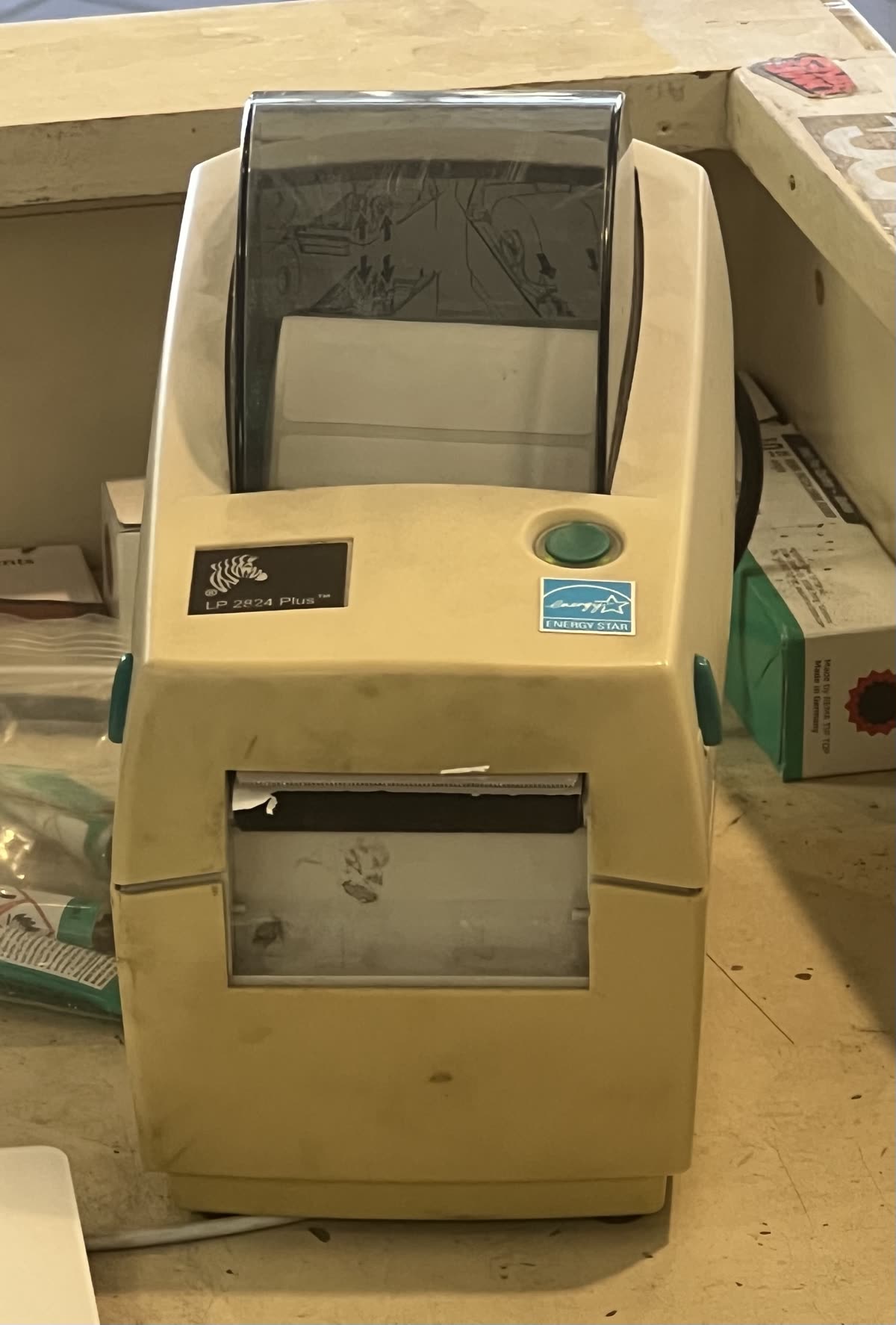
Zebra is not a document printer company. Its machines print labels, receipts, wristbands and tags, usually as part of a larger system: a warehouse scanning application, a shipping platform, a laboratory workflow, a retail point of sale. That context matters because most Zebra problems are not printer problems at all. They are media, calibration or data problems, and treating them as driver faults wastes a great deal of time and a great many label rolls.
This page is an independent map of Zebra support: where downloads live, what the tools are now called, how media calibration works, and what actually goes wrong.
Official Zebra support links
| Purpose | Address | Notes |
|---|---|---|
| Support and downloads | zebra.com support and downloads | Drivers, firmware, tools and documentation by model |
| Global site | zebra.com | Products, partners and region selector |
| United Kingdom | zebra.com UK | UK products, partners and support routing |
| Australia | zebra.com Australia | AU products, partners and support routing |
Zebra software: what things are called now
Zebra Nucleus Connector, formerly Setup Utilities
Zebra Setup Utilities, the long-standing Windows tool for discovering printers, installing drivers, configuring network settings, calibrating media and sending raw commands, has been rebranded to Zebra Nucleus Connector. The function is the same. If you are working from an older guide that names Setup Utilities, the procedure generally still holds; you are simply installing a tool with a new name. See our Zebra setup tool page.
ZebraDesigner 3
The label design application, available in two editions. Essentials is free and handles text, barcodes, images and basic fields. Professional is paid and adds database connectivity, external variable data, scripting and advanced layout. Both are Windows only, with no macOS version, which is a real constraint for Mac-based design work. Details on our ZebraDesigner page.
Browser Print
Browser Print is a small local service that lets a web application print directly to a Zebra printer connected to that computer, which is how many shipping and warehouse web systems produce labels without a print dialog. It is request-gated behind a form rather than offered as an open download. Treat any third-party site offering a direct Browser Print installer as untrusted.
Link-OS
Link-OS is Zebra's firmware platform. It determines which management, connectivity and application features a given printer supports, and Zebra documentation frequently states that a capability requires Link-OS. That is a firmware statement, not a separate product to buy. Check the firmware level on the printer before concluding a feature is missing.
ZPL
ZPL is Zebra's printer command language. Most systems generate it for you, but knowing it exists is useful: a label that prints correctly from one application and wrongly from another is usually a difference in the ZPL being generated, not a printer fault. Sending a known-good ZPL test through the setup tool is one of the fastest ways to isolate where a problem sits.
Setting up a Zebra label printer
- Identify your media type first. Direct thermal media darkens under heat and needs no ribbon. Thermal transfer media needs a ribbon and prints nothing without one. Fitting the wrong media for the printer's configuration is the single most common setup error.
- Load the media so the printable side faces the printhead and the roll turns freely, then close the printhead until it latches firmly on both sides.
- If the printer uses ribbon, load it with the coated side facing the media and take up the slack before closing.
- Power on and run the media calibration routine. The printer needs to learn label length and where the gap, notch or black mark sits. Nothing else will work reliably until this is done.
- Connect by USB for the first configuration, or by Ethernet for a shared printer. Wireless models typically use 2.4 GHz, so a merged 2.4/5 GHz network name will block discovery.
- Install Nucleus Connector on Windows and use it to install the driver and confirm the printer responds.
- Print a configuration label from the panel. It reports firmware level, network settings and media settings on one label and is the fastest diagnostic Zebra offers.
Zebra model families explained
| Family | What it is | Best for |
|---|---|---|
| ZD desktop series | Compact desktop label printers, direct thermal or thermal transfer | Shipping desks, retail, laboratories and small warehouses |
| ZT industrial series | Metal-framed industrial printers for continuous duty | Manufacturing lines, high-volume warehouse labelling |
| ZQ mobile series | Battery-powered belt or vehicle-mounted printers | Field service, delivery, route accounting |
| GK and GX (legacy desktop) | Previous generation desktop printers, still widely deployed | Existing installations; drivers and parts remain available |
| Card and wristband printers | ID cards and healthcare wristbands | Access control, events, hospital patient identification |
Common Zebra problems and what they really are
| Symptom | What is actually happening |
|---|---|
| Blank labels feed through | Thermal transfer media with no ribbon, or media loaded upside down - see printing blank pages |
| Label content drifts down the roll | Media calibration has not been run for this label size |
| Printer feeds several labels per job | Label length is wrong in the calibration or the label format specifies a longer size |
| A vertical white line through every label | A failed printhead element or debris on the printhead; clean with isopropyl alcohol first |
| Faded print that worsens across the label | Darkness setting too low, print speed too high, or media not matched to the printhead |
| Printer not detected over USB | Cable or port rather than printer - see USB printer not detected |
Codes and messages across every brand are indexed in our error code directory.
Media, printheads and running costs
On a Zebra, the consumable that matters most is the printhead, and media quality is what determines its life. Abrasive or poorly coated label stock wears the printhead measurably faster, and a printhead is a significant proportion of a desktop printer's value. Buying cheap media to save on rolls is usually a false economy paid for in printhead replacements.
Match the media to the application as well as the printer. Direct thermal labels fade with heat and light and are wrong for anything that must remain legible for years; thermal transfer with the correct ribbon type is the durable choice. Ribbon type matters too, since wax, wax-resin and resin ribbons suit different label materials and durability requirements.
Clean the printhead with isopropyl alcohol at every media change. It takes a minute and is the single highest-return maintenance habit on a label printer.
Isolating a label fault in three steps
Because a Zebra usually sits at the end of a chain, from application to data to driver to printer, the fastest diagnosis works backwards from the hardware.
- Print a configuration label from the panel. This uses no driver, no network and no application. If it prints correctly, the printhead, media, ribbon and calibration are all fine, and the fault is upstream. If it does not, stop and fix the printer.
- Send a known-good label directly to the printer. Use the Windows tool to send a simple ZPL test to the device. If that prints correctly, the driver path and printer are fine and the fault is in what your application is generating.
- Compare the generated output. If steps one and two both work but your application still produces wrong labels, the label format is the problem: wrong label dimensions in the template, a font the printer does not hold, or a field longer than the space allotted.
Working in this order takes minutes and avoids the common trap of reinstalling drivers repeatedly for a fault that lives in a label template.
Firmware, security and support channels
Firmware is applied through the Windows tool or through Zebra's management platforms on networked fleets. Because Zebra printers are frequently part of an operational system, test firmware on one device before a fleet rollout: a firmware change that alters default media handling can stop a production line.
Support routing depends on how the hardware was bought. Printers deployed as part of an integrated system are supported by the integrator; standalone purchases use Zebra's own support routes with warranty and service contracts varying by product line.
How this site fits
We are independent and not affiliated with Zebra. We publish vendor-neutral fixes, link to Zebra's own pages for anything that must come from Zebra, and never charge to unlock a fix. Everything we have on this brand is collected on the Zebra brand hub.
Zebra software and drivers
- Zebra Browser Print
Lets a web application print directly to a local Zebra printer Windows · macOS · Android - Zebra Nucleus Connector (formerly Zebra Setup Utilities)
Zebra's printer setup and configuration tool, rebranded from Setup Utilities Windows · iOS · Android - ZebraDesigner 3
Zebra's label design software, free in the Essentials edition Windows
Zebra error codes
Zebra printer models
Grouped by series. Every model page has setup steps, the right cartridge or toner numbers, driver links and the faults owners report.
ZD400 desktop label printers 4
G-Series desktop label printers 3
Carrier-issued desktop label printers 2
ZD200 desktop label printers 2
ZD600 desktop label printers 2
Legacy Eltron desktop printers 1
QLn mobile printers 1
ZC series card printers 1
ZD500 desktop label printers 1
ZQ500 rugged mobile printers 1
ZQ600 premium mobile printers 1
ZSB Series home and small-business label printers 1
ZT200 industrial label printers 1
ZT400 industrial label printers 1
ZT600 industrial label printers 1
ZXP card printers 1
No model matches that. Try the model number only, e.g. "2800".
Zebra support FAQ
What happened to Zebra Setup Utilities?
It has been rebranded to Zebra Nucleus Connector. It is the same category of Windows tool: printer discovery, driver installation, network configuration, media calibration and sending raw commands to the printer. If you are following an older guide that names Setup Utilities, the steps generally still apply, you are simply installing something with a different name from the Zebra downloads area.
Is ZebraDesigner free?
ZebraDesigner 3 comes in two editions. Essentials is free and covers designing and printing labels with text, barcodes, images and basic fields. Professional is paid and adds database connectivity, variable data from external sources, scripting and more advanced layout control. Both are Windows only; there is no macOS version, which matters if you are designing labels on a Mac.
How do I get Zebra Browser Print?
It is request-gated behind a form rather than offered as a direct download. Browser Print is a small local service that lets a web application in a browser print to a Zebra printer attached to that computer, which is how many shipping and warehouse web systems produce labels. Because it is distributed through a request process, be sceptical of any third-party site offering a direct Browser Print installer.
Why is my Zebra printing blank labels?
Almost always media calibration rather than a driver or data problem. The printer needs to learn the length of your label and where the gap, notch or black mark sits. Run the calibration routine from the panel or from the Windows tool, and confirm you have the right media type set: direct thermal media needs no ribbon, thermal transfer media needs one and prints nothing without it.
What is Link-OS?
Link-OS is Zebra's firmware platform for its printers. It defines what management, connectivity and application features a device supports, and different firmware levels expose different capabilities. When Zebra documentation says a feature requires Link-OS, it means the printer needs firmware from that platform rather than a separate purchase. Firmware level is worth checking before troubleshooting a missing feature.
How do I contact Zebra support in the UK?
If a reseller or integrator deployed your printers as part of a wider system, contact them first, because they hold the support relationship and understand the application driving the printer. Otherwise use the support and downloads area on the Zebra site for your region. We do not publish phone numbers because Zebra support routing depends on product line and support contract.
Let a printer specialist fix it with you, remotely
Share your screen, we diagnose the driver, Wi-Fi or firmware problem and fix it while you watch. One affordable annual plan covers every printer in your home or office.