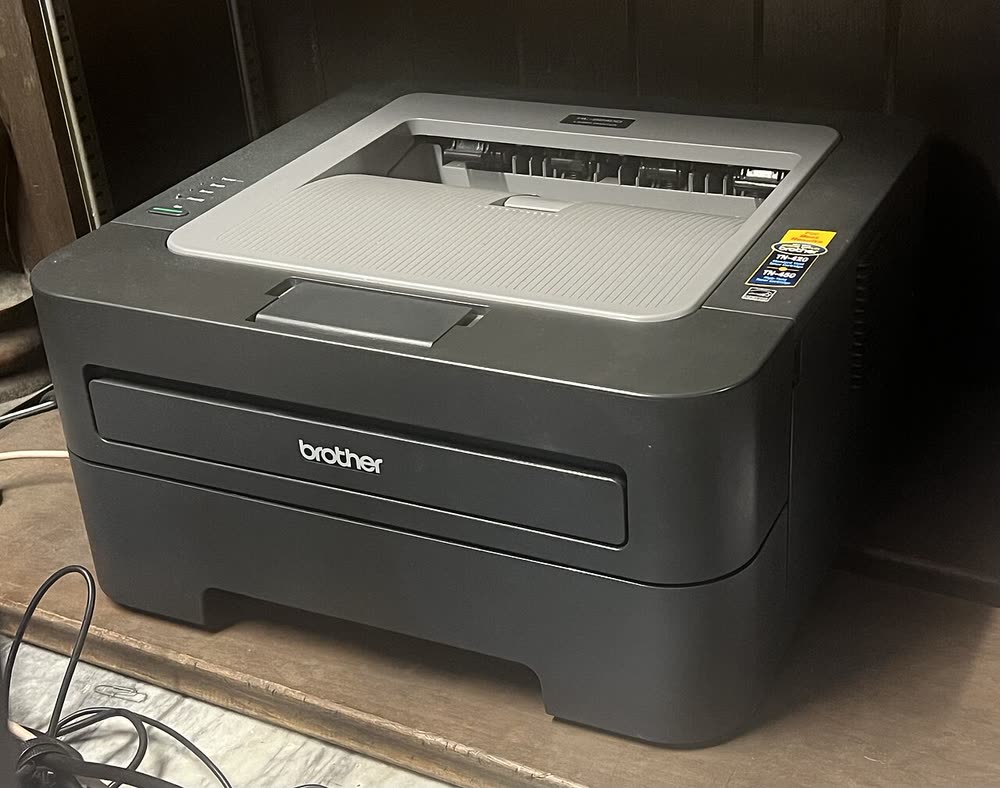
Brother · HL-2200 mono laser
Brother HL-2280DW
Home offices that want a tiny laser copier with bargain supplies
The HL-2240 is the bare-bones USB-only member of Brother's 2010 mono laser family, sold for under 100 dollars and built to be shared from one PC. It has no networking and no automatic duplex, so it suits a single desk where a cable is fine. Its toner and drum are among the cheapest to replace of any laser ever sold, which is why many are still in service. Expect the LED panel to blink toner and drum warnings long before output actually degrades.
Sold in United States, Canada, United Kingdom, Europe, Australia, India
The HL-2240 is the bare-bones USB-only member of Brother's 2010 mono laser family, sold for under 100 dollars and built to be shared from one PC. It has no networking and no automatic duplex, so it suits a single desk where a cable is fine. Its toner and drum are among the cheapest to replace of any laser ever sold, which is why many are still in service. Expect the LED panel to blink toner and drum warnings long before output actually degrades.
Best for: A single-PC budget mono printer that still has cheap supplies
Connect the USB cable only after the Full Driver & Software Package asks for it, otherwise Windows may install a generic driver that drops manual duplex. On macOS Sonoma and later, the built-in Brother drivers still recognize the HL-2240 via USB. If the printer is not detected, try a different USB port and avoid unpowered hubs.
The Brother HL-2240 uses the following consumables. Match the number exactly when you buy: the same printer family often uses several different cartridge numbers by region.
High-yield (XL) versions almost always cost less per page if you print regularly. On third-party ink and toner, read our honest assessment first, and note that some manufacturers push firmware that rejects non-original chips.
| Print Speed | 24 ppm |
|---|---|
| Resolution | Up to 2400 x 600 dpi |
| Duplex | Manual |
| Adf | None |
| Paper Capacity | 250 sheets + 1 manual feed |
| Display | LED indicators |
| Connectivity | USB |
| Mobile | |
| Os | Windows 11/10, macOS, Linux |
| Dimensions | 14.4 x 14.2 x 7.2 in |
| Weight | 14.8 lb |
| Monthly Duty | Up to 10,000 pages |
| Extra | USB-only version of the HL-2240D/HL-2270DW chassis; uses the same TN-420/TN-450 and DR-420 |
| Functions |
Every link goes to the manufacturer or an official app store. We never host modified installers.
| Code or message | What it means |
|---|---|
| Replace Toner | Page counter reached limit; toner can be reset to continue printing |
| Drum End Soon | Drum unit nearing end of life; reset the drum counter after replacing |
No reviews yet. If you own this model, share what works and what does not.
Reviews appear after moderation.
Share your screen, we diagnose the driver, Wi-Fi or firmware problem and fix it while you watch. One affordable annual plan covers every printer in your home or office.
Questions & comments (0)
No comments yet. Describe your printer model, operating system and the exact message you see; comments appear after review.
Ask about this page
Your comment appears after our team approves it. Or sign in to post faster.