Konica Minolta Printer Support: bizhub Drivers, Apps and Error Codes (Independent Guide)
An independent guide to Konica Minolta printer support: the regional bizhub download hubs, the Universal Print Driver, the current i-Series, scan-to-folder problems and what the error codes mean.
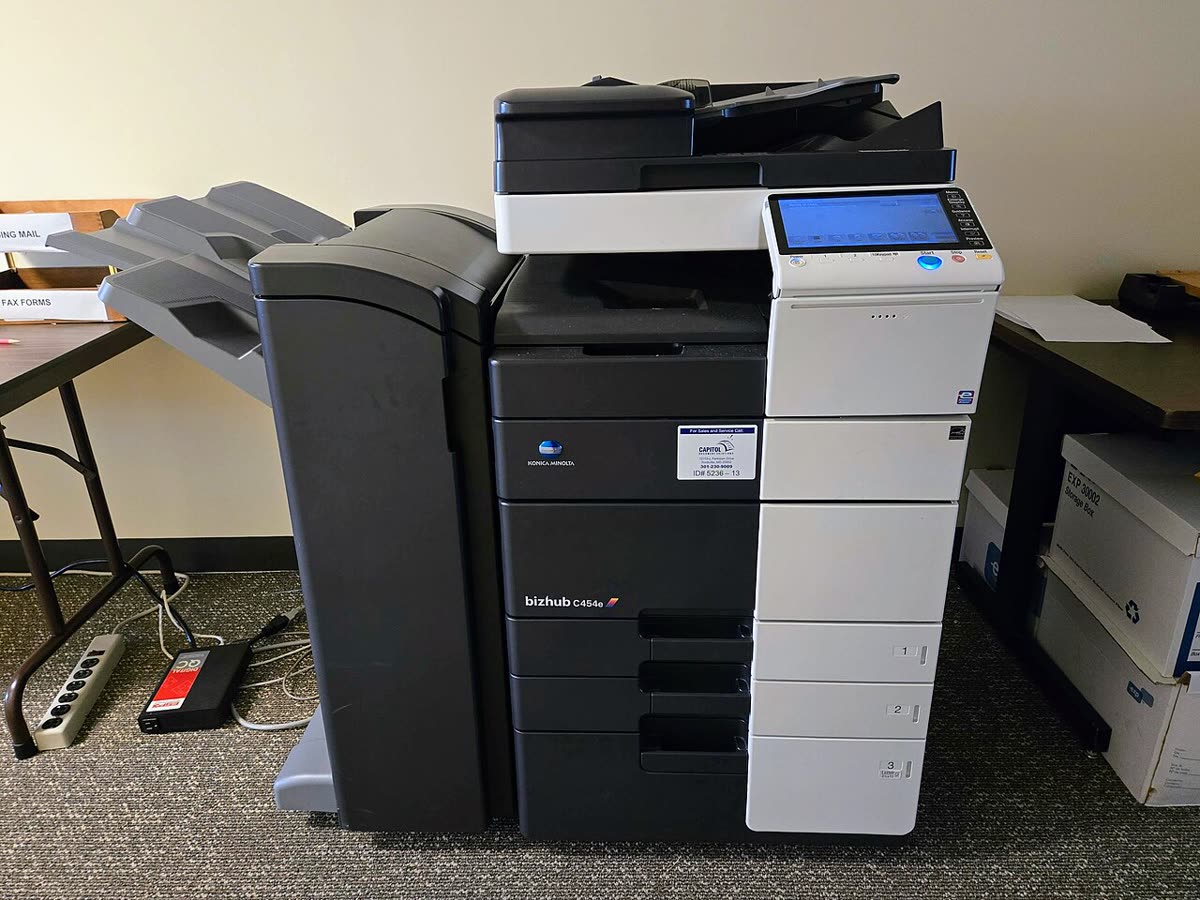
Konica Minolta is an office brand almost exclusively. Its bizhub multifunction devices sit in corridors and print rooms, are usually placed by the company or a dealer under a managed print agreement, and are serviced by engineers rather than helplines. Understanding that commercial model is more useful than any driver tip, because it determines who is obliged to help you when the machine stops.
This page is an independent map of Konica Minolta support: where the regional downloads are, which driver to use, how setup runs, what the error conditions mean, and where the recurring problems actually come from.
Official Konica Minolta support links by region
Konica Minolta operates regional companies with their own sites and model catalogues rather than a single global download hub.
| Region | Address | Notes |
|---|---|---|
| Europe | konicaminolta.eu | European bizhub catalogue, drivers and documentation |
| United Kingdom | konicaminolta.co.uk | UK drivers, service and managed print |
| Australia | konicaminolta.com.au | AU sales, direct service and dealer network |
Konica Minolta software and drivers
Universal Print Driver
The Universal Print Driver covers a wide range of bizhub models from one package, which makes print server deployment and Group Policy distribution straightforward across a mixed estate. It exposes the standard bizhub feature set including finishing, secure print and account tracking. Details on our Konica Minolta Universal Print Driver page.
Model-specific packages
For a single device where you also need scanning, take the model package from your regional site. It bundles the print driver, the scan components, the setup tools and the documentation, and it includes region-correct paper sizes and finishing options that a universal package may not expose.
Konica Minolta Mobile Print
The mobile app for iOS and Android handles printing from a phone, scanning to the phone from a supported device, and basic device operations. See our Konica Minolta Mobile Print page. On i-Series devices, standard AirPrint and Mopria support usually works well enough that the app is optional for simple printing.
PageScope and Web Connection
Every networked bizhub exposes a web interface, historically branded PageScope Web Connection. This is where you set a static address, manage the address book, configure scan destinations, read counters and apply security policy. For anyone administering a device it is the most important tool available, and it is more capable than any desktop utility.
Setting up a bizhub device
- Remove all packing material, seat the toner bottles or cartridges, and load paper with tray guides set to the actual size. bizhub trays report size from the guides and will halt on a mismatch.
- Power on and let the device complete its warm-up and, on colour models, its image stabilisation cycle. Larger devices take several minutes.
- Connect by Ethernet. bizhub hardware is designed for wired office networks, and wireless is normally an optional kit rather than a default.
- Where wireless is fitted, expect 2.4 GHz support on smaller units. A single merged 2.4/5 GHz network name is the usual reason a device never lists your network.
- Print the configuration page from the panel, note the IPv4 address, and reserve it in your router or DHCP server.
- Open the web interface in a browser at that address and change the default administrator password before anything else.
- Deploy the Universal Print Driver to computers, or install the model package where scanning is required, then configure scan destinations centrally rather than per user.
bizhub model families explained
| Family | What the name signals | Best for |
|---|---|---|
| bizhub C (i-Series) | Current colour multifunction devices with tablet panels | Offices and departments needing colour and finishing |
| bizhub mono (i-Series) | Current mono multifunction devices | Document-heavy departments where colour is unnecessary |
| bizhub (pre-i-Series) | Previous generation office devices | Still widely installed; drivers and parts remain available |
| bizhub PRESS and PRO | Production print engines | In-house print rooms and commercial printing |
| AccurioPress and AccurioPrint | Production colour and mono, separate brand line | Commercial print with colour management requirements |
Within the i-Series, the number generally indicates engine speed in pages per minute, so a C250i and a C360i differ mostly in throughput and paper handling rather than feature set.
Common bizhub conditions and messages
| Condition | Meaning in one line |
|---|---|
| Malfunction detected with a C code | A latched service condition identified by number, usually requiring an engineer |
| Trouble code with a P prefix | Imaging or process condition, often drum, developer or transfer related |
| Paper misfeed at a named location | The panel animation shows which door to open; forcing paper backwards causes more damage |
| Replace toner bottle | Toner counter reached; bizhub devices usually continue briefly past the first warning |
| Scan to folder fails silently | SMB version, credential expiry or share permission on the destination - see scanner not working |
| Device offline in Windows | The queue cannot reach the device IP - see printer offline |
Codes across every brand are indexed in our error code directory.
Consumables, click charges and running costs
bizhub consumables split into toner bottles, imaging units, developer, waste toner containers, fusers and transfer belts, each with its own rated yield. A genuine cost per page has to include all of them, which is exactly why the click-charge model dominates: the provider carries that complexity and bills a rate per printed page.
Under such an agreement, toner is delivered automatically when the device reports low, and fitting third-party toner is a contract breach rather than a technical experiment. On an outright purchase you have ordinary freedom, subject to chip recognition on some models. Our neutral guidance is in third-party ink and toner.
Understanding your bizhub agreement
More bizhub support frustration comes from contract confusion than from any technical fault, so it is worth being precise about the three arrangements you might have.
An outright purchase means you bought the device, you own it, and a manufacturer warranty applies for a defined period. After that, service is something you buy per visit. This is the least common arrangement for a bizhub and the most common for a small desktop model.
A maintenance or service agreement covers labour and parts for a fixed periodic fee, usually with a defined response time. Consumables may or may not be included, which is the detail people most often get wrong when they call about toner.
A click-charge or managed print agreement bundles the hardware, service, parts and toner into a rate per printed page, often with separate mono and colour rates and a minimum volume. This is the standard bizhub arrangement in offices. Under it, toner is delivered automatically, engineers are dispatched on device alerts, and you generally should not be sourcing anything yourself.
Before you call anyone about a bizhub fault, find which of these you hold and who is named in it. The named party has the obligation, and calling anybody else costs you a day. If the device sends automatic meter readings and toner simply arrives, you are almost certainly on a click charge.
Firmware, security and warranty
Firmware is applied through the web interface or remotely by the service provider on managed devices. Because bizhub machines store address books, scan destinations, SMTP or SMB credentials and often held print jobs on an internal drive, firmware currency and end-of-life data handling matter more than on a home printer.
Warranty applies to outright purchases and is registered regionally. On agreement-placed devices the contract governs everything, including response times, consumables and parts, so read it before assuming an entitlement.
How this site fits
We are independent and not affiliated with Konica Minolta. We publish vendor-neutral fixes, link to official pages for anything that must come from the manufacturer, and never charge to unlock a fix. Everything we have on this brand is collected on the Konica Minolta brand hub.
Konica Minolta software and drivers
Konica Minolta error codes
Konica Minolta printer models
Grouped by series. Every model page has setup steps, the right cartridge or toner numbers, driver links and the faults owners report.
bizhub i-Series A3 colour MFP 3
bizhub A3 colour MFP (2016 generation) 2
bizhub A4 colour MFP 2
magicolor colour laser 2
bizhub A3 colour MFP (e-series) 1
bizhub A3 mono MFP (2016 generation) 1
bizhub A3 mono copier 1
bizhub A4 mono MFP 1
bizhub i-Series A3 mono MFP 1
bizhub i-Series A4 colour MFP 1
bizhub i-Series A4 mono MFP 1
bizhub i-Series compact A3 colour MFP 1
magicolor colour laser MFP 1
pagepro mono laser 1
No model matches that. Try the model number only, e.g. "2800".
Konica Minolta support FAQ
What does bizhub mean and what is the i-Series?
bizhub is Konica Minolta's brand for its office multifunction devices and printers. The i-Series is the current generation, distinguished by a large tablet-style touch panel, an app-based device platform and updated controllers. A model such as a bizhub C250i is a colour i-Series device. Older bizhub models without the i suffix are the previous generation and are still widely installed and supported.
Where do I download bizhub drivers?
From your regional Konica Minolta site: konicaminolta.eu for Europe, konicaminolta.co.uk for the United Kingdom, or konicaminolta.com.au for Australia. Search your exact bizhub model and choose your operating system. Regional catalogues differ, so a model sold in one region may not be listed in another, and the driver package can include region-specific paper sizes and finishing options.
What is the Konica Minolta Universal Print Driver?
It is a single driver package that drives a wide range of bizhub models rather than requiring one driver per device. For a print server, a Group Policy deployment or an office with several bizhub machines, it removes a great deal of administrative work. For a single device where you also need the scan pipeline, install the model-specific package instead.
Why does scan to folder stop working on a bizhub?
Almost always because of something on the destination rather than the device. Modern Windows disables the older SMB protocol versions legacy firmware expects, the account password expired or changed, or the share grants read but not write access. Create a dedicated low-privilege account with a non-expiring password, give it write access to one folder only, and point the device at that.
How do I contact Konica Minolta support in the UK?
If your device was placed by Konica Minolta or a reseller under a managed print agreement, contact the party named in that agreement, because they hold the service obligation and general support will redirect you. For outright purchases, start at konicaminolta.co.uk and use the support options for your product. We do not publish phone numbers because they change by product line and region.
Can I use compatible toner in a bizhub?
On an outright-purchased machine, often yes, though chip recognition varies by model and supply reporting will be less accurate. On a click-charge agreement, toner is supplied as part of the contract and fitting third-party toner is a breach that can void service cover. Because the overwhelming majority of bizhub devices sit on such agreements, check the paperwork before making any supply decision.
Let a printer specialist fix it with you, remotely
Share your screen, we diagnose the driver, Wi-Fi or firmware problem and fix it while you watch. One affordable annual plan covers every printer in your home or office.