Small Office Printer Support: Keep Every Printer Working Without an IT Department
Shared printers fail in predictable ways: changed IP addresses, mismatched drivers, broken scan to email and empty toner. Here is the checklist, and who to call when it is not enough.

On this page
- The office printer support checklist
- How do I stop a network printer going offline?
- Drivers on many PCs and Macs
- Scan to email and scan to folder
- Security basics for shared printers
- Planning toner and ink so you never run out
- Managed print services for a small office: worth it?
- Who should support your office printers?
Small office printer support comes down to five jobs: a fixed network address for every printer, the right driver on each PC and Mac, working scan to email and scan to folder, basic security settings, and a toner plan so nobody runs out on deadline day. Most small offices can cover this with a written checklist and occasional outside help, without signing a managed print contract.
The office printer support checklist
Keep this with each printer's network configuration page. Every row is a job someone in the office should own by name.
| Task | When | Why it matters |
|---|---|---|
| Reserve each printer's IP address in the router | Once, at setup | Stops "printer offline" when the address changes |
| Install every PC and Mac by IP address, with the same driver | At setup and for each new computer | Consistent duplex, tray and color defaults |
| Set and record the printer's admin password | Once, then store it safely | Stops anyone on the network changing settings |
| Check for firmware updates | Quarterly | Security fixes; read the notes if you use third-party toner |
| Test scan to email and scan to folder | Monthly, and after any password change | Email and file-share passwords change silently |
| Record page counts and supply levels | Monthly | Shows when to order before you run out |
| Keep one spare toner (and drum, on lasers) per printer | Always | Covers delivery delays and busy weeks |
| Clean the scanner glass and document feeder rollers | Every few months | Prevents streaks on scans and feed jams |
| Wipe stored data before returning or recycling | End of life or lease | Multifunction printers keep address books, credentials and scans |

How do I stop a network printer going offline?

In a small office, "offline" almost always means the computers are looking for the printer at an address it no longer has. The router hands out addresses automatically through DHCP, and after a power cut or a lease renewal the printer can receive a new one while every PC keeps trying the old one.
- Print the printer's network configuration page and note its IP and MAC address. Our guide to finding a printer's IP address lists the menu for each brand.
- In the router or firewall admin page, create a DHCP reservation that ties that MAC address to one IP address. It is usually under LAN, DHCP or Devices.
- If the router cannot reserve addresses, set a static IP on the printer itself, choosing an address outside the router's DHCP range.
- Use Ethernet for any printer that more than one person relies on. Wi-Fi is fine for a single desk, but it is the most common cause of intermittent dropouts on shared machines.
- Install the printer on each computer by that IP address, rather than by whatever network discovery finds first.
If a printer still drops off after that, work through printer keeps going offline.
Drivers on many PCs and Macs
Mismatched drivers cause most "it works on my computer" complaints. Choose one approach per printer and use it on every machine.
Windows 11 and 10
Windows 11 now installs many network printers with its own built-in driverless driver. That is fine for plain printing, but it can hide duplex defaults, extra trays, finishing options and secure print. For shared office machines, install the manufacturer's driver package, or a universal driver such as the HP Universal Print Driver on an all-HP fleet, and add the printer by IP from Settings › Bluetooth & devices › Printers & scanners › Add device › Add manually. Our Windows 11 driver guide explains when each is the right choice.
Direct IP, not a shared PC
Avoid sharing a printer through one person's computer. When that PC sleeps, restarts for updates or leaves the building in someone's bag, nobody else can print. Point every computer at the printer's own IP address instead. A dedicated print server earns its keep only in larger offices or where you need print quotas.
Macs
macOS prints to most office printers through AirPrint with nothing to download. Add the printer in System Settings › Printers & Scanners, and choose the manufacturer's driver only where you need features AirPrint lacks, such as department codes or stapling. If scanning apps lose the printer after a macOS update, check Privacy & Security › Local Network. See Mac printer drivers for more.
Scan to email and scan to folder
These two features break more often than printing does, because they depend on accounts and passwords that live outside the printer.
- Scan to email needs the printer to sign in to an outgoing mail (SMTP) server. Microsoft 365 and Google Workspace have been tightening simple password sign-in for devices, so an older printer may need an app password, a mail relay or newer firmware that supports modern sign-in. Our scan to email guide covers the Gmail, Outlook and Microsoft 365 settings.
- Scan to folder saves to a shared folder on a PC or file server over SMB, the Windows file-sharing protocol. Create a dedicated account for the printer rather than borrowing a staff login that will change. Older multifunction printers that only support the retired SMB1 version will not connect to a current Windows 11 share; a firmware update, scan to email or scan to a cloud folder are the usual workarounds.
- Keep a list of scan destinations and remove former employees promptly. A stale address book entry is a quiet data leak.
Security basics for shared printers

An office multifunction printer stores an address book, email credentials and sometimes copies of scanned documents. At minimum:
- Set an administrator password on the printer's built-in web page, and store it where the next office manager can find it.
- Keep the printer off the guest Wi-Fi, and never forward a router port to it.
- Turn off services you do not use, such as Wi-Fi Direct, FTP and Telnet.
- Enable secure print release, which holds a job until someone enters a PIN at the panel, if confidential documents go to a shared tray.
- Run the secure erase or data-clear option before a leased device goes back.
Our printer security basics guide walks through each setting by brand.
Planning toner and ink so you never run out
Running out of toner is the most avoidable printer outage in any office. A simple routine prevents it:
- Check page counts and supply levels monthly on the printer's web page, or turn on its email alerts if it has them.
- Keep one spare of every cartridge per printer, plus a drum or imaging unit for lasers that use a separate one.
- Buy high-yield cartridges; the cost per page is usually noticeably lower.
- Give one named person the job of ordering, with a budget and a preferred supplier.
- Decide on genuine or third-party supplies before a firmware update decides for you. See third-party ink and toner.
Our guide to reducing printing costs covers duplex defaults, draft mode and the other easy savings.
Managed print services for a small office: worth it?

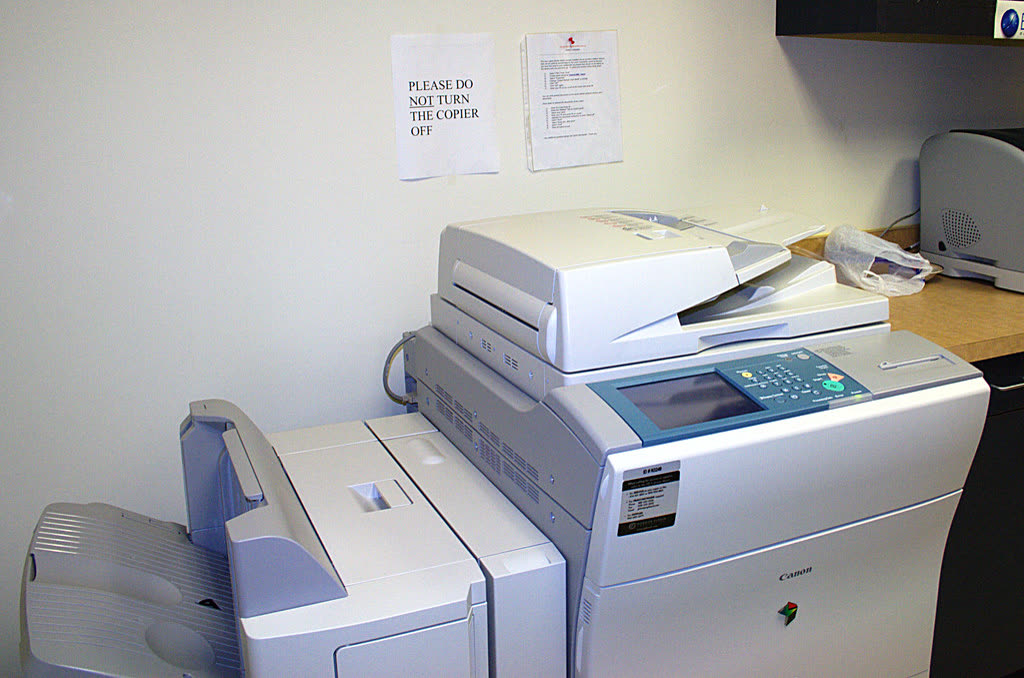
With managed print services (MPS), a provider supplies, monitors and maintains your printers, usually for a monthly fee plus a charge per page, often called cost per click. Toner ships automatically when a device reports it is low, and a technician visits for repairs. MPS is often packaged with a leased copier.
It suits offices with a fleet of devices, leased copiers or high, steady volume, where automatic supplies and on-site repair save real staff time. For a small office with two or three desktop printers it is usually poor value. Contracts often carry minimum monthly charges, multi-year terms and end-of-lease conditions that can cost more than buying printers outright and replacing them when they wear out. What most small offices actually need is not a contract but reliable help with setup, drivers, scanning and the occasional fault.
If you are offered a contract, ask:
- What is the minimum monthly charge, and what happens in a month when we print less?
- How long is the term, and what does ending it early cost?
- Are toner, drums, parts and labor all included, or only some of them?
- What does returning the device involve, including wiping its stored data?
If buying outright looks better, our small business printer guide compares models and running costs.
Who should support your office printers?
A managed service provider (MSP) is an outside IT company that looks after your computers and network for a monthly fee or by the hour. Here is how the main options compare for printers specifically.
| Option | Typical cost | Best for | Watch out for |
|---|---|---|---|
| Local IT provider or MSP | Hourly or monthly contract; varies, check current pricing | Offices that want one company for computers, network and printers | Printers can be low priority; minimum billing periods |
| Managed print services | Monthly fee plus cost per page; varies | Fleets, leased copiers, high steady volume | Minimums, long terms, lease-return costs |
| Manufacturer support | Free under warranty; paid warranty extensions vary | Hardware faults, warranty claims, firmware | One brand only; not your network or PCs |
| Our remote plan | $79 a year | Every printer in the office on one plan, unlimited sessions | Remote only; cannot repair hardware |
Our remote printer support plan is independent and not affiliated with any manufacturer. For $79 a year it covers every printer in your office for 12 months with unlimited sessions, across HP, Canon, Epson, Brother, Lexmark, Xerox, Samsung, Kyocera, Ricoh, Pantum and label printers, and across Windows 11 and 10, macOS, ChromeOS, iPhone, iPad and Android. You describe the problem with the panel message, model and device, we send a one-time code, and you start the screen-share, watch every step and can end it at any time. Each session finishes with a test page and a written summary, which doubles as documentation for whoever looks after the printers next.
We never ask for card or bank logins, and if a printer has a mechanical fault that is not worth repairing, we say so instead of billing again. Contact is by callback request rather than a phone line, and hours are Monday to Friday, 9:00 AM to 6:00 PM ET. You can cancel any time, and the plan does not auto-renew without an email first. For hands-on repairs, warranty service or a local technician is still the right route.
Software mentioned in this guide
- HP Universal Print Driver (UPD)
One Windows driver that drives most HP printers in a fleet Windows - Lexmark Universal Print Driver
One driver for over two hundred Lexmark models Windows · macOS - Windows printer settings
How Windows installs printers, and the shift to driverless Windows Ready Print Windows - Xerox Global Print Driver
One Windows driver for a mixed fleet of Xerox devices Windows - macOS Printers and Scanners
Where macOS adds printers, scans documents and resets the printing system macOS
Frequently asked questions
What is included in office printer support?
Typically setting up network printers with fixed addresses, installing drivers on every computer, configuring scan to email and scan to folder, securing the printer's admin settings, and troubleshooting offline, queue and print quality problems. Hardware repair is a separate job that needs a technician on site or a warranty claim with the manufacturer.
Do small businesses need managed print services?
Usually not when there are only a few desktop printers and no leased copier. Managed print contracts bundle supplies and repairs into a monthly fee plus a per-page charge, often with minimum volumes and multi-year terms. Offices with two or three printers generally spend less by buying outright and paying for help only when they need it.
Should office printers use a static IP or DHCP?
Either works as long as the address never changes. The cleaner option is a DHCP reservation on the router, which keeps the router in charge while always handing the printer the same address. Set a static IP on the printer itself only when the router cannot reserve addresses, and pick one outside the router's DHCP range.
Why does scan to email keep breaking?
Most often because the email account the printer signs in with changed its password, or the email provider tightened sign-in rules for devices. Microsoft 365 and Google increasingly expect app passwords, a mail relay or modern sign-in from printers. Check the SMTP settings on the printer's web page and send a test scan after any email password change.
How many spare toner cartridges should an office keep?
One spare of each cartridge per printer is enough for most small offices, plus a drum or imaging unit for lasers that use a separate one. Order the next replacement as soon as you open the spare. Checking page counts monthly also shows a busy period coming before supplies run short.
Can office printers be supported remotely?
Most office printer problems are driver, network, queue or scanning issues that can be fixed remotely on one of the office computers while you watch. Jams that will not clear, mechanical noises, broken parts and fuser or drum faults need hands on the machine, through a warranty claim or a local technician.
Guides credited to the PrinterSupport.io Editorial Team are researched from the manufacturers' own support documentation and our editorial policy, and updated when menus, apps or policies change. Corrections go to help@printersupport.io.

Questions & comments (0)
No comments yet. Describe your printer model, operating system and the exact message you see; comments appear after review.
Ask about this page
Your comment appears after our team approves it. Or sign in to post faster.