Best Wireless Printer for Mac and iPhone 2026: AirPrint Picks
On a Mac or iPhone you do not need drivers, you need AirPrint done properly. These are the printers that just work, and the settings that stop them working.

On this page
- Quick picks
- How we chose
- Epson EcoTank ET-2900 and ET-4903: the default Apple choice
- Brother HL-L2460DW and MFC-L2900DW: the reliable Apple pair
- HP OfficeJet Pro 9135e: for Mac-based offices
- Canon for photos from an iPhone
- Why your iPhone cannot find the printer
- Do you need vendor software on a Mac?
- What to avoid
- Verdict
Buying a printer for a Mac, iPhone or iPad is easier than it used to be and harder than Apple implies. Easier, because AirPrint means no drivers at all: the printer advertises itself with Bonjour and the print dialog just finds it. Harder, because the failure modes have moved from driver installation to network permissions, Wi-Fi band steering and privacy features that isolate devices from each other.
This guide names the printers we recommend to Apple households and businesses, then covers the settings that determine whether AirPrint works on day one or generates a week of frustration.
Quick picks
| Model | Type | Best for | Approx price |
|---|---|---|---|
| Epson EcoTank ET-2900 | Ink tank AIO | Best all-round for Apple homes | USD 240 / GBP 250 (ET-2920) / AUD 399 (ET-2910) |
| Epson EcoTank ET-4903 | Ink tank AIO with ADF | Adds document feeder and fax | USD 300 |
| Brother HL-L2460DW | Mono laser | Text, zero maintenance, Ethernet option | USD 130-160 / GBP 130-150 |
| Brother MFC-L2900DW | Mono laser AIO | Best Mac scanning experience on laser | USD 250-300 |
| HP OfficeJet Pro 9135e | Business inkjet AIO | Mac offices, single-pass duplex scanning | USD 280-330 |
| Canon PIXMA G3270 | Ink tank AIO | Photos from an iPhone library | USD 230-270 |
| Canon SELPHY CP1500 | Dye-sub 4x6 | Instant photos from an iPhone | USD 130-160 |
| Epson EcoTank Photo ET-8550 | 6-ink tank, A3+ | Photographers on macOS | USD 750-850 |
How we chose

- AirPrint certification, verified against Apple's supported printer list rather than a manufacturer's marketing claim.
- macOS scanning support. Printing is the easy part. Scanning through Image Capture and the built-in Printers and Scanners panel, without installing a vendor utility, separates the good machines from the frustrating ones.
- Network behaviour. How reliably the printer holds an address, re-announces itself over Bonjour after sleep, and copes with mesh networks and band steering.
- Running cost, because AirPrint compatibility does not make expensive ink cheap.
Epson EcoTank ET-2900 and ET-4903: the default Apple choice
Epson's seventh-generation EcoTank arrived in mid-2026. The ET-2900 at $239.99 prints, scans and copies; the ET-4903 at $299.99 adds an automatic document feeder and fax. Both support AirPrint and Mopria natively, and both work with Epson Smart Panel on iPhone and iPad for setup, scanning and maintenance.
Why for Apple. Setup happens entirely from an iPhone, no computer required. Scanning to your iPhone through Smart Panel produces clean, cropped PDFs. macOS recognises the scanner in Image Capture without a vendor driver. And the running cost is under half a cent per black page, so nobody in the house has to ration printing.
Cons. No automatic duplex on the base SKUs. Slow on long jobs. The ADF on the ET-4903 is simplex.
Known issues. The EcoTank family clogs if left unused for months, and eventually reports a waste ink pad service message; see Epson ink pad end of service life.
Brother HL-L2460DW and MFC-L2900DW: the reliable Apple pair
Brother mono lasers are the machines we recommend when someone wants a printer that never generates a support call. The HL-L2460DW prints only, at around 34 ppm with automatic duplex, Wi-Fi and Ethernet, for $130 to $160. The MFC-L2900DW adds a scanner, 50-sheet ADF and copying for $250 to $300.
Why for Apple. AirPrint works flawlessly, and crucially both models have Ethernet. On an Apple household with a mesh network and aggressive band steering, plugging the printer into a network port removes every Wi-Fi variable at once. Brother's Mobile Connect app is competent, and macOS drives the scanner through Image Capture without fuss.
Cons. Mono only, so no photo printing. Toner runs 2.5 to 3 cents a page, more than tank ink but far less than cartridges.
HP OfficeJet Pro 9135e: for Mac-based offices

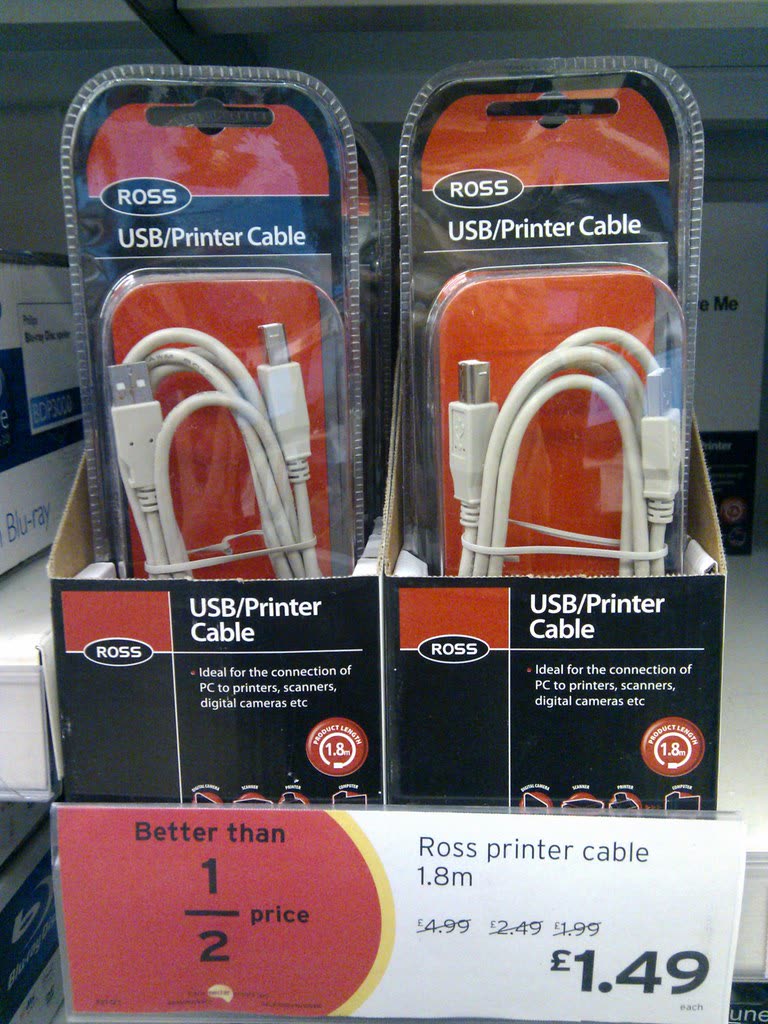
Around 22 ppm mono and 18 ppm colour, automatic duplex printing, a 35-sheet ADF with single-pass duplex scanning, Ethernet and dual-band Wi-Fi. HP's macOS and iOS software is the best of the four big brands, and the HP app handles scanning, cloud destinations and OCR well.
Caveat. The "e" suffix means HP+ eligibility. Enrolling permanently restricts the printer to genuine HP cartridges and requires a persistent internet connection. Decline it unless you want Instant Ink. See third-party ink and toner.
Canon for photos from an iPhone
If your printing is mostly photos out of the iPhone library, two Canons stand out. The PIXMA G3270 MegaTank at $230 to $270 gives dye-based colour that is warmer on glossy paper than a four-ink EcoTank, at tank running costs. The SELPHY CP1500 at $130 to $160 is a dye-sublimation 4 x 6 printer with AirPrint support that turns out sealed, water-resistant prints at about 30 cents each and cannot clog, because there is no liquid ink. For serious work, the Epson EcoTank Photo ET-8550 prints to A3+ with six inks and works well with macOS colour management. Our photo printer guide compares them properly.
Why your iPhone cannot find the printer
This is the single most common Apple printing problem, and it is almost never the printer's fault. Work through these in order.
1. macOS 26 Tahoe local network permission
Recent macOS releases require every app to be granted explicit permission to communicate on the local network. If that permission is missing, printers vanish from the print dialog with no error message. Open System Settings, go to Privacy and Security, then Local Network, and make sure the app you are printing from, along with any vendor utility, is enabled. This has broken more previously working setups than any other single change.
2. The 2.4 GHz versus 5 GHz problem
Most home printers have a 2.4 GHz-only radio. If your router publishes a single merged network name for both bands, your phone may be on 5 GHz while the printer sits on 2.4 GHz, and depending on the router the two may not see each other's Bonjour announcements. The fix is either to split the bands into separate network names temporarily during setup, or to disable band steering. Our Wi-Fi connection guide covers the specific settings on BT, Sky, Virgin Media, Telstra, Rogers and the other common ISP routers.
3. Guest networks and client isolation
A printer on a guest network is invisible to devices on the main network by design. Some routers also enable client isolation, sometimes called AP isolation, on the main network. Both silently break AirPrint. Put the printer on the primary network and turn client isolation off.
4. Private Wi-Fi Address
iOS rotates a randomised MAC address per network by default. That is good for privacy and occasionally confuses routers with strict device policies. It rarely breaks AirPrint directly but is worth toggling off for your home network if nothing else has worked.
5. VPNs and DNS filtering
An always-on VPN profile on an iPhone can route local traffic away from the LAN and hide the printer. Disable it, print, re-enable it.
Our dedicated guide to no AirPrint printers found covers each of these steps in detail with the exact menu paths.
Do you need vendor software on a Mac?

For printing, no. AirPrint handles it. For scanning, sometimes: macOS can drive most AirPrint scanners through the Printers and Scanners panel and Image Capture, but advanced features such as multi-page ADF profiles, OCR to searchable PDF, and scan-to-cloud usually need the vendor app. On iPhone and iPad, the vendor apps are genuinely useful for setup and scanning, and are the fastest way to get a printer onto Wi-Fi without a computer.
Worth knowing: HP renamed HP Smart to the HP app in 2026, which caused some confusion for people searching the App Store for the old name. It is the same software.
What to avoid
- Any printer without an AirPrint logo. A handful of budget and industrial models still lack it, and driving them from a Mac is genuinely painful.
- Wi-Fi-only placement in a house with a mesh network, if you can run Ethernet instead. Mesh systems and band steering cause most recurring AirPrint problems.
- Bluetooth-only pocket printers if you want to print from a Mac. Most are phone-app-only.
- Assuming Wi-Fi Direct is the answer. It works, but it disconnects your iPhone from the internet while printing. Use it for setup or emergencies only; see Wi-Fi Direct printing.
- Cheap cartridge inkjets. AirPrint compatibility does not change the fact that they cost 20 to 30 cents a colour page.
Verdict
For an Apple household, buy the Epson EcoTank ET-2900, or the ET-4903 if you scan multi-page documents. For an Apple office, the HP OfficeJet Pro 9135e with HP+ declined, or the Brother MFC-L2900DW if you want the fewest possible problems and can live without colour. For photos from an iPhone, the Canon SELPHY CP1500 is a small delight.
Then spend ten minutes on the network rather than the printer: put it on the 2.4 GHz band or on Ethernet, keep it off the guest network, and grant Local Network permission on every Mac. That is the difference between AirPrint being invisible infrastructure and being a weekly annoyance. If it still will not appear, get help from a printer specialist and we will work through it with you.
Software mentioned in this guide
- Apple AirPrint
Driverless printing built into iPhone, iPad and Mac iOS · macOS - Brother Mobile Connect
Brother's current mobile app for setup, printing, scanning and supplies iOS · Android - Epson Smart Panel
Epson's current mobile app for setup, printing, scanning and ink levels iOS · Android - HP Smart (the HP app)
HP's official setup, printing, scanning and ink app for home and small-office printers Windows · macOS · iOS - macOS Printers and Scanners
Where macOS adds printers, scans documents and resets the printing system macOS
Printers covered here
Frequently asked questions
What is the best printer for a Mac and iPhone in 2026?
The Epson EcoTank ET-2900 at around $240 for most Apple households: it sets up entirely from an iPhone, supports AirPrint natively, scans cleanly through Image Capture on macOS, and costs under half a cent per black page. For offices, the HP OfficeJet Pro 9135e; for text only, the Brother HL-L2460DW.
Do I need to install drivers on a Mac?
Not for printing. AirPrint is built into macOS, iOS and iPadOS and needs no driver at all. You may want the vendor app for advanced scanning features such as multi-page ADF profiles, OCR and scan-to-cloud, but basic scanning works through the Printers and Scanners panel and Image Capture.
Why does my iPhone say no AirPrint printers found?
Usually a network issue. The most common causes are the printer being on 2.4 GHz while the phone is on 5 GHz with band steering hiding one from the other, the printer sitting on a guest network, client isolation being enabled on the router, or an always-on VPN routing local traffic away. Hardware compatibility is rarely the cause.
What is the macOS Local Network permission problem?
Recent macOS releases require each app to be granted explicit permission to talk to devices on your local network. Without it, printers disappear from the print dialog with no error. Open System Settings, then Privacy and Security, then Local Network, and enable the apps you print from. This has broken many previously working setups.
Is AirPrint as good as using the manufacturer's app?
For everyday printing it is better: no drivers, no updates, and it works from any app. The vendor apps are worth having for first-time Wi-Fi setup without a computer, for scanning with cropping and OCR, and for checking ink levels and running nozzle cleans.
Can I print from a Mac if the printer is on 2.4 GHz and the Mac is on 5 GHz?
Yes, as long as both are on the same network and the router is not isolating clients. The two bands are bridged by the router in normal operation. Problems arise when band steering, guest networks or AP isolation prevent Bonjour discovery packets from crossing between them.
Consumer-tech editor covering printers and home-office gear for US and Canadian readers.

Questions & comments (0)
No comments yet. Describe your printer model, operating system and the exact message you see; comments appear after review.
Ask about this page
Your comment appears after our team approves it. Or sign in to post faster.