Epson · WorkForce Pro
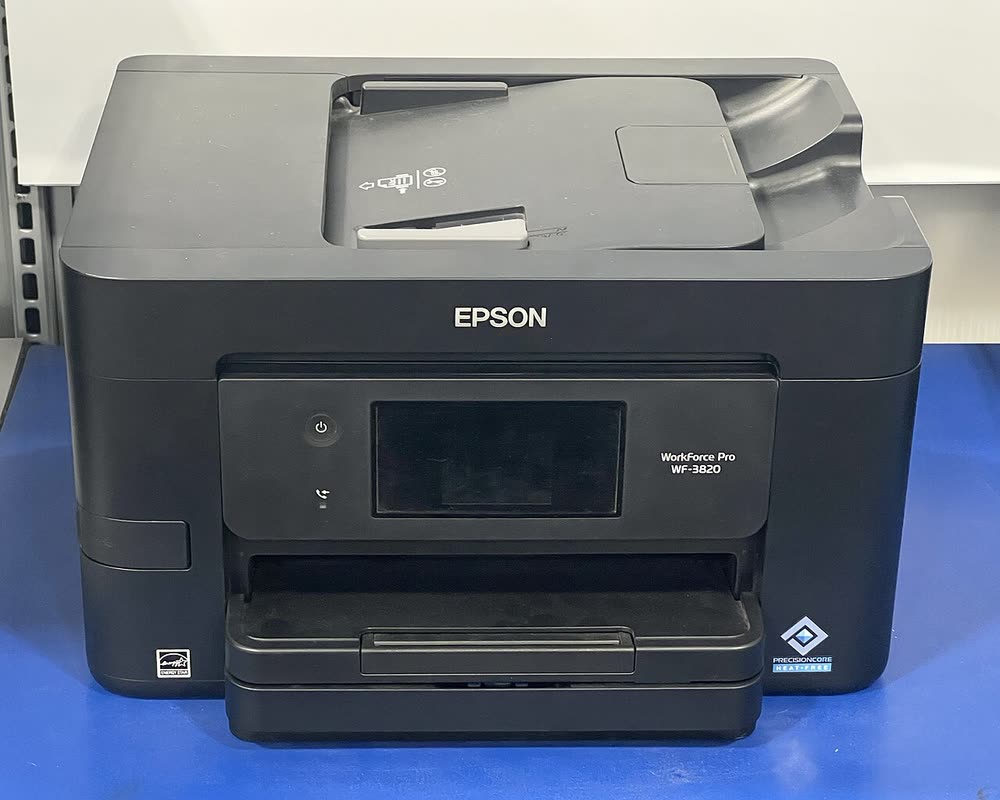
Epson WorkForce Pro WF-C5890
Workgroups wanting a current managed colour inkjet MFP
The WF-C4310 is a print-only WorkForce Pro for small offices that already own a scanner, printing 25 ppm pigment text with duplex, Ethernet and PCL emulation for managed networks. It sits between consumer WorkForce models and the larger WF-C5xxx business machines. Its 822 cartridges are shared with the WF-4820 family, and like them the head should be used weekly; the business firmware also supports admin lockdown, which can puzzle home users.
Sold in United States, Canada, United Kingdom, Europe, Australia
The WF-C4310 is a print-only WorkForce Pro for small offices that already own a scanner, printing 25 ppm pigment text with duplex, Ethernet and PCL emulation for managed networks. It sits between consumer WorkForce models and the larger WF-C5xxx business machines. Its 822 cartridges are shared with the WF-4820 family, and like them the head should be used weekly; the business firmware also supports admin lockdown, which can puzzle home users.
Best for: Small offices needing a fast print-only colour inkjet with PCL
Connect by Ethernet and use the PCL driver or Universal Print Driver on managed Windows networks; Smart Panel covers Wi-Fi setup. Set an admin password in Web Config if it is on a shared LAN. Enable duplex in the driver and assign the rear feed to envelopes.
The Epson WorkForce Pro WF-C4310 uses the following consumables. Match the number exactly when you buy: the same printer family often uses several different cartridge numbers by region.
High-yield (XL) versions almost always cost less per page if you print regularly. On third-party ink and toner, read our honest assessment first, and note that some manufacturers push firmware that rejects non-original chips.
| Print Speed | 25 ISO ppm black / 12 ISO ppm color |
|---|---|
| Resolution | Up to 4800 x 2400 dpi |
| Duplex | Automatic |
| Adf | None |
| Paper Capacity | 250 sheets plus 80-sheet rear feed |
| Display | 2.4-inch color LCD |
| Connectivity | Wi-Fi, USB, Ethernet, Wi-Fi Direct |
| Mobile | Epson Smart Panel, AirPrint, Mopria |
| Os | Windows 11/10, macOS, ChromeOS, iOS, Android |
| Dimensions | 16.7 x 14.8 x 7.6 in |
| Weight | 14.3 lb |
| Monthly Duty | 30,000 pages |
| Extra | Print-only WorkForce Pro with PCL support and 822 cartridges (US) or 405 (UK/EU) |
| Functions |
Every link goes to the manufacturer or an official app store. We never host modified installers.
| Code or message | What it means |
|---|---|
| W-11 | Paper jam in cassette |
No reviews yet. If you own this model, share what works and what does not.
Reviews appear after moderation.
Workgroups wanting a current managed colour inkjet MFP
Offices wanting a current mono print-only inkjet for volume text
Small workgroups wanting a managed all-in-one with duplex scanning
Home offices wanting a current compact office all-in-one
Share your screen, we diagnose the driver, Wi-Fi or firmware problem and fix it while you watch. One affordable annual plan covers every printer in your home or office.
Questions & comments (0)
No comments yet. Describe your printer model, operating system and the exact message you see; comments appear after review.
Ask about this page
Your comment appears after our team approves it. Or sign in to post faster.