Xerox Printer Support: Drivers, Smart Start, Easy Assist and Error Codes (Independent Guide)
An independent guide to Xerox printer support: where the regional driver pages are, what Smart Start and the Global Print Driver each do, Easy Assist setup, and the fault codes that matter.
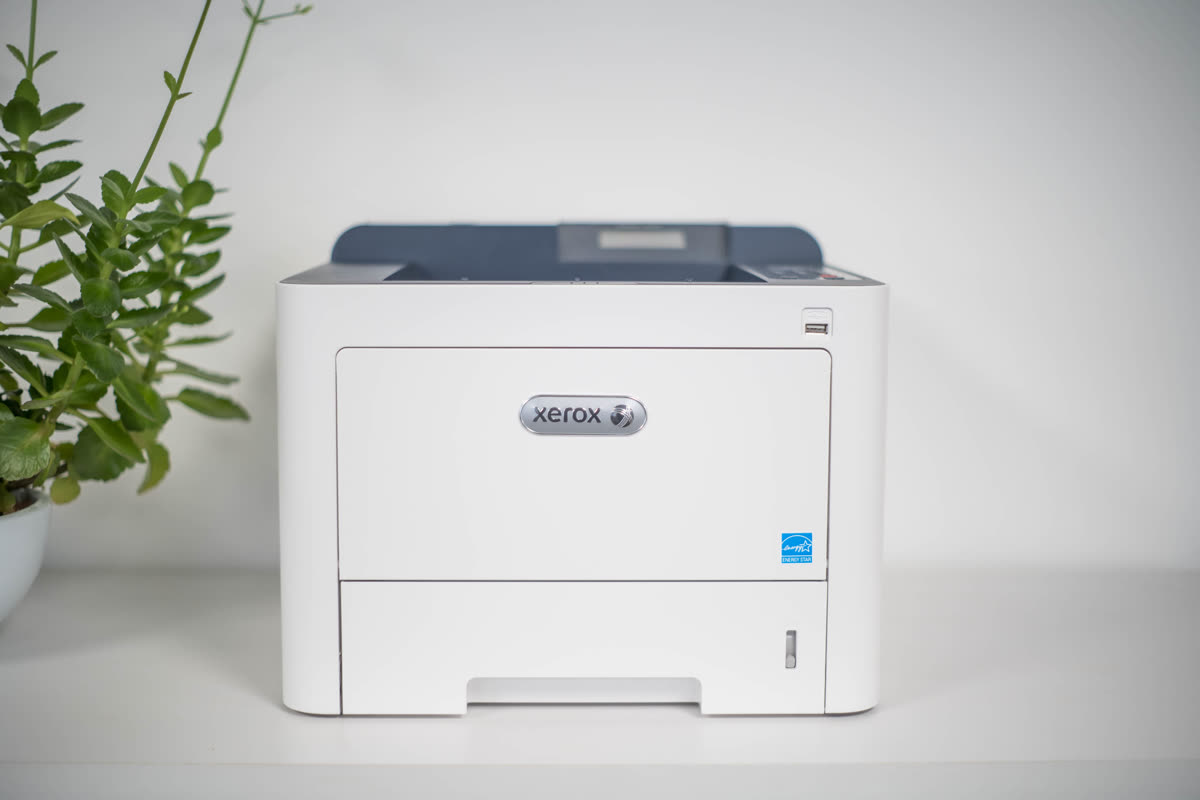
Xerox is the brand most likely to be sitting in an office corridor rather than a spare bedroom. Its current range runs from small colour lasers up to enterprise multifunction devices with finishers, and a large share of its installed base is on managed print contracts rather than retail warranty. That single fact changes almost everything about how you get support.
Xerox also became a much larger printer company in 2025 when it acquired Lexmark. The effects are already visible in the product line and the software, and this page covers both the traditional Xerox ecosystem and what the acquisition means in practice.
Official Xerox support links by region
Xerox runs regional sites with distinct paths, and at least one legacy path now redirects, so use the current address for your country.
| Region | Address | Notes |
|---|---|---|
| United States | xerox.com/en-us | Drivers, supplies, support and contracts |
| United Kingdom | xerox.co.uk/en-gb | UK drivers, supplies and partner network |
| Canada | xerox.ca/en-ca | English and French packages |
| Australia | xerox.com.au | The older en-au path redirects here |
| Lexmark models | support.lexmark.com | Still the driver home for Lexmark-branded hardware |
Xerox software: which tool does what
Smart Start
Smart Start is the guided driver installer for Windows. It discovers the printer, identifies the model and installs the matching driver and scan components without you picking from a list. For a single machine on a home or small office network it is the fastest correct route to a working queue. See our Xerox Smart Start page.
Global Print Driver
The Global Print Driver is a single V3 driver, available in PCL6 and PostScript variants, that can drive a wide span of Xerox models from one package. This is the right tool for a print server, a Group Policy deployment or a mixed-model office where you do not want a driver per device. It is the wrong tool if you need the full scan pipeline from one multifunction machine. Details on our Global Print Driver page.
Xerox Print and Scan Experience
This is the modern application, distributed through the Microsoft Store on Windows and the Mac App Store on macOS. It provides device status, supply levels, scan workflows and printing preferences in a current interface, replacing the older desktop status monitors. It sits alongside the driver rather than replacing it.
Xerox Easy Assist
Easy Assist is the mobile app for iOS and Android covering initial setup, network configuration, supply status and diagnostics. Following the Lexmark acquisition, Easy Assist now also supports Lexmark printers, which is a practical benefit for anyone running a mixed estate.
Xerox Workplace
The Xerox Workplace app handles secure release printing and mobile submission in managed environments. It is a fleet feature rather than something a single-printer owner needs.
Setting up a Xerox printer for the first time
- Remove all packing material from the toner cartridges and the imaging units, seat them properly, and load paper with the tray guides set to the actual paper size.
- Power on and let the machine complete its warm-up and colour registration. Colour multifunction devices take noticeably longer than mono ones.
- Connect by Ethernet if you can. Xerox hardware is designed for wired office networks, and a cable removes an entire class of problems.
- For wireless models, check the band. Smaller Xerox devices are often 2.4 GHz only, while larger ones with an optional wireless kit may support both. A single merged network name is the usual reason the printer never lists your network.
- Use Easy Assist on a phone, or the panel wizard under Device, then Connectivity, then Wi-Fi. WPS is available on models with a wireless menu.
- Print the configuration report from the panel and note the IPv4 address, then open the embedded web server in a browser.
- Set an administrator password in the embedded web server before anything else, then run Smart Start on each computer.
Xerox model families explained
| Family | What the name signals | Best for |
|---|---|---|
| Phaser | Legacy print-only laser line | Older installations; drivers still available but the line is historic |
| WorkCentre | Legacy multifunction line | Established offices; largely superseded by VersaLink |
| VersaLink | Current small to mid workgroup, mono and colour | Small and medium offices wanting app-based device software |
| AltaLink | Current enterprise multifunction with finishing | Large departments and managed fleets |
| PrimeLink and Versant | Light production and production colour | Print rooms, in-house production and commercial work |
| C230 / C235 / C310 / C315 | Compact colour lasers for small offices | Small teams needing colour without a floor-standing device |
| C240 / C245 / C255a / C300 (2026) | Lexmark-derived engines under Xerox branding | Small offices; expect Lexmark-style paper paths and supplies |
Common Xerox faults and messages
| Condition | Meaning in one line |
|---|---|
| Printer offline in Windows | The queue cannot reach the device IP, usually a DHCP change - see printer offline |
| Fault code in the format nnn-nnn | Xerox's standard three-by-three fault code; the first group identifies the subsystem |
| 010-xxx | Fuser and fixing unit faults, often heat-related |
| 016-xxx | Network, controller and software communication faults |
| 093-xxx | Toner and developer supply faults, including unrecognised cartridges |
| Scan to email fails | Almost always SMTP credentials or a provider blocking basic authentication, not the scanner - see scanner not working |
Xerox fault codes are far more granular than consumer brands, and the machine's own panel usually offers a description. Codes across all brands are indexed in our error code directory.
Consumables, click charges and contracts
Xerox supplies are split into toner cartridges, drum or imaging units, waste containers and, on larger machines, fusers and transfer belts. Each has its own page count, so a true cost per page has to include more than toner.
The bigger commercial reality is the click charge. Many Xerox devices are placed under agreements where you pay per page and toner is included. Under such an agreement, fitting third-party toner is usually a contract breach, not just a technical risk, and it can void the service cover. Check your paperwork before making any supply decision.
On outright-purchased machines you have normal freedom, subject to region coding on cartridges. Our neutral guidance is in third-party ink and toner.
Firmware and device management
Xerox firmware is applied through the embedded web server or through fleet tooling, and on managed devices it is often applied remotely by the service provider. Firmware releases regularly include security fixes for the web interface and scan services, so on an office device they matter more than on a home printer. In a fleet, test one device before a broad rollout, particularly where custom scan workflows or address books are in use.
What the Lexmark acquisition changes
Xerox completed its acquisition of Lexmark in 2025, and three consequences already matter to owners. The first is hardware: the 2026 Xerox C240, C245, C255a and C300 series are built on Lexmark-derived engines wearing Xerox badges, so their paper paths, imaging units and error behaviour follow Lexmark conventions rather than the older Xerox designs an experienced technician might expect. The second is software: Xerox Easy Assist has been extended to manage Lexmark printers, pointing at a single tooling direction across both estates. The third is commercial: Lexmark regional websites are redirecting to Xerox ones, with Australia the clearest example, so sales, supplies and contract enquiries for Lexmark hardware increasingly land with Xerox.
For a small office with one Xerox machine, none of this requires action. For anyone specifying hardware or maintaining a mixed estate, it means Xerox and Lexmark should now be evaluated as one supply chain with two badges, and it means driver and manual archives for older Lexmark models are worth keeping locally.
Warranty and official contact channels
Retail Xerox machines carry a manufacturer warranty registered on the regional site. Contract machines are covered by the agreement instead, with its own response times and named provider. Identify which you have before you start: the fastest route to a resolved fault is often simply calling the correct party first.
For outright purchases in the UK and Australia, statutory rights against the retailer run alongside the manufacturer warranty and frequently outlast it.
How this site fits
We are independent and not affiliated with Xerox. We publish vendor-neutral fixes, link to official pages for anything that must come from the manufacturer, and never charge to unlock a fix. Everything we have on this brand is collected on the Xerox brand hub.
Xerox software and drivers
- Xerox Easy Assist
Mobile app for setting up and managing Xerox and Lexmark printers iOS · Android - Xerox Global Print Driver
One Windows driver for a mixed fleet of Xerox devices Windows - Xerox Print and Scan Experience
Modern Windows and Mac app for printing, scanning and device status Windows · macOS - Xerox Smart Start
Tiny Windows bootstrap installer that finds your Xerox printer and installs the right driver Windows - Xerox Workplace app
Mobile printing and secure release for Xerox managed environments iOS · Android
Xerox error codes
Xerox printer models
Grouped by series. Every model page has setup steps, the right cartridge or toner numbers, driver links and the faults owners report.
B series mono laser MFP 4
B series mono laser printer 3
C series color laser MFP 3
Phaser mono laser printer 3
VersaLink color laser MFP 3
AltaLink A3 color MFP 2
VersaLink mono laser MFP 2
WorkCentre color laser MFP 2
WorkCentre mono laser MFP 2
AltaLink A3 mono MFP 1
B series compact mono laser MFP 1
B series compact mono laser printer 1
C series color laser printer 1
C series compact color laser MFP 1
Fuji Xerox DocuPrint color laser MFP (AU/NZ/Asia) 1
Fuji Xerox DocuPrint mono laser printer (AU/NZ/Asia) 1
Phaser color laser printer 1
Phaser compact color LED printer 1
Phaser compact mono laser printer 1
PrimeLink light production color printer 1
VersaLink A3 color MFP 1
VersaLink mono laser printer 1
WorkCentre A3 color MFP 1
WorkCentre compact mono laser MFP 1
No model matches that. Try the model number only, e.g. "2800".
Xerox support FAQ
What is Xerox Smart Start and do I need it?
Smart Start is Xerox's guided driver installer for Windows. It detects the printer on the network or over USB, works out the model, and installs the correct driver and scan components without you choosing from a list. For a single machine it is the fastest correct route. For a managed environment where you deploy drivers centrally, use the Global Print Driver package instead.
What is the difference between Smart Start and the Global Print Driver?
Smart Start is an installer; the Global Print Driver is a driver. The Global Print Driver is a single V3 driver available in PCL6 and PostScript variants that can drive a wide range of Xerox models from one package, which is what you want on a print server or in a mixed-model office. Smart Start typically installs a model-specific driver for one machine.
Is Xerox Print and Scan Experience free?
Yes. It is a free application available from the Microsoft Store on Windows and the Mac App Store on macOS. It gives you device status, supply levels, scan workflows and printing preferences in a modern interface, replacing the older desktop status monitors. It complements rather than replaces the print driver itself.
How do I contact Xerox support in the UK?
Start at xerox.co.uk/en-gb, select your product, and use the support options on that model's page. If your machine is on a managed print or click-charge contract, contact the partner named in your agreement instead, because they hold the service obligation and Xerox general support will redirect you. We do not publish phone numbers because they change by product line.
Does Xerox Easy Assist work with Lexmark printers?
Yes. Xerox extended Easy Assist to support Lexmark printers following the 2025 acquisition. It is a mobile app for iOS and Android that handles initial setup, network configuration, supply status and basic diagnostics. For anyone running a mixed Xerox and Lexmark estate, that unified app is one of the more visible practical benefits of the merger so far.
Can I use compatible toner in a Xerox printer?
On many models yes, but Xerox uses region coding and chipped cartridges extensively, and machines under a click-charge contract are usually supplied with toner as part of the agreement, which makes third-party toner a contract breach rather than just a technical question. On an outright-purchased machine, verify the region code matches before buying, and expect supply level reporting to be less accurate.
Let a printer specialist fix it with you, remotely
Share your screen, we diagnose the driver, Wi-Fi or firmware problem and fix it while you watch. One affordable annual plan covers every printer in your home or office.