Ricoh Printer Support: Drivers, Smart Device Connector and SC Error Codes (Independent Guide)
An independent guide to Ricoh printer support: the global driver hub, the PCL6 Universal Driver, why Smart Device Print&Scan was discontinued, SC service codes, and how contracts change who you call.
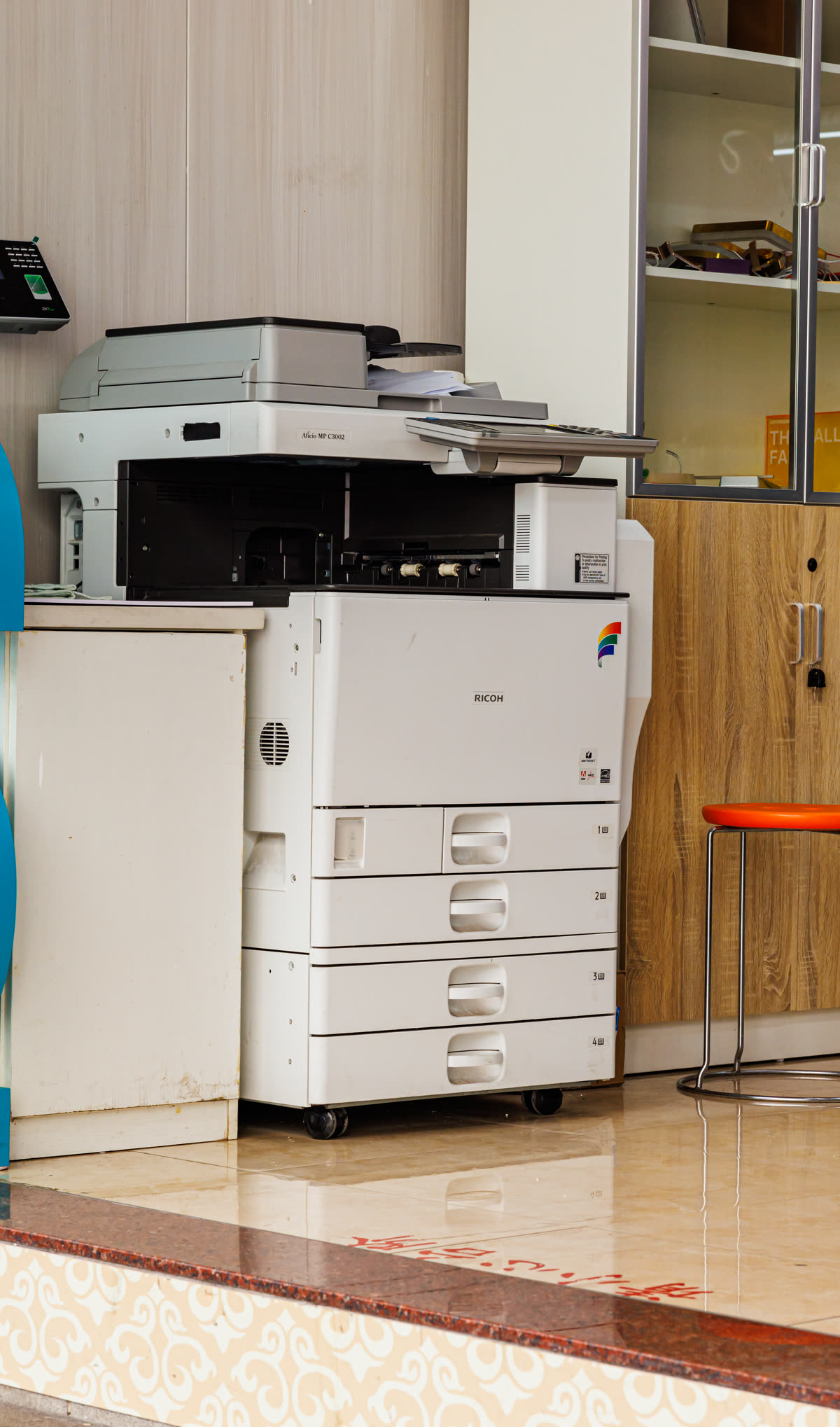
Ricoh is an office-first manufacturer. Its centre of gravity is the multifunction device in a corridor, usually placed by a dealer, usually on a click-charge agreement, and usually supported by an engineer rather than a helpline. It also sells smaller SP and P series lasers that behave much more like conventional printers. Which of those two worlds your device sits in determines almost everything about how you get help.
This page is an independent map of Ricoh support: where drivers actually live, which app is current and which is discontinued, how setup runs, what SC codes mean, and how contracts change the support path.
Official Ricoh support links
Ricoh separates downloads from sales and service in a way most brands do not. Drivers come from one global hub; everything commercial is national.
| Purpose | Address | Notes |
|---|---|---|
| Drivers and firmware | support.ricoh.com | Global hub with a language selector; search by exact model |
| United States | ricoh-usa.com | Sales, service and supplies |
| United Kingdom | ricoh.co.uk | UK sales, managed print and service |
| Canada | ricoh.ca | English and French; national service network |
| Australia | ricoh.com.au | AU sales, dealers and service |
Ricoh software: current and discontinued
PCL6 Driver for Universal Print
This is Ricoh's universal driver, and it is genuinely good. One package drives a wide span of current and recent Ricoh models, which makes print server deployment and Group Policy distribution far simpler than a driver per device. PostScript variants exist where applications demand them. Details on our Ricoh PCL6 Universal Driver page.
Smart Device Connector
Smart Device Connector is the current mobile application for iOS and Android. It handles printing, scanning to the phone, device pairing by Bluetooth or NFC on supported models, and basic device operations. See our Smart Device Connector page.
RICOH Smart Device Print&Scan (discontinued)
This older app has been discontinued and replaced by Smart Device Connector. It still appears in older manuals and in a great many search results, which sends people hunting for an app that is no longer maintained. If your documentation references it, that section is out of date.
Web Image Monitor
Every networked Ricoh exposes Web Image Monitor at its IP address. This is where you set a static address, configure the address book, define scan-to-folder and scan-to-email destinations, read counters and apply security settings. On Ricoh hardware it is unusually capable, and for anyone administering a device it is more useful than any desktop utility.
Setting up a Ricoh device
- Remove all packing material, seat the toner cartridges, and load paper with the tray guides matching the actual paper size. Ricoh trays report size from guide position and will halt on a mismatch.
- Power on and let the device complete warm-up. Larger multifunction devices take several minutes and run a registration cycle on colour models.
- Connect by Ethernet wherever possible. Ricoh office hardware is designed around wired networks, and a cable eliminates a whole class of faults.
- For wireless-capable models, note that smaller SP and P series machines are typically 2.4 GHz only. A merged 2.4/5 GHz network name is the usual reason the device never lists your network.
- Print the configuration page from the panel and note the IPv4 address, then reserve that address in your router or DHCP server.
- Open Web Image Monitor in a browser at that address and set an administrator password before anything else.
- Deploy the PCL6 Universal Driver to computers, or install the model package where scanning is required.
Ricoh model families explained
| Series | What the name signals | Best for |
|---|---|---|
| SP | Compact mono and colour lasers, print or multifunction | Small offices and home offices; behaves like a conventional printer |
| P and M | Current compact A4 printers and multifunction machines | Small workgroups; the modern replacement for much of the SP line |
| IM and IM C | Current intelligent multifunction devices, mono and colour | Offices and departments; the mainstream Ricoh corridor device |
| MP and MP C (legacy) | The previous generation of office multifunction devices | Still widely installed; drivers remain available |
| Pro | Production print | Print rooms and commercial printing |
A trailing C denotes colour, and higher numbers within a family generally mean faster engines and larger paper handling rather than different features.
Ricoh SC codes and common conditions
SC stands for service code. Unlike consumer brands, Ricoh reports faults with a granular scheme aimed at engineers, and the number range tells you roughly which subsystem is complaining.
| Range or message | Meaning in one line |
|---|---|
| SC1xx to SC2xx | Scanner, optics and laser writing unit faults |
| SC3xx to SC4xx | Charge, development and image transfer faults |
| SC5xx | Fusing, drive and paper transport faults, including the common overheat codes |
| SC6xx | Communication and controller interface faults |
| SC8xx to SC9xx | Controller, memory and software faults |
| Original jam in the ADF | Feed roller wear or a document with staples or tape - see paper jam |
| Device offline in Windows | The queue cannot reach the device IP - see printer offline |
Many SC codes latch and require service-level access to clear, which is by design: they signal a condition that should be inspected rather than dismissed. Codes across every brand are indexed in our error code directory.
Scan to folder and scan to email on a Ricoh
These two features generate more Ricoh support calls than every mechanical fault combined, and the scanner is almost never at fault. Scan to folder fails for three recurring reasons. Modern Windows disables the older SMB protocol versions that legacy Ricoh firmware expects, so the device can see the share but cannot negotiate a connection. The account used for the share has a password that expired or was changed. Or the share permissions allow read but not write, which produces a connection that succeeds and a file that never arrives.
The durable fix is to create a dedicated, low-privilege local account on the destination machine with a non-expiring password, give it write access to one specific folder and nothing else, and point the device at that. Never use a personal account or a domain administrator account, because the credentials sit in the device address book in a form that survives disposal.
Scan to email fails for a different reason: mail providers have withdrawn basic authentication. A device that has emailed scans for years will simply stop when the provider disables the legacy login method, and no amount of rebooting the machine changes that. The answer is either a relay that the device can authenticate to, or moving scanning to a folder destination instead.
Consumables, click charges and running costs
Ricoh consumables split into toner, photoconductor units, waste toner bottles, fusers and transfer belts, each with its own yield. A meaningful cost per page has to account for all of them, which is precisely why so many Ricoh devices are placed on click-charge agreements: the provider absorbs that complexity and bills a rate per page.
On a contract device, toner arrives automatically when the machine reports low, and fitting third-party toner is a breach that can void service cover. On an outright purchase you have normal freedom, subject to chip recognition on some models. Our neutral guidance is in third-party ink and toner.
Firmware, security and warranty
Ricoh firmware is applied through Web Image Monitor or by the service provider remotely on managed devices. Because Ricoh multifunction devices store address books, scan destinations and often SMTP or SMB credentials, firmware currency is a security matter rather than a feature question.
Warranty on outright purchases is registered nationally. On contract devices the agreement replaces the warranty entirely and defines response times, so read it before assuming what you are entitled to.
How this site fits
We are independent and not affiliated with Ricoh. We publish vendor-neutral fixes, link to Ricoh's own pages for anything that must come from Ricoh, and never charge to unlock a fix. Everything we have on this brand is collected on the Ricoh brand hub.
Ricoh software and drivers
- RICOH Device Manager NX
Fleet management software for Ricoh devices, with a free Lite edition Windows - RICOH Smart Device Connector
Ricoh's current mobile app for printing, scanning and device control iOS · Android - RICOH Smart Device Print and Scan
Discontinued Ricoh mobile app, replaced by Smart Device Connector iOS · Android - Ricoh PCL6 Driver for Universal Print
Ricoh's universal Windows driver for its printers and multifunction devices Windows
Ricoh error codes
Ricoh printer models
Grouped by series. Every model page has setup steps, the right cartridge or toner numbers, driver links and the faults owners report.
IM A4 mono MFP 3
IM C A3 colour MFP 3
IM C A4 colour MFP 2
M C colour laser MFP 2
P C colour laser printer 2
P mono laser printer 2
SP 200 entry mono laser 2
SP C colour laser printer 2
SP mono laser printer 2
Aficio SP mono laser printer 1
M mono laser MFP 1
MP A3 mono MFP 1
MP C A3 colour MFP 1
SP 200 entry mono MFP 1
SP C A3 colour laser printer 1
SP C colour laser MFP 1
SP mono laser MFP 1
No model matches that. Try the model number only, e.g. "2800".
Ricoh support FAQ
Where do I download Ricoh drivers?
From support.ricoh.com. Ricoh runs a single global driver hub with a language selector rather than separate national download sites, which is unusual and catches people out when they search for a country-specific Ricoh support page. Select your language, search your exact model, and choose your operating system. Regional sites such as ricoh.co.uk handle sales and service rather than downloads.
What happened to RICOH Smart Device Print&Scan?
It has been discontinued. The current mobile application is RICOH Smart Device Connector, which handles printing, scanning, device pairing over Bluetooth or NFC where supported, and basic device operations from iOS and Android. If you find Smart Device Print&Scan referenced in an older manual, treat that section as out of date and install Smart Device Connector instead.
What does an SC code mean on a Ricoh printer?
SC stands for service code. It is Ricoh's fault reporting scheme for office devices, and the number identifies the subsystem: broadly, low numbers relate to scanning and optics, the 300 and 400 ranges to imaging and development, the 500 range to fusing and drive, and the 800 and 900 ranges to the controller and software. Many SC codes require an engineer, and some can only be cleared with service-level access.
Which Ricoh driver should I install?
For a single machine where you also want scanning, install the model-specific package from support.ricoh.com. For an office with several Ricoh devices, or a print server, install the PCL6 Driver for Universal Print, which drives a wide range of models from one package and dramatically simplifies deployment. PostScript variants exist where applications require them.
How do I contact Ricoh support in the UK?
If your device is on a managed print or click-charge contract, contact the service provider named in that agreement, because they hold the response obligation. For outright purchases, start at ricoh.co.uk and use the support options for your product. We do not publish phone numbers because they change and because contract customers should not be calling general support in the first place.
Can I use compatible toner in a Ricoh printer?
On an outright-purchased machine, usually yes, though supply level reporting will be less accurate and some models resist non-Ricoh chips. On a click-charge contract, toner is normally supplied as part of the agreement and fitting third-party toner is a contract breach that can void your service cover. Check the paperwork before making any supply decision on a contract device.
Let a printer specialist fix it with you, remotely
Share your screen, we diagnose the driver, Wi-Fi or firmware problem and fix it while you watch. One affordable annual plan covers every printer in your home or office.