Brother Printer Support: Setup, Drivers, Mobile Connect and Error Codes (Independent Guide)
An independent guide to Brother printer support: regional support.brother.com links, which Brother app is current, deep sleep and offline behavior, toner and drum resets, and the machine error codes decoded.
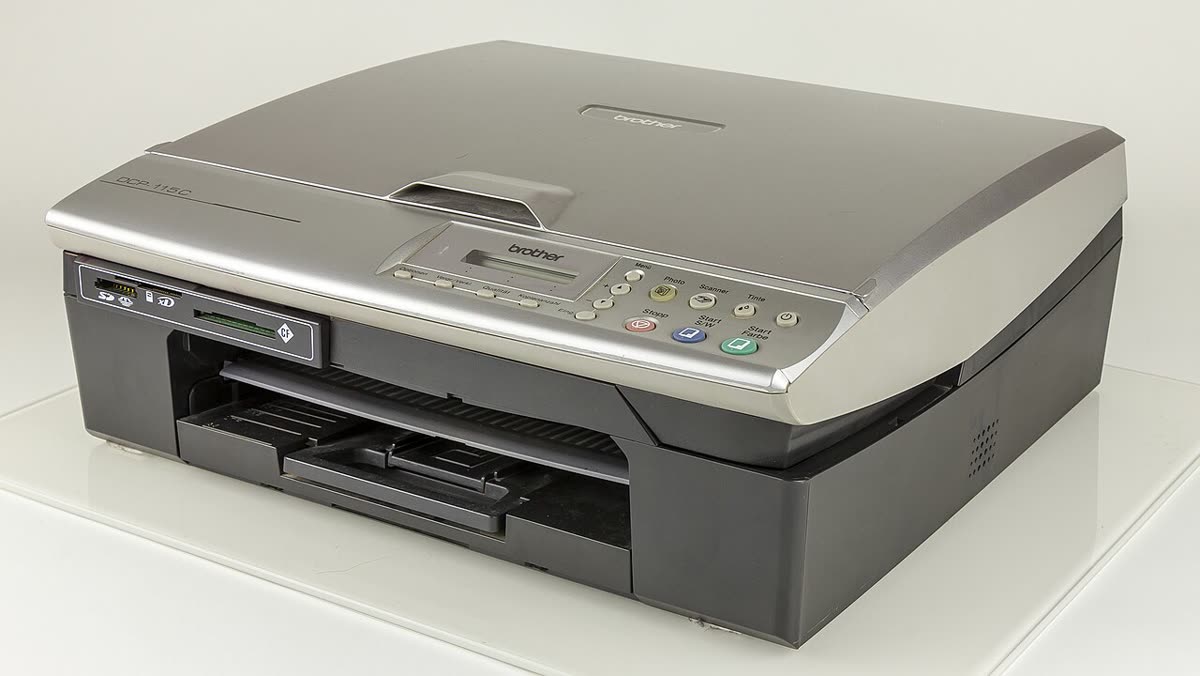
Brother has a reputation among independent technicians for being the least troublesome mainstream printer brand, and broadly that holds. Its mono lasers are simple, its toner is cheap relative to rivals, and it does not lock hardware behind subscriptions or account requirements. What Brother owners do struggle with is a naming mess in its software, a Deep Sleep behaviour that makes healthy printers look offline, and a two-part consumable system where toner and drum are separate.
This page is an independent map of Brother support: the correct regional address, which app is current, how a first setup should run, what the machine error codes mean, and how the consumables actually work.
Official Brother support links by region
Brother runs one global support platform and switches country with a query parameter, so the address looks the same everywhere except for the country code. Getting that code right matters, because model availability, driver builds and warranty terms differ.
| Region | Country code | Support and drivers |
|---|---|---|
| United States | ?c=us | support.brother.com (US) |
| United Kingdom | ?c=gb | support.brother.com (UK) |
| Canada | ?c=ca | support.brother.com (CA) |
| Australia | ?c=au | support.brother.com (AU) |
Brother software: what is current and what is legacy
Brother Mobile Connect
The current mobile app for iOS and Android. It covers wireless setup, printing, scanning, supply status, firmware updates and machine settings. On current models this is the app you want. See our Brother Mobile Connect page.
Brother iPrint&Scan
This name now covers two different things, which is the root of most Brother software confusion. On mobile, iPrint&Scan is the legacy app, still required by older machines that Mobile Connect will not recognise. On the desktop, iPrint&Scan for Desktop is a current Windows and macOS application that gives you scanning, a workflow front end and machine status. Our iPrint&Scan notes separate the two.
Full Driver and Software Package
This is the complete Windows or macOS installer for one specific model, and it is what you want on a computer that needs to scan as well as print. It bundles the print driver, the scan driver, the status monitor and the setup wizard. Brother does not offer a universal consumer driver in the way some rivals do; the package is per model.
ControlCenter4
ControlCenter4 was the older Windows scan and workflow console. It is legacy, and it is not supported on macOS 11 or later. If you have a Mac on a recent macOS and are hunting for ControlCenter, stop; install iPrint&Scan for Desktop instead.
P-touch Editor
For Brother's label printers, P-touch Editor is the design application for Windows and macOS. It is a separate ecosystem from the office printers, with its own driver packages and its own tape consumables.
Setting up a Brother printer for the first time
- Remove the orange transit lock and the packing material from the drum and toner assembly, then reinstall the assembly and load paper.
- Power on and let the machine complete its startup calibration. Colour lasers run a longer calibration than mono models.
- Check your Wi-Fi band. Most Brother machines connect to 2.4 GHz only; a small number of recent business models are dual band. A single merged 2.4/5 GHz network name is the usual reason your network never appears in the list.
- Use the panel wizard, or Mobile Connect. On a machine with a screen, Network, then WLAN, then Setup Wizard, is the most reliable route. On a screenless model, use Mobile Connect over the printer's temporary setup network.
- WPS works well on Brother. Machines with a WPS menu entry pair quickly if your router still exposes a physical WPS button, though many ISP routers now disable it.
- Print the Network Configuration report from the panel and keep the IP address. You will want it later.
- Install the Full Driver and Software Package on each computer that needs to scan.
Brother model families explained
| Prefix | What it means | Best for |
|---|---|---|
| HL | Print-only laser or LED, mono or colour | Anyone who does not need scanning; the cheapest reliable option |
| DCP | Digital Copier Printer: print, scan and copy, no fax | Home users who need a scanner but never a fax line |
| MFC | Multi-Function Centre: adds fax and usually an ADF | Home offices and small businesses |
| MFC-J and DCP-J | The J marks an inkjet rather than a laser | Colour-heavy home printing and INKvestment tank models |
| ADS | Dedicated document scanner, no print engine | Paperless projects and high-volume scanning |
| PT and QL | P-touch label makers and QL label printers | Labelling, shipping labels and asset tagging |
Within lasers, a trailing DW means duplex and wireless, DN means duplex and networked by cable, and a bare model number usually means neither.
Common Brother error messages decoded
| Message | Meaning in one line |
|---|---|
| Unable to Print 46 | Waste toner or ink absorber counter reached its limit - see Unable to Print 46 |
| Unable to Print 30 / 32 / 35 | Carriage, purge or mechanical fault requiring a power cycle and often service |
| Print Unable 4F | Ink system or head fault; sometimes clears after a long power-off rest |
| Replace Toner | Toner counter reached; a genuine cartridge resets it automatically - see Replace Toner |
| Drum End of Life Soon | The separate drum unit is nearing its page count - see drum end of life |
| Machine Error with a code | A hardware condition identified by a two-character code - see machine error codes |
| Paper Jam Rear / Tray / Duplex | The named location tells you which door to open first |
Codes for every brand are indexed in our error code directory.
Consumables, drums and running costs
Brother lasers separate toner from drum. Toner cartridges carry TN codes and are replaced regularly; drum units carry DR codes and typically last through three to five toner cartridges. Some models bundle a starter toner with a much lower yield than the replacements, which makes the first replacement feel premature. High-yield toner is marked with an XL or a higher number in the code and is almost always better value per page.
On the inkjet side, Brother's INKvestment tank models sit between cartridges and true ink tanks: cartridges feed an internal reservoir, giving long intervals between changes without the refilling of a bottle system.
Brother does not require a subscription and does not lock hardware to an account. Where a Brother replenishment service is offered in your market it is optional. That absence of lock-in is one of the strongest practical arguments for the brand.
Firmware and third-party toner
Brother pushes firmware through the driver package, the machine panel and Mobile Connect. Brother has been less aggressive than some rivals about blocking third-party consumables, but firmware has periodically changed how unrecognised cartridges are reported. If you rely on compatibles, consider declining automatic firmware updates and keep one genuine cartridge for diagnosis.
Warranty and official contact channels
Brother's standard warranty is typically one to two years depending on model and market, and business lasers frequently carry a three-year warranty on registration, which is worth doing immediately. Contact options appear on your model's support page once you have selected the correct country. Keep the receipt and photograph the label showing model and serial before the machine is pushed into a corner.
How this site fits
We are independent and not affiliated with Brother. We publish vendor-neutral fixes, link to Brother's own pages for anything that must come from Brother, and never charge to unlock a fix. Everything we have on this brand is collected on the Brother brand hub.
Brother software and drivers
- Brother ControlCenter4
Legacy Brother desktop suite, replaced by iPrint and Scan Windows - Brother Full Driver and Software Package
The complete driver, scanner and utility bundle for a specific Brother model Windows · macOS - Brother Mobile Connect
Brother's current mobile app for setup, printing, scanning and supplies iOS · Android - Brother P-touch Design and Print 2
Mobile label design app for the P-touch CUBE range iOS · Android - Brother P-touch Editor
Label design software for Brother P-touch and QL label printers Windows · macOS - Brother Remote Printer Console
Legacy Windows tool for changing settings on older Brother mono lasers Windows - Brother Web Connect
Cloud services reached from the printer's own touchscreen Web - Brother iPrint and Scan
Desktop print and scan front end that replaces ControlCenter4 on newer Brother models Windows · macOS · iOS
Brother error codes
Brother printer models
Grouped by series. Every model page has setup steps, the right cartridge or toner numbers, driver links and the faults owners report.
HL-L2000 mono laser 9
DCP-T ink tank 7
MFC-L2700 mono laser all-in-one 7
HL-L2400 mono laser 5
MFC-L3700 color LED all-in-one 5
HL-L3000 color LED 4
DCP-J1000 home inkjet (UK/EU) 3
DCP-L2500 mono laser all-in-one 3
DCP-L3500 color LED all-in-one (UK/EU) 3
HL-2200 mono laser 3
HL-L3200 color LED 3
MFC-J1000 inkjet all-in-one 3
MFC-J5000 business inkjet 3
MFC-J6000 INKvestment Tank 3
DCP-L2500 mono laser all-in-one (UK/EU) 2
DCP-L2600 mono laser all-in-one (UK/EU) 2
HL-L2000 mono laser (UK/EU) 2
HL-L5000 business mono laser 2
HL-L6000 business mono laser 2
HL-L8000 business color laser 2
HL-L9400 enterprise color laser 2
MFC-7000 mono laser all-in-one 2
MFC-J400 home inkjet 2
MFC-J4000 INKvestment Tank 2
MFC-J5000 INKvestment Tank 2
MFC-J6000 business inkjet 2
MFC-J800 home inkjet 2
MFC-L2800 mono laser all-in-one 2
MFC-L2800 mono laser all-in-one (UK/EU) 2
MFC-L2900 mono laser all-in-one 2
MFC-L3700 color LED all-in-one (UK/EU) 2
MFC-L5000 business mono laser all-in-one 2
MFC-L8000 business color laser all-in-one 2
MFC-L9600 enterprise color laser all-in-one 2
MFC-T ink tank 2
DCP-7000 mono laser all-in-one 1
DCP-J1800 Print and Cut inkjet (UK/EU) 1
DCP-J4000 compact A3 inkjet (UK/EU) 1
DCP-J500 home inkjet (UK/EU) 1
DCP-J700 home inkjet (UK/EU) 1
DCP-L2600 mono laser all-in-one 1
HL-L2400 mono laser (UK/EU) 1
HL-L2800 mono laser 1
HL-L3200 color LED (UK/EU) 1
HL-L5200 business mono laser 1
HL-L6200 business mono laser 1
HL-L6400 business mono laser 1
HL-L8400 business color laser 1
HL-L9000 business color laser 1
HL-T ink tank 1
INKvestment 1
INKvestment Tank 1
MFC-J1000 All in Box inkjet (UK/EU) 1
MFC-J4000 compact A3 inkjet 1
MFC-J5000 INKvestment 1
MFC-J5000 INKvestment (2026) 1
MFC-J6000 INKvestment 1
MFC-J6000 business inkjet (2026) 1
MFC-J800 INKvestment Tank 1
MFC-J900 INKvestment 1
MFC-J900 INKvestment Tank 1
MFC-L2700 mono laser all-in-one (UK/EU) 1
MFC-L5700 business mono laser all-in-one 1
MFC-L5900 business mono laser all-in-one 1
MFC-L6000 business mono laser all-in-one 1
MFC-L6900 business mono laser all-in-one 1
MFC-L8000 business color laser all-in-one (UK/EU) 1
MFC-L8300 color LED all-in-one (UK/EU) 1
MFC-L8700 business color laser all-in-one 1
MFC-L9000 business color laser all-in-one 1
Work Smart 1
No model matches that. Try the model number only, e.g. "2800".
Brother support FAQ
Is Brother Mobile Connect free?
Yes. Brother Mobile Connect is a free app for iOS and Android covering wireless setup, printing, scanning, supply status and firmware updates. It replaced Brother iPrint&Scan on mobile for current models. Older Brother machines may still need the legacy iPrint&Scan mobile app, and there is also a separate, current iPrint&Scan for Desktop for Windows and macOS, which is a different product with the same name.
How do I contact Brother support in the UK?
Start at support.brother.com with the gb country code, select your model, and use the contact options on that model's support page. Brother routes home, business and labelling products differently and warranty status changes what you are offered. We do not publish phone numbers because they change and because fake Brother support numbers are heavily advertised in search results.
Why does my Brother printer keep going offline?
Deep Sleep is the usual reason. Brother machines drop into a very low power state that stops responding to the discovery protocol Windows uses to check status, so the queue marks it offline even though it is on the network. Reserve a static IP for the printer in your router, add the printer by IP address rather than by discovery, and disable SNMP status in the port configuration.
How do I reset the Brother toner counter after replacing toner?
The method depends on the model. On many HL and DCP machines you open the front cover, hold the Go or Secure button until the LEDs indicate reset, then close the cover. On MFC machines with a screen you usually navigate a hidden reset menu. Brother designs the counter around a physical mechanism inside the cartridge, so a genuine new cartridge normally resets itself and a manual reset is mostly needed with compatibles.
What is the difference between the toner and the drum?
The toner cartridge holds the powder and is replaced often. The drum unit is the photosensitive cylinder that transfers the image and is a separate, longer-life part, typically lasting through several toner cartridges. A Drum End of Life message does not mean the toner is empty, and replacing toner will not clear it. On many Brother models the drum is user-replaceable and inexpensive relative to the machine.
Can I use compatible toner in a Brother printer?
Generally yes, and Brother lasers are among the more tolerant machines for this. Expect toner level reporting to be less accurate and the counter to need a manual reset. The bigger risk is counterfeit toner sold as genuine, which produces poor coverage and can contaminate the drum. Buy from a supplier with a returns policy and keep the packaging until you have printed a few hundred pages.
Let a printer specialist fix it with you, remotely
Share your screen, we diagnose the driver, Wi-Fi or firmware problem and fix it while you watch. One affordable annual plan covers every printer in your home or office.