Epson Printer Support: EcoTank Setup, Drivers, Smart Panel and Error Codes (Independent Guide)
An independent guide to Epson printer support: regional driver links, what Smart Panel, ScanSmart and Epson Connect each do, EcoTank setup, and the error codes and ink pad limits owners hit most.
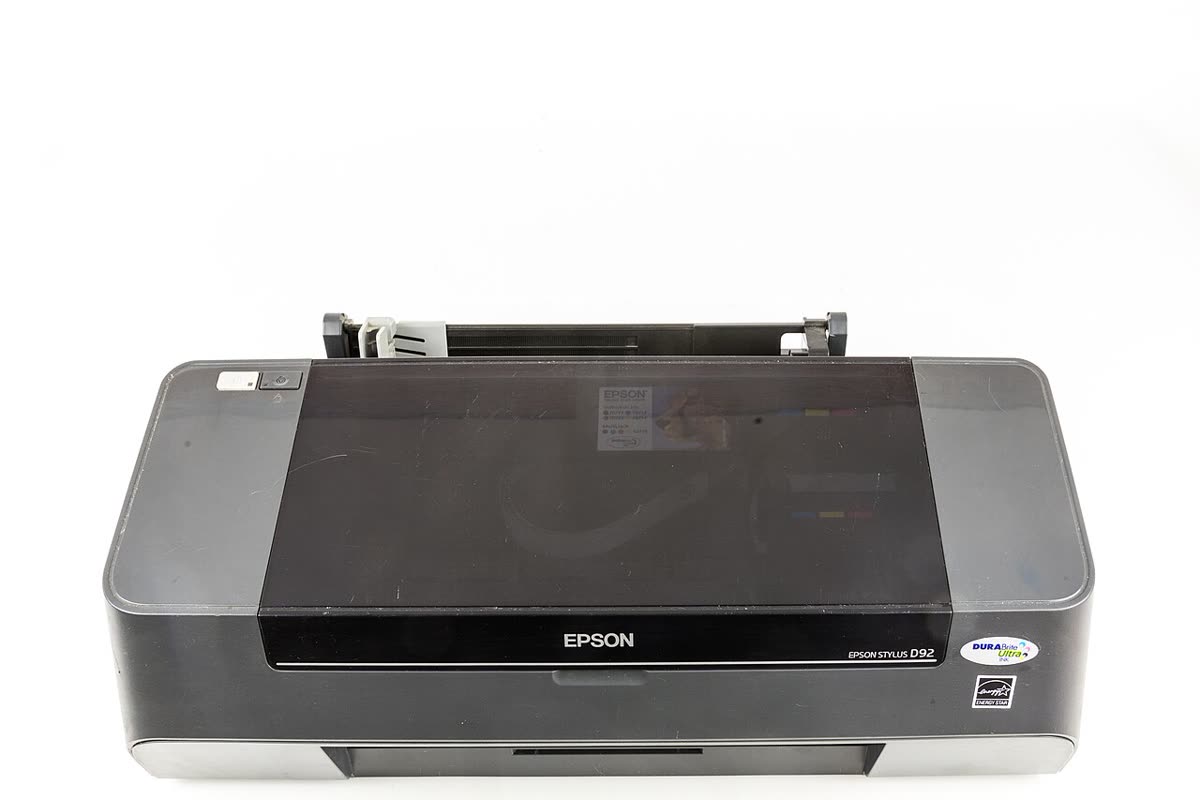
Epson has two very different customer bases. One buys an EcoTank or a comparable ink tank machine specifically to escape cartridge prices, and cares mostly about head maintenance and bottle quality. The other has a WorkForce or Expression cartridge model and mostly wants it to stop going offline. Both hit the same small set of Epson-specific issues: apps that were renamed, a scanning utility that is not a standalone download, and an ink pad counter that eventually stops the printer.
This page is an independent map of Epson support: regional official links, which app is current and which is legacy, how setup should actually go, and what the common error codes mean.
Official Epson support links by region
| Region | Support and drivers | Notes |
|---|---|---|
| United States | epson.com/support | Drivers, manuals, Epson Connect registration |
| Canada | epson.ca | English and French packages, Canadian warranty |
| United Kingdom | epson.co.uk | UK drivers and EcoTank warranty extension |
| Australia | epson.com.au | AU drivers, warranty and repair booking |
Epson software: current versus legacy
Epson Smart Panel
Smart Panel is the current mobile app for iOS and Android. It does wireless setup, printing, scanning, ink and tank level display, nozzle checks and firmware updates. It replaced Epson iPrint for models released in recent years. See our Epson Smart Panel page for what it can and cannot do.
Epson iPrint (legacy)
iPrint is the older mobile app. It is still the correct app for a number of older Epson printers that Smart Panel does not recognise. If Smart Panel installs but insists it cannot find your printer even though the printer is on the network, check whether your model predates Smart Panel support before you start rebuilding your Wi-Fi.
Epson ScanSmart
ScanSmart is the desktop scanning front end for Windows and macOS. The critical point is that it is not a standalone download. It installs from the driver and software package for a specific model. Any site offering a generic ScanSmart installer is not Epson. Our ScanSmart notes explain where it sits relative to Epson Scan 2.
Epson Connect
Epson Connect is a free cloud service, not a paid add-on. It provides Email Print, which gives the printer its own email address, Remote Print for printing from outside the home network, and Scan to Cloud for sending scans to services such as Google Drive or Dropbox. It needs a one-off registration performed through the printer panel or the Epson Connect Printer Setup utility. Full detail on our Epson Connect page.
Epson Software Updater
Installed alongside the driver on Windows and macOS, this keeps drivers, firmware and utilities current. It is also the tool that quietly installs firmware, which matters if you use third-party cartridges.
Setting up an Epson printer for the first time
- Remove all transit tape and, on an EcoTank, fill each tank completely before switching on. Do not switch on a partly filled EcoTank; the initial charging cycle needs full tanks to prime properly.
- Power on and let the initial ink charging complete. On an EcoTank this can take up to twelve minutes and must not be interrupted.
- Load paper. The printer prints an alignment sheet as part of setup.
- Check your Wi-Fi band. Most Epson home models are 2.4 GHz only; several WorkForce Pro and newer EcoTank models are dual band. A single merged 2.4/5 GHz network name is the leading cause of an Epson printer never listing your network.
- Run setup from the phone with Smart Panel, or from the printer panel via Wi-Fi Setup Wizard, or with WPS Push Button Setup if your router still exposes a WPS button.
- Register Epson Connect if you want email or remote printing. This is a separate step from joining Wi-Fi and is easy to miss.
- Install the full driver package on the computer so scanning works. AirPrint or Mopria alone will print but will not give you the scanner.
Epson model families explained
| Family | What the name signals | Best for |
|---|---|---|
| EcoTank (ET) and L series | Refillable bottle-fed ink tanks | Anyone printing regularly who wants the lowest page cost |
| Expression Home (XP) | Compact cartridge inkjet | Very light home use, photos, small footprint |
| Expression Photo (XP-nnnn Photo) | Six-ink dye photo printers | Photo printing and enthusiast colour work |
| WorkForce (WF) | Business cartridge inkjet with ADF | Home offices needing scan, copy, fax and duplex |
| WorkForce Pro (WF-nnnn Pro) | Higher duty cycle, PrecisionCore, high-yield ink | Small offices printing hundreds of pages a month |
| SureColor | Wide format and professional photo or signage | Photographers, studios, sign and textile work |
Common Epson error codes and messages
| Code or message | Meaning in one line |
|---|---|
| 0x97 | Internal hardware fault, usually the mainboard, and rarely economic to repair - see error 0x97 |
| 0xE8 / 0xF1 / 0xEA | Related fatal hardware or firmware faults in the same family as 0x97 |
| W-01 | Paper jam requiring the paper path to be cleared |
| W-11 / W-12 / W-13 | Maintenance or ink pad warnings approaching service limits |
| E-01 / E-10 | Fatal error requiring power cycle and, if repeated, service |
| I-10 / I-41 | Information messages such as a missing paper cassette or misconfigured setting |
| Communication error | The computer and printer lost their network or USB path - see communication error |
| Parts at end of service life | Ink pad or maintenance box counter reached - see ink pad service life |
Every brand's codes are indexed in our error code directory.
Consumables: tanks, cartridges and the maintenance box
An EcoTank's economics only work if you actually print. The tanks hold enough ink for thousands of pages, but pigment black dries in the nozzles when the printer sits unused, and every head cleaning consumes ink and fills the maintenance pad. Printing a colour page once a week is genuinely cheaper than the cleaning cycles an idle printer will need.
On cartridge models, Epson high-capacity cartridges are marked XL and are almost always better value per page than standard ones. Epson also runs subscription-style replenishment in some markets under the ReadyPrint name; where offered it is optional and does not lock the hardware, unlike some rival programmes.
The maintenance box is the modern, user-replaceable version of the ink pad. If your model has one, an end-of-service-life message is a cheap consumable swap. If your model has sealed internal pads, the same message means a service visit.
Firmware and third-party ink
Epson has issued firmware updates that tightened recognition of non-genuine cartridge chips. If you deliberately use compatibles on a cartridge model, decline firmware updates in Epson Software Updater and in the printer panel, and be aware that declining updates also means declining genuine bug fixes.
When an Epson is worth repairing
Epson printers divide cleanly into two repair categories. A WorkForce Pro, a SureColor or a large EcoTank is worth a service visit, because the hardware cost is high and the faults are usually a replaceable pad, a feed roller or a maintenance box. An entry Expression Home or a small EcoTank showing 0x97 or a sealed ink pad limit almost never is, because a workshop visit costs more than a replacement unit. Before you pay for any diagnosis, price the same model new, and ask the workshop for a fixed quote rather than an hourly assessment. A printer that has already had two head cleanings a week for months is telling you the head is at the end of its life, not that it needs one more clean.
Warranty and official contact channels
Standard Epson warranty is typically one year, but registering an EcoTank on the national site within the registration window usually extends it substantially, to three years in several markets. That registration is worth doing on day one and is frequently missed. Keep the receipt and photograph the serial label.
Contact channels appear on your model's page once you select it on your regional site, and what you are offered depends on warranty status and product line.
How this site fits
We are independent and not affiliated with Epson. We publish vendor-neutral fixes, link to Epson's own pages for anything that must come from Epson, and never charge to unlock a fix. Everything we have on this brand is collected on the Epson brand hub.
Epson software and drivers
- Epson Connect
Free Epson cloud service for Email Print, Remote Print and Scan to Cloud Windows · macOS · iOS - Epson Event Manager
Legacy utility that mapped the printer's scan button to an action on the computer Windows · macOS - Epson Label Editor
Design software for Epson LabelWorks label printers Windows · macOS · iOS - Epson Print Layout
Colour-managed photo printing for SureColor photo printers Windows · macOS · iOS - Epson Printer Connection Checker
Windows diagnostic that explains why the computer cannot reach the Epson printer Windows - Epson ScanSmart
Desktop scanning software for Epson scanners and all-in-ones Windows · macOS - Epson Smart Panel
Epson's current mobile app for setup, printing, scanning and ink levels iOS · Android - Epson Software Updater
Keeps Epson drivers, utilities and firmware current on Windows and macOS Windows · macOS - Epson TM Utility
Setup and test utility for Epson TM point-of-sale receipt printers iOS · Android - Epson Universal Print Driver
One Windows driver for a fleet of Epson business printers Windows - Epson iPrint
Epson's legacy mobile print and scan app, kept for older printers iOS · Android
Epson error codes
Epson printer models
Grouped by series. Every model page has setup steps, the right cartridge or toner numbers, driver links and the faults owners report.
EcoTank 43
WorkForce 31
SureColor 23
WorkForce Pro 21
Expression Home 20
Expression Premium 9
Stylus 8
EcoTank Pro 7
Expression Photo 7
Stylus Photo 6
EcoTank Monochrome 4
EcoTank Photo 4
WorkForce Enterprise 2
Stylus Office 1
No model matches that. Try the model number only, e.g. "2800".
Epson support FAQ
Is Epson Smart Panel free?
Yes. Epson Smart Panel is a free app for iOS and Android that handles wireless setup, printing, scanning, ink or tank level display and basic maintenance such as nozzle checks. There is no subscription. Older Epson printers are not supported by Smart Panel and still need the legacy Epson iPrint app, which is why the store listing warns you to check model compatibility before installing.
Where do I download Epson ScanSmart?
From your model's page on your regional Epson support site. Epson does not publish ScanSmart as a standalone universal download; it ships inside the driver and software package for models that support it. If a site offers you a generic ScanSmart installer, it is not Epson. Search your exact model at epson.com/support, epson.co.uk, epson.ca or epson.com.au and take the full software package.
What does 'a part inside your printer is at the end of its service life' mean?
It means the ink pad counter, or on newer models the replaceable maintenance box, has reached its limit. The pad absorbs ink from head cleaning cycles, and Epson stops the printer rather than risk it overflowing. On models with a user-replaceable maintenance box it is a five-minute fix. On sealed models it needs a service visit, and on budget printers the cost usually exceeds the replacement price.
How do I contact Epson support in the UK?
Start at epson.co.uk, find your product, and use the support and contact options on that model's page. Epson UK routes home, business and professional imaging products differently, and warranty status determines what channels you are offered. We do not publish phone numbers here because they change and because fake Epson support numbers are heavily advertised in search results.
Why won't my EcoTank print black when the tank is full?
Almost always a clogged or air-locked print head rather than an ink problem. EcoTanks use pigment black that dries in the nozzles if the printer sits unused for weeks. Run a nozzle check, then one head cleaning, then wait several hours before repeating. Repeated back-to-back cleanings waste ink and fill the maintenance pad faster without improving the result.
Do Epson printers block third-party ink?
Epson cartridge models will warn that a non-genuine cartridge is installed and will not report accurate levels, and firmware updates have periodically tightened chip recognition. EcoTank models have no chip at all, so third-party bottles work, but poor-quality ink is the single biggest cause of the clogged heads that end an EcoTank's life early. Buying bottles from a reputable supplier matters more here than on any other brand.
Let a printer specialist fix it with you, remotely
Share your screen, we diagnose the driver, Wi-Fi or firmware problem and fix it while you watch. One affordable annual plan covers every printer in your home or office.